


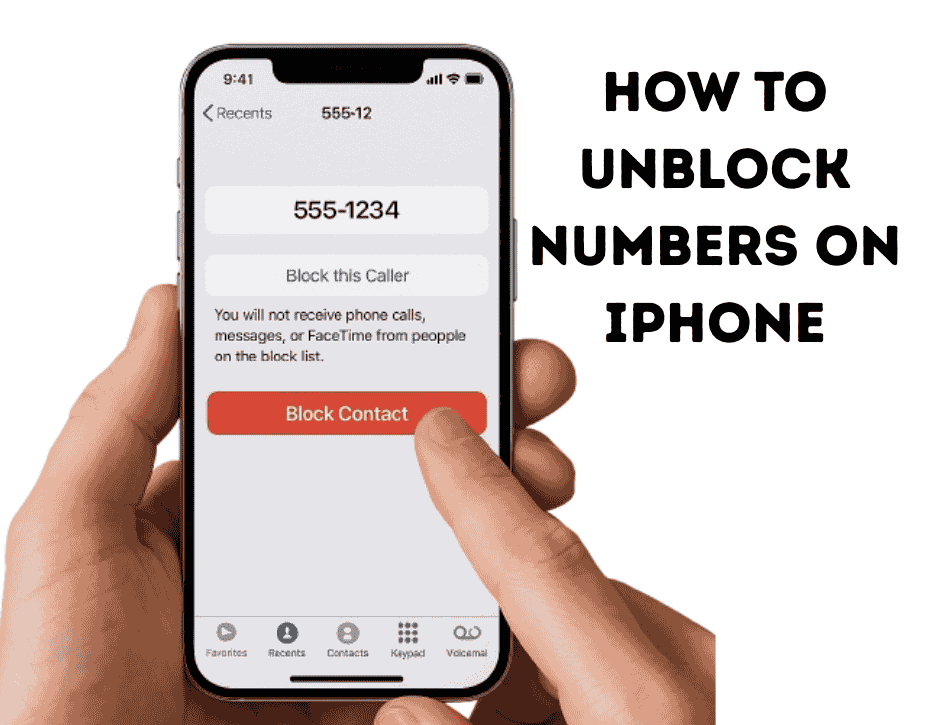
This guide will show you exactly how to unblock numbers on your iPhone, no matter which model you have. We’ll walk you through the simple steps, explain what happens next, and answer all your burning questions. Let’s get you reconnected!
Why Would You Need to Unblock a Number?
Blocking numbers is a great feature for stopping spam calls or unwanted contacts. But sometimes, you need to reverse that decision.
Common reasons include:
- Accidental Blocks: It’s easy to hit the wrong button, especially when you’re in a hurry.
- Making Amends: You might have blocked someone during a disagreement and are now ready to talk again.
- Business Contacts: You may have blocked a number you thought was spam, but it turned out to be an important work-related call.
- Changing Your Mind: Sometimes, you simply change your mind, and that’s perfectly okay!
Whatever your reason, the solution is just a few taps away.
Where to Find Blocked Numbers on Your iPhone?
Before you can unblock someone, you need to know where your iPhone keeps its “naughty list.” All your blocked contacts are stored in one central place within your Settings.
Think of it as a digital penalty box. Every number you’ve blocked from Phone calls, FaceTime, or Messages ends up here. Finding this list is the first step to setting a number free.
How to Unblock Numbers on iPhone: The 5 Quick Steps
This is the easiest and most direct way to manage your blocked list. Follow these five simple steps to unblock anyone.
Here’s how you can find blocked numbers on your iPhone and unblock them:
- Open the Settings App: Find the gray gear icon on your home screen and tap it.
- Scroll and Tap “Phone”: You’ll need to scroll down a bit to find the “Phone” menu. It’s grouped with other Apple apps like Messages and FaceTime.
- Find “Blocked Contacts”: Inside the Phone menu, tap on “Blocked Contacts.” This will show you a complete list of every number and email address you’ve ever blocked.
- Find the Number to Unblock: Scroll through the list to find the contact or number you want to unblock.
- Swipe and Unblock: Gently swipe left on the number or contact’s name. A red “Unblock” button will appear. Tap it, and you’re done!
Alt text: A screenshot of the iPhone Settings menu showing the final step of swiping left on a blocked contact to reveal the red ‘Unblock’ button.
That’s it! The number is now unblocked, and the person can call, text, and FaceTime you again.
Unblocking from Different iPhone Apps
While the Settings menu is the central hub, you can also start the unblocking process from the app where you might have blocked them. However, you will always end up in the same “Blocked Contacts” list.
Unblocking a Number from the Phone App
If you have the person saved as a contact, you can unblock them through their contact card.
- Open the Phone app.
- Tap on Contacts at the bottom.
- Find and tap on the contact you wish to unblock.
- Scroll to the very bottom of their contact card.
- You will see “Unblock this Caller.” Tap it.
This does the same thing as the Settings method, but it can be faster if you know exactly who you’re looking for.
Unblocking a Contact from FaceTime
The process for FaceTime is identical to the Phone app method because they share the same block list.
- Open the FaceTime app.
- Find the person in your recent calls list or search for them.
- Tap the info icon (“i” in a circle) next to their name.
- Scroll to the bottom and tap “Unblock this Caller.”
Unblocking Someone from Messages
Did you block someone directly from an annoying text thread? You can unblock them from there, too.
- Open the Messages app and find the conversation with the blocked person.
- Tap on their name or number at the top of the screen.
- Tap the Info button.
- On the next screen, scroll down and tap “Unblock this Caller.”
Once you unblock them, you can start a new conversation. This is also a good time to learn how to send a voice message on iPhone to quickly catch up with them.
What Happens When You Unblock a Number?
When you unblock a contact, the communication channels are immediately reopened. Here’s what that means:
- They Can Call You: Their phone calls will now ring on your iPhone as usual.
- They Can Text You: You will start receiving their SMS (green bubble) and iMessage (blue bubble) texts again.
- They Can FaceTime You: Their FaceTime calls will come through.
- No Notifications for Past Attempts: You will not receive any texts, missed call notifications, or voicemails that were sent while the number was blocked. That information is lost for good.
- The Person Is Not Notified: The other person will not get an alert saying, “You’ve been unblocked!” They will only know when they successfully contact you.
How to Unblock a Number on iPhone That Is Not Saved
What if you blocked a number that wasn’t in your contacts? No problem! The process is the same. When you go to your Blocked Contacts list (Settings > Phone > Blocked Contacts), the unsaved number will simply appear as a phone number instead of a name.
Just find the number in the list, swipe left, and tap “Unblock.”
A Quick Guide for Different iPhone Models
Many people search for model-specific instructions, like “how to unblock numbers on iPhone 15” or “how to unblock a number on iPhone 11.”
The good news is that the unblocking process is tied to your iOS version, not your iPhone model. The steps have remained consistent for years.
How to unblock numbers on iPhone 15 & iPhone 16 (iOS 17/18)
If you have one of the latest iPhones, you’re likely running iOS 17 or the upcoming iOS 18. The steps outlined in our “5 Quick Steps” section are exactly what you need to do. Apple has kept this core function simple and unchanged.
How to unblock a number on iPhone 14, 13, & 11
Whether you have an iPhone 14, iPhone 13, or an older but still capable iPhone 11, the method is the same. As long as your device is running a recent version of iOS (like iOS 15, 16, or 17), the path remains: Settings > Phone > Blocked Contacts.
The visual layout of the Settings app might have minor changes between iOS versions, but the menu names and the swipe-to-unblock function are identical.
Expert Advice from Apple on Managing Your Block List
It’s always a good idea to refer to the official source. According to Apple’s official support page, managing your block list is a powerful tool for controlling your privacy.
“You can block phone numbers, contacts, and emails on your device. You can also filter iMessages from unknown senders and report iMessages that look like spam or junk.” – Apple Support
This highlights that the block list is a comprehensive tool. When you unblock someone, remember that you are re-enabling communication across all three platforms: calls, messages, and FaceTime. For more details, you can always visit the official Apple Support page on the topic.
Managing your contacts and call settings can make your life much easier. For instance, learning how to forward calls on your iPhone is another great skill for handling your communications efficiently.
Quick Comparison: Unblocking on iPhone vs. Android
Curious about how to unblock numbers on Android? While the goal is the same, the steps are slightly different because Android devices are made by various manufacturers (Samsung, Google, etc.). However, the general idea is similar.
Here’s a simple comparison table:
| Feature | Apple iPhone (iOS) | Google/Samsung (Android) |
| Location | Centralized list in Settings > Phone | Usually found within the Phone or Messages app’s settings. |
| Process | Go to a single “Blocked Contacts” list. | Path can vary, e.g., Phone app > Settings > Blocked numbers. |
| Universality | Same steps for all modern iPhones. | Steps can differ slightly between Samsung, Pixel, etc. |
| Outcome | Unblocks calls, messages, and FaceTime at once. | Unblocks calls and texts. |
While we focus on iPhones, it’s helpful to know the basics if you ever need to help a friend with an Android device.
Frequently Asked Questions (FAQs)
Here are answers to some of the most common questions about unblocking numbers.
How do I unblock someone on my iPhone?
The fastest way is to go to Settings > Phone > Blocked Contacts. Find the number or contact in the list, swipe left on it, and tap the red “Unblock” button.
How can I unblock someone I accidentally blocked?
Don’t panic! The process is the same whether the block was accidental or intentional. Just follow the 5 quick steps mentioned above. Since the person isn’t notified, you can fix the mistake before they even notice.
Will the person know I unblocked them?
No. Your iPhone does not send any notification to the other person when you unblock them. They will only realize they’ve been unblocked when they try to contact you and it goes through successfully.
Can I see the messages or calls I missed while they were blocked?
No. Any iMessages, SMS texts, phone calls, or voicemails that were sent while the contact was blocked are gone forever. Your iPhone doesn’t save them. Once you unblock them, you will only receive new messages and calls.
What if I unblock a number but still don’t receive calls?
This is rare, but a few things could be happening. First, double-check your “Blocked Contacts” list to ensure the number was actually removed. You can also try restarting your iPhone. If the issue persists, check if you have any Focus modes (like Do Not Disturb) enabled that might be silencing their calls.
After you’ve sorted out your contacts, you might want to organize your home screen. A common question is how to unhide an app on your iPhone, which can help you find apps you’ve tucked away.
Conclusion: You’re Back in Touch!
Knowing how to unblock numbers on your iPhone is a simple but essential skill. It gives you full control over who can contact you, allowing you to reverse a decision when needed easily.
To recap, the easiest way is to:
- Go to Settings.
- Tap Phone, then Blocked Contacts.
- Swipe left on the number and tap Unblock.
We hope this guide has made the process clear and straightforward. Now you can reconnect with friends, family, and colleagues without any tech-related stress.
Have you ever had to unblock a number in a funny or interesting situation? Share your story in the comments below!

