


Have you ever bought a used iPhone or prepared for an international trip, only to be hit with a sudden worry: “Is my iPhone actually unlocked?” It’s a common question that can stand between you and the freedom to choose your own phone carrier. If you’re wondering how to see if your iPhone is unlocked, you’ve come to the right place.
That little piece of metal and plastic—the SIM card—is your key to a mobile network. A locked iPhone will only accept a SIM card from a specific carrier, like AT&T or T-Mobile. An unlocked iPhone, on the other hand, is a free agent, ready to work with almost any carrier in the world.
In this guide, we’ll walk you through five simple and quick methods to check your iPhone’s lock status. We’ll also cover what to do if you discover your phone is locked. Let’s get you the answers you need, fast.
What Does “Unlocked iPhone” Actually Mean?
Before we dive into the “how,” let’s quickly cover the “what.” When a phone is “locked,” it means it’s software-restricted to work only on one specific carrier’s network.
- Locked iPhone: You bought your iPhone directly from Verizon on a payment plan. That iPhone will likely only work with a Verizon SIM card until your contract is fulfilled and you request an unlock.
- Unlocked iPhone: You bought your iPhone directly from Apple at full price. This phone is ready to use with a SIM card from T-Mobile, AT&T, Mint Mobile, or even an international carrier when you travel.
Think of it like this: a locked phone is on a leash, while an unlocked phone is free to roam. Knowing your phone’s status is crucial for selling it, switching providers, or using it abroad.
How to See if iPhone is Unlocked: 5 Easy Methods
Ready to find out? Here are the most effective ways to check your iPhone’s status, starting with the simplest.
Method 1: Check in the Settings App (The Easiest Way)
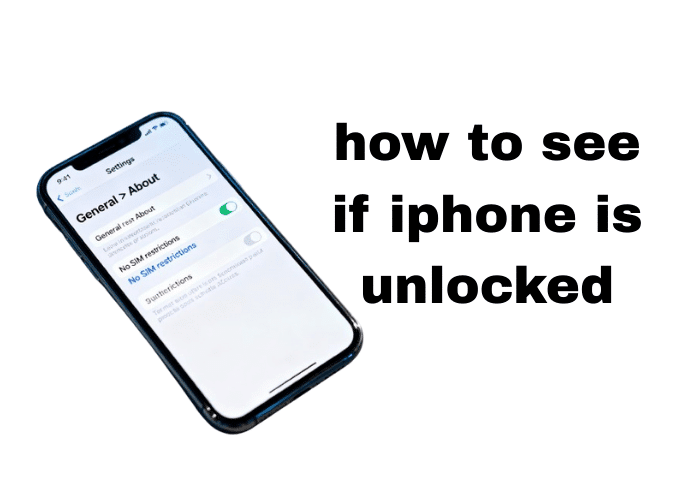
This is the most definitive and quickest way how to check if iPhone is unlocked without a SIM card. Apple built this feature directly into iOS, so you can trust it.
Here’s how to do it:
- Open the Settings app on your iPhone.
- Tap on General, then tap on About.
- Scroll down until you find the section named Carrier Lock (or “Network Provider Lock” on some older iOS versions).
- If it says “No SIM restrictions,” congratulations! Your iPhone is unlocked.
- If it says anything else, like “SIM locked,” your iPhone is tied to a specific carrier.
Key Takeaway: The “No SIM restrictions” message is your golden ticket. It’s the official confirmation from your iPhone that it’s unlocked.
[Image: Screenshot of the iPhone Settings > General > About screen showing “No SIM restrictions.” Alt Text: A screenshot showing how to see if an iPhone is unlocked in the iOS settings menu, with the text “No SIM restrictions” highlighted.]
Method 2: The SIM Card Swap Test
If you’re using an older version of iOS or just want a hands-on confirmation, the SIM card test is a classic. The logic is simple: if a locked phone only works with one carrier, then trying a SIM from a different carrier will tell you everything.
You will need:
- Your iPhone.
- A SIM ejector tool (or a small paperclip).
- A SIM card from a different carrier than the one you’re currently using. (Borrow one from a friend or family member!)
Steps:
- Turn off your iPhone completely by holding the side button and a volume button, then sliding to power off.
- Use the SIM ejector tool to pop open the SIM tray on the side of your iPhone.
- Remove your current SIM card and insert the SIM card from the different carrier.
- Push the tray back into the phone and turn your iPhone back on.
- Wait for it to connect to the new network. Try making a phone call.
If the call goes through and you see the new carrier’s name at the top of the screen, your iPhone is unlocked! If you see an error message like “SIM Not Supported” or “SIM Not Valid,” your iPhone is locked to your original carrier.
Method 3: Use an Online IMEI Checker
Every phone has a unique 15-digit ID number called an IMEI (International Mobile Equipment Identity). You can use this number with online services to find out your phone’s status. This is a great way how to check if iPhone is unlocked IMEI free.
First, find your IMEI:
- Open the Phone app and dial *#06#. Your IMEI will instantly appear on the screen.
- Alternatively, go to Settings > General > About and scroll down to find your IMEI.
Once you have your IMEI, you can use a website like IMEI.info or IMEI24.com. While many offer a basic check for free, they may charge a fee for a detailed “carrier lock” report.
Safety Warning: Be cautious when using third-party IMEI checking websites. Never provide personal information beyond your IMEI. Stick to reputable, well-known services. While many services offer to how to check if iPhone is unlocked IMEI free, a detailed carrier check might have a small fee.
Method 4: Contact the Carrier
So, how to see which carrier your iPhone is locked to? If you suspect your phone is locked, the carrier it’s tied to is the one with the key. Reaching out to their customer support is a direct way to get an answer.
You’ll need your phone’s IMEI number and possibly some account details if you were the original owner. Simply call their customer service line or use their online chat and ask them to check the lock status of the device associated with your IMEI.
This method works best if you know the phone’s history. If you bought it used and don’t know the original carrier, you may need to use an IMEI check first to identify it.
Method 5: Ask Apple Support Directly
When in doubt, go to the source. Apple maintains the master database of every iPhone’s activation and lock status. While they won’t unlock the phone for you (only the carrier can do that), they can definitively tell you if it’s locked or not.
You can contact Apple Support through their website, the Apple Support app, or by scheduling a call. Provide them with your iPhone’s serial number or IMEI, and they can look up its status for you.
As Apple’s official support page states, “Only your carrier can unlock your iPhone.” This confirms they are the gatekeepers of the lock status, but Apple holds the records. This is a very reliable way to find your answer.
My iPhone is Locked! What Now?
Discovering your iPhone is locked can be frustrating, but don’t worry—you have options. This is where we get to the “Fix It” part.
How to Unlock Your iPhone Carrier
If your iPhone is locked to a carrier, you must contact that carrier to request an unlock. Each carrier has its own set of requirements, but they generally include:
- The device must not be reported as lost or stolen.
- The device must be fully paid for.
- The account associated with the device must be in “good standing.”
- The device must have been active on their network for a certain period (e.g., 60 days).
Once you meet the criteria, the process to unlock your iPhone carrier is free. Here are links to the device unlock pages for major U.S. carriers:
What about options for how to unlock iPhone without a carrier? While some third-party services claim they can do this for a fee, they can be risky and may void your warranty. The safest and most reliable method is always to go directly through the carrier.
Unlocking a Passcode is Different
It’s important to clarify one thing. A “carrier lock” is completely different from being locked out of your phone because you forgot your passcode. If you need to unlock an iPhone without the passcode, this involves a factory reset process that erases your data. It does not affect your carrier lock status. While you’re troubleshooting your phone, you might also find it helpful to learn how to screen record on iPhone to show a tech expert your issue or even how to unhide apps on iPhone if you think an application has gone missing.
Expert Insights & Common Myths
With so much information out there, it’s easy to get confused. Let’s clear a few things up.
Expert Quote: According to Apple’s official support documentation, “If you see ‘No SIM restrictions’ in the Settings app…your device is unlocked.” This is the most reliable piece of information you can get directly from your device.
Common Myth: Some online articles mention dialing codes like *#60# on an iPhone. What is *# 60 on iPhone? For most users, nothing. These codes are often specific to certain carriers or regions for particular network features and are not a universal method for checking your lock status. Stick to the methods we’ve outlined above.
Comparison of Checking Methods
| Method | Speed | Reliability | Cost | Notes |
| Settings App | Instant | Very High | Free | The best and easiest method for modern iPhones. |
| SIM Swap Test | 5-10 minutes | Very High | Free | Requires a second SIM card from a different carrier. |
| IMEI Checker | 2-5 minutes | Medium-High | Free to Paid | Free checks can be basic; paid checks are more reliable. |
| Contact Carrier | 5-30 minutes | High | Free | Can be slow due to customer service wait times. |
| Apple Support | 10-30 minutes | Very High | Free | Definitive answer but can take time to connect. |
Frequently Asked Questions (FAQ)
1. Can I tell if my iPhone is unlocked just by looking at it?
No, a carrier lock is software-based. There are no physical differences between a locked and an unlocked iPhone. You must use one of the software or SIM-based methods described above to check its status.
2. How can I check if my phone is unlocked for free?
The two best ways to check for free are by using the Settings app (Settings > General > About > Carrier Lock) and performing the SIM card swap test. Both methods are 100% free and highly reliable.
3. How can I see which carrier my iPhone is locked to?
If the Settings app shows “SIM locked” but doesn’t name the carrier, your best options are to use a paid IMEI checker service for a detailed report, contact Apple Support with the IMEI number, or ask the person you bought the phone from.
4. Does factory resetting an iPhone remove the carrier lock?
No, a factory reset will erase all your personal data (photos, apps, settings), but it will not remove the carrier lock. The lock is tied to the phone’s IMEI number in the carrier’s and Apple’s databases. The only way to remove it is by an official carrier unlock.
5. Is it legal to unlock my iPhone?
Yes. In the United States, it is perfectly legal to unlock your phone once you have fulfilled the terms of your contract and met your carrier’s device unlocking policy requirements.
Conclusion: Your Path to Freedom
Knowing how to see if your iPhone is unlocked is empowering. It gives you the flexibility to switch carriers for a better deal, travel internationally without expensive roaming fees, and increase your phone’s resale value.
To recap, the absolute easiest and most reliable way to check is right in your Settings > General > About. Look for the magical words: “No SIM restrictions.” If you don’t see that, the SIM swap test is your next best bet.
Now that you’re an expert on carrier locks, you can take control of your device. If you’re having other communication troubles, you might wonder how to see unsent messages on iPhone, but that’s a topic for another day. For now, you have the knowledge you need to ensure your iPhone is ready for any network you choose.
Did this guide help you figure out your iPhone’s status? Do you have any other tips? Let us know in the comments below!

