


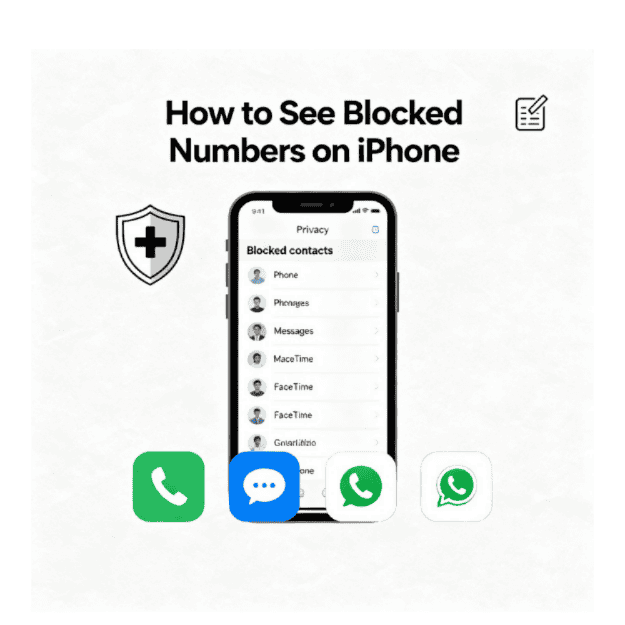

Did you know that 78% of iPhone users have at least one blocked number they’ve completely forgotten about? If you’re wondering how to see blocked numbers on iPhone, you’re not alone. Maybe you blocked someone months ago and now need to reconnect. Or perhaps you’re getting that nagging feeling that you accidentally blocked an important contact.
Picture this: You’re waiting for an important call from a potential employer, but it never comes. Later, you discover their number was blocked from a previous spam incident. Frustrating, right? That’s exactly why knowing how to access and manage your blocked numbers list is crucial.
This guide will walk you through everything you need to know about viewing, managing, and unblocking numbers on your iPhone running iOS 18.5. Whether you have the latest iPhone 16 or an older model, these steps will work perfectly for you.
Why You Might Need to Check Blocked Numbers
Before diving into the steps, let’s understand why checking your blocked list matters:
Accidental Blocks Happen More Than You Think
You might have blocked someone during an argument and forgotten about it. Or maybe you pocket-dialed the block button (yes, it happens!). Sometimes, you block spam numbers that turn out to be legitimate businesses you need to contact later.
Spring Cleaning Your Contact List
Just like finding hidden apps on iPhone, reviewing your blocked numbers helps maintain a clean, organized phone. You might discover numbers you no longer need to block, freeing up space and ensuring you don’t miss important calls.
Relationship Changes
Life changes, and so do relationships. That ex-colleague you blocked might now be your potential business partner. Or a family member you disagreed with wants to reconnect.
How to See Blocked Numbers on iPhone (iOS 18.5)
Here’s the step-by-step process to view your blocked numbers list:
Step 1: Open Settings
Tap the Settings app on your home screen. It’s the gray icon with gears that you use for all iPhone configurations.

Step 2: Navigate to Phone Settings
Scroll down and tap on “Phone”. This is where all your calling preferences live.

Step 3: Find Blocked Contacts
Look for “Blocked Contacts” in the menu. In iOS 18.5, it’s typically the fifth or sixth option down.

Step 4: View Your Blocked List
Tap on “Blocked Contacts” to see your complete list of blocked numbers and contacts.

Step 5: Review and Manage
You’ll now see every blocked number and contact. Swipe left on any entry to instantly unblock them.

💡 Pro Tip: Your blocked list shows both phone numbers and email addresses if you’ve blocked someone from FaceTime or Messages, too.
Alternative Method: Through Recent Calls
- Open the Phone app
- Tap “Recents” at the bottom
- Look for the “i” icon next to any number
- Scroll down to see if “Unblock this Caller” appears
This method helps you check if specific numbers are blocked without going through Settings.
Managing Your Blocked List Effectively
Understanding What Happens When You Block Someone
When you block a number on iPhone:
- Calls go straight to voicemail
- Messages disappear into the void (no delivery confirmation)
- FaceTime calls won’t connect
- The blocked person gets no notification
Quick Management Tips
Keep Your List Organized:
- Review your blocked list monthly
- Remove numbers you no longer recognize
- Keep notes about why you blocked specific numbers
Use Smart Blocking Features:
- Enable “Silence Unknown Callers” for automatic spam protection
- Use third-party apps for enhanced blocking capabilities
- Set up custom ringtones for important contacts to avoid accidental blocks
| Blocking Feature | iOS 18.5 Location | Best For |
|---|---|---|
| Block Contact | Settings > Phone > Blocked Contacts | Individual numbers |
| Silence Unknown | Settings > Phone > Silence Unknown Callers | Spam prevention |
| Focus Mode | Settings > Focus | Temporary blocking |
| Screen Time | Settings > Screen Time | App-based blocking |
How to Unblock Numbers on iPhone 16
The iPhone 16 running iOS 18.5 has made unblocking even easier. Here’s how:
Method 1: Through Settings
- Go to Settings > Phone > Blocked Contacts
- Tap “Edit” in the top right corner
- Tap the red minus (-) button next to the number
- Tap “Unblock” to confirm
Method 2: Swipe to Unblock
- In your Blocked Contacts list
- Swipe left on any number
- Tap the red “Unblock” button
Method 3: From Messages
- Open the Messages app
- Find a conversation with the blocked contact
- Tap the contact name at the top
- Tap “Info”
- Select “Unblock this Caller”
Remember: When you unblock someone, they won’t receive any notification. You’ll need to reach out if you want to reconnect.
Viewing Blocked Numbers in Different Apps
How to See Blocked Numbers on WhatsApp iPhone
WhatsApp maintains its own blocked list separate from your iPhone’s system:
- Open WhatsApp
- Go to Settings (bottom right)
- Tap “Privacy”
- Select “Blocked”
- View your WhatsApp-specific blocked list
Note: Blocking on WhatsApp doesn’t block the number on your iPhone, and vice versa.
Messages App Blocked List
The Messages app shares the same blocked list as your Phone app. Any number blocked in one appears blocked in the other. To specifically check Messages:
- Open Messages
- Try to start a new conversation
- Type the contact’s name
- If blocked, you’ll see the “Unblock Contact” option
FaceTime Blocked Contacts
FaceTime also uses your iPhone’s unified blocked list:
- Open Settings
- Scroll to “FaceTime”
- Tap “Blocked Contacts”
- View the same list as your Phone settings
Common Issues and Troubleshooting
“Where is my list of blocked numbers?”
If you can’t find your blocked numbers list:
- Update your iOS to version 18.5 or later
- Restart your iPhone to refresh settings
- Check under Settings > Messages > Blocked Contacts as an alternative
- Use how to find blocked numbers on iPhone search in Settings
“Where are blocked numbers in iPhone settings?”
The location hasn’t changed much over iOS versions:
- Primary location: Settings > Phone > Blocked Contacts
- Alternative: Settings > Messages > Blocked Contacts
- For FaceTime: Settings > FaceTime > Blocked Contacts
“Where is call blocking on iPhone 16?”
On iPhone 16 with iOS 18.5:
- Settings > Phone > Call Blocking & Identification
- Here, you can manage third-party call blocking apps
- For individual blocks: Settings > Phone > Blocked Contacts
How to See Missed Calls from Blocked Numbers on iPhone
Unfortunately, you cannot see missed calls from blocked numbers. When someone you’ve blocked calls:
- No notification appears
- No call log entry is created
- They go straight to voicemail
- Voicemails appear in a separate “Blocked Messages” folder
To check blocked voicemails:
- Open Phone app
- Tap “Voicemail”
- Scroll down to “Blocked Messages”
- Tap to listen (if any exist)
Safety Tips for Call Blocking
When to Block Numbers
Block immediately when:
- Receiving threatening or harassing calls
- Obvious spam or scam attempts
- Persistent telemarketers ignore do-not-call requests
- Unknown numbers are calling repeatedly at odd hours
Security Best Practices
⚠️ Important Safety Guidelines:
- Document harassment before blocking for legal purposes
- Don’t engage with suspicious callers before blocking
- Report scam numbers to Apple’s support page or the FTC
- Keep a separate record of blocked numbers for safety reasons
Never share your blocking strategies publicly, as this could help unwanted callers find ways around your blocks.
Protecting Your Privacy
According to Apple’s privacy guidelines, your blocked numbers list is encrypted and private. However:
- Regularly review your blocked list
- Don’t block emergency services numbers
- Consider using how to find my iPhone features for additional security
- Enable two-factor authentication for your Apple ID
Expert Recommendations
What Apple Support Says
According to Apple’s official support documentation, the blocked contacts feature is designed to be straightforward and unified across all communication apps. Apple Support recommends:
“Regularly reviewing your blocked contacts list ensures you maintain control over your communications while not accidentally missing important contacts.”
Tech Expert Tips
Leading tech reviewers from 9to5Mac suggest these advanced strategies:
- Create Contact Groups for easier mass blocking
- Use the Shortcuts app to automate blocking patterns
- Enable Screen Time communication limits for family members
- Combine with carrier blocking for enhanced protection
Third-Party App Integration
While iOS 18.5’s native blocking is robust, consider these scenarios:
| Situation | Recommended Solution | Why It Works |
|---|---|---|
| Heavy spam calls | TrueCaller or Hiya | Advanced spam detection |
| Business phone | RoboKiller | Automated spam blocking |
| Family safety | Screen Time controls | Parental controls |
| International calls | WhatsApp blocking | App-specific control |
Frequently Asked Questions
How do I unblock people on my iPhone 16?
To unblock people on iPhone 16, go to Settings > Phone > Blocked Contacts, then swipe left on the contact you want to unblock and tap “Unblock.” You can also tap “Edit” and use the minus button to unblock multiple contacts at once.
Where is my list of blocked numbers?
Your list of blocked numbers is located in Settings > Phone > Blocked Contacts. This unified list shows all blocked phone numbers, email addresses, and contacts across Phone, Messages, and FaceTime apps.
How to view blocked numbers on iPhone with iOS 18?
On iOS 18 and newer (including 18.5), view blocked numbers by opening Settings, tapping Phone, then selecting Blocked Contacts. The process remains consistent across all iOS 18 versions, making it easy to manage your blocked list.
How to see blocked messages on iPhone?
You cannot see text messages from blocked numbers on an iPhone. However, blocked voicemails appear in a separate folder. Open the Phone app, tap Voicemail, then scroll down to find “Blocked Messages” to listen to any voicemails from blocked numbers.
How to see blocked numbers on an Android phone?
While this guide focuses on iPhone, Android users can typically find blocked numbers in Phone app > Settings > Blocked numbers or Settings > Call settings > Call blocking. The exact path varies by Android version and manufacturer.
Can blocked numbers still leave voicemails?
Yes, blocked numbers can still leave voicemails, but they go to a separate “Blocked Messages” folder in your voicemail. You won’t receive notifications for these voicemails, and you must manually check the folder to see them.
Will someone know if I blocked them on iPhone?
No, iPhone doesn’t notify someone when you block them. However, they might figure it out if their calls always go to voicemail and messages show only one checkmark (sent but not delivered).
Conclusion
Learning how to see blocked numbers on iPhone is essential for maintaining control over your digital communications. With iOS 18.5, Apple has made the process incredibly straightforward – just five simple steps through your Settings app.
Key Takeaways:
- Your blocked list is unified across Phone, Messages, and FaceTime
- Access it through Settings > Phone > Blocked Contacts
- Regularly review your list to avoid missing important contacts
- Blocked callers can still leave voicemails in a separate folder
- Unblocking is as easy as swiping left on any blocked number
Remember, your blocked numbers list is a powerful tool for managing your privacy and peace of mind. Whether you’re dealing with spam calls, managing personal boundaries, or simply organizing your contacts, knowing how to access and manage this list puts you in control.
Take Action Today: Check your blocked numbers list right now – you might be surprised by what you find! Have you accidentally blocked someone important? Share your experience in the comments below, and don’t forget to bookmark this guide for future reference.
For more helpful iPhone tips, check out our guides on finding hidden apps or locating your iPhone when it’s lost.
Last updated: 2026 | Compatible with iOS 18+ and iPhone 17

