


Is your iPhone acting sluggish, freezing, or draining battery faster than usual? Learning how to restart iPhone is one of the simplest yet most powerful troubleshooting techniques every iPhone user should master. Whether you own the latest iPhone 16 or an older iPhone 6, knowing the correct restart method for your model can solve countless issues in seconds.
You might be surprised to learn that a simple iPhone restart can resolve up to 70% of common software glitches without losing any of your data. From unresponsive apps to connectivity problems, restarting your device clears temporary files and refreshes your system. In this complete guide, you’ll discover every method to restart your iPhone, including standard restarts, force restarts when your screen is frozen, and alternative techniques when buttons aren’t working.
This guide covers all iPhone models from iPhone 6 through iPhone 16 Pro Max, ensuring you’ll find the exact steps for your device.
Why You Need to Restart Your iPhone
Before diving into the how to restart iphone methods, let’s understand why this simple action is so powerful for your device’s health.
Performance Benefits of Regular Restarts
Restarting your iPhone delivers immediate performance improvements by clearing your device’s RAM and closing background processes. Think of it as giving your iPhone a fresh start—similar to how you feel after a good night’s sleep.
Here’s what happens when you restart:
- Your iPhone’s memory gets cleared of temporary files and cached data
- Background apps that were consuming resources get properly closed
- System processes reset, improving overall responsiveness
- Heat buildup around your hardware dissipates, cooling your device naturally
Expert Tip: According to Apple Support, restarting your iPhone is the first troubleshooting step recommended for most software-related issues.apple
Common Problems That Restarting Fixes
Your iPhone restart can resolve numerous frustrating issues you encounter daily:
- Frozen or unresponsive touchscreen that won’t register your taps
- Apps crashing repeatedly or refusing to open
- Slow performance and laggy animations
- Wi-Fi or Bluetooth connectivity problems
- Battery draining faster than normal
- Camera not working or showing a black screen
- Audio issues like no sound or distorted volume
If you’re experiencing any of these issues, try our How to iPhone Backup to PC guide first to secure your data before troubleshooting further.
How to Restart iPhone (Standard Method)
The standard iPhone restart method is what you’ll use for routine maintenance or when your device is responding normally. The steps vary depending on your iPhone model, so find yours below.
How to Restart iPhone 16, 15, 14, 13, 12, 11, and X
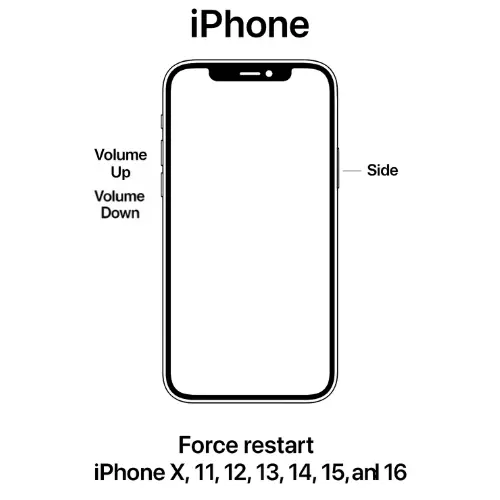
For all Face ID models including the iPhone 16 series, follow these steps:
Step 1: Press and hold either Volume button (up or down) and the Side button simultaneously.
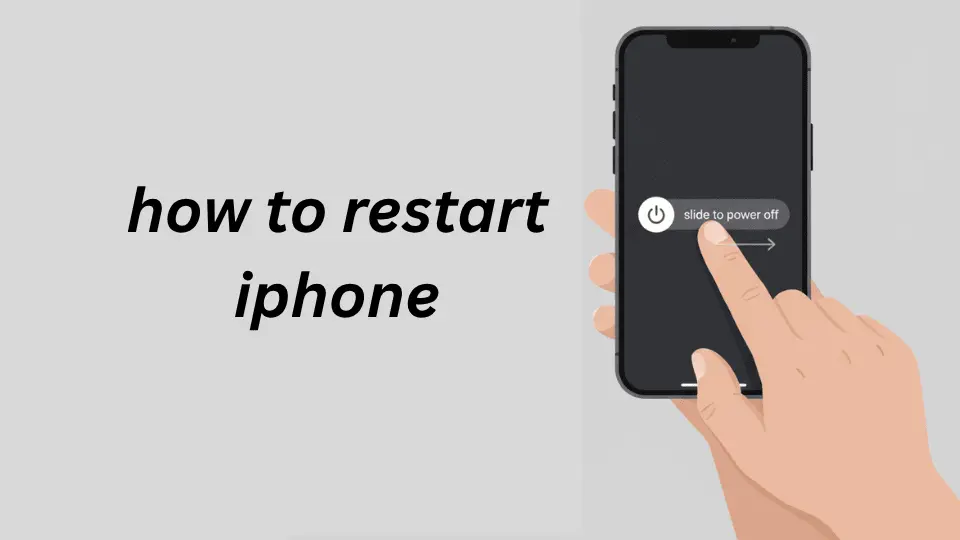
Step 2: Keep holding both buttons until the “slide to power off” slider appears on your screen.
Step 3: Drag the slider from left to right to power off your iPhone.
Step 4: Wait 30 seconds after your screen goes completely black.
Step 5: Press and hold the Side button again until you see the Apple logo.
Step 6: Release the button and wait for your iPhone to boot up.
Important Note: The Side button is the large button on the right edge of your iPhone.macrumors
How to Restart iPhone SE (2nd/3rd Gen), iPhone 8, 7, and 6
For iPhone models with a Home button or older designs, the process differs slightly:
For iPhone SE (2020/2022), iPhone 8:
Step 1: Press and hold the Side button until the power-off slider appears.
Step 2: Drag the slider to turn off your iPhone.
Step 3: Wait 30 seconds, then press and hold the Side button until the Apple logo appears.
For iPhone 7 and 7 Plus:
The iPhone 7 uses the same restart method as iPhone 8, but the force restart differs (covered in the next section).
For iPhone 6s and earlier:
Step 1: Press and hold the Top button (on iPhone 5/5s/SE 1st gen) or Side button (on iPhone 6/6s).
Step 2: Drag the power-off slider when it appears.
Step 3: After 30 seconds, press and hold the same button until you see the Apple logo.
Quick Reference Table: How to Restart Any iPhone
| iPhone Model | Buttons to Hold | Wait Time |
|---|---|---|
| iPhone 16 all models | Volume + Side button | 30 seconds |
| iPhone 15 all models | Volume + Side button | 30 seconds |
| iPhone 14 all models | Volume + Side button | 30 seconds |
| iPhone 13 all models | Volume + Side button | 30 seconds |
| iPhone 12 all models | Volume + Side button | 30 seconds |
| iPhone 11 all models | Volume + Side button | 30 seconds |
| iPhone X, XS, XR | Volume + Side button | 30 seconds |
| iPhone SE (2nd/3rd) | Side button only | 30 seconds |
| iPhone 8, 8 Plus | Side button only | 30 seconds |
| iPhone 7, 7 Plus | Side button only | 30 seconds |
| iPhone 6s and earlier | Top or Side button | 30 seconds |
How to Force Restart iPhone When Frozen
When your iPhone screen is frozen and completely unresponsive, a force restart iPhone (also called hard reset iPhone) is your solution. This method works even when your touchscreen won’t respond at all.
What Is a Force Restart?
A force shutdown iPhone is different from the standard restart. It bypasses the normal shutdown process and immediately reboots your device by interrupting the power supply to the system.
Important: A force restart is completely safe and won’t delete your data, photos, or apps. However, any unsaved work in open apps may be lost.
How to Force Reset iPhone 8 and Later (Including iPhone 16)
For all modern iPhones including iPhone 16, iPhone 15, iPhone 14, iPhone 13, iPhone 12, iPhone 11, iPhone X, iPhone XS, iPhone XR, and iPhone 8, use this three-button sequence:
Step 1: Quickly press and release the Volume Up button.
Step 2: Quickly press and release the Volume Down button.
Step 3: Press and hold the Side button until the screen goes black and the Apple logo appears (this takes about 10-20 seconds).
Step 4: Keep holding the Side button even when you see the “slide to power off” slider—ignore it completely.
Step 5: Release the Side button only when the Apple logo appears.
Critical Warning: Do NOT release the Side button when the power-off slider appears. Keep holding until you see the Apple logo.discussions.apple
This force restart sequence works identically on all Face ID iPhones and iPhone 8 models.
How to Hard Restart iPhone 7 and 7 Plus
The iPhone 7 series uses a different button combination for force restart:
Step 1: Press and hold the Volume Down button and the Side button (Sleep/Wake button) simultaneously.
Step 2: Continue holding both buttons for about 10 seconds.
Step 3: Release both buttons when the Apple logo appears.
How to Force Shut Down iPhone 6s and Earlier
For older iPhone models with a Home button:
Step 1: Press and hold the Home button (on the front of your iPhone).
Step 2: While holding the Home button, also press and hold the Sleep/Wake button (top or side button).
Step 3: Keep both buttons pressed for about 10 seconds until you see the Apple logo.
Step 4: Release both buttons simultaneously when the logo appears.
If your iPhone still won’t respond after a force restart, you may need to perform a full system reset—check our guide on How to Reset iPhone for detailed instructions.
Alternative Methods to Restart Your iPhone
Sometimes your iPhone’s physical buttons aren’t working properly, or you prefer a software-based approach. Here are alternative ways to reboot iPhone without using buttons.
How to Restart iPhone Through Settings
This method works perfectly when your touchscreen is responsive but your buttons are broken:
Step 1: Open the Settings app on your iPhone.
Step 2: Scroll down and tap General.
Step 3: Scroll to the bottom and tap Shut Down.
Step 4: Drag the power-off slider from left to right.
Step 5: Wait 30 seconds after your screen goes black.
Step 6: Press and hold the Side button to turn your iPhone back on.
This soft reset iPhone method is gentler on your device and perfect for scheduled restarts.
How to Restart iPhone Without Touchscreen Using AssistiveTouch
When your screen is cracked or partially unresponsive, AssistiveTouch provides an on-screen button alternative:
Setting Up AssistiveTouch:
Step 1: Go to Settings > Accessibility.
Step 2: Tap Touch > AssistiveTouch.
Step 3: Toggle AssistiveTouch to ON (the switch turns green).
Step 4: A floating button appears on your screen.
Using AssistiveTouch to Restart:
Step 1: Tap the AssistiveTouch floating button.
Step 2: Tap Device > More.
Step 3: Tap Restart.
Step 4: Confirm by tapping Restart again.
This method is especially helpful if you’ve damaged your physical buttons or if you need to learn How to Turn Off iPhone Without Screen.
What Happens When You Restart Your iPhone
Understanding what occurs during an iphone reboot helps you appreciate why this simple action is so effective.
The Technical Process Behind iPhone Restart
When you restart your iPhone, several important processes happen simultaneously:
Memory Clearing: Your iPhone’s RAM (Random Access Memory) gets completely cleared of temporary data and app caches. This frees up memory that was occupied by closed apps still lingering in the background.
Process Termination: All background processes, including those you didn’t know were running, get properly terminated. This prevents rogue processes from consuming battery or causing conflicts.
Temperature Regulation: Heat buildup around your iPhone’s processor and internal components dissipates naturally during the restart period. This cooling effect can noticeably improve performance.
System Refresh: iOS reloads its core system files and resets network connections, which often resolves connectivity issues.
Does Restarting Delete Your Data?
No, restarting your iPhone never deletes your personal data. Your photos, messages, contacts, apps, and settings remain completely safe. The only thing you might lose is unsaved work in apps that were open during a force restart.
Apple Clarification: According to Apple Support documentation, both standard restarts and force restarts are safe procedures that don’t affect your stored data.apple
If you’re concerned about data loss for other reasons, learn How to Screen Record on iPhone to document important information before troubleshooting.
How Often Should You Restart Your iPhone?
While there’s no strict rule, restarting your iPhone once per week provides optimal performance benefits without interrupting your workflow too frequently. However, recent testing by tech experts suggests that daily restarts may actually slow down your iPhone initially due to memory cache clearing.
A balanced approach works best: restart when you notice performance issues, or schedule weekly restarts during times you’re not actively using your device.
Troubleshooting: When Restarting Doesn’t Work
Sometimes an iPhone restart alone won’t solve your problem. Here’s what to try next.
iPhone Won’t Restart or Stays Frozen
If your iPhone frozen won’t restart even after attempting a force restart multiple times:
Try these steps:
- Charge your iPhone for at least 30 minutes using an Apple-certified cable and adapter
- Attempt the force restart again while connected to power
- Try a different charging cable in case your current one is faulty
- Connect your iPhone to a computer and use Recovery Mode (detailed in 9to5Mac’s guide)
Screen Stays Black After Restart
If your iPhone’s screen remains black even though you hear sounds or feel vibrations:
- Press the Side button to wake the display
- Check that your screen brightness isn’t set to minimum
- Try a force restart again following the exact button sequence
- Visit Apple Support’s troubleshooting page for unresponsive iPhone screensapple
When to Use Recovery Mode or DFU Mode
For severe software issues that restarting can’t fix, you may need advanced recovery options:
Recovery Mode is useful when:
- Your iPhone is stuck in a boot loop (constantly restarting)
- iOS update installation failed
- Your device won’t progress past the Apple logo
DFU (Device Firmware Update) Mode is the deepest restore option for:
- Complete system corruption
- Failed recovery mode attempts
- Preparing for device trade-in or sale
You can find detailed instructions for both methods on 9to5Mac’s iPhone 16 recovery guide.
Consider a Factory Reset as Last Resort
If nothing else works, a factory reset returns your iPhone to its original state. Warning: This erases all your data, so back up first. Learn the complete process in our detailed guide: How to reset an iphone factory settings.
Frequently Asked Questions
How do I force restart my iPhone?
To force restart your iPhone, use the appropriate button sequence for your model. For iPhone 8 and newer (including iPhone 16): quickly press Volume Up, quickly press Volume Down, then press and hold the Side button until the Apple logo appears. For iPhone 7: press and hold Volume Down + Side button simultaneously. For iPhone 6s and earlier: press and hold Home + Power button together.
How do I reset my iPhone if it is unresponsive?
If your iPhone is unresponsive, perform a force restart using the button combination for your specific model. This works even when your touchscreen is completely frozen. Press Volume Up (quickly), Volume Down (quickly), then hold the Side button for 10-20 seconds on iPhone 8 or newer models. The Apple logo will appear, indicating the restart was successful.
What happens if I restart my iPhone?
When you restart your iPhone, the device clears its RAM, closes all background processes, and refreshes system services. This improves performance by eliminating temporary files and resolving minor software glitches. Your personal data—including photos, messages, contacts, and apps—remains completely safe. Only unsaved work in currently open apps might be lost. The restart process also helps cool your device and can extend battery life.
How can I manually restart my iPhone?
You can manually restart your iPhone using three methods: (1) Button method: Press and hold Volume + Side button, slide to power off, wait 30 seconds, then press Side button to restart. (2) Settings method: Go to Settings > General > Shut Down, slide to power off, then press Side button to restart. (3) AssistiveTouch: Enable AssistiveTouch in Accessibility settings, tap the floating button, select Device > Restart. Choose the method that works best based on your button functionality.
Why do you force restart an iPhone?
You force restart an iPhone when the device is completely frozen, unresponsive, or stuck on a specific screen. This emergency restart method bypasses the normal shutdown process to immediately reboot your device. Common situations requiring a force restart include: apps that won’t close, frozen touchscreen, device stuck on Apple logo, or black screen with no response. Unlike a standard restart, the force restart works without needing touchscreen input.
Will restarting my iPhone delete my data?
No, restarting your iPhone will never delete your data. All your photos, videos, messages, contacts, apps, settings, and other personal information remain completely safe during both standard restarts and force restarts. The only potential loss is unsaved work in apps that were actively running when you restarted. For complete data erasure, you would need to perform a factory reset, which is an entirely different process.
How do I put iPhone in restart mode?
To put your iPhone in restart mode, use the standard shutdown sequence: Press and hold Volume button + Side button until “slide to power off” appears. Drag the slider to shut down your iPhone. After 30 seconds, press and hold the Side button until the Apple logo displays. If you meant Recovery Mode (different from restart), you’ll need to connect to a computer and follow specific button sequences detailed in Apple’s official support documentation or 9to5Mac’s comprehensive recovery guide.
What’s the difference between restart and reset?
Restart (or reboot) simply turns your iPhone off and back on, clearing temporary memory and refreshing the system without affecting your data. Reset can mean several things: “Reset All Settings” removes your preferences but keeps your data, while “Factory Reset” (erase all content and settings) returns your iPhone to its original state and deletes everything. A restart is a routine maintenance action, while a reset is a more drastic troubleshooting measure.
Conclusion
Mastering how to restart iPhone is an essential skill that empowers you to solve most software issues independently. Whether you’re dealing with a frozen screen, slow performance, or connectivity problems, the right restart method—standard, force, or alternative—can restore your device to optimal functionality in seconds.
Remember these key takeaways:
- Standard restarts are perfect for routine maintenance and when your iPhone is responsive
- Force restarts solve frozen or completely unresponsive devices without data loss
- Alternative methods through Settings or AssistiveTouch work when buttons fail
- Regular weekly restarts can maintain peak performance
For more comprehensive iPhone maintenance, explore our related guides on keeping your device protected and functioning perfectly. Your iPhone’s longevity depends on both software care (like restarting) and physical protection check out our Screen Protectors section to safeguard your device from physical damage.
Have questions or experiencing issues not covered here? Share your experience in the comments below, and don’t forget to bookmark this guide for quick reference whenever you need to restart your iPhone!
References:

