


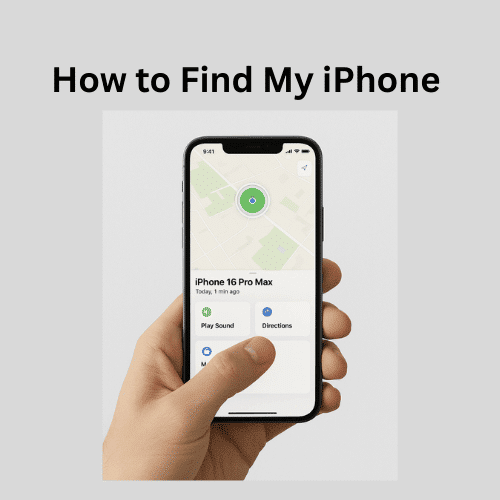
Your heart drops. You reach for your pocket, and it’s empty. Your iPhone is gone. Every year, over 70 million smartphones go missing in the United States alone—but here’s the good news: learning how to find my iPhone can save you from becoming another statistic.
This guide shows you exactly how to locate, track, and recover your iPhone using Apple’s built-in tools. Whether your device is lost, stolen, or just misplaced, these five proven steps will help you find it fast.
Why Find My iPhone is Your Best Friend
Before smartphones, losing your phone meant it was gone forever. Today, Find My iPhone changes everything. This free Apple service can:
- Pinpoint your device anywhere in the world
- Play sounds even when it’s on silent
- Lock your phone remotely
- Erase data if recovery isn’t possible
- Track movement in real-time
The best part? It’s probably already set up on your phone right now.
Quick Answer: Finding Your iPhone
How to find my iPhone in 5 steps:
- Open Find My app on another Apple device (or visit iCloud.com)
- Sign in with your Apple ID
- Select Devices tab
- Choose your missing iPhone
- Use Play Sound, view location, or select Directions
This works even if your phone is in silent mode!
Step-by-Step Guide to Find Your iPhone
Step 1: Access Find My iPhone
You have three ways to access Find My:
Option A: Use Another Apple Device
- Grab an iPad, Mac, or a friend’s iPhone
- Open the Find My app (green icon with radar circles)
- Sign in with your Apple ID if needed
Option B: Use iCloud Website
- Go to iCloud.com
- Sign in with your Apple ID
- Click the Find iPhone icon
Option C: Ask Siri
- On another device signed into your account
- Say “Hey Siri, find my iPhone”
- Siri will make your phone play a sound
Step 2: Sign In Securely
Enter your Apple ID credentials:
- Use the email associated with your missing iPhone
- Type your password carefully
- Complete two-factor authentication if prompted
Can’t remember your password? Don’t panic. Click “Forgot Apple ID or Password” for recovery options.
Step 3: Select Your Device
Once logged in:
- Click “Devices” or “All Devices”
- You’ll see a list of all your Apple products
- Select your missing iPhone from the list
- A map appears showing its location
Pro tip: If your device shows offline, you’ll see its last known location for 24 hours.
Step 4: Choose Your Action
Now you have powerful options:
| Action | What It Does | When to Use |
|---|---|---|
| Play Sound | Opens Maps with a route | The phone is far away |
| Directions | The phone is nearby | Phone is far away |
| Mark as Lost | Locks with passcode & message | Can’t retrieve immediately |
| Erase iPhone | Deletes all data permanently | Phone likely stolen |
Step 5: Retrieve Your iPhone
If your phone is nearby:
- Follow the sound (it overrides silent mode)
- Check common hiding spots first
- Look under furniture and in pockets
If it’s farther away:
- Get directions through Apple Maps
- Call the location if it’s a business
- Enable notifications for when it comes online
Using iCloud Find My iPhone
The iCloud Find My iPhone feature works from any web browser:
- Visit iCloud.com on any computer
- Sign in with your Apple ID
- Click the Find iPhone icon (looks like a green radar)
- Select All Devices dropdown
- Choose your iPhone from the list
What You’ll See on iCloud
The iCloud interface shows:
- Real-time location on an interactive map
- Battery percentage (so you know how long you have)
- Device status (online, offline, or location services off)
- Timestamp of last location update
Important: iCloud works on any browser—Chrome, Firefox, Safari, or Edge. You don’t need a Mac to use it.
How Do I Find My Phone from Another iPhone?
Borrowing someone’s iPhone? Here’s how to track yours without messing up their device:
Using the Find My App
- Open Find My app on their iPhone
- Tap “Me” tab at the bottom
- Select “Help a Friend”
- This opens iCloud.com in Safari
- Sign in with YOUR Apple ID
- Find your device without affecting their account
Using Safari Private Mode
For extra privacy:
- Open Safari
- Tap the tabs icon (two squares)
- Select “Private”
- Go to iCloud.com
- Sign in and track your phone
- Close all tabs when done
Remember to sign out completely when finished!
How Do I Detect Find My iPhone?
Want to check if Find My is active? Here’s how:
On Your iPhone (before it’s lost):
- Open Settings
- Tap your name at the top
- Select Find My
- Check that Find My iPhone is ON
- Enable Find My network and Send Last Location
From iCloud.com:
- If you can see your device, Find My is enabled
- If it says “No devices,” Find My might be off
- Check the device list for your iPhone’s name
How Do I Track My Lost iPhone?
Real-time tracking gives you powerful options:
Live Tracking Features
Location Updates:
- Refreshes every few minutes when online
- Shows movement patterns
- Displays address information
- Provides a GPS accuracy indicator
Notify When Found:
- Get alerts when your iPhone comes online
- Receive email notifications
- Track location changes
- Monitor battery level remotely
Setting Up Notifications
- Select your lost iPhone in Find My
- Tap “Notify When Found”
- Enable notifications
- You’ll get an alert the moment it connects to the internet
How to Use Find My iPhone
Let’s explore every Find My iPhone feature:
Find My App Features
Play Sound:
- Works even on silent/vibrate
- Plays for 2 minutes
- Gradually increases volume
- Stops when you pick up the phone
Directions:
- Integrates with Apple Maps
- Shows transit options
- Estimates the arrival time
- Updates if the phone moves
Mark as Lost Mode:
- Instantly locks your iPhone
- Displays a custom message on the lock screen
- Shows your contact number
- Disables Apple Pay
- Tracks the location continuously
Erase iPhone:
- Last resort option
- Permanently deletes all data
- Requires an Apple ID to reactivate
- Can’t be undone
How to Find My iPhone When Stolen
If you believe your iPhone was stolen, act fast but stay safe:
Immediate Actions
- Don’t confront thieves yourself
- Enable Lost Mode immediately
- File a police report with the serial number
- Contact your carrier to suspend service
- Monitor location, but let the police retrieve it
What to Tell Police
Provide officers with:
- Your iPhone’s serial number (find in Find My app)
- IMEI number (dial *#06# on another phone to learn how to find it)
- Current location from Find My
- Screenshots of the location
- Time and place it was stolen
According to Apple Support, law enforcement can work with Apple when proper documentation is provided.
Using Lost Mode Effectively
When enabling Lost Mode:
- Set a passcode (if you didn’t have one)
- Enter a phone number where you can be reached
- Type a message like: “This iPhone is lost. Please call [number]”
- Screenshot everything for insurance
Lost Mode also:
- Prevents notifications from appearing
- Blocks access to Control Center
- Keeps your data private
- Maintains location tracking
How to Find a Lost iPhone That is Turned Off
Can you track an iPhone that’s powered off? Sometimes, yes!
Find My Network Magic
iPhones with iOS 15+ can be found even when:
- Powered off
- Battery depleted
- Airplane mode enabled
This works through the Find My network—millions of Apple devices that secretly help locate lost items.
How It Works
Your “dead” iPhone sends out Bluetooth signals that:
- Nearby Apple devices detect
- Relay location to Apple servers
- Update your Find My app
- Show approximate location
Limitations:
- Only works for 24 hours after powering off
- Requires iOS 15 or later
- Must have Find My enabled previously
- Location accuracy varies
Checking Last Known Location
If your iPhone is truly dead:
- Open the Find My app
- Select your iPhone
- Look for “Last location” timestamp
- This shows where it was before dying
- Locations remain visible for 24 hours
Find My iPhone Last Location
The Find My iPhone last location feature is crucial when your battery dies:
Understanding Last Location
What it shows:
- Final GPS coordinates before shutdown
- Time stamp of last update
- Address or landmark information
- Accuracy radius
How long has it been available?
- Standard: 24 hours after going offline
- With “Send Last Location” enabled: Longer tracking
- After 7 days: Location data expires
Enabling Send Last Location
To activate this lifesaver:
- Go to Settings
- Tap your name
- Select Find My
- Choose Find My iPhone
- Toggle Send Last Location ON
This automatically sends the location when the battery is critically low.
Find My iPhone Login
Having trouble with Find My iPhone login? Here’s help:
Common Login Issues
Wrong Apple ID:
- Check if you have multiple accounts
- Try your other email addresses
- Look for purchase receipts from Apple
Two-Factor Authentication:
- Check your trusted devices for codes
- Use SMS to backup phone number
- Try the “Didn’t get a code?” option
Account Locked:
- Too many wrong attempts lock accounts
- Visit iforgot.apple.com
- Answer security questions
- Reset through email
Security Best Practices
Protect your Find My access:
- Use a strong, unique password
- Enable two-factor authentication
- Keep trusted phone numbers updated
- Don’t share Apple ID credentials
- Sign out of shared devices
Advanced Tips and Tricks
Family Sharing for Find My
Track family members’ devices:
- Set up Family Sharing in Settings
- Everyone appears in the Find My app
- See all family devices on one map
- Help each other find lost phones
Using AirPods to Find iPhone
Lost your iPhone but have AirPods?
- Put AirPods in your ears
- Listen for the connection chime
- If they connect, the iPhone is within 30 feet
- Walk around until the connection strengthens
Siri Shortcuts
Create custom shortcuts:
- “Hey Siri, where’s my phone?”
- “Hey Siri, ping my iPhone.”
- “Hey Siri, find my device.”
Set these up in the Shortcuts app for quicker access.
Third-Party Apps
While Find My is best, consider backup options:
- Google Maps location sharing
- Life360 for families
- Prey anti-theft
- Carrier apps like Verizon’s Family Locator
Find My App
The Find My app isn’t just for iPhones:
What Else Can You Track?
- AirPods (with precision finding)
- Apple Watch (ping from iPhone)
- iPad (all models)
- Mac computers
- AirTags (for keys, wallets, bags)
App Organization
The Find My app has four tabs:
- People – Share locations with friends
- Devices – All your Apple products
- Items – AirTags and compatible accessories
- Me – Your location settings
Can’t find the Find My app? You might need to learn how to unhide an app on iPhone if it was accidentally hidden.
Safety and Security Warnings
⚠️ Critical Safety Information
Never attempt to retrieve a stolen iPhone yourself. According to 9to5Mac, confronting thieves has led to dangerous situations.
If your iPhone shows up at an unfamiliar residence:
- Contact local police
- Provide location screenshots
- Let officers handle retrieval
- Don’t go alone or at night
Protecting Your Privacy
When an iPhone is lost:
- Change passwords for sensitive apps
- Alert your bank if you use mobile banking
- Monitor credit cards for unauthorized use
- Enable Lost Mode immediately
- Consider identity monitoring services
Avoiding Future Loss
Prevention tips:
- Always enable Find My iPhone
- Use a strong passcode (6+ digits)
- Enable Face ID or Touch ID
- Keep software updated
- Consider AppleCare+ with theft coverage
Expert Tips from Apple
“Find My iPhone has helped millions of customers locate their missing devices. The key is setting it up before you need it. Once enabled, you have multiple options for recovery, from playing sounds to getting directions to your device’s location.” – Apple Support Documentation
Pro Configuration
Apple experts recommend:
- Enable Offline Finding
- Turn on Send Last Location
- Add trusted family members
- Keep location services active
- Regular iCloud backups
Communication Features
Did you know you can communicate through a lost iPhone? Learn how to send a voice message on iPhone to leave instructions for whoever finds it. You can also:
- Display contact information
- Offer a reward message
- Provide return instructions
- Show medical ID if enabled
Frequently Asked Questions
Q: Can I find my iPhone if location services are off?
A: Unfortunately, no. If location services were disabled before losing your iPhone, Find My cannot track it. However, you can still use Lost Mode to lock it when it connects to the internet, and you’ll see its location if someone turns location services back on.
Q: Does Find My iPhone work internationally?
A: Yes! Find My iPhone works anywhere in the world where your device has an internet connection. Whether you’re tracking from home or your phone is lost abroad, the service functions globally without additional charges.
Q: How accurate is Find My iPhone’s location?
A: Find My iPhone is typically accurate within 10-20 feet in areas with good GPS and WiFi coverage. In buildings, accuracy might decrease to 50-100 feet. The app shows a circle indicating the accuracy radius—smaller circles mean a more precise location.
Q: Can someone disable Find My iPhone without my password?
A: No, Find My iPhone is protected by Activation Lock. Anyone trying to turn off Find My, erase your device, or reactivate it needs your Apple ID password. This makes stolen iPhones essentially useless to thieves.
Q: Will Find My iPhone work if someone removes my SIM card?
A: Yes! Find My iPhone uses WiFi and Bluetooth in addition to cellular data. Even without a SIM card, your iPhone can connect to WiFi networks or be detected by the Find My network through nearby Apple devices.
Q: How do I locate my iPhone without another Apple device?
A: Use any web browser on any computer or phone. Go to iCloud.com, sign in with your Apple ID, and click Find iPhone. This works on Windows PCs, Android phones, or any internet-connected device.
Q: Can I still track my iPhone after a factory reset?
A: If Activation Lock was enabled (automatic with Find My iPhone), yes—partially. The device will still be linked to your Apple ID and will appear in Find My. However, you won’t be able to track its location until someone tries to set it up with your Apple ID.
Conclusion
Losing your iPhone feels like losing a part of yourself—but now you know exactly how to find my iPhone and get it back. From using the Find My app to tracking through iCloud.com, you have powerful tools at your fingertips.
Remember these key points:
- Find My iPhone works even when your phone is on silent
- You can track your device from any web browser
- Lost Mode protects your data while helping with recovery
- The Find My network can locate phones even when offline
- Never confront thieves yourself—always involve the police
The most important step? Check your Find My settings right now. Don’t wait until your iPhone goes missing. Enable all features, especially Send Last Location, and ensure you have your Apple ID credentials.
Please take action today: Open Settings, tap your name, select Find My, and verify everything is enabled. Your future self will thank you.
Has this guide helped you recover a lost iPhone? Share your success story in the comments! For more iPhone tips, including how to unblock numbers on iPhone after recovery, check out our other helpful guides.
Last updated: 2026 | Compatible with iOS 15 and later, all iPhone models

