


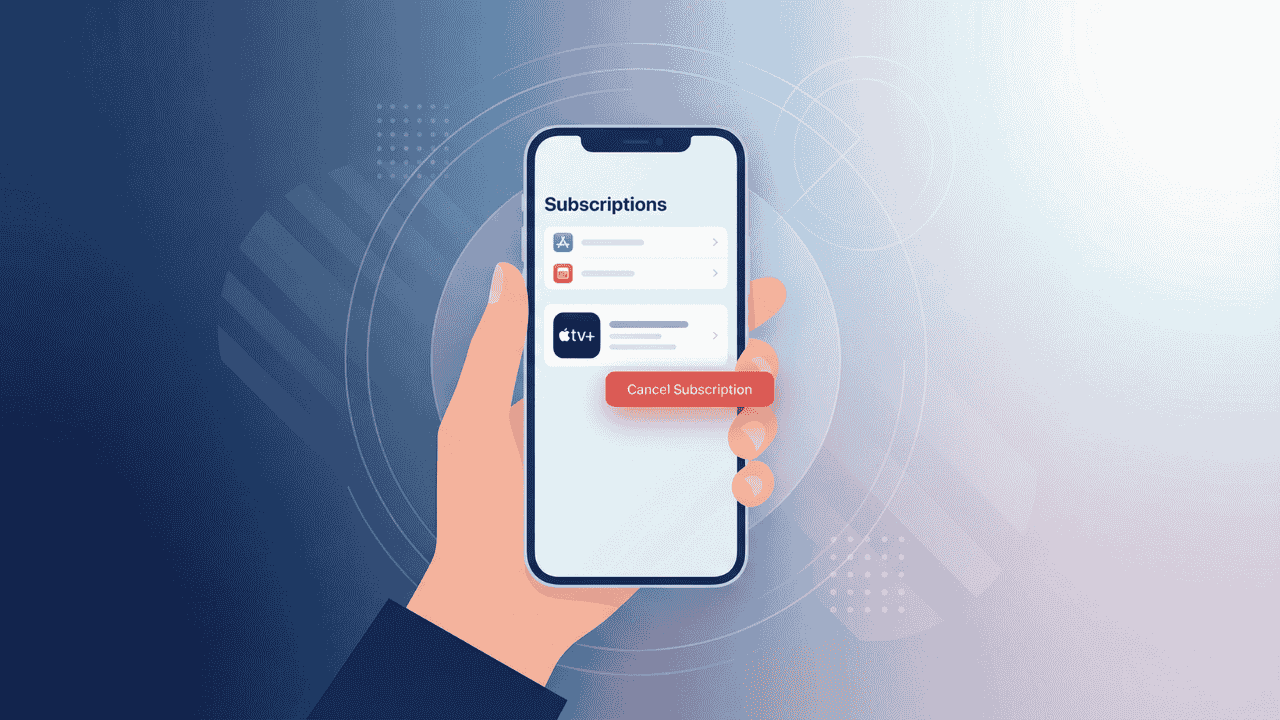
Are you paying for Apple TV+ and not using it as much as you thought? You’re not alone. Whether your free trial is ending, you’ve finished the show you signed up for, or you just want to trim your monthly spending, knowing how to cancel Apple TV subscription on your iPhone is a skill worth having. This step-by-step guide covers every method from your iPhone settings to a web browser so you can cancel quickly and confidently.
What Is Apple TV+ and Why Cancel?
Apple TV+ is Apple’s streaming service offering original shows, movies, and documentaries. It’s separate from Apple TV Channels — which are add-on subscriptions like Paramount+ or Starz added through the Apple TV app.
Here’s a quick breakdown:
| Service | What It Is | Can You Cancel It Separately? |
|---|---|---|
| Apple TV+ | Apple’s own streaming originals | ✅ Yes |
| Apple TV Channels | Third-party channels (e.g., Showtime) | ✅ Yes, each one separately |
| Apple One | Bundle including TV+, Music, Arcade & more | ✅ Yes (cancels all bundled services) |
People cancel for many reasons:
- The free trial is ending
- They finished a specific show
- They want to reduce monthly subscriptions
- They’re switching to another streaming platform
- They forgot they were still subscribed
Whatever your reason, this guide has you covered.
Before You Cancel: Important Things to Check

Before you cancel Apple TV+ on iPhone, take 60 seconds to review these points — they can save you money or prevent losing access too early.
- Check your billing date. Canceling the day before your renewal means you still get the full period you already paid for.
- Are you billed through Apple or a third party? If you signed up through a smart TV, Roku, or Amazon, you’ll need to cancel through that platform, not through your iPhone.
- Is your subscription part of Apple One? Canceling Apple One will remove access to all bundled services — not just TV+.
- Family Sharing. If you’re the family organizer, canceling affects everyone in your Family Sharing group.
- Free trial status. If you’re still in a trial period, cancel before the trial ends to avoid being charged.
💡 Pro Tip: Go to Settings > [Your Name] > Subscriptions to see your exact renewal date before canceling.
How to Cancel Apple TV Subscription on iPhone
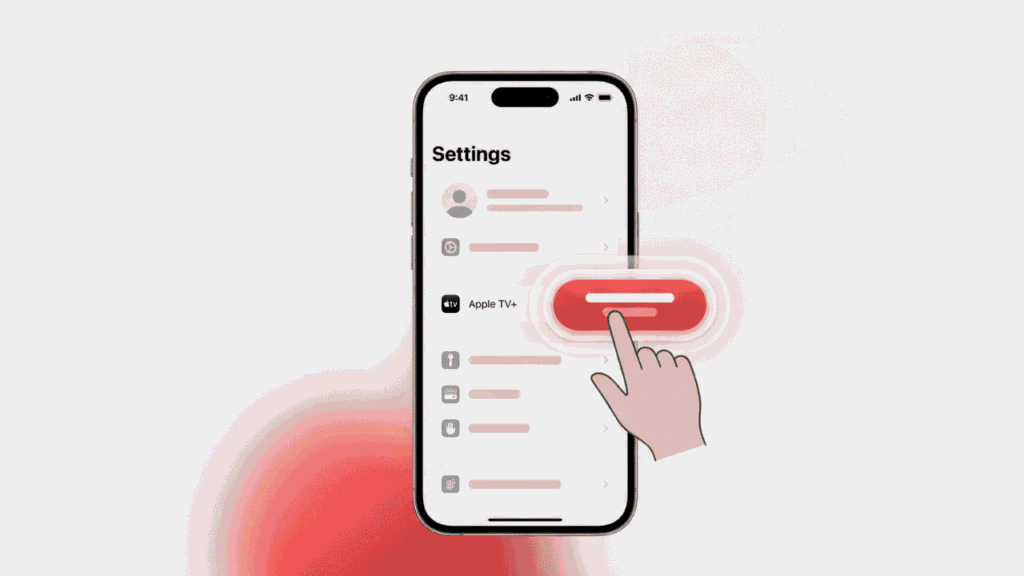
This is the fastest and most reliable way to cancel your Apple TV subscription directly from your iPhone. It works on iOS 15 and all later versions, including iOS 17 and iOS 18.
Steps to Cancel Apple TV+ on iPhone:
- Open the Settings app on your iPhone.
- Tap your name at the top (your Apple ID).
- Scroll down and tap Subscriptions.
- Find and tap Apple TV+ in the list.
- Tap Cancel Subscription.
- Tap Confirm when prompted.
That’s it. You’ll see a confirmation message, and your access will continue until the end of the current billing period.
Note: Don’t see “Cancel Subscription”? You might see “Cancel Free Trial” instead if you’re still in a trial. The steps are the same — tap it to stop being charged.
Alternative: Cancel Through the Apple TV App
You can also cancel Apple TV+ on iPhone directly through the Apple TV app:
- Open the Apple TV app.
- Tap your profile icon in the top-right corner.
- Tap Manage Subscriptions.
- Select Apple TV+.
- Tap Cancel Subscription → Confirm.
Both methods lead to the same result. Use whichever feels easier.
How to Cancel Apple TV Channels on iPhone
Apple TV Channels are premium add-ons — like Paramount+, BritBox, or AMC+ — that you subscribe to within the Apple TV app. Each channel is a separate subscription, so you manage and cancel them individually.
Here’s how to cancel Apple TV channels on iPhone:
- Open Settings → tap your name → tap Subscriptions.
- You’ll see a list of all active subscriptions, including individual channels.
- Tap the channel you want to cancel (e.g., Paramount+).
- Tap Cancel Subscription → Confirm.
⚠️ Warning: Canceling a channel subscription doesn’t cancel Apple TV+ itself. They are independent subscriptions with separate billing cycles.
Repeat these steps for each channel you want to remove. It’s a good habit to review your active subscriptions in Settings every few months to catch any you’ve forgotten about — similar to how you might manage your iPhone storage to keep things lean and organized.
How to Cancel Apple TV Free Trial on iPhone
Apple offers a free trial for Apple TV+ — typically 7 days, though promotional periods (like those bundled with a new iPhone or Apple device purchase) can last up to 3 months. You must cancel before the trial ends to avoid being automatically charged.
Steps to Cancel Your Apple TV Free Trial:
- Go to Settings → [Your Name] → Subscriptions.
- Tap Apple TV+.
- You’ll see the trial end date listed here — make note of it.
- Tap Cancel Free Trial.
- Confirm the cancellation.
💡 Set a reminder. If you don’t want to cancel right away, set a calendar reminder for 1–2 days before your trial ends. That gives you time to act without accidentally losing access too early.
After canceling the free trial, you’ll retain access until the trial period officially expires — then your subscription ends and you will not be charged.
How to Cancel Apple One Subscription
Apple One is a bundle that can include Apple TV+, Apple Music, Apple Arcade, Apple iCloud+, Apple News+, and Apple Fitness+. Canceling Apple One cancels all services in the bundle at once.
Steps to Cancel Apple One:
- Open Settings → tap [Your Name] → Subscriptions.
- Tap Apple One.
- Review which services are included in your plan.
- Tap Cancel Subscription → Confirm.
⚠️ Important: If you cancel Apple One but still want Apple Music or iCloud+, you’ll need to re-subscribe to those services individually after canceling.
Apple One comes in three tiers:
| Plan | Services Included | Monthly Price (US) |
|---|---|---|
| Individual | TV+, Music, Arcade, iCloud+ 50GB | $21.95/mo |
| Family | TV+, Music, Arcade, iCloud+ 200GB | $27.95/mo |
| Premier | TV+, Music, Arcade, iCloud+ 2TB, News+, Fitness+ | $37.95/mo |
Prices as of early 2026. Check Apple’s website for the latest pricing.
How to Cancel Apple TV Subscription Without an iPhone
Don’t have your iPhone nearby — or prefer to use another device? No problem. Here’s how to cancel your Apple TV subscription without an iPhone:
On a Mac:
- Open the App Store.
- Click your Apple ID at the bottom-left.
- Click View Information → sign in.
- Scroll to Subscriptions → click Manage.
- Find Apple TV+ → click Edit → Cancel Subscription.
On an iPad:
Follow the same steps as on an iPhone: Settings → [Your Name] → Subscriptions → Apple TV+ → Cancel Subscription.
On a Windows PC (via iTunes):
- Open iTunes → go to Account in the menu bar.
- Click View My Account → sign in.
- Scroll to Settings → click Manage next to Subscriptions.
- Find Apple TV+ and click Cancel.
On Apple TV Device:
- Go to Settings on your Apple TV.
- Select Users and Accounts → your name.
- Select Subscriptions → Apple TV+ → Cancel Subscription.
How to Cancel via tv.apple.com
You can also cancel directly through Apple’s website — no app or device required. This is especially useful if you want to know how to cancel your Apple TV subscription on PC or from any browser.
Steps to Cancel at tv.apple.com:
- Go to tv.apple.com in any browser.
- Sign in with your Apple ID.
- Click your profile picture in the top-right corner.
- Select Settings.
- Under Subscriptions, find Apple TV+.
- Click Edit → Cancel Subscription → Confirm.
💡 This method works on any device with a browser — a Chromebook, Android phone, Windows laptop, or public computer.
Can You Get a Refund After Canceling Apple TV?
An Apple TV+ refund after canceling is possible in some situations, but not guaranteed. Apple evaluates refund requests case by case.
Here’s what you need to know:
- Within the free trial: No charges were made, so no refund is needed.
- Accidental renewal: If you forgot to cancel and were charged, you can request a refund within 90 days of the charge.
- Unused subscription period: Apple typically doesn’t automatically refund the unused portion of a billing cycle, but you can request one.
How to Request a Refund:
- Visit reportaproblem.apple.com.
- Sign in with your Apple ID.
- Find the Apple TV+ charge.
- Click Report a Problem → select a reason (e.g., “I didn’t mean to subscribe”).
- Submit your request.
Apple usually responds within 48 hours. Refunds, if approved, return to your original payment method within 5–10 business days.
According to Apple’s official support page, “If your purchase is eligible, you’ll see the option to Request a Refund.”
Apple TV Subscription Comparison Table
| Plan | Price/Month | Devices | Simultaneous Streams | Offline Downloads |
|---|---|---|---|---|
| Apple TV+ | $9.99 | iPhone, iPad, Mac, Apple TV, Smart TVs | Up to 6 | ✅ Yes |
| Apple One Individual | $21.95 | All Apple devices | Up to 6 | ✅ Yes |
| Apple One Family | $27.95 | All Apple devices (up to 6 people) | Up to 6 | ✅ Yes |
| Apple One Premier | $37.95 | All Apple devices (up to 6 people) | Up to 6 | ✅ Yes |
Prices listed for the United States as of 2026.
Tips to Stop Apple TV Subscription Before Being Charged
If you want to stop your Apple TV subscription before the next charge, timing is everything. Here’s how to stay ahead of it:
- Cancel at least 24 hours before your renewal date. Apple processes cancellations quickly, but giving a buffer is smart.
- Check your renewal date first. Go to Settings → [Your Name] → Subscriptions → Apple TV+ to see the exact date.
- Turn off auto-renewal rather than fully deleting if you want to pause temporarily. You’ll keep access until the period ends without being charged again.
- Use Apple’s “Manage Subscriptions” page to keep a bird’s eye view of all your active subscriptions — not just Apple TV+.
Managing your subscriptions regularly is similar to doing a digital cleanup. Just like you might hide apps on your iPhone to reduce clutter, reviewing your subscriptions helps you stay in control of what you’re paying for.
Frequently Asked Questions
How do I cancel my Apple TV subscription on PC?
Go to tv.apple.com in any browser, sign in with your Apple ID, click your profile icon → Settings → Subscriptions → Edit next to Apple TV+ → Cancel Subscription.
You can also use iTunes on Windows: go to Account → View My Account → Manage Subscriptions.
How do I cancel my Apple TV free trial?
Open Settings → [Your Name] → Subscriptions → Apple TV+ and tap Cancel Free Trial. Do this at least 24 hours before the trial ends to avoid being charged. Your access continues until the trial period expires.
What happens after I cancel Apple TV?
After you cancel Apple TV+, your subscription stays active until the end of the current billing period. After that date, you lose access to Apple TV+ content. Your downloads will also become unavailable. You won’t be charged again.
How do I discontinue Apple TV completely?
To fully discontinue Apple TV+, go to Settings → [Your Name] → Subscriptions, select Apple TV+, and tap Cancel Subscription. If you’re on Apple One, cancel that plan instead to remove TV+ along with the other bundled services.
Can I cancel Apple TV and re-subscribe later?
Yes. Canceling Apple TV+ is not permanent. You can re-subscribe at any time through the Apple TV app, the App Store, or on the Apple website. Note that free trials are typically only available to first-time subscribers.
How do I manage subscriptions in iPhone settings?
Go to Settings → tap your name at the top → Subscriptions. You’ll see a full list of all active and recently expired subscriptions tied to your Apple ID. From here you can cancel, modify, or review any subscription — including Apple TV+, Apple Music, and third-party apps.
Conclusion
Canceling your Apple TV subscription doesn’t need to be complicated. Whether you’re cutting costs, wrapping up a free trial, or switching services entirely, your iPhone gives you full control in just a few taps. Here’s a quick recap:
- Fastest method on iPhone: Settings → [Your Name] → Subscriptions → Apple TV+ → Cancel Subscription
- Web method: tv.apple.com → Profile → Settings → Subscriptions → Cancel
- For channels: Cancel each one individually in your Subscriptions list
- For Apple One: Canceling the bundle removes all included services
- For refunds: Visit reportaproblem.apple.com within 90 days of a charge
Once you’re done, it’s a great time to do a full subscription audit — you might be surprised by what’s still active. Just like clearing up iPhone storage frees up space, canceling unused subscriptions frees up budget.
If you also use Apple TV to cast content to your television, check out our guide on how to mirror your iPhone to TV for alternative streaming setups even after canceling.
Stay in control of your iPhone, your subscriptions, and your spending — one tap at a time.
Last updated: March 2026 | Category: Privacy & Security | Author: iphonetonic.com Editorial Team

