


Running out of data before your billing cycle ends is frustrating, especially if you don’t know which app is to blame. Learning how to check data usage on iPhone takes less than a minute, and it can save you from surprise overage charges. This guide walks you through every method to check data usage on iPhone, from total usage to per-app breakdowns, in plain, simple steps.
Whether you’re new to iPhone or just haven’t looked at these settings before, you’ll be able to follow along easily — no tech background needed. By the end of this guide, checking data usage on your iPhone will feel like second nature.
Where to Find Data Usage Settings on iPhone
Every data-tracking tool on your iPhone lives in one place: your Cellular settings. Here’s how to get there before you check data usage on your iPhone.
Step-by-Step: Open Cellular Settings
- Open the Settings app.
- Tap Cellular (this may say Mobile Data depending on your region).
- You’ll land directly on your data usage overview.
Note: If you don’t see a “Cellular” option, your iPhone may be Wi-Fi only or your carrier settings need updating. Try restarting your phone first, and if the issue continues, you may need to reset your network settings.
That’s it — this single screen is where you’ll do almost everything in this guide, including how to check data usage on iPhone by app, adjust cellular settings, and reset your stats.
How to Check Data Usage on iPhone: Total Usage
Once you’re in Settings > Cellular, scroll down slightly and you’ll see a section labeled Cellular Data (or Mobile Data) with a running total. This is the quickest way to check data usage on your iPhone at a glance.
Here’s what that number actually means:
- It shows data used since your last reset, not necessarily your billing cycle.
- It includes data used by apps, system processes, and background updates.
- It does not include anything used over Wi-Fi.
Understanding “System Services” Data
Scroll to the very bottom of the Cellular screen and you’ll find System Services. This tracks data used by background iPhone processes like:
- Software updates
- iCloud syncing
- Location services
- Push notifications
Bold takeaway: If your total usage seems higher than what your apps show individually, System Services is usually the reason.
“Apps and services use cellular data in the background for updates and notifications, which is normal and helps keep your content current,” according to Apple Support’s official cellular data documentation.
How to Check Data Usage on iPhone Per App
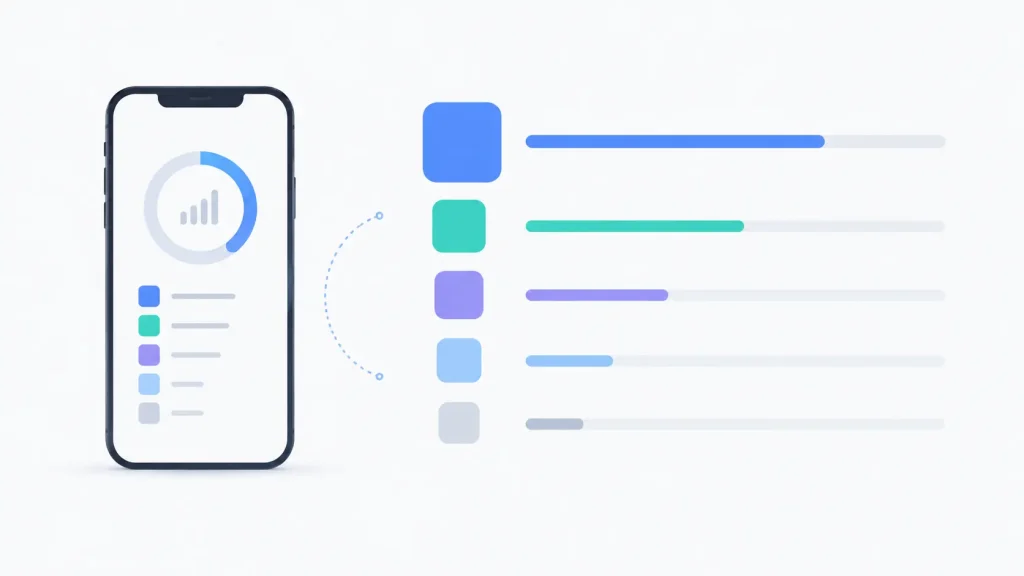
This is the most useful part of the process if you’re trying to figure out why your data disappeared so fast. Here’s exactly how to check data usage on iPhone by individual app.
Step-by-Step: Viewing App-by-App Breakdown
- Go to Settings > Cellular.
- Scroll down to the list of apps under Cellular Data.
- Each app shows how much data it has used since your last reset.
- Apps are listed from highest to lowest usage, so the biggest data users appear first.
Quick tip: Look for streaming apps (video, music, social media) near the top of the list — these are almost always the biggest data users.
Turning Off Cellular Data for Specific Apps
If one app is draining your plan, you don’t have to delete it. Just turn off its cellular access:
- In the same Cellular menu, find the app.
- Tap the toggle next to it to turn it off.
- That app will now only use data when connected to Wi-Fi.
| App Type | Typical Data Usage | Recommended Action |
|---|---|---|
| Video streaming (YouTube, Netflix) | High | Restrict to Wi-Fi only |
| Social media (Instagram, TikTok) | Medium–High | Enable Low Data Mode |
| Messaging (iMessage, WhatsApp) | Low | Leave cellular data on |
| Maps/Navigation | Medium | Leave on for real-time use |
| Cloud backup apps | Medium–High | Restrict to Wi-Fi only |
How to Check Data Usage on iPhone: Daily vs. Monthly
Here’s something that surprises a lot of iPhone users: your iPhone does not show daily data usage by default. It only tracks a running total since your last manual reset, which makes it slightly trickier to check daily data usage on iPhone.
Why iPhone Doesn’t Show Daily Usage by Default
Apple’s built-in data usage tool is designed to be simple, not a full analytics dashboard. It’s meant to give you a quick snapshot, not a day-by-day chart.
Best Workarounds to Track Daily Usage
- Reset your data statistics on the same day each month to match your billing cycle (covered in the next section).
- Check your carrier’s app (like AT&T, Verizon, or T-Mobile) — most carrier apps break down usage by day automatically.
- Use Screen Time reports to spot which apps you’re using most heavily, then cross-reference with the Cellular list. If you’re also running low on space, it’s worth taking a few minutes to manage your iPhone storage at the same time.
How to Check Data Usage on iPhone 15, 16, and 17
Good news: the process to check data usage on iPhone is identical across recent models. Whether you own an iPhone 15, iPhone 16, or the latest iPhone 17 series, the Settings > Cellular path works the same way, since it depends on iOS rather than the specific hardware.
A few small differences to keep in mind:
- Dual-SIM and eSIM models (common on iPhone 15 and newer) show data usage separately for each line. Tap Cellular Plans to switch between them.
- iPhone 17 Pro and Pro Max users on 5G plans may see faster data consumption due to higher-resolution streaming and downloads — the tracking method stays the same, but usage tends to climb faster.
- If you recently switched from an older iPhone, your data statistics reset automatically during setup, so don’t be surprised if the number starts at zero.
Curious whether your device supports eSIM for dual-line tracking? Check out our guide on eSIM support on iPhone for more details.
How to Reset Your Data Usage Statistics
Resetting your stats gives you a clean slate to track usage more accurately — especially useful if you want your iPhone’s numbers to match your billing cycle.
When You Should Reset It
- At the start of a new billing cycle
- After switching carriers or plans
- If you’re troubleshooting a sudden data spike
Step-by-Step Reset Instructions
- Go to Settings > Cellular.
- Scroll to the bottom and tap Reset Statistics.
- Confirm by tapping Reset in the pop-up.
Warning: Resetting statistics clears all your usage history. This can’t be undone, so only reset when you’re ready to start fresh.
What to Do If You’re Using Too Much Data
If you keep running out of data before your cycle ends, here are the most effective fixes — no need to keep checking data usage on your iPhone every day once these are in place.
Turn On Low Data Mode
Low Data Mode reduces background data usage across your iPhone without turning off cellular data entirely.
- Go to Settings > Cellular > Cellular Data Options.
- Tap Data Mode.
- Select Low Data Mode.
What this does:
- Pauses automatic app updates
- Reduces background app refresh
- Lowers streaming quality slightly for some apps
Pairing this with a routine to clear your iPhone’s cache every so often can free up even more room and keep background data use in check.
Switch Specific Apps to Wi-Fi Only
As covered earlier, turning off individual app toggles in your Cellular settings is the fastest way to stop one app from hogging your plan.
Set Up Data Usage Alerts With Your Carrier
Most major carriers let you set custom alerts:
- AT&T, Verizon, and T-Mobile all offer free text alerts at 50%, 75%, and 100% of your plan — see AT&T’s guide to understanding data usage for an example of how this works.
- These alerts work independently of your iPhone’s built-in tracker, so they’re often more accurate for billing purposes.
Consider a Wi-Fi Assist Check
Apple’s Wi-Fi Assist feature automatically switches to cellular data when your Wi-Fi connection is weak, which can quietly increase your usage without you noticing. You can turn it off near the very bottom of the Cellular settings screen if you’d rather avoid unexpected cellular use.
Common Data Usage Questions Explained
Why Data Usage Numbers Don’t Match Your Carrier’s App
This is one of the most common points of confusion. Your iPhone’s data tracker and your carrier’s app almost never show the exact same number, because:
- Your iPhone tracks usage since your last manual reset — not your billing date.
- Carriers round usage differently and update on their own schedule (sometimes with a delay).
- Your iPhone doesn’t always sync in real time with your carrier’s network data.
Bottom line: For billing purposes, always trust your carrier’s app or account, not your iPhone’s built-in number.
What Counts as “Cellular Data” vs. “Wi-Fi”
- Cellular data = anything used over your carrier’s mobile network (LTE, 5G), as outlined in the FCC’s guide to wireless devices and data usage.
- Wi-Fi = anything used through a wireless router or hotspot you’re connected to.
Your iPhone’s Cellular usage screen only counts cellular data — Wi-Fi usage isn’t tracked here at all, since it doesn’t count against most data plans.
Frequently Asked Questions
Why doesn’t my iPhone’s data usage match my carrier’s app?
Your iPhone tracks data since your last manual reset, not your billing cycle, and carriers often update their numbers on a delay. For accurate billing info, always check your carrier’s app.
Does iPhone show daily data usage automatically?
No. iPhone only shows a running total since your last reset. To estimate daily usage, reset your statistics at the start of each billing cycle.
How do I stop a specific app from using cellular data?
Go to Settings > Cellular, find the app in the list, and turn off its toggle. It will then only use data over Wi-Fi.
What does “System Services” mean in my data usage list?
It’s data used by background iPhone processes like iCloud sync, software updates, and location services — not any single app you can control directly.
When should I reset my data usage statistics?
Reset it at the start of a new billing cycle, after switching carriers, or whenever you want a clean count for troubleshooting.
What’s the fastest way to reduce data usage on iPhone?
Turn on Low Data Mode in Cellular Data Options — it reduces background data automatically without needing to adjust each app individually.
Final Thoughts
Now that you know how to check data usage on iPhone, keeping an eye on your plan takes just a few taps. To recap:
- Head to Settings > Cellular to see your total and per-app usage.
- Use Low Data Mode and app-specific toggles if you’re going over your limit.
- Reset your stats at the start of each billing cycle for the most accurate tracking.
- Trust your carrier’s app over your iPhone for actual billing numbers.
Give it a try right now — open Settings and see which app has been using the most data. You might be surprised.

