


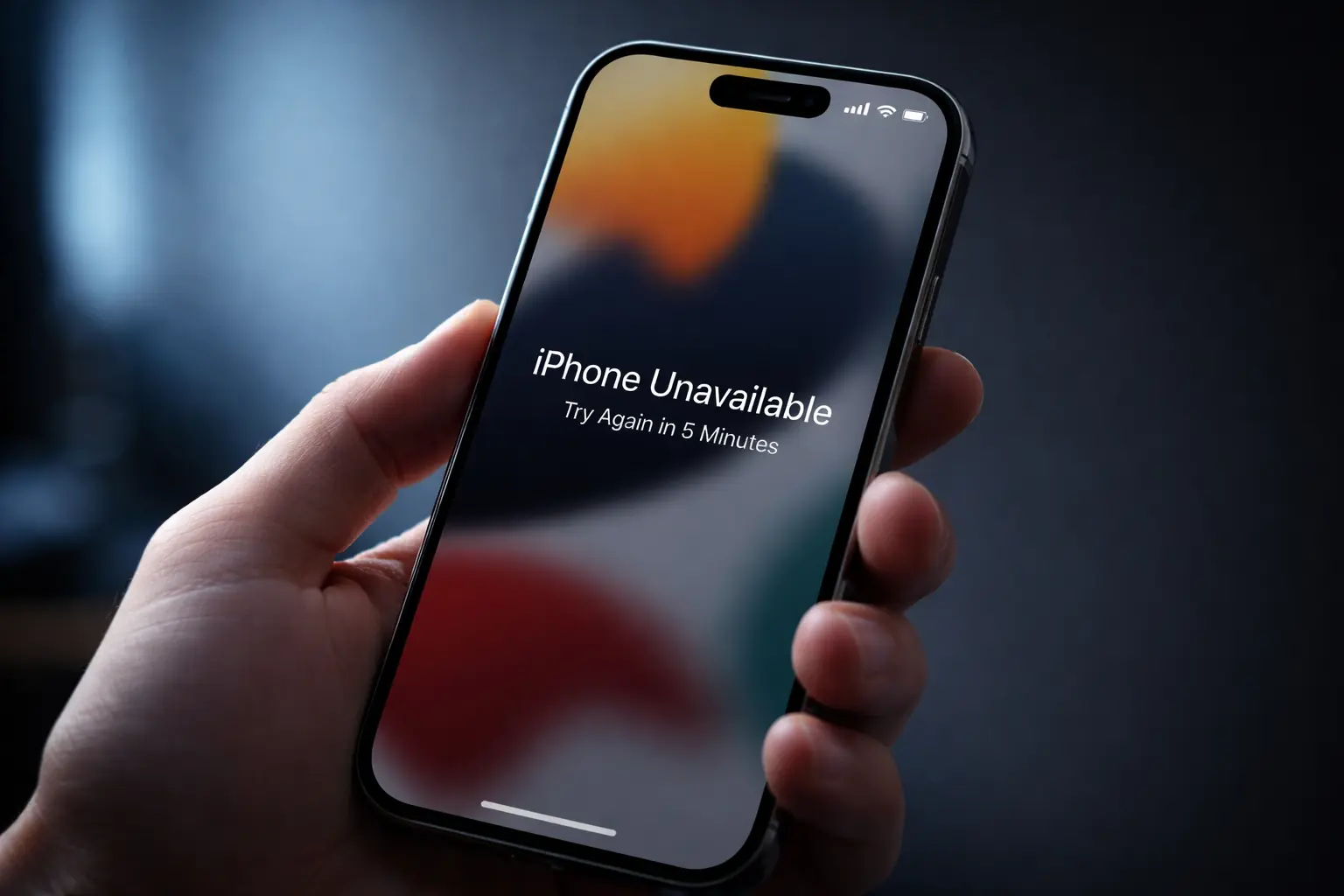
Seeing the iPhone Unavailable message on your lock screen is one of the most frustrating things that can happen to your phone. The good news is that the iPhone unavailable fix is easier than you think — and you don’t always need to visit an Apple Store or lose your data. Whether you entered the wrong passcode too many times or your screen just locked you out, this guide walks you through 5 proven methods to fix iPhone unavailable errors in 2026, written in plain English so anyone can follow along — even if you’re not a tech expert.
Bookmark this page before you start. Some steps require a computer, so it helps to have this guide open and ready.
What Does “iPhone Unavailable” Mean?
When your iPhone shows the “iPhone Unavailable” message, it means iOS has temporarily — or permanently — locked the device. This security feature kicks in after too many wrong passcode attempts in a short period of time.
Before jumping to an iPhone unavailable fix, it helps to understand what triggered it. Here’s what the iPhone unavailable screen looks like depending on how many failed attempts you’ve made:
| Failed Attempts | What Happens |
|---|---|
| 1–5 | A brief delay (1–5 minutes) |
| 6 | Locked for 5 minutes |
| 7 | Locked for 15 minutes |
| 8 | Locked for 60 minutes |
| 10+ | “iPhone Unavailable” — no timer, or permanent lock |
This is a built-in security feature designed to protect your personal data if someone tries to guess your passcode. Knowing which stage you’re at will help you pick the fastest iPhone unavailable fix for your situation.
Why Does Your iPhone Say Unavailable?
There are a few common reasons you might need an iPhone unavailable fix:
- Too many wrong passcode attempts — by far the most common cause
- Someone else tried to access your phone (a child, a curious friend, or a stranger)
- Repeated Touch ID or Face ID failures that forced you into passcode entry again and again
- A software glitch that triggered the lockout without an obvious reason
Apple Support explains: “If you enter the wrong passcode too many times, your iPhone will display ‘iPhone Unavailable’ and may require you to erase the device before you can use it again.” — Apple Support
The good news? There are multiple ways to fix iPhone unavailable, and some methods don’t require losing any data at all.
Method 1: Wait and Try Again
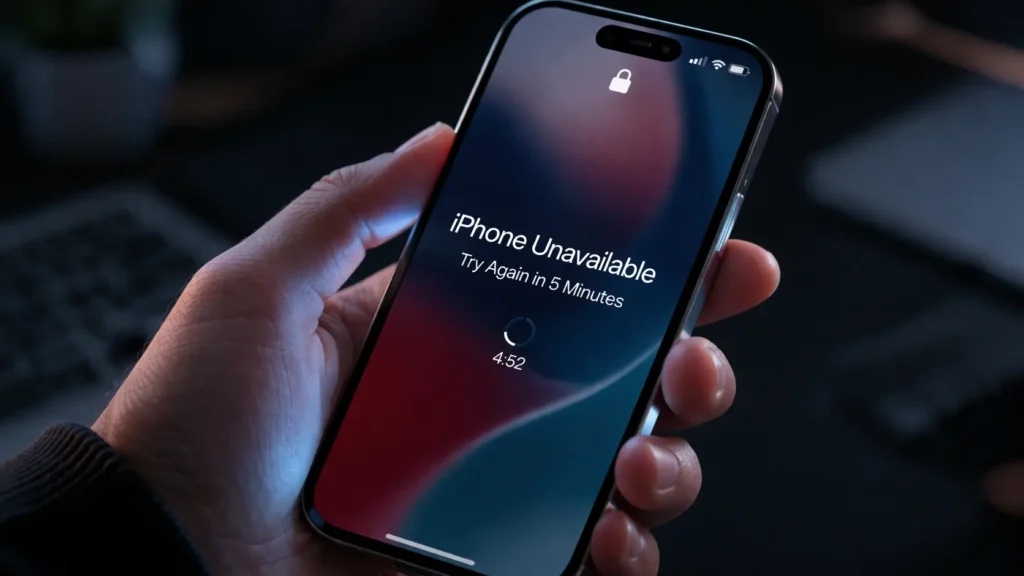
This is the simplest iPhone unavailable fix available — and it costs you nothing but time. It works when your screen still shows a countdown timer.
When to Use This Method
- Your screen says “Try Again in X Minutes”
- You haven’t hit 10+ failed attempts yet
- You know your correct passcode and just need to wait
Steps
- Don’t touch the passcode screen. Leave the iPhone alone completely.
- Wait the full time displayed — 5, 15, or 60 minutes depending on your attempt count.
- Once the timer disappears, carefully enter your correct passcode.
- If you’re unsure of your passcode, think through the most recent ones you’ve used before trying again.
Pro Tip: Keep your iPhone plugged into a charger while waiting. If the battery dies during the lockout, the timer won’t reset.
This iPhone unavailable fix requires zero data loss and no extra tools. However, if the screen shows “iPhone Unavailable” with no timer at all, this won’t help — move on to the methods below.
Method 2: Erase iPhone Directly from the Lock Screen (iOS 15.2+)
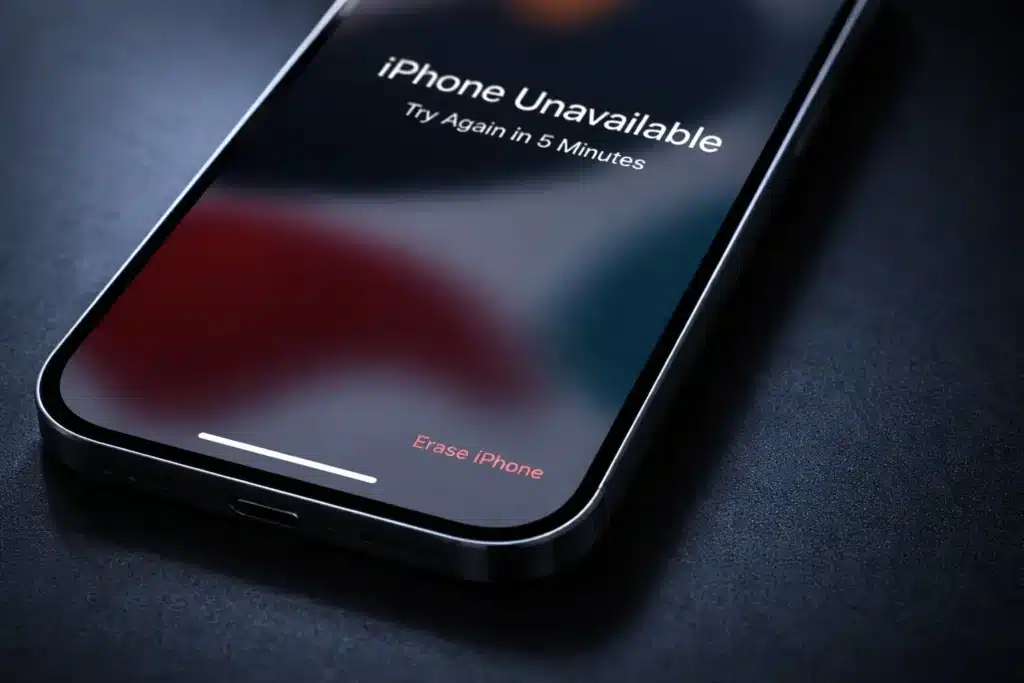
Starting with iOS 15.2, Apple added an “Erase iPhone” button directly to the lock screen. This is the quickest iPhone unavailable fix for most users — no computer required, and no waiting.
Requirements
- iPhone running iOS 15.2 or later
- Your Apple ID and password (needed to complete setup afterward)
- An active internet connection (Wi-Fi or cellular data must be working)
Steps
- On the iPhone unavailable screen, look for the “Erase iPhone” link in the bottom-right corner.
- Tap “Erase iPhone” and confirm when the prompt appears.
- Enter your Apple ID password to remove Activation Lock.
- Your iPhone will erase itself and restart automatically.
- Follow the on-screen setup steps to configure your iPhone again.
- Restore from a backup (iCloud or computer) if you have one available.
⚠️ Warning: This iPhone unavailable fix will erase all data currently on your device. Do not skip the backup restore step if recovering your photos and apps matters to you.
If you’ve been making regular backups, you can get most of your data back quickly. If not, check out our guide on how to back up your iPhone to a PC so you’re protected going forward.
Method 3: Use Find My to Fix iPhone Unavailable Remotely
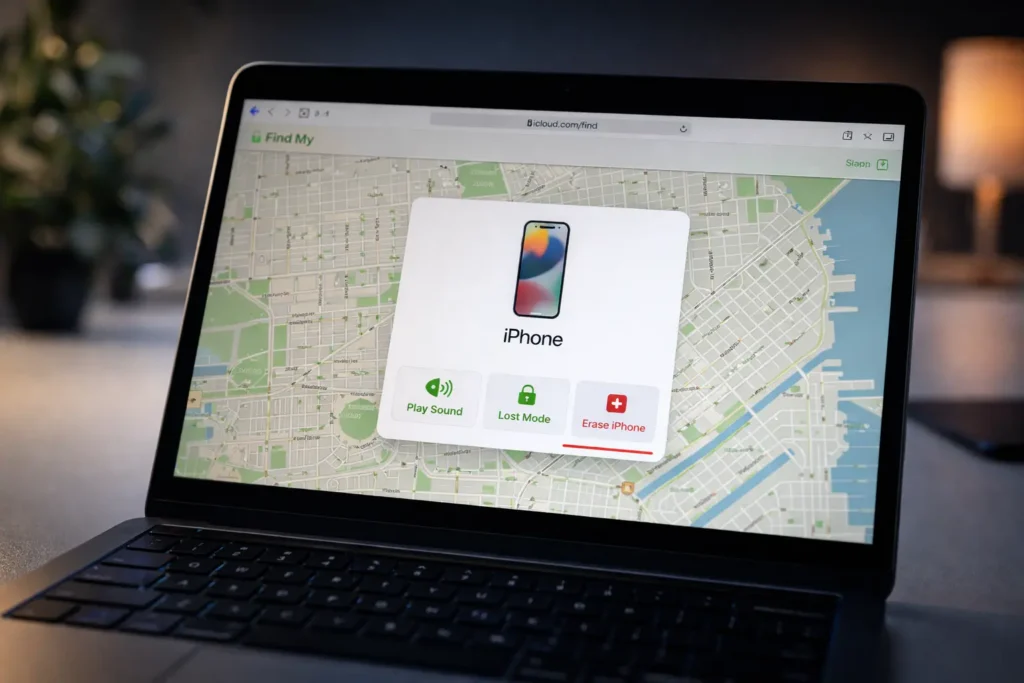
If Find My was turned on before the lockout happened, you can perform an iPhone unavailable fix remotely — without needing to touch the device at all. This method works using iCloud.com or the Find My app on any other Apple device.
Requirements
- Find My iPhone was enabled on the locked device before the lockout
- Your Apple ID and password
- Access to another phone, tablet, or computer
Steps
- Open a browser and visit iCloud.com, or open the Find My app on a different Apple device.
- Sign in using the Apple ID linked to the locked iPhone.
- Click or tap “All Devices” and select your locked iPhone from the list.
- Choose “Erase iPhone” and confirm the action.
- Enter your Apple ID password if prompted to verify.
- Wait for the remote erase to complete — your iPhone will restart on its own.
- Set it up again and restore from iCloud backup if you have one.
This method is especially convenient when your iPhone is in another room or even across town. It’s one of the most hands-free iPhone unavailable fix options available, as long as Find My was set up before the lockout.
Note: This exact process also works as an iPad unavailable reset solution. The steps are identical — just select your iPad in Find My instead of your iPhone.
Method 4: Fix iPhone Unavailable Using iTunes or Finder

If you’ve ever synced your iPhone with a computer using iTunes (Windows) or Finder (Mac), you can use that same computer to fix the iPhone unavailable error without needing Recovery Mode.
Requirements
- A Windows PC with iTunes installed, or a Mac with Finder
- The exact same computer you previously synced your iPhone with
- A Lightning or USB-C cable depending on your iPhone model
Steps
- Connect your iPhone to that computer using a USB cable.
- Open iTunes (on Windows) or Finder (on Mac).
- Your iPhone should appear in the sidebar if the computer is already trusted.
- Click “Restore iPhone” and confirm when prompted.
- Wait for the restore to finish — this can take several minutes.
- Once complete, set up your iPhone and restore from the most recent backup.
⚠️ Important: This iPhone unavailable fix only works if your iPhone was previously synced with that specific computer. If it’s a different machine, move on to Method 5 (Recovery Mode) instead.
For a detailed step-by-step walkthrough, check out our full guide on how to restore your iPhone with iTunes.
Method 5: Fix iPhone Unavailable with Recovery Mode
Recovery Mode is the most powerful iPhone unavailable fix available — and it works even if you’ve never synced your iPhone with a computer before. If every other method has failed, this is your solution.
Requirements
- Any computer (Windows or Mac)
- iTunes (Windows) or Finder (Mac)
- A USB cable compatible with your iPhone
How to Enter Recovery Mode — By iPhone Model
The button combination to trigger recovery mode varies slightly depending on your iPhone model:
iPhone 8, X, 11, 12, 13, 14, 15, 16:
- Quickly press and release the Volume Up button.
- Quickly press and release the Volume Down button.
- Press and hold the Side button until the recovery mode screen appears (it shows a cable pointing toward a laptop icon).
iPhone 7 and 7 Plus:
- Press and hold Volume Down + Side button simultaneously.
- Keep holding until the recovery mode screen appears.
iPhone 6s and earlier:
- Press and hold the Home button + Top (or Side) button at the same time.
- Hold until the recovery mode screen appears.
Steps After Entering Recovery Mode
- Your computer will automatically detect the iPhone in recovery mode.
- Open iTunes (Windows) or Finder (Mac) if it doesn’t open automatically.
- A pop-up will appear: “There is a problem with the iPhone. Do you want to Update or Restore?”
- Try “Update” first — this reinstalls iOS and may complete the iPhone unavailable fix without erasing your data.
- If the Update option fails or times out, select “Restore” — this fully erases and reinstalls iOS.
- Follow all on-screen instructions and wait for the process to complete.
- Set up your iPhone fresh and restore from your most recent backup if available.
Expert tip from Apple Support: “If you can’t update or restore your iPhone, or if you can’t turn it off or on, try putting it in recovery mode.” — Apple Support
Recovery Mode is the most dependable iPhone unavailable fix when nothing else works. According to Secure Data Recovery, Recovery Mode is also the safest approach for repeated passcode lockouts, because the “Update” option attempts to preserve existing data before resorting to a full erase.
Comparison Table: Which iPhone Unavailable Fix Is Right for You?
Not sure which method to try first? Use this table to match the best iPhone unavailable fix to your specific situation:
| iPhone Unavailable Fix Method | Data Loss? | Needs Computer? | Needs Apple ID? | Works Without Prior Sync? |
|---|---|---|---|---|
| Wait and Try Again | ❌ No | ❌ No | ❌ No | ✅ Yes |
| Erase from Lock Screen (iOS 15.2+) | ✅ Yes | ❌ No | ✅ Yes | ✅ Yes |
| Find My / iCloud Remote Erase | ✅ Yes | ❌ No | ✅ Yes | ✅ Yes |
| iTunes / Finder Restore | ✅ Yes | ✅ Yes | ❌ No | ❌ No (prior sync needed) |
| Recovery Mode | ✅ Yes | ✅ Yes | ❌ No | ✅ Yes |
Key Takeaway: Start with the simplest iPhone unavailable fix that matches your setup. If a timer is still showing, wait it out. If there’s no timer, use Method 2 on iOS 15.2+, or jump straight to Method 5 (Recovery Mode) for maximum compatibility across all iPhone models.
How to Avoid the iPhone Unavailable Screen in the Future
Once you’ve applied the iPhone unavailable fix that worked for you, take a few minutes to set up these preventive measures. They can save you from ever needing another fix for iPhone unavailable again.
- Enable Face ID or Touch ID — Biometric login reduces how often you need to type your passcode
- Use a passcode you’ll remember — Avoid overly complex codes you might forget under pressure
- Back up your iPhone regularly — Weekly backups to iCloud or a computer protect all your data
- Turn on Find My iPhone — Go to Settings → [Your Name] → Find My and enable it
- Enable Stolen Device Protection — Available in iOS 17.3+, this adds an extra security layer
- Keep iOS updated — Each update may include improved recovery and security features
The single best habit to form after any iPhone unavailable fix is consistent, regular backups. Our guide on how to back up your iPhone to a PC walks you through the whole process step by step.
FAQs
Why does my iPhone say unavailable?
Your iPhone says unavailable because iOS detected too many incorrect passcode entries in a short time window. This is a deliberate security lock designed to protect your data. The right iPhone unavailable fix depends on how many failed attempts triggered it — if a timer is visible, wait it out; if there’s no timer, you’ll need to erase and restore the device.
How do I fix the iPhone unavailable screen without losing data?
The only options that may preserve your data are Method 1 (waiting out the timer) and Method 4 (using iTunes or Finder on a previously synced computer and choosing “Update” over “Restore”). Every other iPhone unavailable fix in this guide will erase the device, so restoring from a recent backup afterward is essential.
Can I fix an iPhone unavailable error on Windows 10?
Yes. To fix iPhone unavailable on Windows 10 or Windows 11, download iTunes from apple.com or the Microsoft Store, connect your iPhone, and follow Method 4 or Method 5 from this guide. The iPhone unavailable fix process on Windows works exactly the same as on a Mac — no difference in steps.
Is there a free iPhone unavailable fix?
Yes — every method in this guide is completely free. No paid software is needed. iTunes, Finder, iCloud, and Find My are all free tools provided by Apple. Be cautious of third-party apps that charge money to fix iPhone unavailable issues — they are unnecessary and sometimes unsafe.
How long does it take for the iPhone unavailable message to go away on its own?
It depends on your failed attempt count. Lockout timers range from 1 minute to 60 minutes. After 10 or more failed attempts, the screen shows “iPhone Unavailable” with no timer at all — at that point, only a proper iPhone unavailable fix method (erase and restore) will regain access.
Does “iPhone Unavailable” mean my iPhone is physically broken?
No. The iPhone unavailable message is a software-level security lock — your hardware is perfectly fine. Any of the five iPhone unavailable fix methods above will resolve it. If you’re experiencing other issues after the restore, such as a frozen camera, take a look at our guide on how to fix iPhone camera not working.
Conclusion
Getting stuck on the iPhone unavailable screen feels alarming, but it’s always fixable. Every method in this guide is a proven iPhone unavailable fix — and at least one of them will work for your specific situation. Here’s a quick recap:
- Method 1 — Wait it out: Best when a timer is still visible; zero data loss
- Method 2 — Erase from Lock Screen: Fastest iPhone unavailable fix on iOS 15.2+; needs Apple ID
- Method 3 — Find My / iCloud: Remote iPhone unavailable fix; no computer needed
- Method 4 — iTunes or Finder Restore: Reliable fix on previously synced computers
- Method 5 — Recovery Mode: Most powerful all-around iPhone unavailable fix; works on any computer with no prior sync required
No matter which method you use, the most important step after recovery is setting up regular backups. That way, even if this happens again, you won’t lose your photos, messages, or apps. Check out our guide on how to back up your iPhone to a PC so you’re always prepared.
If this guide helped you resolve your iPhone unavailable issue, explore our other iPhone troubleshooting articles to keep your device running at its best.
Sources:

