


Does your iPhone keep buzzing, dinging, and popping up alerts at the worst moments? Learning how to silence notifications on iPhone is one of the most useful things any iPhone owner can do. Whether you’re sitting in a meeting, falling asleep, or just trying to get focused work done, Apple gives you several flexible ways to take back control of your attention.
The good news is that you don’t need to be tech-savvy to do it. In this step-by-step guide, you’ll discover 5 easy ways to silence notifications on iPhone — from a one-second hardware trick to smart scheduled settings. Each method works on iOS 15 through iOS 18.
Let’s get started.
Method 1: How to Silence Notifications on iPhone with the Ring/Silent Switch
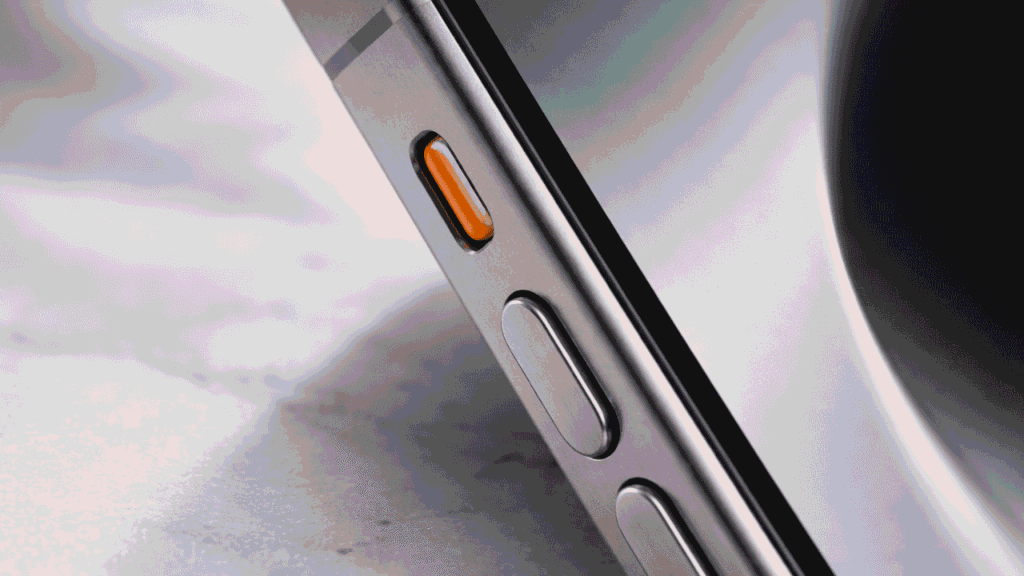
The absolute fastest way to silence notifications on your iPhone is to flip the physical Ring/Silent switch on the side of your phone. No menus, no settings — just one quick flick.
How to do it:
- Find the small Ring/Silent switch on the upper-left side of your iPhone, just above the volume buttons.
- Flip the switch toward the back of your phone (away from the screen).
- You’ll see a small orange stripe appear — that means silent mode is now on.
What this does: It immediately mutes all notification sounds and ringtones. Incoming calls will still show on screen, but they won’t ring out loud.
Important note: The silent switch only silences sounds. It does NOT hide notification banners from your lock screen or display. If you want to stop banners too, use one of the methods below.
Pro Tip: Want to stop vibrations too? Go to Settings > Sounds & Haptics and toggle off Vibrate on Silent. This gives you a completely quiet iPhone.
This method is ideal when you need to quickly silence notifications on iPhone in a hurry — like right before a meeting starts or when a movie begins.
Method 2: Silence Specific App Notifications on iPhone
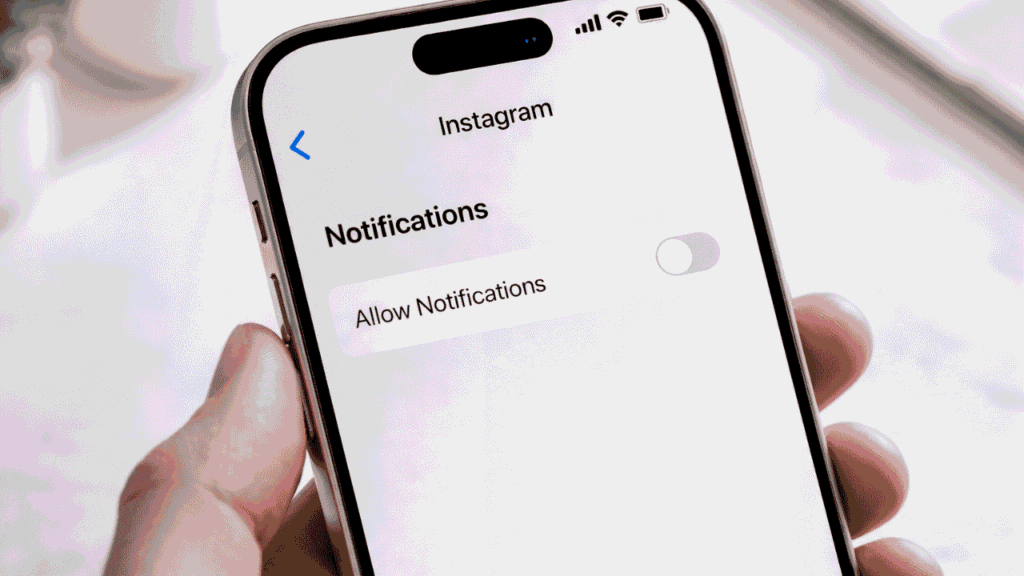
Sometimes you don’t want to mute everything just one noisy app. Here’s how to silence specific app notifications on iPhone without touching your other alerts.
Steps to turn off notification sounds for a specific app:
- Open the Settings app on your iPhone.
- Scroll down and tap Notifications.
- Select the app you want to quiet — for example, Instagram, Gmail, or WhatsApp.
- To fully silence notifications on iPhone for that app, toggle off Allow Notifications.
- To keep alerts but remove sound, leave Allow Notifications ON and simply toggle off Sounds.
Additional options you can adjust:
- Badges — hide the number dot on the app icon
- Banner Style — switch from Temporary to Persistent, or turn banners off entirely to mute notification banners on iPhone
- Lock Screen / Notification Center — control where alerts appear when your phone is locked
This is especially useful if you’re doing something like recording your screen. Notification pop-ups can ruin a clean recording, so disabling them per-app is smart. Check out our guide on how to screen record on iPhone for more tips.
This is the best approach when you want to turn off notification sounds on iPhone for just one app while keeping all your other alerts working normally.
Method 3: Use Do Not Disturb to Silence iPhone Notifications
Do Not Disturb (DND) is one of the most powerful built-in tools to silence notifications on iPhone all at once. When it’s active, your iPhone stops all incoming sounds and banners — but you can still allow specific people or apps to reach you.
How to turn on Do Not Disturb:
- Swipe down from the top-right corner of your screen to open Control Center.
- Tap the Focus button (it looks like a crescent moon or a set of circles).
- Select Do Not Disturb from the list.
Or navigate to Settings > Focus > Do Not Disturb for full customization.
“When Do Not Disturb is on, calls and alerts that arrive while your device is locked will be silenced, and a moon icon will appear in the status bar.” — Apple Support
Helpful options inside Do Not Disturb:
- Allow Calls From — choose Favorites, All Contacts, or no one
- Repeated Calls — let a call ring through if someone calls twice within 3 minutes
- Silence Always — or only when the iPhone is locked
This method is perfect when you need to stop iPhone notifications temporarily — during a dinner, nap, or long work session.
Source: Apple Support – Use Focus on iPhone
Method 4: Use iPhone Focus Mode to Silence Notifications
Focus Mode is Apple’s smarter, fully customizable system for managing distractions. If you want to silence notifications on iPhone based on your activity — working, sleeping, driving, or working out — Focus Mode is the tool for you.
It’s also the top choice if you want to silence iPhone notifications without Do Not Disturb, because you can build a custom mode that only lets through your most important contacts and apps.
Built-in Focus modes available on iPhone:
- Do Not Disturb
- Sleep
- Work
- Personal
- Driving
- Fitness
How to set up Focus Mode:
- Go to Settings > Focus.
- Tap an existing mode (like Work or Sleep) or tap + New Focus to create a custom one.
- Under People, choose who can still notify you. All others will be silenced.
- Under Apps, choose which apps can send alerts. Everything else is blocked.
- Tap Add Schedule to make it turn on automatically at set times or locations.
Using Focus Mode to silence notifications on iPhone is ideal for building consistent habits — like automatically going quiet during work hours or at bedtime.
PC Magazine also recommends using Focus Filters in iOS 18 to contextually silence and manage iPhone notifications based on what you’re doing.
Once your Focus Mode is set up, you can combine it with a cleaner home screen. Our guide on how to hide apps on iPhone shows you how to keep things distraction-free.
Method 5: Schedule a Notification Summary (iOS 15 and Later)
If you don’t want to silence all notifications on iPhone permanently, Scheduled Summary is your best friend. This feature batches your non-urgent alerts into a daily digest delivered at times you choose — so you stay informed without constant interruptions.
It’s one of the smartest ways to mute notification banners on iPhone during the day without losing any information.
How to set up Scheduled Summary:
- Go to Settings > Notifications > Scheduled Summary.
- Toggle on Scheduled Summary.
- Select the apps you want included (social media, news, email work great).
- Set the delivery times — for example, 8:00 AM and 6:00 PM.
Apps like Mail, Twitter/X, and news apps are perfect candidates. Time-sensitive apps like Messages, Phone, and emergency alerts are automatically excluded from the summary.
Note: Scheduled Summary is available on iOS 15 and later. If you don’t see it, make sure your iPhone software is up to date.
This is the best method if you want to silence notifications on iPhone during focused hours without completely cutting off from the world.
Quick Comparison: 5 Ways to Silence Notifications on iPhone
| Method | Setup Time | Silences Sounds? | Stops Banners? | Best For |
| Silent Switch | Instant | Yes | No | Quick muting on the go |
| Per-App Settings | 1–2 min | Yes | Yes | Silencing specific noisy apps |
| Do Not Disturb | Seconds | Yes | Yes (lock screen) | Meetings, focus time |
| Focus Mode | 2–3 min setup | Yes | Yes (customizable) | Work, sleep, custom routines |
| Notification Summary | 2–3 min setup | Yes | Yes (delayed) | Batching non-urgent alerts |
Bonus Tip: Quickly Silence a Single Notification as It Arrives
You don’t always need to go into Settings. When a notification banner pops up, you have two fast options:
- Swipe left on the banner and tap Manage → then select Turn Off to silence that app’s notifications immediately.
- Swipe the banner up to dismiss it without taking any action.
These quick gestures are a great way to silence notifications on iPhone one at a time, right in the moment — without diving into the Settings app.
Also worth knowing: pressing either Volume button or the Side button once will silence an incoming call without declining it. If you ever need to record a phone call on iPhone, silencing interruptions beforehand makes a big difference.
Frequently Asked Questions
1. How do I silence all notifications on my iPhone at once?
The fastest way to silence all notifications on iPhone at once is to flip the Ring/Silent switch on the left side of your device. For a more complete solution that also hides banners, enable Do Not Disturb or a Focus Mode from the Control Center. Both options silence sounds and screen alerts instantly.
2. How do I silence notifications from one app only?
Go to Settings > Notifications, tap the specific app, and either turn off Allow Notifications entirely or just toggle off Sounds. This is the cleanest way to silence specific app notifications on iPhone without affecting any of your other alerts.
3. Can I silence iPhone notifications without missing calls?
Yes! When you silence notifications on iPhone using Do Not Disturb or Focus Mode, go into the settings for that mode and use Allow Calls From to select your Favorites or All Contacts. You’ll stay reachable for calls while all other notifications stay quiet — so you won’t miss anything urgent.
4. Why is my iPhone still making notification sounds on silent mode?
The Clock app’s alarms always sound regardless of silent mode — that’s by design. Emergency Alerts (such as Amber Alerts and government warnings) also bypass the silent switch. If a specific app is still noisy, go to Settings > Notifications and manually turn off Sounds for that app.
5. How do I silence notifications only at night on iPhone?
The best way to silence notifications at night on iPhone is to use Sleep Focus Mode. Go to Settings > Focus > Sleep, enable it, and add a schedule so it turns on automatically at your bedtime. You can also manage this directly through the Health app under your Sleep schedule. It’s the most reliable set-it-and-forget-it solution.
Conclusion
Now you know exactly how to silence notifications on iPhone — and you have five different ways to do it depending on your situation. Whether you need a one-second fix with the silent switch or a fully scheduled Focus Mode routine, Apple gives you the tools to make your iPhone work around your life, not the other way around.
Here’s a quick recap:
- Silent Switch — instantly silence notifications on iPhone in one flick
- Per-App Settings — silence specific apps without affecting others
- Do Not Disturb — silence everything with optional call exceptions
- Focus Mode — smart, scheduled notification control by activity
- Notification Summary — batch and delay non-urgent alerts
Try whichever method fits your day best — and enjoy the peace and quiet. While you’re optimizing your iPhone, you might also like our guides on how to hide apps on iPhone and how to screen record on iPhone for more ways to customize your experience.
Last updated: 2026 | Compatible with: iPhone models running iOS 18

