


Are you tired of typing out long, complicated text messages? Ever wish you could just say what you mean and send it instantly? In a world of endless typing, a little bit of voice can go a long way. It’s faster, more personal, and adds the one thing text messages always miss: your tone.
This guide will show you everything you need to know about how to send a voice message on iPhone. We’ll walk you through the super-simple steps, explain how to save your favorite messages, and troubleshoot common problems. Let’s make your conversations more human again!
Why Send a Voice Message Instead of a Text?
Before we get to the “how,” let’s talk about the “why.” Sending a voice note isn’t just a gimmick; it’s a powerful communication tool.
- It’s Faster: Speaking is almost always faster than typing. When you’re on the go, sending a quick audio clip is far more convenient than tapping out a paragraph.
- It’s More Personal: Hearing someone’s voice creates a stronger connection. It’s the next best thing to a phone call for sharing excitement, sympathy, or a genuine laugh.
- It Conveys Tone: How many times has a text message been misunderstood? Sarcasm, excitement, and sincerity can get lost in translation. A voice message carries all that emotional context.
- It’s Great for Multitasking: If your hands are full—whether you’re carrying groceries, walking the dog, or working on a project—you can send a voice message without breaking your stride.
How to Send a Voice Message on iPhone: The 5 Quick Steps (iOS 17 and Later)
With the release of iOS 17, Apple changed the layout of the Messages app slightly. If you’ve been wondering where the microphone button went, you’re in the right place!
Here’s how to send a voice message on iMessage with the latest software.
- Open the Messages App: Tap the green Messages icon and open a conversation with another Apple user (a blue bubble chat).
- Tap the “+” Icon: To the left of the text field, tap the plus icon (+) to reveal your iMessage apps.
- Select “Audio”: From the menu that appears, tap the Audio option. You’ll see a microphone icon appear above the keyboard.
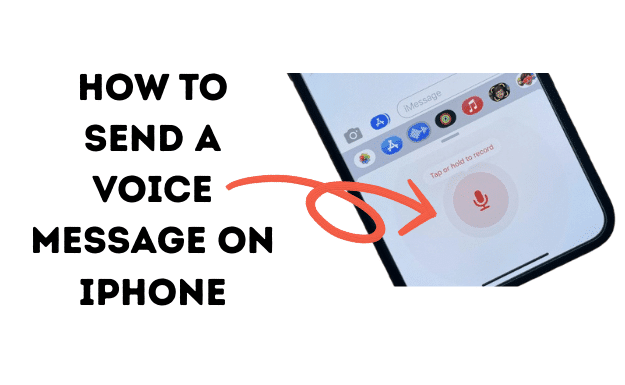
- Record Your Message: Press and hold the red microphone icon to start recording your message. You’ll see a timer and a waveform as you speak.
- Send It! When you’re done, lift your finger. You can preview the message by tapping the play button. If you’re happy with it, tap the upward arrow (↑) to send it on its way.
Alt text: A screenshot of an iPhone screen demonstrating how to send a voice message on iPhone by tapping the plus icon and then selecting the ‘Audio’ option in iMessage.
That’s all there is to it! Your voice message will appear in the chat, ready for your friend to listen.
Sending Audio Messages on Older iOS Versions (Pre-iOS 17)
If your iPhone is running an older version of iOS (like iOS 16), the process is even more direct. You don’t need to tap the plus icon first.
- Open an iMessage conversation.
- To the right of the text input field, you’ll see a gray waveform icon.
- Press and hold this icon to record your message.
- Lift your finger to stop recording, then tap the upward arrow (↑) to send.
Managing Voice Messages: Listening, Saving, and Why They Disappear
This is one of the most important things to know about iPhone voice messages. Have you ever noticed that a voice message on your iPhone disappeared after you listened to it? That’s not a bug; it’s a feature designed to save space.
By default, audio messages expire two minutes after you listen to them.
How to Save a Voice Message
To prevent a cherished or important message from vanishing, you must save it.
- Immediately after listening to a voice message, you’ll see a small blue https://www.google.com/search?q=link that says “Keep” right below it.
- Tap “Keep” to save the message permanently in your conversation thread.
How to Change the Expiration Setting
If you want to keep all your voice messages by default, you can change this setting.
- Go to Settings > Messages.
- Scroll down to the “Audio Messages” section.
- Tap on Expire.
- Change the setting from “After 2 Minutes” to “Never.”
Making this change will prevent all future voice messages (both sent and received) from being automatically deleted. This is the best way to turn off audio messages’ expiration on your iPhone.
Troubleshooting: Why Can’t I Send Voice Messages on My iPhone?
If you’re having trouble sending or receiving audio messages, a few common issues could be the cause. Let’s figure out how to enable voice messages on your iPhone if they aren’t working.
- It Only Works with iMessage: Voice messages are an iMessage feature. This means they can only be sent to other Apple users (people with blue bubbles). You cannot send them via standard SMS to Android users (green bubbles).
- Check Your iMessage Activation: Go to
Settings > Messagesand make sure iMessage is toggled on at the top. - Check Your Network Connection: You need a stable Wi-Fi or cellular data connection to send iMessages.
- Microphone Permissions: While rare, it’s possible the Messages app doesn’t have permission to use your microphone. You can check this in
Settings > Privacy & Security > Microphone. - Restart Your Device: The oldest trick in the book is often the most effective. A simple restart can fix many minor software glitches.
If you’re having issues with a specific contact, it’s always a good idea to learn how to check blocked numbers on your iPhone to make sure they aren’t on your block list by mistake.
The Best Way to Send Audio to Android Users (Voice Memos)
So, what do you do when you want to send a sound clip to a friend with an Android phone? You use the Voice Memos app. This is the perfect workaround for sending a voice recording in a text message.
- Open the Voice Memos app (it comes pre-installed on your iPhone).
- Tap the big red button at the bottom to start recording. Tap it again to stop.
- Your new recording will appear at the top of the list. Tap on it.
- Tap the three-dots icon (…) and select “Share.”
- Choose the Messages app from the share sheet.
- Select your Android-using contact and send the message.
The recording will be sent as a standard audio file (M4A) that they can play on any device.
Expert Insight: The Rise of Audio in Communication
The shift toward audio isn’t just a trend; it’s a fundamental change in how we interact digitally. Tech journalists have noted this for years.
“Voice messaging apps have become a core part of how people communicate. They offer a middle ground between the low-commitment nature of texting and the high-commitment nature of a phone call.” – 9to5Mac
This insight from a leading Apple news site highlights why mastering this feature is so useful. It’s a modern communication skill. For more tips on using your iPhone’s communication features, you can check out the official iPhone User Guide from Apple.
Quick Comparison: iMessage Audio vs. Voice Memos
When should you use the built-in iMessage feature versus the Voice Memos app? Here’s a quick breakdown.
| Feature | iMessage Audio Message | Voice Memos Recording |
| Best For | Quick, personal messages to other Apple users. | Longer recordings, or sending audio to any device. |
| Recipients | iMessage only (blue bubbles). | Anyone (SMS/MMS, email, etc.). |
| Expiration | Expires in 2 minutes by default. | Never expires unless you delete it. |
| Ease of Use | Very fast; integrated directly into the chat. | Requires switching apps but offers more control. |
| File Format | Proprietary audio format. | Standard M4A audio file. |
Mastering all the features on your phone, from messaging to call management, can make a huge difference. For example, knowing how to forward calls on your iPhone is another great skill for managing your communications effectively.
Frequently Asked Questions (FAQs)
Here are answers to some of the most common questions about sending voice messages.
How do I send an audio message on my iPhone?
In an iMessage chat, tap the “+” icon, select “Audio,” then press and hold the microphone to record. Release to stop and tap the send arrow. For non-Apple users, record a message in the Voice Memos app and share it via Messages.
How do I turn on voice messages on my iPhone?
The feature is automatically enabled as part of iMessage. If it’s not working, go to Settings > Messages and ensure that “iMessage” is toggled on at the top of the screen.
Why did my voice message disappear after I listened to it?
By default, iPhone audio messages are deleted two minutes after you play them to save space. To save one, tap the “Keep” button that appears below the message after you listen to it. You can change this default setting in Settings > Messages > Expire.
Can I send a voice message to an Android user?
You cannot send an iMessage voice note to an Android user. Instead, you should record a message using the Voice Memos app on your iPhone and then share that audio file via a text message (MMS).
How do I send a voice message on my iPhone during a call?
You cannot record a voice message within the Phone app during a call. However, you can multitask. While on a call, go to your Home Screen, open the Messages app, and record and send a voice message as you normally would. Your call will remain active.
Conclusion: Speak Your Mind, Literally
Now you know everything there is to know about how to send a voice message on your iPhone. It’s a fantastic feature for adding a personal touch to your chats, saving time, and making sure your tone is never misunderstood.
To recap the key points:
- Use the “+” icon and “Audio” button in iMessage for Apple users.
- Remember to tap “Keep” on messages you don’t want to lose.
- Use the Voice Memos app as a handy workaround for Android friends.
Sometimes, you may want to disconnect entirely. For those moments, learning how to pause location on Find My iPhone can give you an extra layer of privacy.
Go ahead and give it a try! Send a voice message to a friend or family member today. You might be surprised at how much you enjoy it.

