


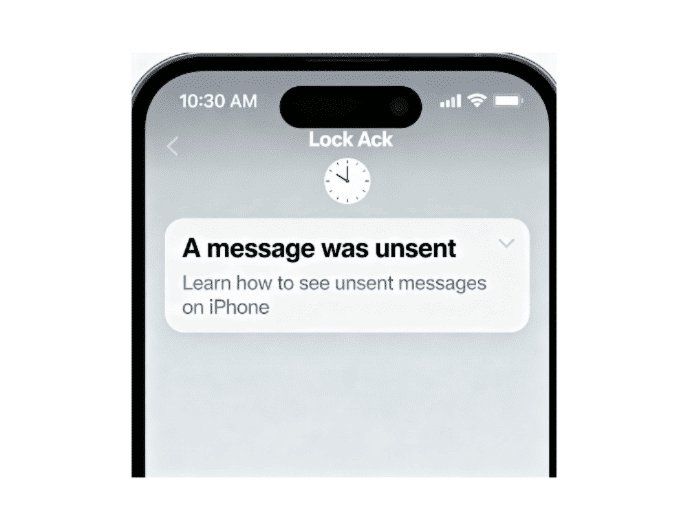
We’ve all been there. A notification buzzes on your iPhone, you see a preview of a message, and then… poof. You open the app to find a small, gray text that says, “A message was unsent.” The curiosity is immediate and intense. What did it say? Why did they unsend it? If you’re trying to figure out how to see unsent messages on iPhone, you’re not alone.
This guide is here to give you the real answers. We’ll explore the technical side of unsending messages, walk through five potential (though not guaranteed) methods to catch a glimpse of what was said, and explain how the feature works across different apps. Let’s solve this mystery together.
The Hard Truth: Can You Really See an Unsent Message on iPhone?
Let’s get straight to the point. In most situations, the direct answer is no. When a person unsends a message in iMessage (or apps like Messenger and Instagram), the feature is designed to delete that message from the conversation on both the sender’s and the receiver’s devices.
Think of it like a digital shredder. The command to “unsend” is sent to Apple’s servers, which then instructs your device to remove the message entirely. This is a core privacy feature, and it’s built to be effective. So, a simple button to reveal the message doesn’t exist.
However, technology isn’t always perfect. Digital loopholes and lucky timing can sometimes give you a window into what was written. The following methods explore those rare opportunities and provide a clearer picture of how to see unsent messages on iPhone.
XDA Developers – How to see unsent messages on an iPhone
5 Potential Ways to Glimpse an Unsent Message
While there’s no magic “reveal” button, these five methods are your best shot at figuring out what that mysterious message said.
Method 1: The Lock Screen Notification Trick (Your Best Bet)
This is the most common and realistic way to see an unsent message. A message’s notification is often a separate process from the message itself. This can create a small delay where the notification preview is visible even after the message has been unsent in the app.
Here’s what to do:
- When you receive a message notification, don’t immediately unlock your phone or tap the notification.
- Read the preview text directly on your lock screen.
- If you missed it, swipe down from the top-left of your screen to open the Notification Center.
- Carefully scan your recent notifications. If you’re lucky, the original message preview might still be lingering there, even if it’s gone from the Messages app.
This method is all about timing. If you see the notification before the “unsend” command has fully synced to your device, you might get to read it.
[Image: Screenshot of an iPhone lock screen showing recent iMessage notifications. Alt Text: An iPhone lock screen displaying message previews, demonstrating how to see unsent messages on iPhone through notifications.]
Method 2: Check Your Other Apple Devices (The Sync-Lag Solution)
Do you own a MacBook, iPad, or Apple Watch? Your other devices could be the key. The “unsend” command has to sync across all your devices logged into the same Apple ID. If one of your devices is offline, in airplane mode, or just slow to sync, it might not have gotten the memo yet.
Steps to try:
- If you suspect a message was unsent, grab your other Apple device (like a MacBook or iPad).
- Crucially, try to open the Messages app on that device before it has a chance to fully sync with the network.
- If there’s a sync lag, the original message may still be visible in the conversation on your Mac or iPad. This is a good way how to see unsent Messages on iPad or how to see unsent messages on Macbook.
This is a race against the clock, but it has worked for many users who have multiple devices in the Apple ecosystem.
Method 3: Restoring from an iCloud Backup (The Drastic Option)
Safety Warning: This is a last-resort method and we do not generally recommend it. Restoring your iPhone from a backup will erase all the data currently on your phone (photos, messages, and apps installed since the backup was made). Proceed with extreme caution.
The theory is simple: if your iPhone automatically backed up to iCloud after you received the message but before the sender unsent it, the message would be saved in that backup.
Restoring your phone to that specific backup could potentially recover it. However, the chances of the backup timing being this perfect are incredibly slim. Given the risk of data loss, this method is rarely worth the effort for a single message.
Method 4: Third-Party Notification Apps (A Reality Check)
If you search online, you might see articles mentioning apps that log your notifications, a popular solution for Android users. However, this is not a viable option for the iPhone.
Apple’s iOS is built with strong privacy protections that prevent apps from accessing the notifications of other apps. Therefore, you won’t find any legitimate apps on the App Store that can log your iMessage or Messenger notifications. Anyone claiming otherwise should be treated with skepticism.
Method 5: Just Ask! (The Human Approach)
Sometimes the simplest solution is the best one. If you’re comfortable with the person who sent the message, you can just ask them about it. A simple, “Hey, I saw you unsent a message. Everything okay?” can clear up the mystery without any technical gymnastics.
Often, the message was unsent because of a simple typo or because they sent it to the wrong person.
Unsend in Other Apps: Messenger, Instagram, and More
The “unsend” feature isn’t exclusive to iMessage. Here’s a quick look at how it works on other popular platforms.
How to see unsent messages on iPhone Messenger
Facebook Messenger has had an “unsend” feature for years. So, how do I see unsent messages on Messenger on iPhone? The answer is the same as iMessage: you generally can’t. Once a message is removed, it’s gone from the chat for everyone. Your only real hope is catching the notification preview on your lock screen before it disappears. The process for how to see unsent messages on iPhone Messenger relies entirely on that lucky timing.
How to see unsent messages on Instagram
Instagram DMs work the same way. When a user unsends a message, Instagram removes it from the conversation. Like with iMessage and Messenger, the notification trick is your only potential method for seeing what it said.
Unsend Feature Comparison
| Feature | Apple iMessage | Facebook Messenger | Instagram DM |
| Time Limit | 2 minutes | No time limit | No time limit |
| Recipient Notified? | Yes, shows “A message was unsent” | Yes, shows “A message was unsent” | No, it just disappears |
| Main “Tell” | Notification Preview | Notification Preview | Notification Preview |
A Guide for the Sender: How to Unsend Messages Correctly
Maybe you’re on the other side of this situation and want to unsend a message you regret sending. Here’s how to do it properly in iMessage.
Steps to Unsend an iMessage:
- Open the Messages app and go to the conversation.
- Press and hold the specific message bubble you want to unsend.
- A menu will pop up. Tap “Undo Send.”
- The message will disappear with a cool puff animation.
[Image: Animated GIF showing how to tap and hold an iMessage and select ‘Undo Send.’ Alt Text: An animation demonstrating the steps to see and select the ‘Undo Send’ option for an iMessage on an iPhone.]
However, there are important rules to know:
- There’s a Time Limit: You only have two minutes after sending to unsend an iMessage. After that, the option is gone. This answers the question of how to unsend a message on iPhone after 2 minutes—you can’t, but you can still delete it from your own device.
- Everyone Needs a Modern iOS: The “Undo Send” feature only works if both you and the recipient are using iOS 16, iPadOS 16, macOS Ventura, or later. If the other person has an older OS, the message will not be unsent on their device.
Expert Quote: As Apple’s official support guide states, “You can undo a recently sent message for up to two minutes after sending it… Undo Send requires that you and your recipient are using iOS 16, iPadOS 16, macOS Ventura, or later.” This is a critical detail to remember.
So, can they see you unsent a message on iPhone? Yes, if they are on a compatible iOS version, the conversation thread will show a notice that a message was unsent. They won’t see the content, but they will know you retracted something. If you’re having trouble with messages from certain people, it might be a good time to review your block list and learn how to unblock a number on iPhone.
Apple Support – Unsend and edit messages on iPhone
Frequently Asked Questions (FAQ)
1. Is there any way to see an unsent message on an iPhone?
Officially, no. The feature is designed to permanently delete the message. The only potential ways are to see the message preview in your Notification Center before it refreshes, or if the “unsend” command is delayed in syncing to one of your other Apple devices, like an iPad or Mac.
2. What’s the difference between “Undo Send” and “Edit” in iMessage?
“Undo Send” removes the message entirely within a 2-minute window. “Edit” allows you to change the content of a message up to five times within a 15-minute window. Recipients can see a history of your edits by tapping on the “Edited” label.
3. What happens if I try to unsend a message to someone with an older iOS or Android phone?
The “Undo Send” feature will fail. You will see the message disappear on your end, but it will remain fully visible on the recipient’s device. The feature only works for iMessage-to-iMessage chats where both users have a compatible, modern Apple operating system.
4. I have a “1 unsent message iPhone Mail” error. What is that?
This is a completely different issue related to the Apple Mail app, not iMessage. It means an email you tried to send is stuck in your Outbox folder, usually due to a poor internet connection or a problem with an attachment. To fix it, open the Mail app, go to your “Outbox,” and either delete the stuck email or try sending it again.
5. Do unsent messages show up on my phone bill?
No. Your carrier phone bill shows metadata like call logs (numbers called, duration) and data usage. It does not contain the content of your text messages, whether they are sent, delivered, or unsent.
Conclusion: The Final Word on Unsending
The mystery of a vanished message is compelling, but the truth is that technology has made it nearly impossible to retrieve it. Your quest for how to see unsent messages on iPhone will most likely end with a glance at your notifications. The “unsend” feature, at its core, works as intended: it gives users a second chance to take back their words.
While you can’t reliably see what was unsent, you now have a complete understanding of how the system works. You know that notifications are your best bet, that other Apple devices might offer a brief window, and that for other apps like Messenger, the rules are largely the same.
Sometimes, the best tech solutions are the human ones. If you’re truly curious, just ask. If you’re the one unsending, be aware of the rules and limitations. And if you want to become even more of an iPhone pro, learn how to do things like how to screen record on iPhone or how to unhide apps on iPhone to master your device.
Did you ever manage to catch an unsent message? Share your story in the comments below!

