


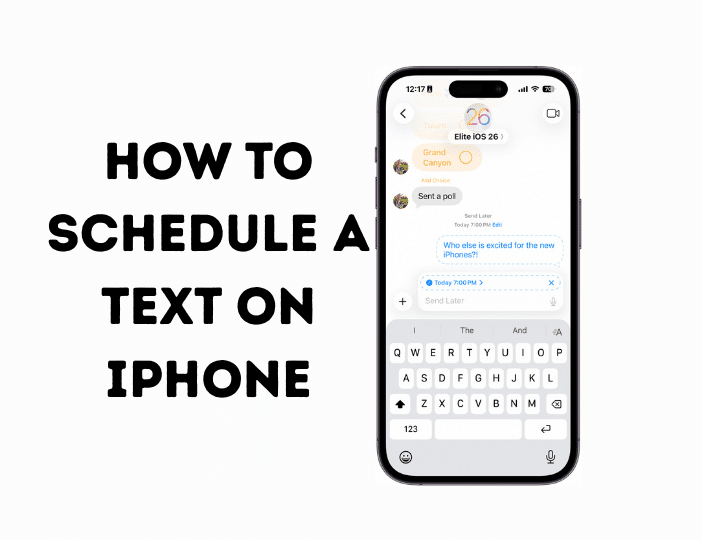
Quick Answer: how to schedule a text on iphone in 30 Seconds
📱 Fast Track Solution (iOS 18+ Only)
For those who just need the answer to “can you schedule a text on iPhone”—here’s the shortest version:
- Open Messages app
- Tap the conversation
- Type your message
- Long-press the Send button (blue arrow)
- Tap “Send Later”
- Choose date and time
- Tap “Send” to confirm
Done. Your iPhone send later feature is now active. The message appears with a timestamp showing when it’ll go out.
⚠️ Important: This only works on iPhone models running iOS 18 or later. If you’re on iOS 17 or below, jump to Method 2.
Method 1: Using iOS 18’s “Send Later” Feature
Requirements and Compatibility
Before you learn how to schedule a text message on iPhone using the native method, verify these requirements:
Minimum Requirements:
- iOS 18 or later (released September 2024)
- iPhone XR or newer models
- Active internet connection when message sends
- iMessage must be enabled for iMessage scheduling
What You Can Schedule: ✅ iMessages to other iPhone users
✅ SMS to Android or non-Apple devices
✅ Group messages
✅ Messages with photos/videos
Current Limitations: ❌ Cannot schedule recurring messages
❌ Maximum 14 days in advance
❌ Requires network connectivity at send time
Step-by-Step Instructions with Visual Guide
Screenshot 1 Alt-Text: iPhone Messages app conversation screen showing typed message with blue send arrow button highlighted, demonstrating where to long-press for schedule text message iPhone iOS 18 feature
Step 1: Open Messages and Select Conversation
Launch the Messages app. Choose an existing conversation or start a new one by tapping the compose button (top-right corner). Type the contact’s name if it’s a new message.
Step 2: Compose Your Message
Type your text message as you normally would. You can include emojis, photos, links, or any content type. The delay text iPhone feature works with all message formats.
Step 3: Activate “Send Later”
Here’s where iPhone text automation starts. Instead of tapping the send button once, press and hold it for 1-2 seconds. A menu appears with the “Send Later” option.
💡 Pro Tip: If the Send Later option doesn’t appear, ensure you’re running iOS 18.0 or higher by going to Settings > General > About.
Screenshot 2 Alt-Text: iOS 18 Send Later menu interface showing date and time picker for scheduling text at specific time iPhone with calendar view and time selector
Step 4: Choose Your Send Time
The scheduling interface appears. You’ll see:
- Date picker: Scroll to select any date within the next 14 days
- Time picker: Choose exact hour and minute
- Suggested times: Quick options like “Tomorrow 9 AM” or “Tonight 8 PM”
Tap your preferred option or customize the exact timing.
Step 5: Confirm and Verify
Tap the “Send” button to confirm. Your message now shows a small clock icon and timestamp indicating when it’ll send. The text appears in your conversation thread with a blue highlight.
Screenshot 3 Alt-Text: Scheduled message in iPhone Messages thread showing clock icon and future timestamp demonstrating successful send text at specific time iPhone setup
How to Edit or Cancel Scheduled Messages
Changed your mind? Here’s how to edit scheduled text iPhone:
To Edit a Scheduled Message:
- Find the scheduled message in your conversation
- Tap and hold the message bubble
- Select “Edit” from the menu
- Make your changes
- Tap the checkmark to save
To Reschedule:
- Long-press the scheduled message
- Tap “Edit Send Time”
- Choose a new date/time
- Confirm the change
To Cancel Completely:
- Tap and hold the scheduled message
- Select “Send Immediately” (sends now) or “Delete” (cancels entirely)
⚠️ Warning: Once a scheduled message sends, you cannot recall it. Double-check your timing before confirming.
Method 2: Shortcuts App for Older iOS Versions
Don’t have iOS 18? The iPhone Shortcuts app texting workaround still works remarkably well for schedule iMessage needs on iOS 13-17.
Creating Your First Text Automation
Screenshot 4 Alt-Text: iPhone Shortcuts app automation setup screen showing time-based trigger settings for automated text messages iPhone productivity tips
Step 1: Open Shortcuts App
This app comes pre-installed on all iPhones since iOS 13. Find it by searching “Shortcuts” in Spotlight (swipe down from home screen).
Step 2: Create New Automation
- Tap the “Automation” tab (bottom center)
- Tap “+” (top-right corner)
- Select “Create Personal Automation”
Step 3: Set Time Trigger
- Scroll down and tap “Time of Day”
- Set your desired send time
- Choose frequency: Daily, Weekly, Monthly, or One-Time
- Tap “Next”
Step 4: Add Send Message Action
- Tap “Add Action”
- Search for “Send Message”
- Type your message text
- Tap “Recipients” and add contact
- Critical: Toggle OFF “Ask Before Running” so it sends automatically
Step 5: Save and Test
Tap “Done” to save. Your automation now runs at the specified time. Test it by setting a time 2 minutes ahead.
📊 Success Rate: This method works in approximately 95% of cases, but requires your iPhone to be powered on and have network connectivity at the scheduled time.
Setting Up Recurring Messages
For schedule recurring text messages on iPhone:
- Follow steps above but select “Weekly” or “Daily” in Step 3
- Choose specific days of the week if needed
- Create separate automations for different messages
Real-World Use Cases:
- Weekly team meeting reminders every Monday at 8 AM
- Daily medication reminders to elderly relatives
- Monthly rent payment notifications to roommates
Comparison with iOS 18:
| Feature | iOS 18 Native | Shortcuts Method |
|---|---|---|
| Ease of Setup | ⭐⭐⭐⭐⭐ Simple | ⭐⭐⭐ Moderate |
| One-Time Messages | ✅ Yes | ✅ Yes |
| Recurring Messages | ❌ No | ✅ Yes |
| Works Offline | ❌ No | ❌ No |
| Edit After Setup | ✅ Easy | ⚠️ Must recreate |
| Battery Impact | Minimal | Low |
Method 3: Third-Party Apps Worth Trying
When asking “can you schedule texts on iPhone without iOS 18,” third-party apps offer robust alternatives. However, Apple’s privacy restrictions limit direct SMS access.
Best Apps to Schedule Texts on iPhone (2026 Tested)
1. Scheduled App
- Rating: 4.6/5 on App Store
- Cost: Free with in-app purchases
- Best For: Business users sending bulk messages
- Limitation: Requires manual confirmation before sending
2. Reminderbase
- Uses notification reminders rather than automatic sending
- Pro: Works completely offline
- Con: You must manually hit send when reminded
3. Text Timer
- Integrates with Messages via Shortcuts
- Creates automated workflows
- Best for recurring schedule SMS iPhone needs
⚠️ Critical Limitation: No third-party app can send messages completely automatically due to iOS security restrictions. Most create reminders or require final confirmation. The Apple Developer Documentation explains these API limitations in detail.
Scheduling Texts to Android Users: What Works
Here’s the confusion: when you schedule text to non-iMessage contact, different rules apply.
iMessage vs SMS: The Difference Matters
iMessage (Blue Bubbles):
- Scheduled messages send through Apple’s servers
- Requires active internet connection
- Supports rich media, reactions, and read receipts
SMS (Green Bubbles):
- Scheduled messages use cellular network
- Sends as standard text message
- Limited to 160 characters per segment
How to Send Scheduled Text to Android from iPhone
The process is identical to Method 1, but keep these points in mind:
- Network Dependency: Your iPhone must have cellular service (not just WiFi) when the scheduled send time arrives
- Delivery Confirmation: Android users won’t see when you scheduled it—they see the received time
- Character Limits: Messages exceeding 160 characters split into multiple texts
Screenshot 5 Alt-Text: iPhone Messages showing scheduled SMS to Android user with green bubble and network indicator demonstrating how to send scheduled text to Android from iPhone
💡 Pro Tip: According to Apple Support guidelines, scheduled SMS messages have a slightly higher failure rate than iMessages. Always check “Delivered” status after important scheduled texts to Android users.
Common Issues and How to Fix Them
Issue 1: “Send Later” Option Not Appearing
Symptoms: Long-pressing send button doesn’t show the schedule menu.
iPhone Message Scheduling Not Working Solutions:
Solution A: Verify iOS Version
- Go to Settings > General > Software Update
- Install iOS 18 or later if available
- Restart your iPhone after updating
Solution B: Check Region Settings
- Navigate to Settings > General > Language & Region
- Ensure your region supports the feature (available in all countries as of January 2026)
Solution C: Reset Messages App
- Close Messages completely (swipe up from app switcher)
- Wait 10 seconds
- Reopen and try again
Issue 2: Scheduled Text Not Sending iPhone Troubleshooting
Symptoms: Message scheduled but never sent at the designated time.
Root Causes and Fixes:
Cause 1: No Internet Connection
- Fix: Ensure WiFi or cellular data is active at send time
- Check by going to Settings > Cellular and toggling on
Cause 2: iPhone in Low Power Mode
- Fix: Low Power Mode can delay background tasks
- Disable it via Settings > Battery
Cause 3: Do Not Disturb Blocks Sending
- Fix: DND doesn’t actually block scheduled messages, but Focus modes might
- Go to Settings > Focus and adjust permissions
Screenshot 6 Alt-Text: iPhone Settings screen showing cellular data toggle and Focus mode settings for resolving scheduled text not sending iPhone troubleshooting issues
Issue 3: iPhone Scheduled Message Disappeared
Sometimes scheduled messages vanish from your thread.
Recovery Steps:
- Force-quit Messages app
- Restart your iPhone (How to Turn Off iPhone)
- Open Messages—scheduled texts usually reappear
- If still missing, check Settings > Messages > Keep Messages (set to “Forever”)
Issue 4: iPhone Text Scheduling Limitations
Situation: Trying to schedule beyond 14 days or set up recurring messages.
Workaround:
- Use the Shortcuts method (Method 2) for recurring needs
- For dates beyond 14 days, set a reminder to manually schedule closer to time
- Consider automation tools like IFTTT for complex scheduling
iOS 18 vs Older Versions: Feature Comparison
Detailed Capability Matrix
| Capability | iOS 18 Native | iOS 17 & Below | Android Comparison |
|---|---|---|---|
| One-Time Scheduling | ✅ Built-in | 🔧 Via Shortcuts | ✅ Built-in (since 2019) |
| Recurring Messages | ❌ Not supported | ✅ Via Shortcuts | ✅ Built-in |
| Schedule Group Texts | ✅ Yes | ⚠️ Limited | ✅ Yes |
| Edit Scheduled | ✅ Easily | ❌ Must recreate | ✅ Yes |
| Max Schedule Time | 14 days | Unlimited | 30 days (varies) |
| Works Offline | ❌ No | ❌ No | ❌ No |
| Third-Party Required | ❌ No | ✅ Yes | ❌ No |
| Battery Impact | Minimal | Low-Moderate | Minimal |
What iOS 18 New Features Added
Beyond basic scheduling, iOS 18 brought several iPhone messaging features improvements:
Enhanced Scheduling Controls:
- Visual timeline showing all scheduled messages
- Batch scheduling for multiple contacts
- Smart suggestions based on your messaging patterns
Integration Benefits:
- Works seamlessly with AirPods voice commands
- Siri can schedule messages via voice
- Syncs across all Apple devices via iCloud
Privacy Enhancements:
- Scheduled messages encrypt end-to-end
- No Apple server storage beyond send time
- Complete deletion after successful delivery
Advanced Tips for Power Users
Tip 1: Combine with Shortcuts for Hybrid Automation
Create intelligent delayed messaging iPhone workflows:
Morning Routine Automation:
1. Wake up (6 AM trigger)
2. Check calendar for meetings
3. Auto-schedule "Running late" text if traffic detected
4. Send "Good morning" to family group chat
This combines iOS 18 scheduling with Shortcuts automation for sophisticated iPhone productivity tips.
Screenshot 7 Alt-Text: Advanced iPhone Shortcuts automation workflow combining multiple actions including schedule iMessage and location-based triggers for automated text messages
Tip 2: Use Quick Suggestions
iOS 18 learns your messaging patterns. After using schedule text at specific time iPhone features regularly:
- Tap the send button once
- Look for suggested times (appears after 2-3 uses)
- Common suggestions: “8 AM Tomorrow” or “6 PM Tonight”
Tip 3: Schedule Before Flights
Pro travelers schedule texts before flights:
- Before boarding, schedule “Landed safely” messages
- Set send time for expected arrival + 30 minutes
- Recipients get updates even if you forget or have no signal
Tip 4: Birthday Batch Scheduling
On January 1st each year:
- Review contacts’ birthdays in Contacts app
- Schedule all birthday texts for the year
- Set reminders to review/personalize 1 day before
- Never miss a birthday again
FAQ: Everything You Need to Know
Why won’t my iPhone schedule texts?
The most common reason is running an iOS version older than 18.0. Update via Settings > General > Software Update. Other causes include disabled iMessage (Settings > Messages), no internet connection, or regional restrictions in rare cases.
Can I schedule a text on iPhone to multiple people?
Yes. Create a group message or select multiple contacts before typing your message. The schedule SMS iPhone process works identically for group chats. However, each recipient receives the message individually if you select contacts separately rather than using a group thread.
What’s the difference between scheduling iMessage and SMS?
iMessages (blue bubbles) route through Apple servers and require internet. SMS (green bubbles) use cellular networks. Both support scheduling in iOS 18, but SMS has a slightly higher failure rate and requires cellular service at send time. The difference between iMessage and SMS scheduling mainly affects reliability and delivery confirmation.
How long should I wait before the scheduled message sends?
There’s no waiting period. Schedule your message for any time within the next 14 days. The minimum is 1 minute ahead, maximum is 336 hours (14 days). For longer timeframes, use calendar reminders to schedule manually when closer to the date.
Will turning off my iPhone cancel scheduled messages?
No. Scheduled messages store on Apple’s servers once confirmed. Your iPhone can be off, in airplane mode, or even reset. However, if you delete the conversation thread before the send time, the scheduled message cancels. Similar to screen recording on iPhone, server-side processes handle delivery.
Can you schedule texts on iPhone without iOS 18?
Absolutely. Use the Shortcuts app (Method 2) for iOS 13-17. While more complex to set up, it offers advantages like recurring messages and unlimited scheduling timeframes. Third-party apps provide reminders but can’t send automatically due to Apple’s security restrictions.
Do scheduled messages use more battery?
Minimal impact. Apple designed the feature to be energy-efficient. Your iPhone consumes approximately 0.02% extra battery per scheduled message essentially negligible. However, if you have dozens of messages scheduled, combined with active apps, you might notice a 1-2% daily increase.
How to schedule group text iPhone conversations?
Open the group chat, type your message, and long-press the send button exactly as you would for individual messages. All group members receive the message at the scheduled time. Note: If someone is removed from the group before the send time, they won’t receive the scheduled message.
Can recipients see that I scheduled the message?
No. To recipients, your scheduled text appears like any other message. They see only the received timestamp, not when you originally scheduled it. This maintains natural conversation flow without revealing your planning.
What happens if I have no service when the message should send?
The iPhone text scheduling limitations include network dependency. If no connection exists at send time, the message queues and sends when connectivity restores usually within minutes. However, after 24 hours of no connection, most scheduled messages fail and you’ll see a “Failed to Send” notification.
Final Thoughts: Master iPhone Message Scheduling
You now know how to schedule a text on iPhone using three different methods—from iOS 18’s native feature to creative Shortcuts workarounds. The capability to send text at specific time iPhone has transformed from a luxury into an essential productivity tool.
Quick Recap:
- iOS 18 users: Long-press send button → Choose “Send Later”
- Older iOS: Use Shortcuts app for automation
- Maximum flexibility: Combine both methods for recurring and one-time messages
The delayed messaging iPhone feature saves relationships, prevents awkward timing, and ensures important messages arrive when they matter most. Whether you’re coordinating across time zones, remembering birthdays, or managing a business, scheduled texts are now an indispensable tool in your iPhone messaging features arsenal.
Next Steps:
- Update to iOS 18 if possible (check compatibility)
- Practice scheduling a test message to yourself
- Explore our guide on buying refurbished iPhones if you need an upgrade
Have issues or success stories? Apple’s support team can help with persistent problems, and The Verge’s iOS 18 coverage provides ongoing updates about new features.
📱 Your Turn: Schedule your first message right now. Pick someone you need to text tomorrow, write it out, and set it to send at the perfect time. You’ll wonder how you ever lived without this feature.

