


Want a little more privacy on your iPhone? Whether you’re lending your phone to a friend or just keeping things tidy, knowing how to hide apps on iPhone is a handy skill every user should have. The good news? Apple gives you several easy ways to do it no technical knowledge required.
In this guide, you’ll learn 5 proven methods to hide apps on your iPhone, including options that work with iOS 18. Let’s dive in.
Why Hide Apps on Your iPhone?
There are plenty of good reasons to hide apps on your iPhone:
- Privacy — Keep personal apps out of sight from family members or coworkers.
- Parental control — Limit what kids can access on a shared device.
- Clean home screen — Declutter your display without deleting apps.
- Focus — Remove distracting apps when you need to concentrate.
Whatever your reason, Apple’s iOS 18 makes it easier than ever to hide apps from your home screen, search results, and even the App Library.
💡 Apple Support notes: “You can hide apps you don’t use often by moving them to the App Library — your apps are still available, just not cluttering your home screen.” — Apple Support
Method 1: Hide Apps Using the App Library
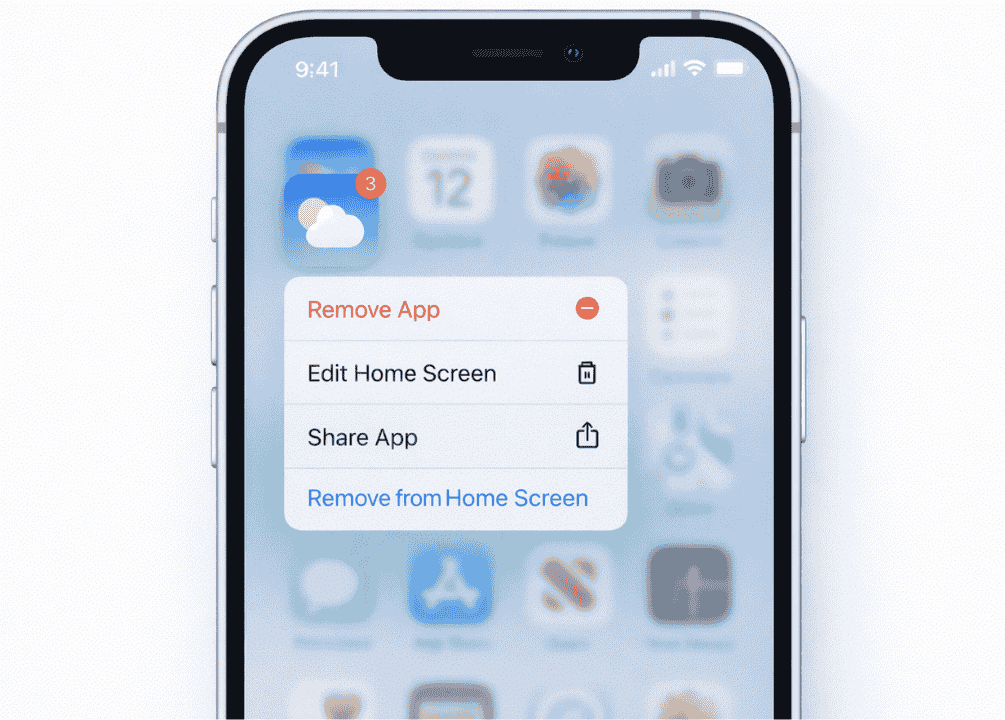
The App Library is the simplest way to hide apps from your iPhone home screen without deleting them. The app stays on your device — it just moves out of sight.
According to Apple Support, you can remove apps from your Home Screen while keeping them in your App Library.
Steps:
- Press and hold the app icon you want to hide.
- Tap “Remove App” from the pop-up menu.
- Select “Remove from Home Screen” (not “Delete App”).
- The app disappears from your home screen but remains accessible in the App Library (swipe left past all your home screen pages to find it).
⚠️ Note: Choosing “Delete App” will permanently remove it. Always pick “Remove from Home Screen” if you want to keep the app installed.
This method works on iPhone XS and later running iOS 14 or newer, including iOS 18.
Method 2: Hide Apps with Screen Time
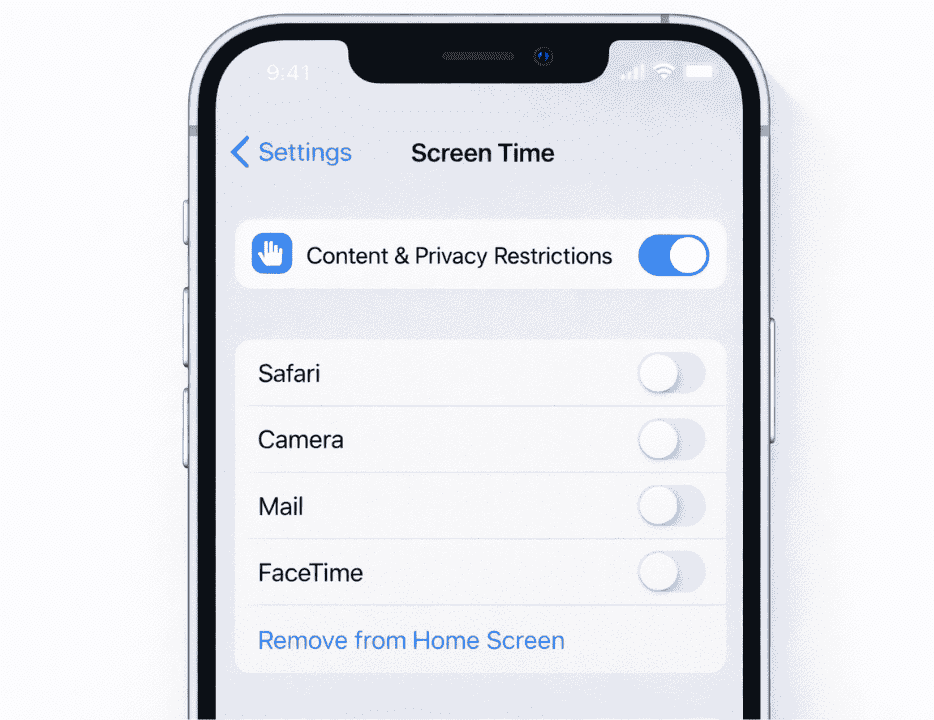
Screen Time is Apple’s built-in parental control and app management tool. It lets you hide apps on iPhone with Screen Time and even lock the setting with a passcode — making it great if you want to keep certain apps hidden from others.
This is one of the best options if you’re wondering how to hide apps on iPhone from others, especially children.
Steps:
- Open Settings → tap Screen Time.
- If Screen Time is off, tap “Turn On Screen Time” and follow the setup.
- Tap “Content & Privacy Restrictions”.
- Enable Content & Privacy Restrictions (toggle it on).
- Tap “Allowed Apps”.
- Toggle off any app you want to hide (e.g., Safari, FaceTime, Camera).
The hidden apps will vanish from the home screen and search results instantly.
💡 Pro Tip: Set a Screen Time passcode (different from your main passcode) to prevent others from changing these settings. Go to Screen Time → Use Screen Time Passcode.
How to Hide Apps on iPhone Without Screen Time
Not a fan of Screen Time? Methods 1, 3, and 4 in this guide give you full control without Screen Time. Keep reading!
Learn more about parental controls on Apple’s official Screen Time page
Method 3: Use Focus Mode to Hide Apps
Focus Mode is a powerful iOS feature that lets you customize which home screen pages appear — and which don’t. It’s perfect for hiding distracting apps during work hours or bedtime.
Steps:
- Go to Settings → Focus.
- Tap an existing Focus (like “Work” or “Personal”) or tap the “+” to create a new one.
- Under “Home Screen”, tap “Customize Screens”.
- Deselect any home screen pages you want hidden while this Focus is active.
- Tap “Done”.
When you activate this Focus, the selected home screen pages — and all their apps — disappear until you turn Focus off.
✅ This method is ideal for hiding apps from your iPhone home screen without permanently removing them.
You can also activate Focus quickly by going to Control Center and tapping the Focus icon.
Method 4: Create a Hidden App Folder
This classic trick uses iPhone folders to tuck apps out of view. It’s not a perfect “hide,” but it works well for keeping apps away from plain sight.
Steps:
- Press and hold the home screen until the apps start wiggling.
- Drag one app on top of another to create a folder.
- Add the apps you want to hide into the folder.
- Move the folder to a secondary home screen page (drag it to the edge of the screen).
- Press the Home button or swipe up to stop editing.
For an extra layer of invisibility, create a folder with a boring name (like “Utilities”) and bury it on a page you rarely visit.
Method 5: Restrict Apps with Guided Access
Guided Access locks your iPhone to a single app, preventing access to anything else. It’s not a “hide” feature exactly, but it’s excellent for moments when you hand your phone to someone and don’t want them opening other apps.
Steps:
- Go to Settings → Accessibility → Guided Access.
- Toggle Guided Access on.
- Tap Passcode Settings and create a Guided Access passcode.
- Open the app you want to lock the user into.
- Triple-click the Side button (or Home button on older iPhones).
- Tap “Start” in the lower-right corner.
To exit Guided Access, triple-click the Side button again and enter your passcode.
Quick Comparison: Which Method is Best for You?
| Method | Hides from Home Screen | Hides from Search | Needs Passcode | iOS Version |
|---|---|---|---|---|
| App Library | ✅ Yes | ❌ No | ❌ No | iOS 14+ |
| Screen Time | ✅ Yes | ✅ Yes | ✅ Optional | iOS 12+ |
| Focus Mode | ✅ Yes | ❌ No | ❌ No | iOS 15+ |
| Hidden Folder | ✅ Partial | ❌ No | ❌ No | All iOS |
| Guided Access | N/A | N/A | ✅ Yes | iOS 6+ |
How to Unhide Apps on iPhone
Changed your mind? Here’s how to unhide apps on iPhone for each method:
Unhide from App Library:
- Swipe left to open the App Library.
- Search for the app by name.
- Press and hold the app icon.
- Tap “Add to Home Screen”.
Unhide from Screen Time:
- Go to Settings → Screen Time → Content & Privacy Restrictions.
- Tap Allowed Apps.
- Toggle the app back on.
Unhide from Focus Mode:
- Go to Settings → Focus → select your Focus.
- Tap “Customize Screens”.
- Re-select the home screen page you hid.
Unhide from a Folder:
Simply drag the app out of the folder back onto your home screen.
Stay Private: More iPhone Tips You’ll Love
Hiding apps is just one part of protecting your privacy. Here are a few more guides worth checking out:
- 🔒 How to Block a Number on iPhone: Complete 2026 Guide — Stop unwanted calls and texts in seconds.
- 🍪 How to Clear Cookies on iPhone: Complete Guide (2026) — Keep your browsing history private.
- 📍 How to Share Location on iPhone: Best Methods (2026) — Control who can see where you are.
FAQs About Hiding Apps on iPhone
Can I hide apps on iPhone without Screen Time?
Yes! You can hide apps on iPhone without Screen Time using the App Library (Method 1), Focus Mode (Method 3), or by creating a hidden folder (Method 4). These methods don’t require Screen Time to be enabled at all.
How do I hide apps on iPhone iOS 18?
Hiding apps on iPhone iOS 18 works the same as earlier versions. Press and hold any app icon → tap “Remove App” → select “Remove from Home Screen.” In iOS 18, Apple also added the ability to hide apps in the App Library with Face ID or a passcode for extra protection. Go to Settings → Privacy → and look for app lock options.
How do I hide apps from the App Library on iPhone?
To hide apps from the App Library on iPhone, use Screen Time to restrict the app entirely. This removes it from both the home screen and the App Library. No other native iOS method fully hides apps from the App Library.
Is there an app that hides apps on iPhone?
Apple doesn’t officially support third-party “app hider” apps on iPhone due to security restrictions. The best and safest method is to use Apple’s built-in Screen Time, Focus Mode, or App Library features to manage app visibility.
How do I find hidden apps on iPhone?
To find hidden apps on iPhone, check the App Library (swipe left on your home screen), go to Settings → Screen Time → Allowed Apps, or search for the app name using Spotlight search (swipe down on the home screen).
Can I hide apps on the iPhone lock screen?
You can’t directly hide apps on the iPhone lock screen, but you can use Focus Mode to control which notifications and widgets appear on your lock screen, minimizing the visibility of certain apps while your iPhone is locked.
Final Thoughts
Whether you want a cleaner home screen, more privacy, or better parental controls, hiding apps on your iPhone is simple with the right method.
Here’s a quick recap:
- App Library — Best for a quick, hassle-free hide.
- Screen Time — Best for parental controls or full app blocking.
- Focus Mode — Best for temporarily hiding apps during specific activities.
- Hidden Folder — Best for a low-tech, no-settings approach.
- Guided Access — Best for locking your phone to one app temporarily.
Try one of these methods today your home screen (and your privacy) will thank you. And if you want to go further with iPhone security, don’t miss our guide on how to block a number on iPhone for even more control over who can reach you.
For more advanced tips, check out this detailed breakdown from MacRumors.
Last updated: March 2026 | Applies to: iPhone models running iOS 14, iOS 15, iOS 16, iOS 17, and iOS 18

