


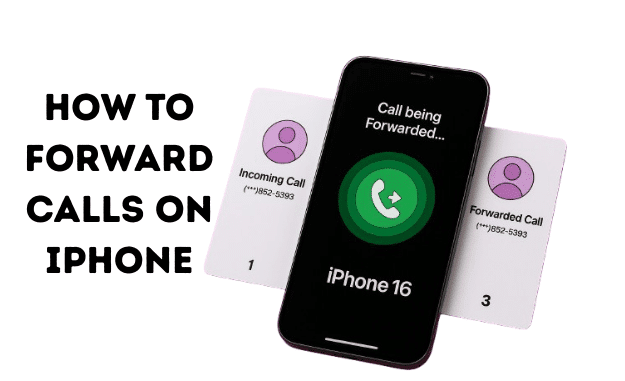
This guide will show you the simple built-in method for how to forward calls on iPhone and explain some powerful carrier codes that give you even more control. Let’s get your calls ringing on the right phone!
What Exactly is Call Forwarding and Why is it Useful?
Call forwarding is a phone feature that lets you redirect your incoming calls to another phone number. Instead of your iPhone ringing, the call is automatically sent to the number you choose—be it a landline, a second mobile phone, or a colleague’s number.
So, why would you use it?
- Consolidate Devices: If you carry both a work phone and a personal phone, you can forward calls from one to the other so you only have to carry one device.
- Avoid Poor Service Areas: If you know you’ll be somewhere with bad reception for your iPhone but a different phone has service, you can forward your calls there to stay connected.
- Vacation or Unavailability: Forward your work calls to a team member while you’re on vacation so you can truly disconnect.
- Battery Saving: If your iPhone is about to die, you can quickly forward your calls to a friend’s phone or a landline until you can recharge.
How to Forward Calls on iPhone: The 5 Quick Steps
This is the most straightforward way to set up call forwarding directly on your device. This method enables “Unconditional Call Forwarding,” meaning all incoming calls will be redirected.
Here’s how you can forward calls to another phone in just a few taps:
- Open the Settings App: Find and tap the gray gear icon on your Home Screen.
- Scroll Down and Tap “Phone”: You’ll find this option grouped with other core Apple apps like Messages and FaceTime.
- Tap on “Call Forwarding”: This will take you to the main control screen for this feature.
- Enable Call Forwarding: Tap the toggle switch next to “Call Forwarding.” It will turn green to show that it is active.
- Enter the Number: Tap on the “Forward To” field that appears. Type in the full 10-digit phone number where you want your calls to be sent. Tap the back button to save.
Alt text: The iPhone Settings screen showing the Call Forwarding toggle turned on and a number entered in the “Forward To” field, demonstrating how to forward calls on iPhone.
That’s it! A small icon of a phone with an arrow will appear in your status bar at the top of the screen, letting you know that call forwarding is active. To turn it off, simply return to this screen and tap the toggle switch again.
A Crucial Note: Your Wireless Carrier is in Control
It’s important to understand that call forwarding is a feature controlled by your wireless carrier (like AT&T, T-Mobile, or Verizon), not Apple. The steps above work perfectly for most iPhones on GSM networks (AT&T and T-Mobile).
However, if you’ve ever found the Call Forwarding option grayed out, it’s likely because your carrier manages this feature differently. This was more common on older CDMA networks, but it can still happen. If you can’t access the setting on your iPhone, don’t worry—the next method is for you.
Using Carrier Codes for Forwarding (The *72 Method)
For decades, carriers have used special dialing codes, often called “star codes,” to manage features like call forwarding. These codes are typed into your phone’s keypad as if you were making a call.
This method is universal and often the only way to set up more advanced types of forwarding.
What is *72 and *73 on an iPhone?
*72is the code used by most major U.S. carriers to turn on Unconditional Call Forwarding.*73Is the code to turn off Unconditional Call Forwarding?
Here’s a breakdown of the most common codes. To use them, open your Phone app, go to the Keypad, type the code, and press the call button.
| Code | Action Description | How to Use It |
*72 | Activate Unconditional Forwarding | Dial *72 immediately followed by the 10-digit number you want to forward to (e.g., *722125551234), then press call. You’ll hear a confirmation tone. |
*73 | Deactivate Unconditional Forwarding | Dial *73 and press call. You’ll hear a tone confirming it’s off. |
*90 | Activate Conditional Forwarding (if busy) | Dial *90 followed by the 10-digit number, then press call. |
*92 | Activate Conditional Forwarding (if unanswered) | Dial *92 followed by the 10-digit number, then press call. |
Important: These codes can vary slightly between carriers. It’s always best to confirm with your provider. Here are https://www.google.com/search?q=links to the official support pages for major carriers:
Understanding Conditional Call Forwarding (When Busy or Unanswered)
The method in your iPhone’s Settings menu is all or nothing. But what if you only want to forward calls when you’re already on the phone or when you don’t answer? That’s called Conditional Call Forwarding, and it’s incredibly useful.
This feature is almost always controlled by carrier codes:
- Forward When Busy: This redirects callers only if you’re on another call. This is perfect for sending overflow calls to an assistant or voicemail service. You typically activate this with a code like
*90. - Forward When Unanswered: If you don’t pick up after a certain number of rings, the call is sent to another number instead of your voicemail. This is useful for routing calls to a colleague if you’re away from your desk. The code is often
*92.
To set up iPhone call forwarding when busy or unanswered, you must use the star codes provided by your carrier.
Does Call Forwarding Work the Same on All iPhone Models?
Yes! Whether you are looking for how to forward calls on iPhone 11, how to forward calls on iPhone 15, or even the upcoming iPhone 16, the process is identical.
Call forwarding is a function of the iOS software and your carrier’s network, not the physical iPhone model. As long as your iPhone is running a modern version of iOS, the steps in Settings > Phone > Call Forwarding will be the same.
Expert Insight: What Apple Says About Call Forwarding
Apple’s own support documents make it clear that while the setting is on your iPhone, the service comes from your carrier.
“Set up call forwarding and call waiting on iPhone. Note: Call forwarding… [is a feature that depends on] your carrier. Contact your carrier for more information.” – Apple Support
This reinforces the importance of checking with your provider if you run into any issues, especially if the setting is grayed out or the star codes don’t work. If you’re forwarding calls because of unwanted contact, it might also be helpful to learn how to check blocked numbers on your iPhone to manage your contacts more effectively.
Frequently Asked Questions
Here are answers to some of the most common questions about call forwarding.
Can I forward iPhone calls to another number?
Yes, absolutely. You can use the simple toggle Settings > Phone > Call Forwarding to forward all calls, or you can use carrier-specific codes like *72 to set up forwarding directly through your provider’s network.
How do you forward calls to another phone?
The easiest way is to go to your iPhone’s Settings, tap “Phone,” then “Call Forwarding.” Turn the feature on and enter the 10-digit phone number you want to forward your calls to.
Why is the Call Forwarding option grayed out on my iPhone?
This usually means your carrier does not support changing this setting through the iPhone’s menu. This can happen with certain plans or carriers. In this case, you must use the carrier star codes (like *72) to manage call forwarding.
Will I be charged for forwarding calls?
This depends on your carrier and plan. Most modern plans treat forwarded calls like any other outgoing call, meaning they would use minutes from your plan. If you forward to a long-distance number, you could incur charges. Always check with your carrier to be sure.
How do I know if my calls are being forwarded?
When unconditional call forwarding is active through the iPhone Settings, a small icon of a phone with an arrow pointing away from it will appear in the status bar at the top of your screen, next to the Wi-Fi or cellular signal indicator.
Conclusion: You’re in Control of Your Calls
Knowing how to forward calls on your iPhone is a powerful skill that offers convenience and flexibility. Whether you’re using the simple menu in Settings or the more advanced carrier codes, you can ensure you never miss an important call, no matter the situation.
To quickly recap:
- For all calls, use the simple toggle in Settings > Phone > Call Forwarding.
- For more control, use carrier codes *72 to activate and *73 to deactivate.
- If the setting is grayed out, carrier codes are your best solution.
Call forwarding is a fantastic tool for managing both your privacy and availability. For more privacy tips, you might want to learn how to pause location on Find My iPhone. And if you’re forwarding calls to avoid certain people, you might also want to know how to see blocked messages on your iPhone.
Now you’re a call forwarding expert! Give it a try the next time you need to be available on a different line.

