


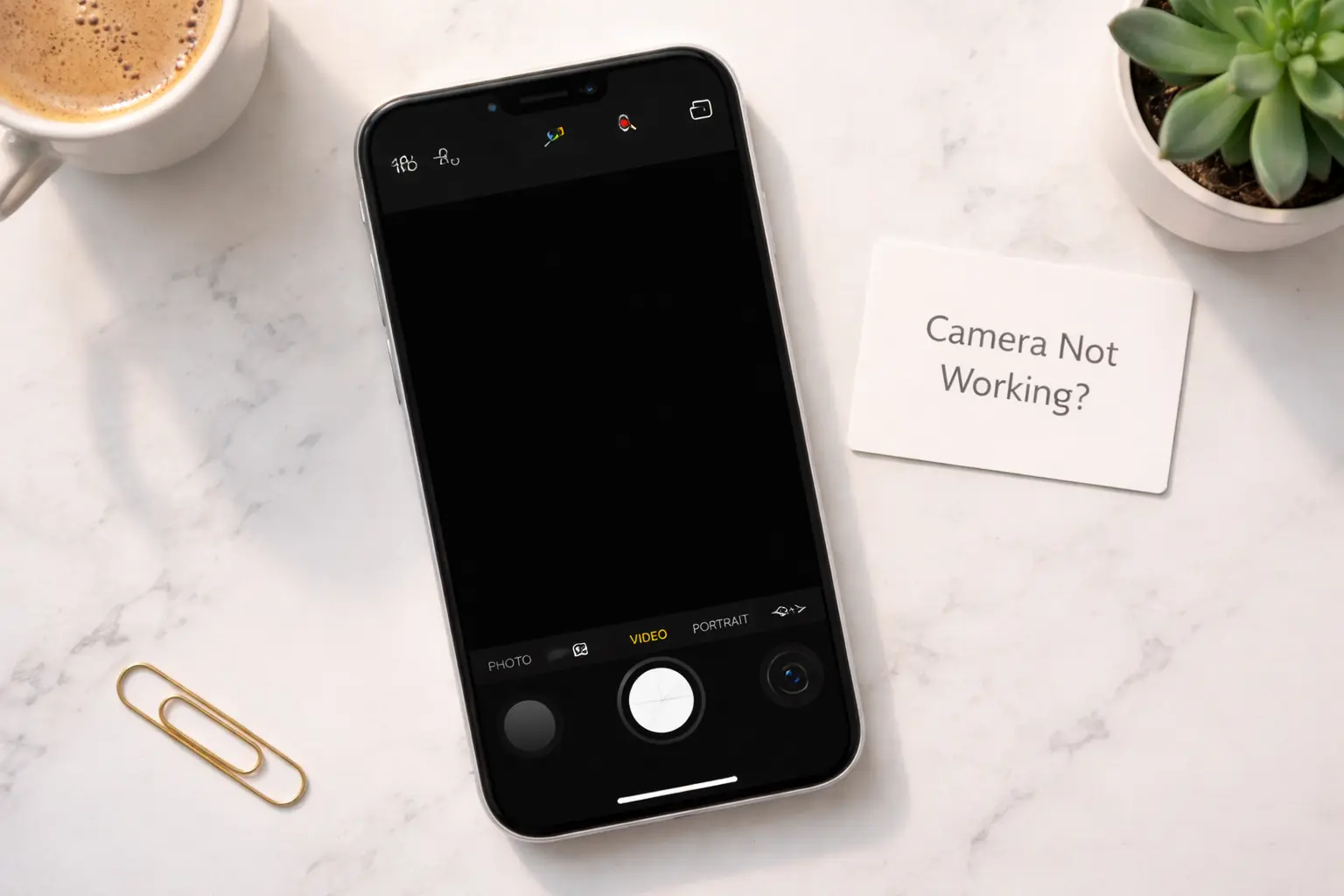
If you’ve ever opened your iPhone Camera app and seen a black screen, a blurry lens, or nothing at all — you’re not alone. Searching for how to fix iPhone camera not working is one of the top iPhone troubleshooting queries in 2026, and it’s easy to see why. The frustration is real. The good news? Most camera problems are software-related, and you can solve them yourself in minutes.
This complete guide walks you through 10 proven ways to fix iPhone camera not working — covering everything from a simple force-quit to a full iTunes restore. We’ve also addressed issues that most other guides miss: the difference between front and rear camera faults, model-specific steps for Face ID vs. Home Button iPhones, and third-party app conflicts.
Whether your screen is black, your photos are blurry, or the app refuses to open — this guide has the fix. Let’s get started.
Why Is My iPhone Camera Not Working?
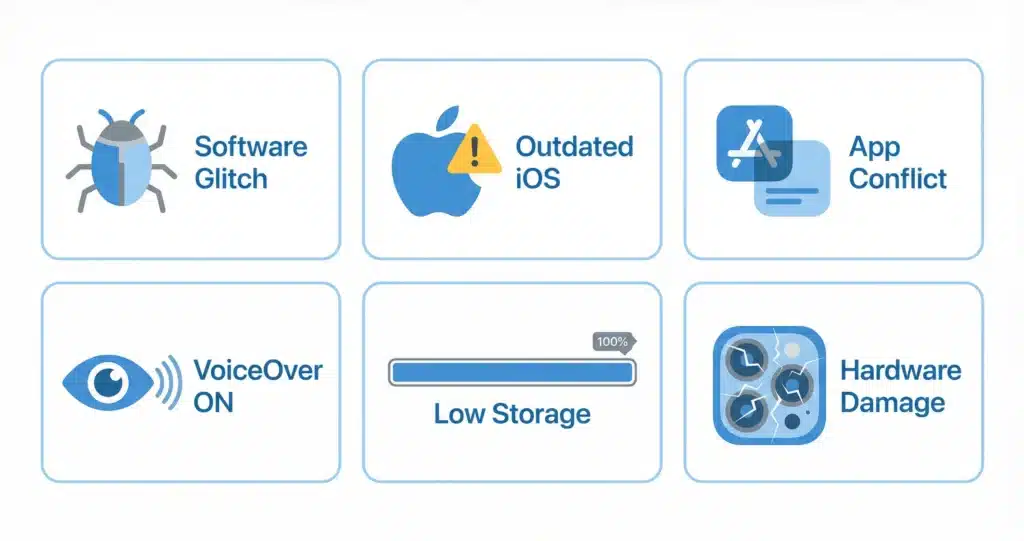
Before you learn how to fix iPhone camera not working, it helps to understand why the problem happens in the first place. Knowing the root cause lets you jump straight to the right fix. The cause is almost always one of these:
- Software glitch — the Camera app freezes or the iOS system crashes
- iOS version issue — a bug in your current update is affecting the camera
- Third-party app conflict — another app is blocking camera access
- VoiceOver accessibility setting — causes the iPhone camera black screen
- Low storage — not enough space for the camera to save photos or videos
- Hardware damage — a drop or water exposure that affected the lens or sensor
💡 Pro Tip: According to Apple Support, the first step to fix iPhone camera not working is always to force-quit the Camera app and restart your device before attempting any advanced troubleshooting.
Quick Checks Before You Start
Before diving into each fix, run through this 2-minute checklist. These quick steps resolve the most obvious causes of iPhone camera not working — and could save you from going through all 10 fixes. If any of these quick checks solve it, you’ll know how to fix iPhone camera not working fast without deeper troubleshooting.
- ✅ Remove your iPhone case — some thick or magnetic cases can interfere with the lens
- ✅ Clean the camera lens — fingerprints or dust can cause blurry photos
- ✅ Check for iOS updates — an outdated OS is a common cause of camera bugs
- ✅ Switch between front and rear camera — tap the flip icon to see if both cameras respond
- ✅ Try opening the camera from the Lock Screen — swipe left to bypass any app-level issue
Fix 1: Force Quit the Camera App
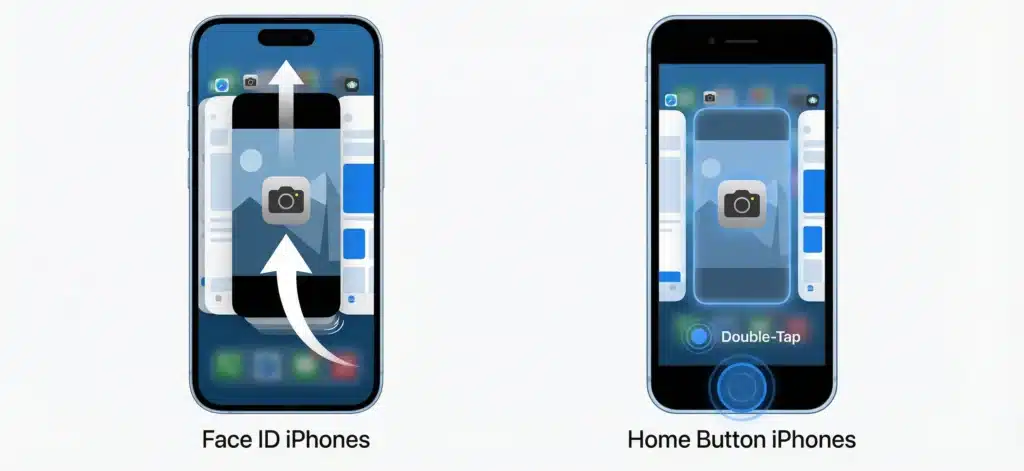
One of the fastest ways to fix iPhone camera not working is to force-quit the Camera app. When the app freezes, crashes, or opens to a black screen, force-quitting clears its memory and forces a clean restart. This fix works on every iPhone model.
On iPhones with Face ID (iPhone X and later)
- Swipe up from the bottom of the screen and pause in the middle
- The app switcher will appear with all open apps as cards
- Find the Camera app card and swipe it upward to close it
- Wait 5 seconds, then re-open the Camera app from your Home Screen
On iPhones with a Home Button (iPhone SE, iPhone 8 and earlier)
- Double-press the Home button to open the app switcher
- Swipe left or right to find the Camera app
- Swipe the Camera card upward to close it
- Re-open the Camera app from your Home Screen
⚠️ Note: If the app crashes again immediately after reopening, move on to Fix 2. A repeated crash usually points to a deeper software issue.
Fix 2: Restart Your iPhone
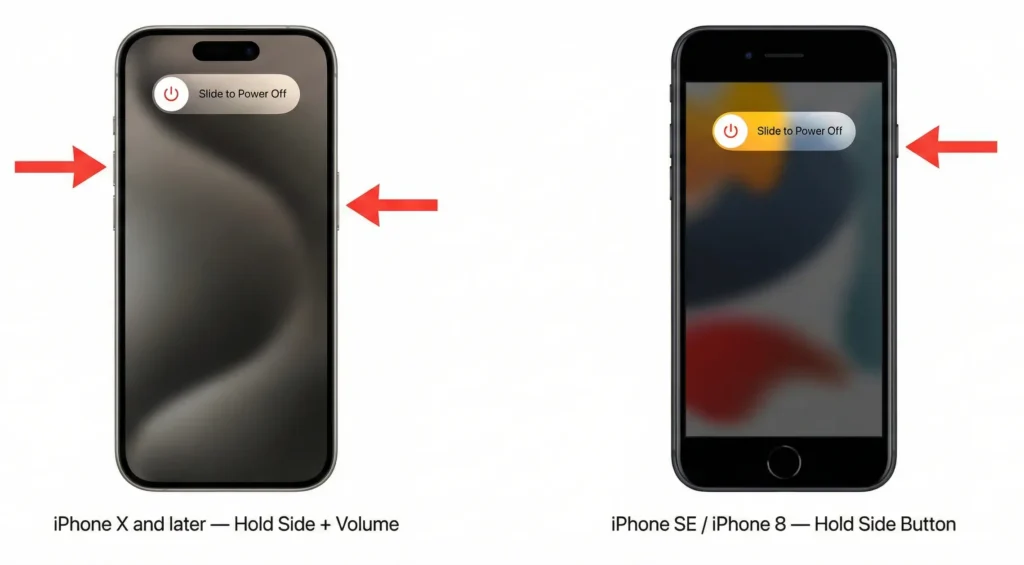
A full restart is one of the most reliable ways to fix iPhone camera not working when the problem is caused by a temporary memory glitch. It clears all system memory and resolves the vast majority of iPhone camera stopped working suddenly situations. This takes less than a minute.
iPhone with Face ID (iPhone X / XS / XR / 11 / 12 / 13 / 14 / 15 / 16 series)
- Press and hold the Side button and either Volume button at the same time
- Drag the slide to power off slider to the right
- Wait 30 seconds, then press and hold the Side button to turn your iPhone back on
iPhone with Home Button (iPhone SE 2nd/3rd gen, iPhone 8)
- Press and hold the Side (or Top) button until the slider appears
- Drag the slider to turn it off
- After 30 seconds, press and hold the Side button to power back on
If you need help navigating power controls — especially how to turn off iPhone without screen — check out our dedicated guide for screen-unresponsive situations.
Fix 3: Update iOS to the Latest Version
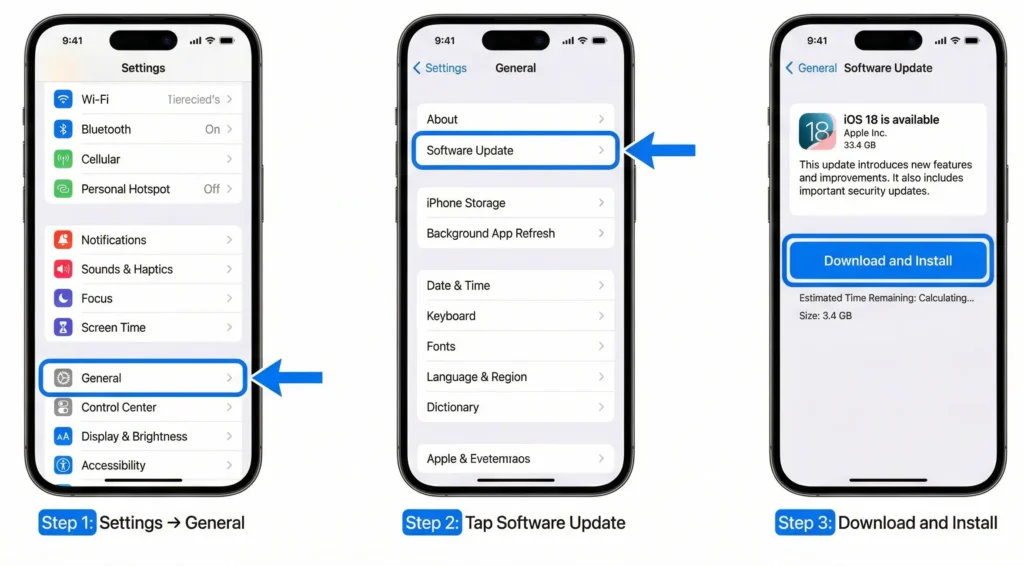
Wondering how to fix iPhone camera not working after a software bug crept in? Updating iOS is often the answer. An outdated iOS version is one of the most overlooked reasons the camera fails — Apple regularly releases patches that fix camera-specific bugs, so staying updated is critical in 2026.
- Open Settings → General → Software Update
- If an update is available, tap Download and Install
- Enter your passcode if prompted and wait for the update to complete
- After restarting, open the Camera app and test it
For a complete walkthrough, visit our guide on how to update your iPhone — it covers every method including updating through iTunes.
💡 Expert Insight: Apple’s iOS release notes often include entries like “fixes an issue where the camera would show a black screen.” Always check the release notes before dismissing an update as unnecessary.
Fix 4: Disable VoiceOver (iPhone Camera Black Screen Fix)
Here’s a how to fix iPhone camera not working tip that most guides skip entirely: VoiceOver — Apple’s screen reader accessibility feature — is a leading cause of the iPhone camera black screen bug. When VoiceOver is active, the camera viewfinder often goes completely black, making it appear that the camera hardware has failed — when it hasn’t.
- Go to Settings → Accessibility → VoiceOver
- Toggle VoiceOver off if it is currently enabled
- Re-open the Camera app and check if the viewfinder is now showing
Alternatively, you can triple-click the Side button (or Home button on older models) to quickly toggle VoiceOver on and off — it’s a fast shortcut worth knowing.
Fix 5: Check Camera Permissions for Third-Party Apps
This is a step that most guides completely skip — yet it’s one of the most common reasons people search for how to fix iPhone camera not working. If the camera fails only inside a specific third-party app — like Snapchat, Instagram, WhatsApp, or a document scanner — the problem is almost certainly a permissions issue, not a hardware fault.
- Open Settings and scroll down to find the app that isn’t working (e.g., Snapchat)
- Tap on the app name to open its settings
- Find the Camera permission and make sure it is toggled on
- Close and reopen the app to test the camera
⚠️ Important: Camera permissions are granted per-app. If you denied access when the app first requested it, the camera will appear broken inside that app — but your iPhone camera itself is completely fine.
Also check that no other app is actively using the camera in the background. A little orange dot at the top of your screen indicates the camera is in use by another app.
Fix 6: Front vs. Rear Camera — Model-Specific Fixes
Knowing how to fix iPhone camera not working depends heavily on which camera is having the problem. It’s important to distinguish whether your iPhone front camera is not working or if the fault lies with the rear camera — because the fix can differ significantly by iPhone model.
| Issue | Affected Camera | Likely Cause | First Fix |
| Black viewfinder | Rear camera | VoiceOver or software glitch | Disable VoiceOver |
| No TrueDepth data | Front camera (Face ID models) | iOS bug or hardware | Update iOS first |
| Blurry / out of focus | Rear camera | Dirty lens or OIS issue | Clean lens, force-quit |
| Camera not opening | Both cameras | App crash or low storage | Force-quit, free space |
| Portrait mode missing | Front or Rear | Older iPhone model | Check iPhone compatibility |
| Green tint in photos | Any | iOS 14 bug (older devices) | Update to latest iOS |
iPhone Front Camera Not Working Fix
- Check if the front-camera selfie icon is visible — tap the flip icon in the Camera app
- On Face ID iPhones, the front camera powers the face recognition sensor — an iOS bug can affect both simultaneously
- Try using the front camera in a brightly lit room — low-light issues can look like hardware failure
- Delete and reinstall any third-party camera app that uses the front camera
Fix 7: Reset All Settings
Still searching for how to fix iPhone camera not working? A Reset All Settings is your next move. This does not delete your photos, apps, or contacts. It only resets system preferences — including any hidden configuration conflicts that might be blocking the camera.
- Open Settings → General
- Scroll down and tap Transfer or Reset iPhone
- Tap Reset → Reset All Settings
- Enter your passcode and confirm
- Your iPhone will restart — open the Camera app to test
Note: On older iOS versions (iOS 14 and below), the path is Settings → General → Reset → Reset All Settings.
Fix 8: Free Up iPhone Storage
Low storage is a surprisingly common cause of iPhone camera not working issues. The Camera app needs available storage space to function — if your iPhone is nearly full, the camera may refuse to open, freeze mid-session, or fail to save photos and videos.
- Go to Settings → General → iPhone Storage
- Review apps and media consuming the most space
- Tap an app and choose Offload App or Delete App to free space
- Delete old screenshots, duplicate photos, or unused video clips
- Enable iCloud Photos to automatically store photos in the cloud and free local space
💡 Pro Tip: Apple recommends keeping at least 1–2 GB of free storage available for smooth Camera app performance. If you’re always running low, consider enabling iCloud Photos or upgrading your iCloud storage plan.
Fix 9: Restore iPhone via iTunes
If you’ve worked through every fix above and still need to know how to fix iPhone camera not working, restoring your iPhone through iTunes (or Finder on macOS Catalina+) is the most thorough software solution. It reinstalls iOS entirely, wiping any deep-seated software corruption.
⚠️ Warning: Restoring via iTunes will erase all content from your iPhone. Make sure you have a recent iCloud or iTunes backup before you proceed.
- Back up your iPhone via iCloud: Settings → [Your Name] → iCloud → iCloud Backup → Back Up Now
- Connect your iPhone to your computer with a USB cable
- Open iTunes (on Windows or older macOS) or Finder (on macOS Catalina and later)
- Select your iPhone from the sidebar
- Click Restore iPhone and confirm the action
- After the restore, set up your iPhone and restore from your backup
For a detailed walkthrough, read our guide on how to restore iPhone with iTunes — it covers every step for both Windows and Mac.
Fix 10: Contact Apple Support
If you’ve tried all 9 software fixes and still can’t fix iPhone camera not working, the issue is most likely hardware-related. A physical drop, water damage, or a faulty lens module can cause camera failures that no software fix can resolve.
- Visit Apple Support online to start a repair request
- Book an appointment at your nearest Apple Store Genius Bar
- Check if your device is still under AppleCare+ warranty — camera repairs may be covered
- If you’re outside warranty, Apple offers a flat-rate out-of-warranty service for camera repairs
Third-party repair services are an option too — just ensure they use genuine Apple parts to avoid voiding any remaining coverage. For reference, Android Authority’s deep-dive on iPhone camera issues confirms that persistent black-screen faults after software resets almost always point to a hardware component failure.
Camera Issue Quick-Reference Table
Not sure where to start? Use this table to match your specific symptom to the best fix. It’s the fastest way to know how to fix iPhone camera not working for your exact situation:
| Symptom | Likely Cause | Best Fix |
| Camera app opens to black screen | VoiceOver on / software glitch | Fix 4 → Fix 1 → Fix 2 |
| Camera app crashes immediately | iOS bug or low memory | Fix 1 → Fix 3 → Fix 8 |
| Camera not working in Instagram/Snapchat | App permissions denied | Fix 5 |
| Front camera not working | iOS bug or Face ID conflict | Fix 2 → Fix 3 → Fix 6 |
| Photos are blurry or out of focus | Dirty lens or OIS software fault | Clean lens → Fix 1 → Fix 7 |
| Camera works but can’t save photos | Storage full | Fix 8 |
| Camera not working after iOS update | iOS bug introduced in update | Fix 3 (wait for next patch) → Fix 7 |
| Camera still black after all fixes | Hardware damage | Fix 10 (Apple Support) |
People Also Ask
Why is my iPhone camera black?
The most common cause of an iPhone camera not working black screen is VoiceOver being turned on. Go to Settings → Accessibility → VoiceOver and turn it off. If that doesn’t work, force-quit the Camera app and restart your iPhone. These are the two fastest ways to fix iPhone camera not working black screen issues.
Why did my iPhone camera suddenly stop working?
When your iPhone camera suddenly stops working, it’s almost always a software issue — a glitch in the Camera app, a conflicting app, or an iOS bug. The quickest way to know how to fix iPhone camera not working suddenly is to force-quit the app, restart, then update iOS. These three steps fix it in the vast majority of cases. Persistent issues after those steps may indicate hardware damage.
Why is my iPhone 14 camera and flashlight not working?
If both your camera and flashlight stopped working at the same time on an iPhone 14, this points to a known hardware fault or a serious iOS crash affecting the rear camera module. Try restarting first. If that doesn’t help, the camera module may have failed — book a Genius Bar appointment as your iPhone 14 may still be under warranty.
How do I fix my iPhone camera not showing up?
Knowing how to fix iPhone camera not working when the app seems to have disappeared is straightforward. Check that it hasn’t been removed from your Home Screen by swiping down and searching for Camera. You can restore it via Settings → Home Screen. If the app opens but shows nothing, follow the black screen fixes earlier in this guide.
Frequently Asked Questions (FAQs)
Q1: Will resetting all settings delete my photos?
No. Reset All Settings does not delete any of your personal data — not photos, apps, contacts, or messages. It only resets system preferences like Wi-Fi passwords, wallpaper, and accessibility settings back to their defaults.
Q2: Can a software update break my iPhone camera?
Yes, it occasionally happens. A buggy iOS update can introduce camera bugs — including iPhone camera blurry fix situations and black screen faults. If your iPhone camera stopped working right after an update, it may be the iOS causing it. Knowing how to fix iPhone camera not working after an update is simple: wait a few days for Apple to release a patch, or perform a Reset All Settings to see if that clears the conflict.
Q3: My iPhone camera works in the native app but not in third-party apps. Why?
This is a camera permission issue. Third-party apps like Snapchat, Instagram, or TikTok need explicit permission to access your iPhone camera. Go to Settings → [App Name] → Camera and toggle it on. The native Camera app always has permission, which is why it works but others don’t.
Q4: Does Apple cover camera repair under warranty?
If your iPhone is within the one-year limited warranty or covered by AppleCare+, camera defects caused by manufacturing faults are typically covered at no cost. Accidental damage (like a drop) is covered under AppleCare+ with a service fee. Check your coverage at checkcoverage.apple.com.
Q5: Is there a way to test if my iPhone camera is truly broken?
Yes. Open the Camera app and point it at a bright light source. If you see anything — even light or shadows — the camera hardware is likely intact and the issue is software. A completely dead sensor with no response whatsoever, even after all software fixes, indicates a hardware fault. You can also run a diagnostic at any Apple Store for a definitive answer.
Q6: Can I fix the iPhone camera myself at home?
Yes — all 10 steps in this guide on how to fix iPhone camera not working are safe to perform at home with no tools required. Do not attempt to physically open your iPhone to access the camera module — this voids your warranty and can cause irreversible damage. For any hardware repair, always use Apple or an Apple Authorized Service Provider.
Conclusion
Now you know exactly how to fix iPhone camera not working — no matter what’s causing the problem. Whether it’s a quick force-quit or a full iTunes restore, this guide covers every scenario. Here’s a quick summary of where to start:
- Force-quit the Camera app — it takes 5 seconds and solves most glitches
- Restart your iPhone — clears memory and resets the camera system
- Update iOS — Apple’s patches often fix camera bugs directly
- Check VoiceOver — the most commonly missed fix for black screen issues
- Check app permissions — if the problem is only in one app, this is the answer
- Reset All Settings — a clean slate without losing your data
- Restore via iTunes — the nuclear option before going to Apple
If you’ve worked through all 10 fixes to fix iPhone camera not working and the camera still isn’t responding, contact Apple Support or book a Genius Bar appointment. A hardware repair may be needed — and it’s always better to let a certified technician handle it.
Found this guide helpful? You might also want to read our guides on how to update your iPhone and how to restore iPhone with iTunes for more essential iPhone maintenance tips.
📌 Did This Help? If this guide on how to fix iPhone camera not working solved your problem, share it with a friend who might be having the same issue — it could save them an unnecessary trip to the Apple Store!

