


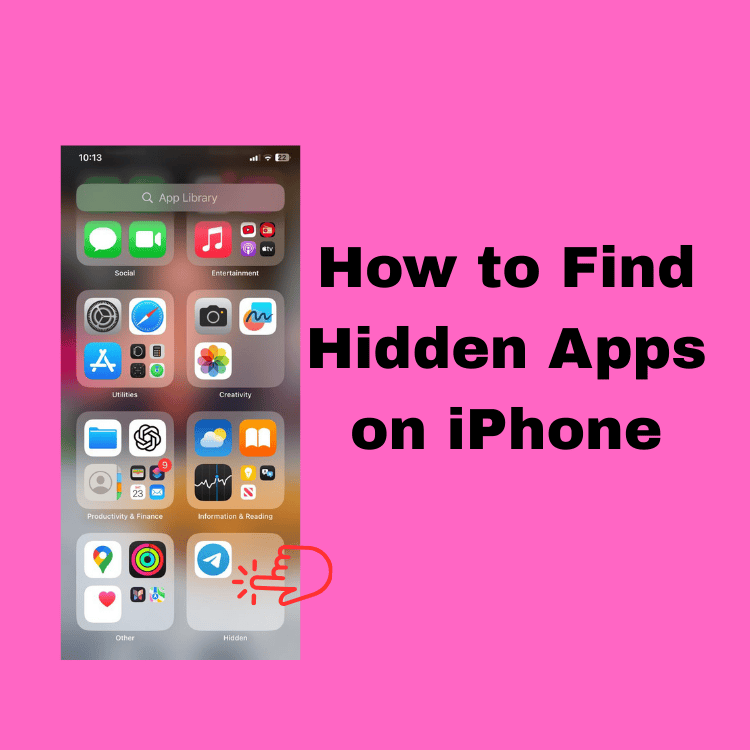
Did you know that 65% of iPhone users have at least one app they can’t find, even though it’s still installed? If you’re frantically searching for that missing app icon, wondering how to find hidden apps on iPhone, you’re not alone. Maybe your kids hid their social media apps, or you accidentally made an important app disappear. Perhaps you’re concerned someone is using secret apps on a shared device.
Why Apps Get Hidden on iPhone
Before we dive into finding hidden apps, let’s understand why they disappear in the first place:
Common Reasons Apps Become Hidden:
Apps don’t just vanish into thin air. Here’s what usually happens:
Accidental Hiding: You might have removed an app from your home screen without realizing it. One wrong swipe during organizing, and boom – your app seems gone. But don’t worry, it’s probably still in your App Library.
Parental Controls Screen Time restrictions can hide apps based on age ratings or content. Parents often use this feature, but sometimes forget which apps they’ve restricted.
Privacy Concerns: Some people intentionally hide dating apps, social media, or financial apps for privacy. Your iPhone makes this easy with several built-in methods.
iOS Updates After updating to iOS 18.5, your apps might reorganize themselves. Sometimes they end up in unexpected folders or App Library categories.
How to Find Hidden Apps on iPhone (iOS 18.5)
Here’s the complete step-by-step process to locate any hidden app:
Step 1: Check Your App Library
Swipe left past all your home screen pages until you reach the App Library. Every app on your iPhone appears here, even if hidden from the home screen.
Step 2: Use Search Function
Swipe down from the middle of any home screen to open Spotlight Search. Type the app name – hidden apps will appear in results.
Step 3: Review Screen Time Settings
Go to Settings > Screen Time > Content & Privacy Restrictions > Allowed Apps. Toggle on any apps that are currently restricted.
Step 4: Check Folders Thoroughly
Hidden apps might be buried in folders. Press and hold any folder to see all apps inside quickly. Look for folders with generic names like “Utilities” or “Other.”
Step 5: Reset Home Screen Layout
If all else fails, go to Settings > General > Transfer or Reset iPhone > Reset > Reset Home Screen Layout. This brings all apps back to default positions.
💡 Pro Tip: The fastest way to find any app is using Spotlight Search – it finds apps regardless of where they’re hidden!
Finding Hidden Apps in App Library
The App Library is your secret weapon for finding hidden apps. Here’s how to master it:
Understanding App Library Categories
iOS 18.5 automatically organizes your apps into smart categories:
| Category | What’s Inside | Common Hidden Apps |
|---|---|---|
| Social | Messaging and social media | WhatsApp, Discord, Telegram |
| Entertainment | Streaming and games | Netflix, Spotify, hidden games |
| Creativity | Photo and video editing | Photoshop, Canva, video editors |
| Utilities | Tools and system apps | Calculator, hidden VPNs, file managers |
| Other | Miscellaneous apps | Anything that doesn’t fit elsewhere |
Advanced App Library Search
To search effectively:
- Open App Library (swipe to the last page)
- Pull down slightly to reveal the search bar
- Type even partial app names
- Check the alphabetical list at the top
Hidden Gem: Tap the search field without typing anything to see an alphabetical list of ALL your apps – nothing can hide here!
App Library Settings
In iOS 18.5, you can customize how apps appear:
- Go to Settings > Home Screen & App Library
- Choose “Add to Home Screen” or “App Library Only”
- Toggle “Show in App Library” for complete visibility
Checking Screen Time for Hidden Apps
Screen Time is often the culprit behind missing apps. Here’s your complete investigation guide:
Accessing Screen Time Restrictions
- Open Settings
- Tap Screen Time
- Select Content & Privacy Restrictions
- Enter your Screen Time passcode (if set)
- Tap Allowed Apps
What to Look For
Check these specific areas:
- Allowed Apps: Ensure all needed apps are toggled ON
- Content Restrictions: Check age ratings haven’t hidden apps
- App Limits: Verify apps aren’t hidden due to time limits
- Downtime: Confirm apps aren’t restricted during certain hours
Important: If you forgot your Screen Time passcode, you’ll need your Apple ID to reset it. This is different from learning how to find my iPhone – that’s for lost devices.
Disabling Restrictions Safely
To unhide all apps at once:
- In Screen Time settings
- Tap “Turn Off Screen Time” at the bottom
- Confirm your choice
- All apps instantly reappear
⚠️ Warning: This removes all parental controls and app limits. Consider adjusting individual settings instead.
How to Unhide Apps on iPhone
Now let’s bring those hidden apps back into view:
Method 1: From App Library to Home Screen
- Find the app in App Library
- Press and hold the app icon
- Select “Add to Home Screen”
- The app appears on your first available space
Method 2: Using Siri Suggestions
- Swipe right to your Today View
- Check the Siri Suggestions widget
- If the hidden app appears, tap to open
- Then add to home screen from App Library
Method 3: Through App Store
- Open App Store
- Tap your profile picture
- Select “Purchased”
- Find the app and tap the cloud icon
- The app redownloads and appears on the home screen
How to Unhide Apps on iPhone Without Face ID
For older iPhones or when Face ID isn’t working:
- Use Touch ID or passcode to access Screen Time
- Navigate to Settings > Screen Time manually
- Enter Screen Time passcode (different from device passcode)
- Follow the same steps to unhide apps
Quick Fix for iOS 17 Users: If you’re still on iOS 17, the process is similar, but the App Library search works slightly differently. Consider updating to iOS 18.5 for better app management features.
Finding Secret Messages and Decoy Apps
This is where things get serious. Let’s uncover those truly hidden apps and secret messages:
How to Find Secret Messages on iPhone
Check These Hidden Message Locations:
- Hidden Alerts in Messages
- Open Messages app
- Check for conversations with “Hide Alerts” enabled
- Look for the moon icon next to conversations
- Archived Chats in Third-Party Apps
- WhatsApp: Check “Archived Chats” at the top
- Messenger: Look for “Message Requests” and “Filtered Messages”
- Instagram: Check both Message Requests and Hidden Requests
- Notes App with Locked Notes
- Open Notes
- Look for locked notes (padlock icon)
- These might contain hidden information
What Do Decoy Apps Look Like on iPhone?
Decoy apps are designed to look innocent while hiding their true purpose. Here’s how to spot them:
Common Decoy App Disguises:
- Calculator apps that require special codes
- Photo vault apps disguised as utilities
- Note-taking apps with hidden browsers
- Game apps that are actually social platforms
Red Flags to Watch For:
| Warning Sign | What It Means | Action to Take |
|---|---|---|
| Generic app names | Trying to blend in | Check app details in Settings |
| No app history in Screen Time | Recently installed or hidden | Review purchase history |
| Unusual permissions | Apps asking for unnecessary access | Check Settings > Privacy |
| Hidden from Siri Suggestions | Deliberately concealed | Search in App Library |
How Can You Tell If Someone Has Hidden Apps on Their iPhone?
Detective Mode: Signs to Look For:
- Screen Time Inconsistencies
- High usage but few visible apps
- “Other” category with excessive time
- Gaps in app usage history
- Storage Mysteries
- Go to Settings > General > iPhone Storage
- Look for apps using significant space, but not on the home screen
- Check for apps you don’t recognize
- App Store History
- Check purchased apps in App Store
- Look for recent downloads not visible
- Review family sharing if applicable
- Notification Behavior
- Notifications appearing from invisible apps
- Banners that disappear too quickly
- Sound alerts with no visible source
Device-Specific Instructions
Different iPhone models have slight variations. Here’s what you need to know:
How to Find Hidden Apps on iPhone 13
For iPhone 13 users with iOS 18.5:
- Face ID is your friend – Use it to quickly access Screen Time
- Check the App Library with enhanced search
- Use Haptic Touch (long press) for quick actions
- Review Focus modes, which might hide apps
How to Find Hidden Apps on iPhone 14
iPhone 14 specific features:
- Dynamic Island doesn’t affect hidden apps
- Always-On Display might show hidden app notifications
- Check Emergency SOS settings for hidden safety apps
- Use Action Button (Pro models) shortcuts to find apps
How to Find Hidden Apps on iPhone iOS 18
The latest iOS 18.5 adds new hiding capabilities:
- Enhanced Privacy: Apps can be locked with Face ID
- Hidden folder: In the Photos app for sensitive content
- App Intent: New permissions might hide apps
- Stolen Device Protection: May restrict app access
Note: These features work alongside learning how to find blocked numbers on iPhone for complete privacy management.
Privacy and Safety Considerations
Protecting Your Privacy
While finding hidden apps is useful, remember:
⚠️ Respect Others’ Privacy
- Only check devices you own or have permission to inspect
- Understand that some apps are hidden for legitimate privacy reasons
- Consider having open conversations instead of secret investigations
Family Safety Tips
For Parents:
- Use Family Sharing for transparency
- Set up Ask to Buy for new app installations
- Regular family discussions about app usage
- Teach rather than spy when possible
According to Apple’s Family Safety guidelines, open communication combined with appropriate controls works best.
Security Best Practices
Protect Yourself from Malicious Hidden Apps:
- Only download apps from the official App Store
- Check app reviews and developer information
- Review app permissions regularly
- Keep iOS updated to 18.5 or the latest version
- Enable two-factor authentication
If you lose your device, knowing how to unblock numbers on iPhone won’t help – but Find My iPhone will!
Expert Tips and Recommendations
What Apple Support Says
According to Apple’s official documentation:
“The App Library automatically organizes all of your apps into categories. Apps that you use most will automatically reorder based on your usage patterns.”
Apple Support recommends using Spotlight Search as the fastest method to locate any app, hidden or not.
Tech Expert Insights
Industry experts from MacRumors suggest these advanced strategies:
- Create Smart Folders
- Organize apps by purpose
- Use emoji in folder names for quick identification
- Limit folders to 9 apps for easy viewing
- Master Spotlight Search
- Use app names, not descriptions
- Search for app features (e.g., “scanner” finds scanning apps)
- Set up Siri Shortcuts for frequently hidden apps
- Leverage iOS 18.5 Features
- Use Focus modes to show/hide app groups
- Set up different home screen pages for different contexts
- Utilize widgets to access hidden app functions
Professional Recommendations
For Business Users:
- Keep work apps in a dedicated folder
- Use Focus mode to hide personal apps during work
- Enable Guided Access for presentation mode
- Consider MDM solutions for company devices
For Privacy-Conscious Users:
- Regularly audit your installed apps
- Use Screen Time to monitor app behavior
- Enable app tracking transparency
- Review privacy reports weekly
Frequently Asked Questions
How do I access hidden apps?
To access hidden apps on iPhone, swipe left to the App Library, use Spotlight Search by swiping down on the home screen, or check Settings > Screen Time > Content & Privacy Restrictions > Allowed Apps. Hidden apps can always be found through at least one of these methods.
How to find hidden apps on iPhone iOS 17?
On iOS 17, finding hidden apps follows similar steps: Check the App Library by swiping left past all home screens, use Spotlight Search, or go to Settings > Screen Time. The main difference from iOS 18.5 is the layout of the App Library search function.
How to hide apps on iPhone?
To hide apps on iPhone with iOS 18.5, remove them from the home screen (press and hold, then select “Remove from Home Screen”), use Screen Time restrictions, or place apps in folders on back pages. For maximum privacy, use Face ID app locking in iOS 18.5.
What do decoy apps look like on iPhone?
Decoy apps on iPhone typically disguise themselves as calculators, note-taking apps, or photo editors. Look for generic names, apps requiring passwords to open, calculator apps with hidden features behind specific button combinations, or apps with minimal App Store reviews. Check Screen Time for apps with suspicious usage patterns.
How to unhide apps on a phone quickly?
The fastest way to unhide apps is to go to Settings > Screen Time and turn off Content & Privacy Restrictions. Alternatively, find the app in the App Library and add it back to your home screen by long-pressing and selecting “Add to Home Screen.”
Can hidden apps still send notifications?
Yes, hidden apps can still send notifications unless you’ve specifically disabled them. Check Settings > Notifications to see all apps with notification permissions, including hidden ones. This is often how people discover apps have been hidden.
How to find hidden apps without the Screen Time passcode?
If you’ve forgotten your Screen Time passcode, you can still find hidden apps through the App Library, Spotlight Search, or by checking Settings > General > iPhone Storage to see all installed apps. To reset the Screen Time passcode, you’ll need your Apple ID credentials.
Conclusion
Knowing how to find hidden apps on iPhone gives you complete control over your device. Whether apps disappeared accidentally or were hidden intentionally, you now have five reliable methods to uncover them all.
Key Takeaways:
- The App Library shows every app, regardless of the hiding method
- Spotlight Search is your fastest tool for finding any app
- Screen Time restrictions are the most common cause of hidden apps
- iOS 18.5 offers new privacy features that can hide apps
- Regular audits help maintain awareness of all installed apps
Remember, with great power comes great responsibility. Use these techniques to manage your own device or help family members, but always respect privacy boundaries.
Take Action Now: Check your App Library right now – you might discover apps you forgot you had! Found something interesting? Share your experience in the comments below.
For more iPhone tips, explore our guides on finding blocked numbers or locating your lost iPhone.
Last updated: September 2025 | Compatible with iOS 18.5 and all iPhone models

