


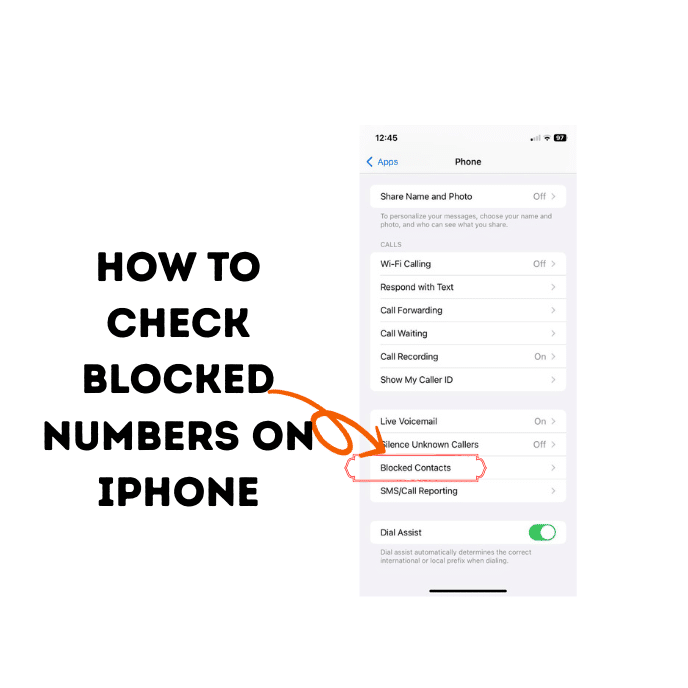
Ever blocked a number in a moment of frustration and then completely forgotten about it? Or maybe you’re worried you accidentally blocked an important contact and are now missing their calls. You’re not alone! It’s a common iPhone user puzzle. If you’ve been wondering how to check blocked numbers on iPhone, you’ve come to the right place.
How to Check Blocked Numbers on iPhone: The 5-Step Guide
Finding your block list is surprisingly easy once you know where to look. Apple has tucked it away in the Settings app. Whether you’re on the latest iOS 18 or an older version, these steps will work for you. This is the simplest way to see who you’ve blocked.
Here’s your quick and easy guide to finding that list.
Step 1: Open Your iPhone’s Settings App
First things first, find the gray gear icon on your home screen. That’s the Settings app. Tap it to open it.
Step 2: Scroll Down and Tap on “Phone”
Once you’re in Settings, you’ll see a long list of options. Scroll down until you find the green icon for the Phone app. It’s usually grouped with other Apple apps like Messages and FaceTime. Tap on it.
Step 3: Find “Blocked Contacts”
Inside the Phone settings, scroll down again. You’re looking for a section called “Calls.” Under that, you will see an option labeled Blocked Contacts. This is where your list is hidden! Tap on it.
Step 4: View Your Block List
Success! You are now looking at your iPhone’s master block list. This screen shows every single phone number, contact, and email address you have ever blocked from Phone calls, Messages, and FaceTime.
You can scroll through this list to see if a specific person is on it. The list is typically sorted alphabetically or by the date they were added.
Step 5: Decide What to Do Next
From here, you have a few options:
- Review the list: Simply look through the numbers to confirm who you’ve blocked.
- Unblock a contact: If you see someone you want to hear from again, you can easily unblock them (we’ll cover that in the next section).
- Add a new contact to block: You can also add a number to this list directly from this screen.
And that’s how to check blocked numbers on iPhone! It’s a straightforward process that puts you back in control of who can contact you.
Found a Number? Here’s How to Unblock Someone on iPhone
So, you’ve navigated to your block list and found a number you want to set free. Maybe it was a misunderstanding, or you’ve just decided to give them a second chance. Unblocking them is just as easy as finding them.
How to Unblock a Number on iPhone:
- Navigate to the Blocked Contacts List: Follow the steps from the previous section (Settings > Phone > Blocked Contacts).
- Find the Number/Contact: Scroll through your list to find the contact or number you wish to unblock.
- Swipe to Unblock: Place your finger on the contact and swipe left. A red “Unblock” button will appear on the right.
- Tap “Unblock”: Tap the red button, and the contact will immediately be removed from your block list.
Alternatively, you can tap the “Edit” button in the top-right corner of the screen. A red minus symbol (-) will appear next to each contact. Tap the minus symbol next to the one you want to unblock, and then tap “Unblock“ to confirm.
Once you do this, the person can call, text, and FaceTime you again. They won’t get any notification that you’ve unblocked them.
What Really Happens When You Block a Number on iPhone?
Blocking a number feels powerful, but what does it actually do behind the scenes? Understanding this can help you manage your contacts more effectively. When you block someone, you’re essentially creating a digital wall between their device and yours.
Here’s a breakdown of what happens:
- Phone Calls: When a blocked number tries to call you, their call is immediately sent to voicemail. Your phone won’t ring, and you won’t see a missed call notification. They might be able to leave a voicemail, but it will be filtered into a separate “Blocked Messages” section at the bottom of your Voicemail tab (this can vary by carrier).
- Messages (iMessage & SMS): Any text messages (blue iMessage bubbles or green SMS bubbles) they send you will not be delivered. On their end, an iMessage might say “Delivered,” but you will never receive it. You won’t get a notification, and the message won’t appear in your Messages app. If you want to know more, you might wonder how to see blocked messages on iphone, but the short answer is that you can’t.
- FaceTime: FaceTime calls from a blocked contact will not go through. Your phone will not ring, and you will not receive any notification of the attempted call.
As Apple’s official support page states:
“When you block a phone number or contact, they can still leave a voicemail, but you won’t get a notification. Messages that are sent or received won’t be delivered.” –Apple Support
Essentially, blocking creates a one-way street of silence. You won’t be disturbed, and for the most part, you won’t even know they tried to reach out.
Question: Can You See Missed Calls or Messages from Blocked Numbers?
This is one of the most common questions users have. You’ve unblocked someone and now you’re wondering, “Did they try to call me while they were blocked?”
The simple answer is no.
Your iPhone does not keep a log of calls, messages, or FaceTime attempts from a number that is on your block list. The block works at the system level to prevent the communication from ever reaching you in the first place.
- No Missed Call Log: Your “Recents” tab in the Phone app will not show any entries from a blocked number.
- No Hidden Messages: There is no secret folder where blocked messages are stored. They are simply rejected and never delivered to your device.
Think of it like a return-to-sender notice for digital mail. Your phone sees the incoming communication from a blocked number and refuses the delivery before it can ever be logged or stored. This is a core privacy feature of the iOS operating system.
A Quick Refresher: How to Block a Number on Your iPhone
Now that you know how to find and manage your block list, it’s helpful to remember how you block a number on iPhone in the first place. There are three main places you can do this.
1. From the Phone App
This is perfect for blocking recent or unknown callers.
- Open the Phone app and go to the Recents tab.
- Find the number you want to block.
- Tap the blue information icon (i) next to the number.
- Scroll to the bottom of the screen and tap Block this Caller.
- Confirm by tapping Block Contact.
2. From the Messages App
If you’re getting spam texts, this is the quickest way to stop them.
- Open the conversation in the Messages app.
- Tap the contact’s name or number at the top of the screen.
- Tap the Info button.
- On the next screen, scroll down and tap Block this Caller.
3. From your Contacts
If the person is already saved in your contacts:
- Open the Contacts app (or the Contacts tab in the Phone app).
- Find and tap on the contact you want to block.
- Scroll all the way to the bottom and tap Block this Caller.
No matter which method you use, the result is the same: the number is added to your universal block list, which you can manage using the steps we covered earlier.
Is the Process Different on Newer iPhones or iOS Versions?
Whether you’re using an iPhone 13 Pro Max, the latest iPhone, or an older model, the process is virtually identical. Apple is known for its consistency across devices and software updates.
- How to check blocked numbers on iPhone iOS 18: The steps remain the same: Settings > Phone > Blocked Contacts. Apple has not changed this fundamental navigation path in recent updates, including the beta versions of iOS 18.
- How to check blocked numbers on iPhone 13 Pro Max: The process is exactly the same as on any other modern iPhone. The size of the screen is different, but the location of the setting is unchanged.
This consistency is a major benefit for users. You don’t have to re-learn core functions every time you upgrade your phone or update your software.
What About Android Phones?
If you’re also an Android user or are helping a friend, you might wonder how to see blocked numbers on an Android phone. The process is different as it varies by manufacturer (Samsung, Google Pixel, etc.). Generally, you’ll find the block list within the settings of the Phone or Messages app, often under a “Spam” or “Blocked” menu. The steps in this guide are for iPhone only.
Frequently Asked Questions
Here are answers to some other common questions about blocking numbers.
1. How do I check blocked contacts?
It’s simple! Go to your iPhone’s Settings app, scroll down, and tap on Phone, then tap on Blocked Contacts. You will see a complete list of all the numbers and email addresses you have blocked.
2. Will someone know if I unblock them?
No, the other person will not receive any notification that you have unblocked them. The only way they would know is if they try to contact you and their calls or messages suddenly start going through again.
3. Can I see if a blocked number tried to call me?
No, your iPhone does not keep a log of missed calls or messages from a blocked number. When a number is blocked, the communication is stopped before it ever reaches your device, so there is no record of the attempt on your end.
4. Does blocking a number on my iPhone also block them on apps like WhatsApp or Telegram?
Blocking a number through your iPhone’s Phone or Messages app only blocks them from calling you via the cellular network, sending SMS/MMS messages, and using FaceTime. It does not block them on third-party apps like WhatsApp, Telegram, or Signal. You will need to block them separately within each of those apps. For more on this, tech sites like 9to5Mac often cover the specifics of third-party app functionality.
5. How can I block my number when I make a call?
To block your number for a single call, you can dial *67 before you enter the phone number. This will make your call show up as “Private” or “Blocked” on the recipient’s phone. To permanently hide your caller ID for all calls, you can go to Settings > Phone > Show My Caller ID and turn the toggle off (this feature depends on your cellular carrier).
Conclusion: You’re in Control of Your Block List
Managing who can and can’t contact you is a key part of your digital privacy. Now you not only know how to check blocked numbers on iPhone, but you also know how to unblock them, what blocking actually does, and how to add new numbers to the list.
The key takeaway is that your block list is easily accessible right from your iPhone’s Settings. A quick trip to Settings > Phone > Blocked Contacts gives you full power to review and edit your list anytime you want.
We hope this guide has made the process clear and stress-free. Have any other iPhone questions or tips? Drop a comment below! And if you’re interested in more privacy tips, check out our guide on how to pause location on find my iphone.

