


Have you ever noticed that your iPhone shows up as “John’s iPhone” or something equally generic on AirDrop, Bluetooth, or your Wi-Fi router? Knowing how to change iPhone name is a simple but surprisingly useful skill and it only takes about 30 seconds. Whether you want to personalize your device, fix a confusing name on a shared network, or just make it easier to spot in Find My iPhone, this guide has you covered.
This step-by-step guide works for all iPhone models running iOS 18 and earlier. No special tools required just your phone and about a minute of your time.
Why Your iPhone Name Matters
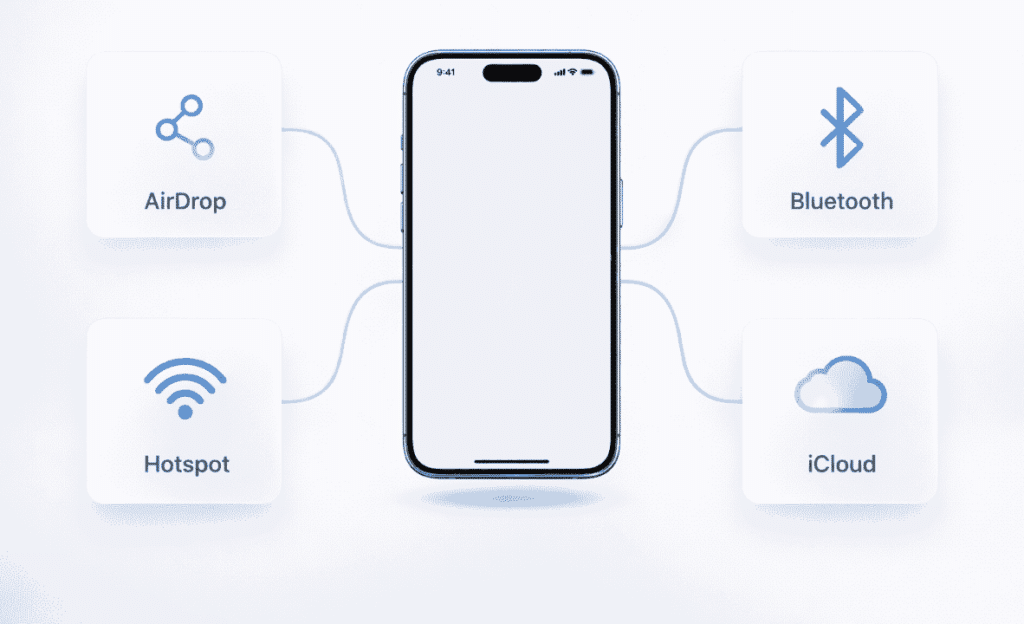
You might be wondering — why does it matter what my iPhone is called? Actually, your iPhone name shows up in more places than you might think:
- AirDrop — Other people see your iPhone’s name when you share files.
- Bluetooth — Your device name appears when pairing with speakers, headphones, or car systems.
- Personal Hotspot — When friends connect to your hotspot, they see this name in their Wi-Fi list.
- iCloud — Your device is listed by name in your iCloud account under all connected devices.
- Find My — Helps you tell your devices apart if you own multiple Apple products.
- iTunes / Finder — Shows up when you connect your iPhone to a computer.
A clear, personalized name helps you stay organized and makes sharing much smoother. Let’s get into exactly how to rename your iPhone.
How to Change iPhone Name in Settings (iOS 18)
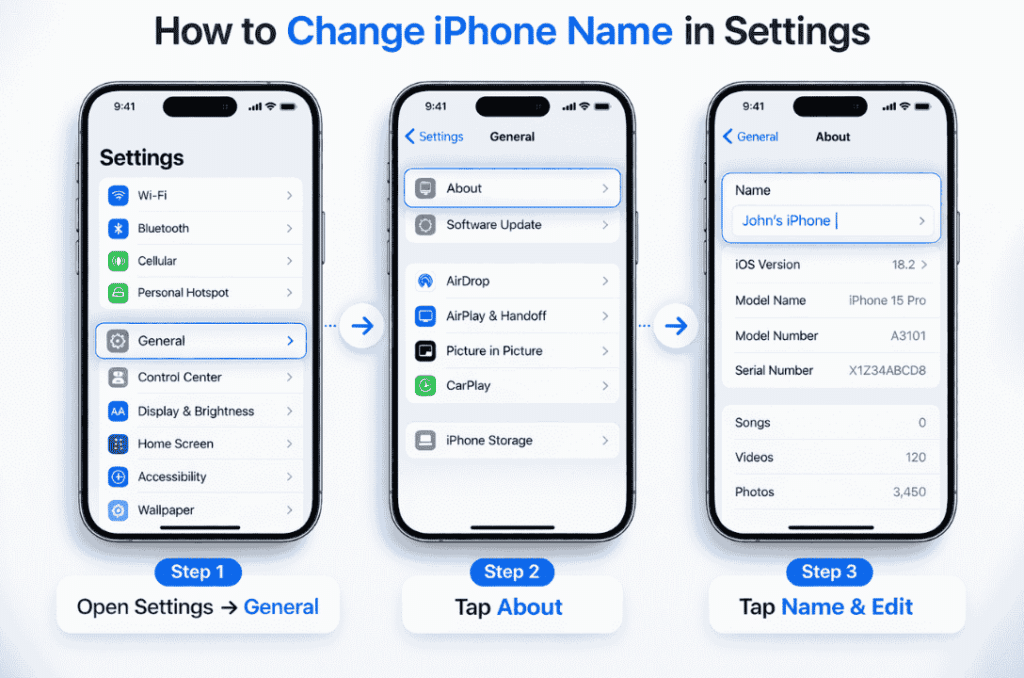
This is the most common method, and it works on every iPhone. Here’s exactly how to do it:
- Open the Settings app on your iPhone. It’s the gray icon with gears on your home screen.
- Scroll down and tap General.
- Tap About — it’s at the very top of the General menu.
- Tap Name — you’ll see your current iPhone name at the top.
- Clear the existing name by tapping the small ✕ button on the right side of the text field.
- Type your new name using the keyboard.
- Tap Done on your keyboard to save. That’s it!
“To rename your iPhone, go to Settings > General > About > Name. Tap the current name to edit it.” — Apple Support
For official instructions, see the Apple Support page on renaming your iPhone.
Pro Tip: Your new name updates instantly across AirDrop, Bluetooth, iCloud, and Find My — no restart needed.
How to Rename Your iPhone From a Mac
If your iPhone is connected to your Mac, you can also change its name directly from the Mac using Finder. This is handy if your iPhone screen is broken or difficult to use.
Method A: Using Finder (macOS Catalina and Later)
- Connect your iPhone to your Mac using a USB-C or Lightning cable.
- Open Finder on your Mac.
- Click on your iPhone under the Locations section in the left sidebar.
- Click Trust on your iPhone if prompted.
- Click on your iPhone’s name at the top of the Finder window.
- Type a new name and press Enter to save.
Method B: Change iPhone Name on Mac Finder via Wi-Fi
You can also do this wirelessly if you’ve enabled Wi-Fi syncing:
- Open Finder on your Mac.
- Click on your iPhone under Locations — it should appear even without a cable if Wi-Fi syncing is on.
- Follow the same steps above to edit the name.
How to Change iPhone Name for AirDrop
Your iPhone name for AirDrop is the same as your general device name. So when you change iPhone device name in iOS 18, it automatically updates what people see in AirDrop. There’s no separate AirDrop name setting.
Here’s the quick path to change it:
- Go to Settings > General > About > Name
- Edit the name and tap Done
- Open AirDrop — your updated name will appear instantly
If you want to control who can see you on AirDrop (not just the name), go to Settings > General > AirDrop and choose Contacts Only or Everyone. You can read more about AirDrop visibility settings on Apple’s AirDrop support page.
How to Change iPhone Name for Bluetooth
Just like AirDrop, your Bluetooth device name is tied to your iPhone’s main name. When you rename your iPhone in Settings, the Bluetooth name updates automatically.
To confirm your Bluetooth name is updated:
- Go to Settings > Bluetooth
- Your iPhone name appears at the top of other devices’ Bluetooth menus after the change
- You do NOT need to forget and re-pair Bluetooth devices after renaming
How to Change iPhone Name for Hotspot
When friends want to connect to your Personal Hotspot, they see your iPhone’s name in their Wi-Fi list. Changing that name is simple — you just need to rename your iPhone using the standard method above.
How to Change iPhone Hotspot Name
- Go to Settings > General > About > Name
- Tap your current name and delete it
- Type your new hotspot name (keep it simple and easy to recognize)
- Tap Done to save
- Go to Settings > Personal Hotspot and toggle it off and back on
Note: The hotspot password is separate from the device name. Changing the name does not change your hotspot password.
Can You Change Your iPhone Name Without a Password?
You might be wondering if you can edit your iPhone name without a password. Here’s the short answer: No — not directly on the device. Your iPhone requires your passcode to access the Settings app, which is where the name is changed.
However, there are a couple of workarounds:
- Using Mac Finder: If your iPhone is trusted on your Mac, you may be able to rename it via Finder without entering your iPhone passcode (depending on your security settings).
- Using iCloud.com: Unfortunately, iCloud.com does not offer a direct option to rename your device remotely.
If you’re locked out of your iPhone and need help, check out our guide on how to find hidden apps on iPhone for related tips on navigating your device settings.
Quick Comparison: Ways to Change Your iPhone Name
| Method | Where to Go | Password Needed? | Works For |
| iPhone Settings | General > About | Yes (device passcode) | All uses |
| Mac Finder (USB) | Finder > Locations | May need iTunes trust | All uses |
| Mac Finder (Wi-Fi) | Finder > Locations | Yes (device passcode) | All uses |
| AirDrop/Bluetooth | Settings > General > About | Yes (device passcode) | Sharing only |
Expert Tips for Naming Your iPhone
“Keep your iPhone name short and personal — something like ‘Maria’s Phone’ works great. Avoid including your full name or email address in the device name, as it shows up publicly on AirDrop and Bluetooth.” — Apple User Guide, iOS 18
You can review Apple’s full iOS 18 User Guide for more tips on managing your device settings.
Here are a few additional best practices when renaming your iPhone:
- Keep it short: Names under 20 characters display better on all screens and menus.
- Avoid personal info: Don’t use your full name, phone number, or address. Your device name is often publicly visible.
- Use something memorable: “Blue iPhone” or “Mom’s Phone” is clearer than “iPhone 15 Pro 512GB”.
- Update after selling: Always rename your iPhone before selling or gifting it. The buyer shouldn’t see your personal name.
- Check iCloud afterward: Log into iCloud.com > Settings to confirm the new name synced correctly.
Want to capture your settings screen before or after renaming? Learn how to take an iPhone screenshot so you have a record of your changes.
Frequently Asked Questions (FAQs)
How do I change my iPhone hotspot name?
Your hotspot name is the same as your iPhone’s device name. To change it, go to Settings > General > About > Name, tap your current name, type a new one, and tap Done. Then toggle your Personal Hotspot off and back on to refresh it.
How do I change the device name on my iPhone?
Open Settings, tap General, then tap About. Tap Name at the top, clear the current name, type your new one, and press Done on the keyboard. Your change saves automatically and updates across all Apple services.
How do I change my iPhone name in iCloud?
The easiest way is to rename it directly from your iPhone via Settings > General > About > Name. iCloud will automatically sync the new name. You can also sign in at iCloud.com > Manage Apple ID > Devices to view your devices, though direct renaming from there has limited functionality.
Can I change my iPhone name without a password?
Not directly on the device your passcode is required to access Settings. However, if your iPhone is already trusted on a Mac, you may be able to rename it through Mac Finder without entering your device passcode.
What is the best name for my iPhone?
Something short, personal, and easy to recognize like “Sam’s iPhone” or “Mom’s Phone.” Avoid using full names, phone numbers, or email addresses since your device name can be publicly visible via AirDrop and Bluetooth.
Does changing my iPhone name affect anything?
Changing your iPhone name updates how it appears on AirDrop, Bluetooth, Personal Hotspot, Find My, iCloud, and Mac Finder. It doesn’t affect your Apple ID, your phone number, your apps, or any saved data.
Conclusion
Knowing how to change your iPhone name is one of those small tweaks that makes a big difference. Whether you want a cleaner name on AirDrop, a personalized hotspot, or just something that reflects your style — it takes less than a minute to update in Settings > General > About > Name.
Here’s a quick recap of what we covered:
- The standard way: Settings > General > About > Name
- Renaming via Mac Finder (great if your screen is hard to use)
- AirDrop and Bluetooth both use your device name automatically
- Hotspot name = device name (toggle hotspot to refresh)
- Avoid putting personal info in your iPhone name
Go ahead — open your Settings app and give your iPhone a name that feels like you. And if you found this guide helpful, check out our other iPhone tips like how to find your iPhone and how to take a screenshot on iPhone.
Article by iphonetonic.com | Optimized for iOS 18 | Updated 2026

