


Ever notice an ad follow you around the internet right after you looked at a product in a completely different app? That’s app tracking in action — and it’s more common than you might think. If you want to know how to stop app tracking on iPhone, you’re in the right place.
This guide walks you through every setting you need, in plain English, with no technical jargon. Whether you’re a total beginner or just want a quick refresher, you’ll have your privacy locked down in about five minutes.
Quick takeaway: You can stop most app tracking on iPhone by turning off “Allow Apps to Request to Track” in Settings > Privacy & Security > Tracking.
What Is App Tracking on iPhone?
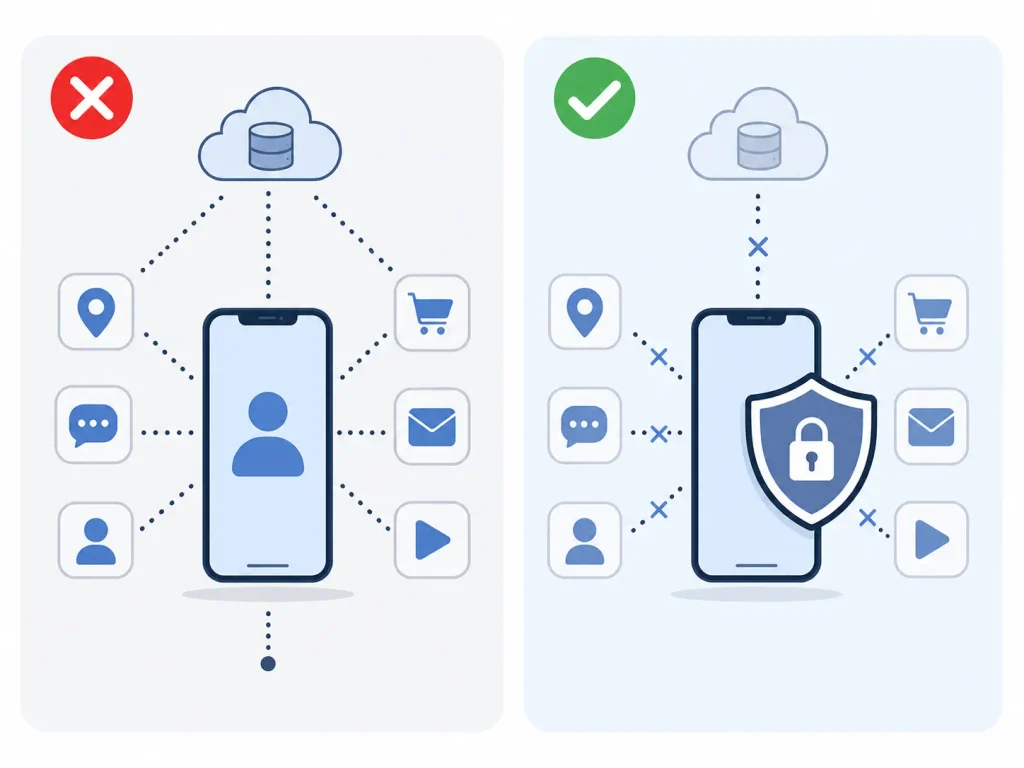
App tracking happens when an app follows your activity across other apps and websites, then shares that data with advertisers or data brokers. It’s how a shoe ad “coincidentally” shows up in your social media feed right after you browsed a shopping app.
Apple built a feature called App Tracking Transparency (ATT) specifically to put you in control. Since its rollout, every app must ask your permission before it’s allowed to track you across other companies’ apps and websites.
Here’s the difference in simple terms:
- Tracking = your data is linked with data from other apps/websites, often tied to your device or personal identifiers.
- Not tracking = the app only uses data collected inside its own app to improve your experience.
“Apps and their third-party partners may still collect and use information about you, but App Tracking Transparency requires apps to get your permission before tracking your activity across other companies’ apps and websites.” — Apple Support
Why Apps Track You in the First Place
Before diving into the how-to, it helps to understand the why. Most free apps rely on advertising revenue, and targeted ads perform better when they’re based on your browsing habits.
Common reasons apps track you:
- Building an advertising profile based on your interests
- Measuring how well an ad campaign performs
- Selling anonymized (or not-so-anonymized) data to third-party data brokers
- Personalizing content recommendations across platforms
None of this is necessarily illegal, but it is optional — and Apple gives you the final say.
How to Stop App Tracking on iPhone (Step by Step)
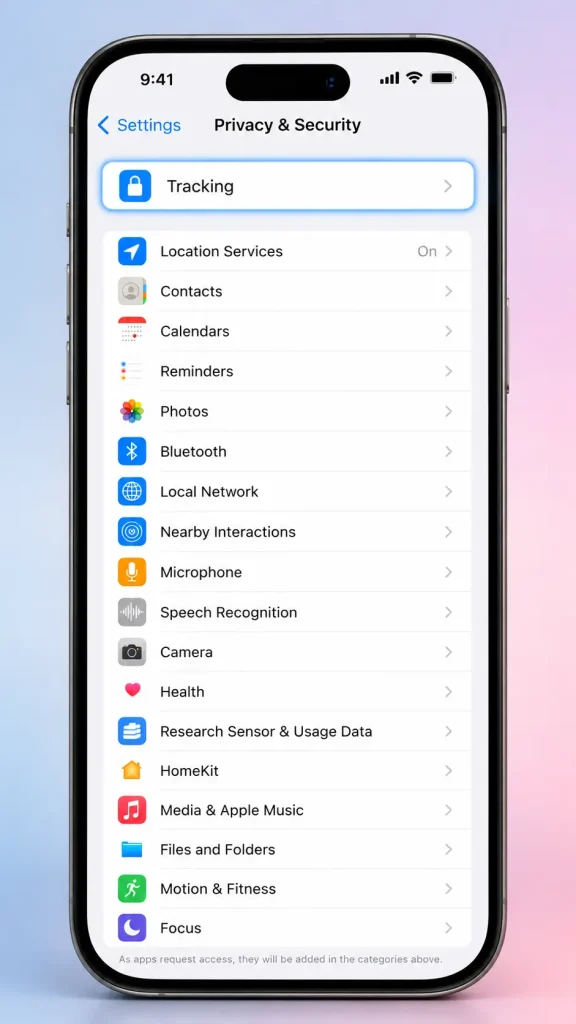
This is the fastest way to block tracking requests across your entire iPhone at once.
Follow these four simple steps to block all app tracking requests on your iPhone in under five minutes.
Step 1 Open Settings
Open the Settings app on your iPhone.
Step 2 Tap Privacy & Security
Scroll down and tap Privacy & Security from the Settings menu.
Step 3 Tap Tracking
Tap Tracking to open the app tracking permissions screen.
Step 4 Turn Off "Allow Apps to Request to Track"
Turn off the toggle next to "Allow Apps to Request to Track" to block all future tracking requests across your entire iPhone.
That’s it. Once this is off, apps can no longer even ask to track you — new apps won’t be able to request permission, and it sends a clear signal that you value your privacy.
Note: Turning this off doesn’t retroactively revoke permissions you may have already granted to specific apps. You’ll need to review those individually (see the next section).
How to Deny Tracking for Individual Apps
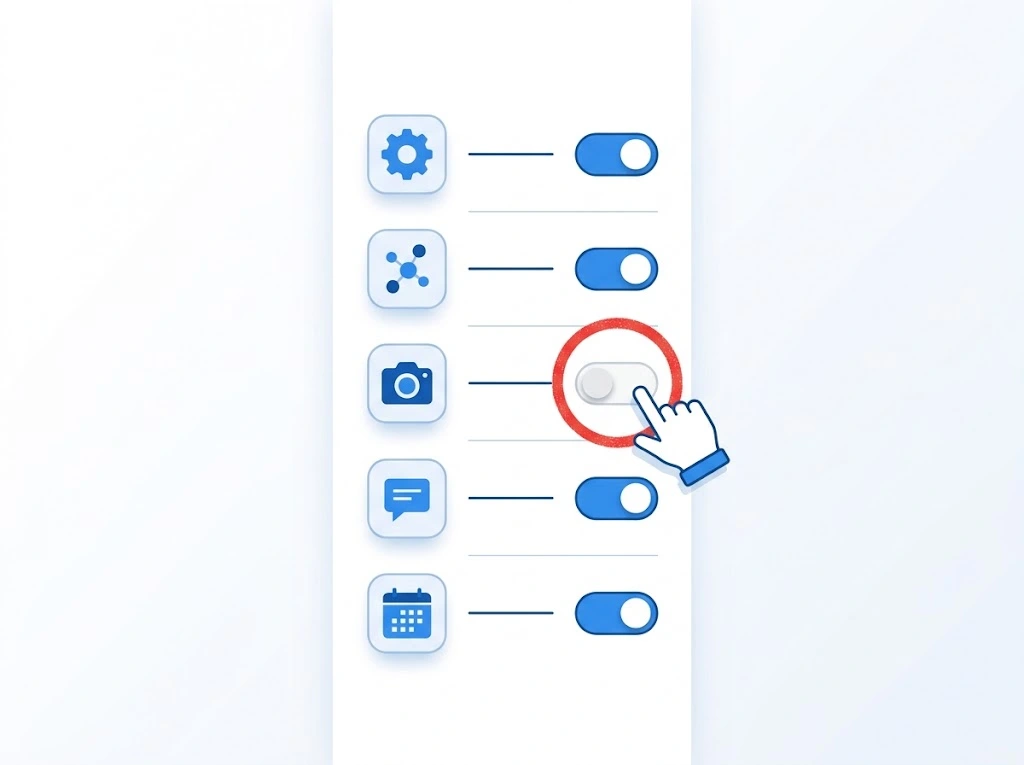
Maybe you don’t want to block every app — just a few specific ones. That’s easy too.
- Go to Settings > Privacy & Security > Tracking.
- You’ll see a list of apps that have requested tracking permission.
- Toggle off any app you don’t want tracking your activity.
Tip: If an app isn’t listed, it hasn’t requested tracking permission yet — or it doesn’t track you across other apps.
How to Turn Off Personalized Apple Ads
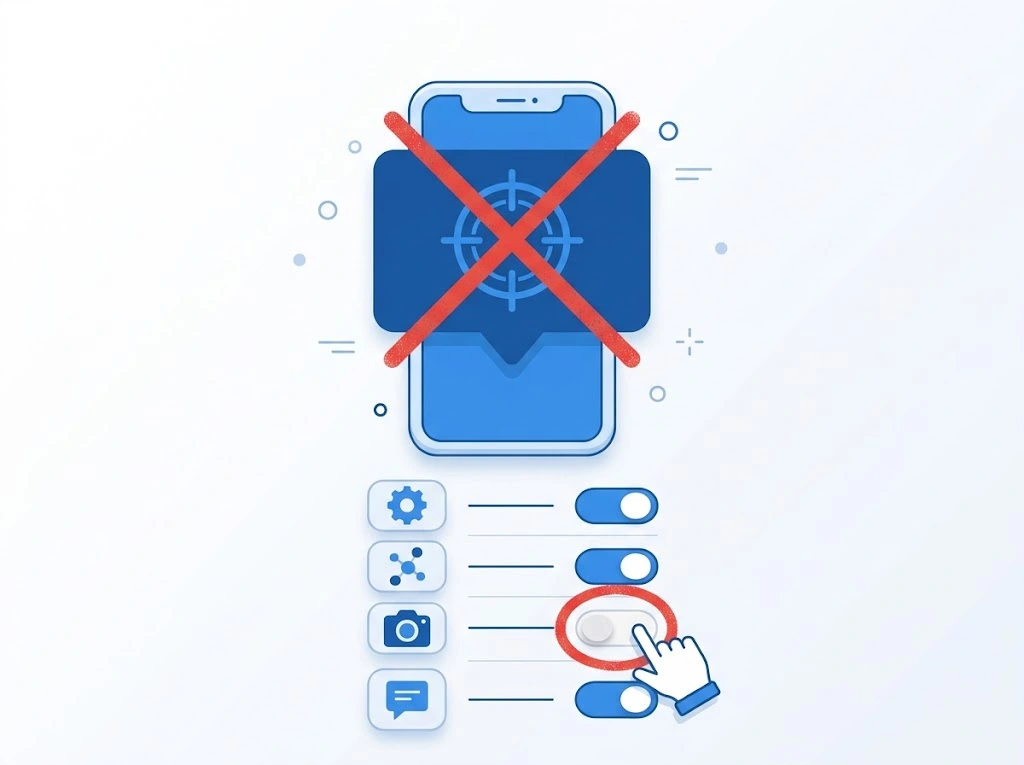
App Tracking Transparency covers third-party apps, but Apple also personalizes ads within its own ecosystem (like the App Store and Apple News). Here’s how to turn that off:
- Open Settings.
- Tap Privacy & Security.
- Scroll down and tap Apple Advertising.
- Turn off Personalized Ads.
This stops Apple from using your Apple ID activity to tailor ads shown inside Apple’s own apps.
How to Limit Location-Based Tracking
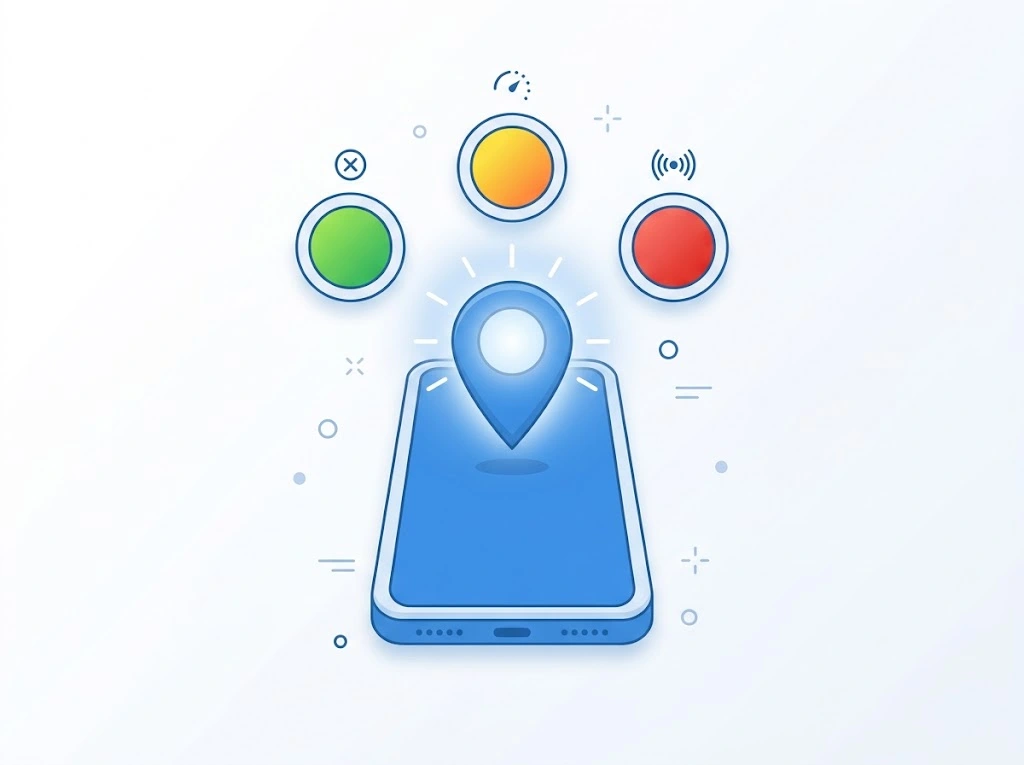
Location data is one of the most valuable — and most sensitive — pieces of information apps can collect. Here’s how to lock it down:
- Go to Settings > Privacy & Security > Location Services.
- Tap any app in the list.
- Choose “While Using the App” instead of “Always,” or select “Never” if the app doesn’t need your location at all.
- Scroll to the bottom and toggle off Precise Location if the app only needs a general area.
- Use “Never” for apps that have no real reason to know your location (like a calculator or flashlight app).
- Use “While Using the App” for navigation or delivery apps.
- Avoid “Always” unless it’s absolutely necessary (e.g., a family-location app).
If you want a deeper walkthrough specifically for sharing your location with people (not apps), check out our guide on how to share location on iPhone.
How to Check Which Apps Are Tracking You
iOS includes a built-in report that shows exactly what each app has been doing with your data.
- Open Settings > Privacy & Security.
- Scroll down and tap App Privacy Report.
- Tap Turn On App Privacy Report if it isn’t already active.
- After a few days of use, return to this screen to see:
- Which apps accessed your location, camera, microphone, or contacts
- Which domains each app contacted (often ad or tracking networks)
- How often each app accessed sensitive data
This report is one of the most underused privacy tools on iPhone, and it’s worth checking monthly.
Will Stopping App Tracking Break Anything?
Short answer: no. Turning off tracking does not stop apps from functioning normally. You’ll still be able to:
- Browse, shop, and use social media apps as usual
- Receive notifications and use in-app features
- See ads (just less personalized ones)
What does change:
- Ads may feel less relevant to your interests
- Some apps may show the tracking request prompt again after updates
- A few free apps may show more generic (rather than targeted) advertising
“Users are always in control of their tracking choices, and can change their preference for individual apps at any time.” — Apple Developer Documentation
iPhone Models and iOS Versions: What’s Different
The steps above apply to any iPhone running iOS 14.5 or later — including the iPhone SE, iPhone 12 through iPhone 17 lineups. The menu names have stayed consistent, though Apple has occasionally moved settings around:
| iOS Version | Setting Location |
|---|---|
| iOS 14.5–15 | Settings > Privacy > Tracking |
| iOS 16–17 | Settings > Privacy & Security > Tracking |
| iOS 18 and later (current) | Settings > Privacy & Security > Tracking |
If your Settings app looks slightly different from the screenshots you find online, it’s almost always because you’re on an older or newer iOS version — the core steps remain the same.
Quick Comparison: Before vs. After Disabling Tracking
| Feature | Tracking Enabled | Tracking Disabled |
|---|---|---|
| Ad relevance | Highly personalized | More generic |
| Cross-app data sharing | Allowed | Blocked |
| App functionality | Normal | Normal |
| Data sold to brokers | Possible | Significantly reduced |
| Location precision | Often “Always” by default | Set to “While Using” or “Never” |
| Battery impact | Slightly higher (background tracking) | Often improved |
Key takeaway: Disabling tracking has virtually no downside for everyday use — you keep full app functionality while cutting off the data trail advertisers rely on.
People Also Ask
Does stopping app tracking stop all ads? No. You’ll still see ads, but they’ll be based on general context (like the app you’re using) rather than your personal browsing history.
Is App Tracking Transparency the same as a VPN? No. ATT blocks cross-app tracking specifically, while a VPN hides your IP address and encrypts your internet traffic. They solve different problems.
Can Facebook or Instagram still track me if I turn this off? They can still collect data within their own apps, but they can no longer link that data to your activity in other apps without your permission.
FAQ
1. Does turning off app tracking affect app performance?
No — apps continue to work exactly the same. Only cross-app ad tracking is limited.
2. Can I stop tracking for just one app instead of all apps?
Yes. Go to Settings > Privacy & Security > Tracking and toggle off individual apps.
3. Will stopping app tracking remove ads completely?
No. Ads will still appear, but they’ll be less personalized to your specific interests.
4. Do I need to repeat this after every iOS update?
Usually not, but it’s smart to double-check your settings after a major iOS update, since some apps may re-request permission.
5. Does iOS notify me every time an app wants to track me?
Yes. The first time an app wants to track you, iOS shows a system prompt asking for permission before any tracking begins.
6. Is disabling app tracking enough to stay fully private on iPhone?
It’s a strong first step, but pairing it with limited location access and reviewing your App Privacy Report gives you much stronger overall protection.
Final Thoughts
Taking control of your privacy doesn’t have to be complicated. In just a few taps, you now know how to stop app tracking on iPhone, block personalized ads, limit location access, and check exactly which apps have been watching your activity.
Quick recap:
- Turn off “Allow Apps to Request to Track” in Settings > Privacy & Security > Tracking
- Review and deny tracking for individual apps
- Turn off Personalized Ads under Apple Advertising
- Set location access to “While Using the App” or “Never”
- Check your App Privacy Report regularly
For more ways to protect your data, check out our guides on how to clear cookies on iPhone and how to check data usage on iPhone to see exactly how much data your apps are using in the background.

