


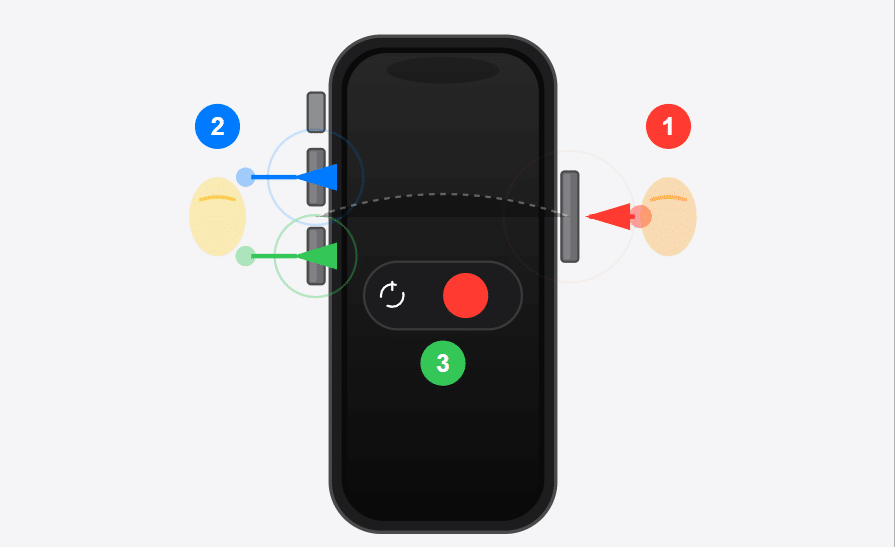
For iPhone X and later: Press and hold the Side button + either Volume button simultaneously. Wait for the power-off slider. Swipe right to shut down.
For iPhone 8 and earlier: Press and hold the Top (or Side) button until the slider appears. Swipe to power off.
Alternative for all models: Go to Settings → General → Shut Down → Swipe the slider.
⚠️ Warning: Never force your iPhone to shut down unless it’s completely frozen. Regular shutdowns preserve iOS system integrity and prevent data corruption.
You pressed every button. Nothing happened. Your iPhone screen is frozen mid-app, or maybe you just upgraded to an iPhone 15 and can’t figure out why the old power button trick doesn’t work anymore. Here’s the reality: Apple has changed how to turn off iPhone across six different hardware generations, and most users don’t realize their muscle memory is outdated.
This guide solves that problem permanently. You’ll learn every legitimate method to turn off iPhone, force restart when frozen, and troubleshoot button failures. Whether you own the latest iPhone 15 Pro Max or a classic iPhone 6s, you’ll find your exact solution here.
Let’s start with the most common scenario.
How to Turn Off iPhone with Face ID (iPhone X and Later)
Apple removed the physical Home button starting with iPhone X in 2017. This hardware shift fundamentally changed the shutdown process. Here’s why: the Side button now triggers Siri with a long press, not the power menu. You need a button combination instead.
Method 1: Physical Button Combination
This is the fastest way to shut down iphone on any Face ID model.
Step 1: Locate your buttons
- Side button (right edge of your iPhone)
- Volume Up button (left edge, top position)
- Volume Down button (left edge, bottom position)
Step 2: Press and hold simultaneously
Press the Side button + either Volume button (up or down—your choice). Hold both for approximately 2 seconds.
Step 3: Release when slider appears
You’ll see three elements on screen:
- Power Off slider (top)
- Emergency SOS slider (bottom)
- Cancel button (center)
Step 4: Swipe to power off
Drag the power icon from left to right. Your screen will go black within 3-5 seconds.
💡 Pro Tip: If you accidentally trigger Emergency SOS (a loud alarm), tap Cancel immediately. You held the buttons too long (past 5 seconds). For a clean shutdown, release at exactly 2 seconds when the sliders first appear.

Method 2: Settings Menu Approach
When buttons malfunction or you prefer a software-based solution, iOS provides a built-in alternative. This method works identically across all iPhone models from iPhone X through iPhone 15 Pro Max.
Navigation Path:
- Open Settings (gray gear icon)
- Tap General (first option group)
- Scroll to bottom → Tap Shut Down
- Swipe the power slider right
Why this exists: Apple designed this fallback after complaints that the new button combination wasn’t intuitive. It also serves users with physical accessibility needs who cannot press multiple buttons simultaneously.
The Settings method triggers the same iOS shutdown protocol as the button combination. There’s zero difference in how your iPhone powers down only the trigger mechanism changes.
How to Turn Off iPhone with Home Button (iPhone 8 and Earlier)
If you’re using iPhone 8, iPhone 8 Plus, iPhone 7, iPhone 6s, or older models, you have the original shutdown mechanism. Apple hasn’t changed this method since the first iPhone in 2007.
Standard Power Off Method
Single Button Process:
- Locate the Sleep/Wake button
- iPhone 6 through 8: Right edge (Side button)
- iPhone 5s and earlier: Top edge (Top button)
- Press and hold for 3 seconds
The screen will dim, then display the power-off slider. - Swipe to power off
Drag the slider from left to right. Screen goes black within 5 seconds.
Why This Method Differs
Home button iPhones don’t have the “accidental Siri activation” problem that Face ID models have. The physical Home button already handles Siri through a long press. Consequently, Apple could leave the power button as a single-press shutdown trigger.
Furthermore, these older models lack the Emergency SOS feature tied to button combinations. That system debuted with iPhone 8 alongside the transition to Face ID hardware.
📊 Technical Note: When you shut down iphone using this method, iOS 17 (and earlier) clears RAM, stops all background processes, and enters true zero-power mode. Battery drain during shutdown: approximately 1-2% per week, compared to 5-10% in Sleep mode.
Turn Off iPhone Without Buttons (AssistiveTouch Method)
Button failures happen. Whether it’s water damage, a cracked casing, or simple wear after three years of use, physical buttons eventually malfunction. Apple anticipated this with AssistiveTouch—an accessibility feature that replicates all hardware buttons through on-screen controls.
This is your only solution when asking: How do I turn off iphone without button?
Setting Up AssistiveTouch
Initial Configuration (one-time setup):
- Open Settings → Accessibility
- Tap Touch (under Physical and Motor section)
- Select AssistiveTouch (first option)
- Toggle switch to ON (green)
A floating gray circle appears on your screen. This is your virtual button interface.
Customizing the Menu (optional but recommended):
- Tap Customize Top Level Menu (within AssistiveTouch settings)
- Tap the minus (−) icon to remove unused functions
- Tap plus (+) → Select Lock Screen
- Rearrange by dragging icons
You can reduce the menu to just 4 icons: Lock Screen, Home, Volume, and Screenshot. This speeds up access.
Shutdown Process via AssistiveTouch
Execution Steps:
- Tap the AssistiveTouch button (floating gray circle)
- Tap Device (looks like a phone icon)
- Press and hold the Lock Screen icon for 3 seconds
- Power-off slider appears → Swipe to shut down
Why the long-press? Apple designed this to prevent accidental shutdowns. A quick tap would lock the screen (normal behavior). Holding for 3+ seconds triggers the shutdown sequence instead.
💡 Pro Tip: If you frequently need to turn off iphone from settings or buttons aren’t working, add AssistiveTouch to your Control Center for one-tap access. Settings → Control Center → Tap the green + next to Accessibility Shortcuts.
Force Restart iPhone When It Won’t Turn Off
Sometimes your iphone won’t turn off through normal methods. The screen is frozen, apps won’t close, or the power slider doesn’t respond to swipes. This is when you need a force restart a hard reboot that bypasses iOS entirely.
Critical distinction: Force restart ≠ factory reset. You won’t lose data. This is equivalent to pulling the battery on older phones.
According to Apple’s developer documentation, force restart triggers a low-level hardware interrupt that resets the System-on-Chip (SoC). The iPhone immediately dumps RAM, clears the kernel cache, and reboots into Recovery Mode before loading iOS normally.
iPhone 8, iPhone X, and All Later Models (iPhone 15, 14, 13, 12, 11)
Apple standardized this sequence starting with iPhone 8 in 2017. It works identically on every model through iPhone 15 Pro Max.
The “Quick Press-Press-Hold” Sequence:
- Press and release Volume Up (quick tap, don’t hold)
- Press and release Volume Down immediately after (quick tap)
- Press and HOLD Side button (keep holding for 10-15 seconds)
- Apple logo appears → Release the Side button
Timing is critical. The first two presses should take less than 1 second total. Then hold the Side button without releasing until you see the Apple logo. If nothing happens after 20 seconds, start over—you likely paused too long between steps.
⚠️ Warning: Never force restart repeatedly in a 5-minute window. iOS writes diagnostic crash logs during reboot. Multiple force restarts can trigger automatic Recovery Mode, requiring a computer connection to restore normal operation.
iPhone 7 and iPhone 7 Plus
These models use a different button combination due to their solid-state Home button (no mechanical click). Apple removed the physical Home button mechanism in favor of a Taptic Engine.
Button Combination:
- Press and hold Volume Down button
- Simultaneously press and hold Side button (right edge)
- Hold both for 10 seconds
- Release when Apple logo appears
Why different? The iPhone 7’s Taptic Home button requires power to function. During a system freeze, it can’t register presses. Apple moved the force restart to Volume Down to maintain a working emergency reboot.
iPhone 6s, iPhone 6s Plus, and Earlier Models
Classic button combination that existed since the first iPhone:
- Press and hold Home button
- Simultaneously press and hold Top button (or Side button on iPhone 6/6s)
- Hold both for 10 seconds minimum
- Release when Apple logo appears
This method also works on iPhone SE (1st generation), iPhone 5s, iPhone 5, and every iPhone back to the original 2007 model.
| iPhone Model | Force Restart Method | Approximate Time |
|---|---|---|
| iPhone 15/14/13/12/11 | Volume Up → Volume Down → Hold Side | 12-15 seconds |
| iPhone X/XR/XS/8/8 Plus | Volume Up → Volume Down → Hold Side | 12-15 seconds |
| iPhone 7/7 Plus | Hold Volume Down + Side | 10 seconds |
| iPhone 6s and earlier | Hold Home + Top/Side | 10 seconds |
Troubleshooting: iPhone Frozen or Unresponsive
Force restart solves 90% of frozen iPhone cases. But what about the remaining 10%? Here are advanced solutions when standard methods fail.
Screen Frozen But Buttons Work
Symptom: Touch screen doesn’t respond, but you can press buttons and feel haptic feedback.
Solution Path:
- Attempt force restart (see previous section)
- If unsuccessful after 2 attempts, connect to power for 10 minutes
- Try force restart again while connected to power
- If still frozen, proceed to DFU Mode:
- Connect to Mac/PC with cable
- Open Finder (Mac) or iTunes (PC)
- Execute force restart sequence WITHOUT releasing Side button
- Keep holding until you see “iPhone in Recovery Mode” message
Why this works: DFU (Device Firmware Update) Mode loads a minimal bootloader that bypasses iOS entirely. It’s the deepest level of system recovery available without opening the physical device.
According to iFixit’s diagnostic data, screens freeze most commonly after iOS updates when background processes fail to terminate properly. DFU Mode forces a complete memory flush.
Button Not Working (Physical Damage)
Symptom: Buttons don’t click, feel mushy, or don’t respond at all.
Immediate Solutions:
- Enable AssistiveTouch (see earlier section)
- Navigate to Settings → General → Shut Down
- For force restart without buttons:
- Enable AssistiveTouch
- Customize menu to include “Restart”
- Settings → Accessibility → Touch → AssistiveTouch → Customize Top Level Menu
- Add “Restart” icon (requires iOS 16+)
Long-term Fix: Apple charges $99-$149 for Side button replacement (without AppleCare+). Third-party repair shops typically charge $50-$80. If your iPhone is older than 3 years, evaluate repair cost versus upgrade cost.
💡 Pro Tip: Before paying for repairs, clean around buttons with 70% isopropyl alcohol on a lint-free cloth. Dirt and oil buildup cause 30% of “broken button” complaints. Let dry for 15 minutes, then test.
iPhone Won’t Turn Off Even with Force Restart
Symptom: You’ve tried force restart multiple times. Apple logo never appears, or iPhone immediately freezes again after reboot.
This indicates hardware failure, typically:
- Battery critically low (below 1%)
- Logic board damage (often water-related)
- Failed storage chip preventing iOS load
Emergency Actions:
- Connect to power immediately. Let charge for 30 minutes without attempting to turn on.
- After 30 minutes, try force restart while connected to power.
- If unsuccessful, schedule Apple Genius Bar appointment or visit authorized service provider.
Data Recovery: If your iPhone contains critical photos/data and won’t restart, do NOT attempt repeated force restarts. Each failed boot attempt increases risk of data corruption. Professional data recovery services (like DriveSavers) can extract data from non-booting iPhones for $500-$1,500.
Restart vs. Turn Off: What’s the Difference?
Many users conflate “restart iphone” with “shut down.” They’re fundamentally different operations with distinct use cases.
Technical Differences
Turn Off (Shut Down):
- iOS closes all apps and background processes
- RAM is cleared completely
- Device enters zero-power state (1-2% battery drain per week)
- Requires manual power-on to restart
- Use case: Long-term storage, travel, troubleshooting persistent issues
Restart (Reboot):
- iOS closes apps but maintains system state
- RAM is cleared but kernel cache persists
- Device automatically powers back on after 5 seconds
- Background processes resume immediately
- Use case: Performance optimization, minor glitches, after software updates
When to Restart vs. Turn Off
| Situation | Action | Why |
|---|---|---|
| iPhone feels slow | Restart | Clears RAM without losing system caches |
| Not using iPhone for 3+ days | Turn Off | Preserves battery long-term |
| App keeps crashing | Restart | Reloads app frameworks without full system reset |
| Before selling iPhone | Turn Off (after erase) | Ensures complete power-down after factory reset |
| After iOS update | Restart | Completes system file indexing properly |
Apple’s internal guidelines (per former Genius Bar technicians) recommend restarting weekly for performance maintenance. Turn off only for extended non-use periods exceeding 48 hours.
How to Restart iPhone (without turning fully off):
Settings → General → Shut Down → Before swiping, wait 3 seconds → Press Side button once → iPhone reboots immediately.
Alternatively, after turning off completely, press and hold Side button for 3 seconds to restart.
Model-Specific Instructions
How to Turn Off iPhone 15 Pro and iPhone 15 Pro Max
The iPhone 15 Pro series introduced the Action Button, replacing the physical mute switch. This doesn’t change the shutdown process, but users often confuse the Action Button with power functions.
Key Point: The Action Button CANNOT turn off your iPhone. It’s programmable for other functions (Camera, Flashlight, Voice Memos, etc.) but shutdown is locked to the Side button + Volume button combination.
Correct Method for iPhone 15:
- Side button + Volume Up (or Volume Down)
- Hold for 2 seconds → Swipe power slider
How to Turn Off iPhone 14, iPhone 14 Plus, iPhone 14 Pro
No changes from iPhone 13 series. Use standard Face ID shutdown method:
- Side + Volume button → Swipe slider
- OR Settings → General → Shut Down
How to Turn Off iPhone 13, iPhone 13 Pro, iPhone 13 Mini
Identical process to iPhone 14/15. These models have the same button layout.
One unique consideration for iPhone 13 Mini: The smaller size makes accidental button presses during pocketing common. If your iPhone 13 Mini shuts down randomly, enable Prevent Lock to End Call (Settings → Accessibility → Touch) to reduce accidental shutdowns.
Frequently Asked Questions
Why won’t my iPhone turn off?
The most common cause is a software freeze preventing the power slider from responding. Force restart your iPhone using the button sequence for your model. If force restart fails after three attempts, your iPhone likely has hardware damage requiring professional diagnosis. Connect to power and attempt one final force restart while charging—battery critically low can prevent shutdown.
Can I turn off my iPhone without the power button?
Yes, through two methods. First, use Settings → General → Shut Down to access the software shutdown menu. Second, enable AssistiveTouch (Settings → Accessibility → Touch → AssistiveTouch ON), then tap the floating button → Device → long-press Lock Screen → swipe power slider. AssistiveTouch replicates all physical buttons through on-screen controls, making it essential when buttons malfunction.
What’s the difference between restarting and turning off?
Turning off completely powers down your iPhone to zero-power state with 1-2% weekly battery drain. Restarting temporarily shuts down, clears RAM, then immediately powers back on, resuming all background processes within 30 seconds. Use restart for performance issues or after updates. Use turn off for long-term storage exceeding 48 hours or before repairs. Restart is faster; turn off conserves more battery.
How long should I wait before turning my iPhone back on?
For standard shutdowns, you can restart immediately—no waiting required. After a force restart triggered by freezing, wait 30 seconds before using your iPhone to allow iOS to complete background indexing. After factory reset, wait 60 seconds before setup to ensure all system partitions are properly cleared. The “wait 5 minutes” myth comes from old advice for removable batteries; modern iPhones don’t benefit from extended waiting.
Will turning off my iPhone delete anything?
No, powering off never deletes data. Shutting down is completely safe for photos, messages, apps, and settings. The only exception is unsaved work in apps—for example, if you’re typing a note and haven’t tapped Save, that specific unsaved content will be lost. Otherwise, turning off iPhone is identical to closing a laptop; all data remains intact. Confusion arises from factory reset, which DOES erase data but requires explicit confirmation through Settings.
Final Thoughts: Mastering Your iPhone’s Power Controls
You now have every method to turn off iPhone regardless of model, button condition, or screen responsiveness. The key is matching the technique to your situation:
- Normal shutdown: Side + Volume button (Face ID) or Top/Side button (Home button)
- Broken buttons: Settings menu or AssistiveTouch
- Frozen screen: Force restart sequence for your model
- Emergency situations: Connect to power, wait 30 minutes, then force restart
Apple has made iPhone power management more complex across six hardware generations, but the core principle remains: always use the gentlest method that works. Save force restarts for genuine freezes to preserve system stability.
Next Steps:
Need to restart your iPhone instead of turning it off? Check our guide on How to Restart iPhone for the differences. Curious about turning off iPhone when the screen is completely unresponsive? Our tutorial on How to Turn Off iPhone Without Screen covers advanced Assistive Touch techniques. If you’re considering an upgrade, explore Best Places to Buy a Refurbished iPhone for certified pre-owned options.
Need more help? Visit Apple’s official support page for firmware-specific documentation, or bookmark this guide for quick reference whenever you need to power down your device.

