


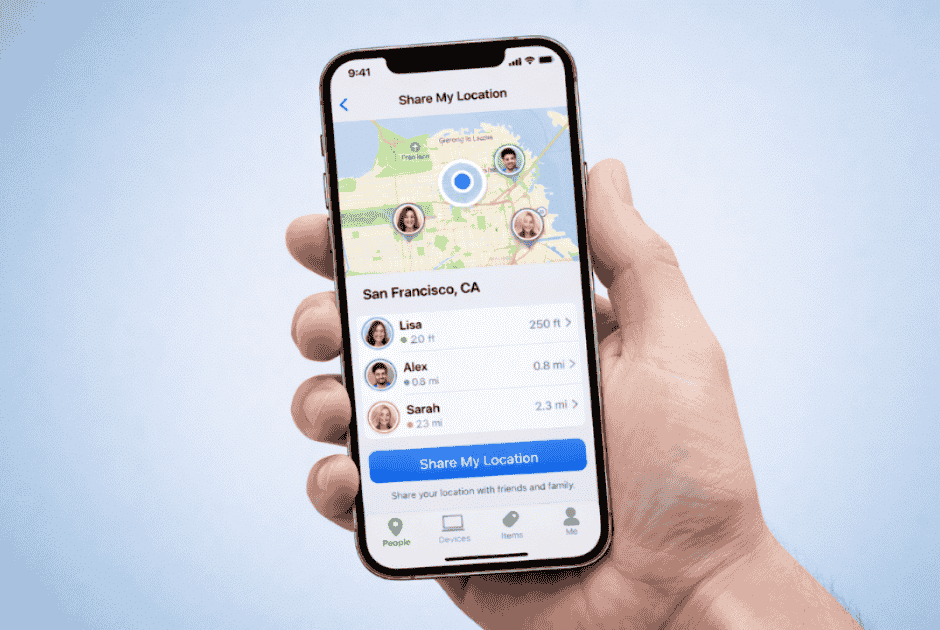
Tired of endless “Where are you?” texts? Learning how to share location on iPhone takes just 30 seconds and changes everything. This complete 2026 guide reveals 5 powerful methods from Find My to the secret Check In feature plus privacy tips and troubleshooting fixes. Master location sharing today and never lose track of friends or family again.
Why Share Your Location on iPhone?
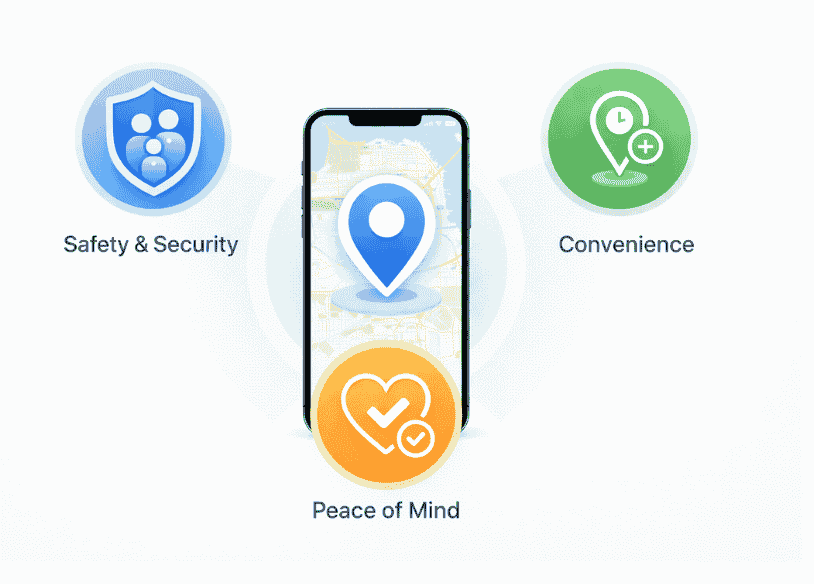
Before diving into the “how,” let’s understand why location sharing has become so valuable:
Safety and Security
- Parents can monitor children’s whereabouts
- Friends can ensure everyone gets home safely after events
- Emergency contacts can locate you if needed
Convenience
- Eliminate endless “Where are you?” texts
- Coordinate meetups effortlessly
- Share arrival times automatically
Peace of Mind
- Family members can check in on elderly relatives
- Partners can see when you’re on your way home
- Travel companions can stay connected in unfamiliar places
According to Apple’s 2025 user data, over 67% of iPhone users actively use location sharing features, making it one of the most popular iOS capabilities.
Method 1: How to Share Location on iPhone Using Find My App
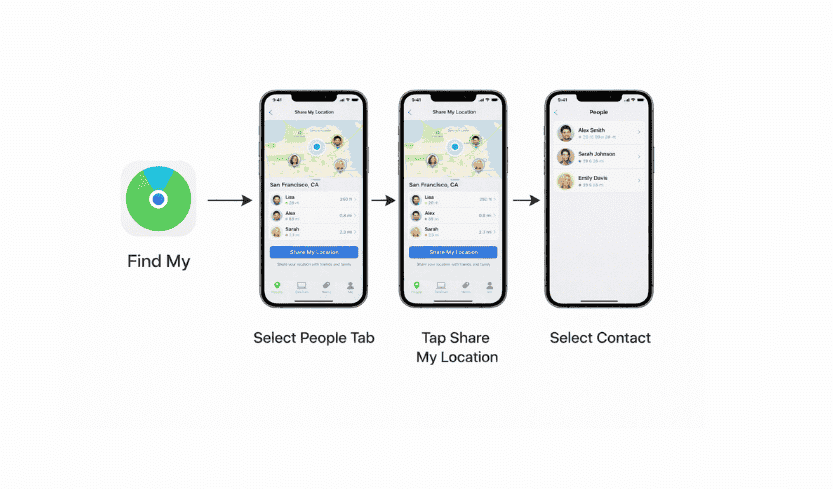
The Find My app is Apple’s primary tool for sharing location on iPhone. It’s secure, reliable, and offers the most control over your privacy.
Step-by-Step Guide to Share Your Location
1. Open the Find My App
- Locate the green Find My icon on your home screen
- If you can’t find it, swipe down and use Spotlight search
2. Navigate to the People Tab
- Tap “People” at the bottom of the screen
- This shows everyone currently sharing locations with you
3. Start Sharing
- Tap the “+” button or “Start Sharing Location”
- Enter the contact’s name, phone number, or email
- Select the person from your contacts list
4. Choose Duration You’ll see three options:
- Share for One Hour – Perfect for quick meetups
- Share Until End of Day – Great for day-long events
- Share Indefinitely – Ideal for family members or close friends
5. Send the Request
- Tap “Send” to share your location
- The recipient will receive a notification
Important Features in Find My
Real-Time Location Updates Your location updates automatically every few seconds when the app is open, and periodically in the background.
Privacy Controls
- You can stop sharing anytime
- See who can see your location
- Receive notifications when someone requests your location
Geofencing and Notifications Set up alerts when family members arrive or leave specific locations (home, school, work).
Expert Tip: According to Apple’s official support documentation, Find My uses end-to-end encryption to protect your location data, ensuring only people you’ve authorized can see where you are.
Method 2: Share Location Through iMessage
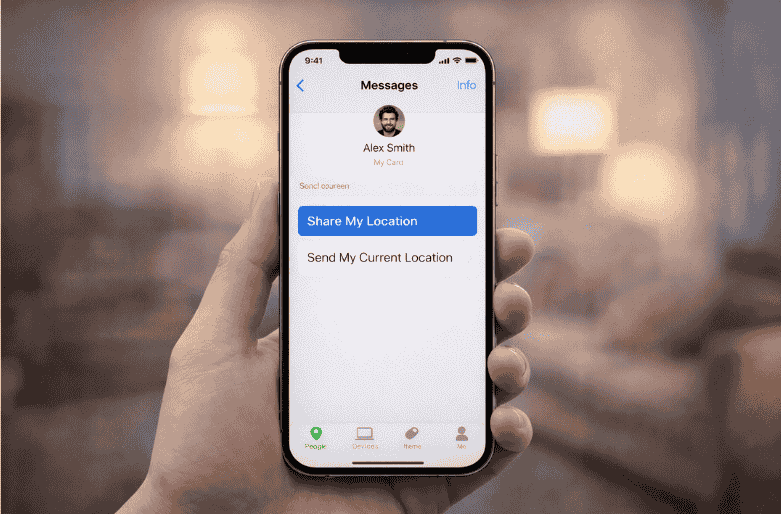
If you want to share my location iPhone quickly during a conversation, iMessage offers a streamlined approach.
How to Share Your Location via Messages
Step 1: Open Messages
- Launch the Messages app
- Open an existing conversation or start a new one
Step 2: Access Contact Info
- Tap the contact’s name or profile picture at the top
- Select “Info” from the menu
Step 3: Share Location
- Tap “Share My Location” or “Send My Current Location”
- Choose your sharing duration
Understanding the Two Options:
| Option | Description | Best For |
|---|---|---|
| Send My Current Location | Shares a one-time snapshot of where you are right now | Quick “I’m here” updates |
| Share My Location | Continuously shares your real-time location | Ongoing coordination |
Step 4: Confirm
- The recipient receives a map showing your location
- For continuous sharing, they’ll see real-time updates
Additional iMessage Location Features
Live Location in iOS 26 The latest update shows your movement direction and speed, helping friends estimate your arrival time more accurately.
Integration with Maps Recipients can tap your location pin to:
- Get directions to your location
- Add your location to their favorites
- Share your location with others
Method 3: Share Location Temporarily with Check In
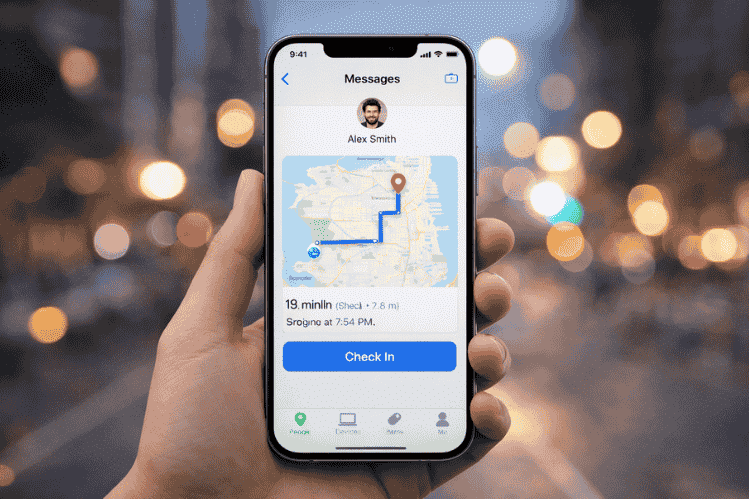
iOS 17 introduced Check In, and iOS 26 has made it even more robust. This feature is perfect for sharing your smartphone’s location temporarily when you need accountability.
How to Use Check In
1. Start a Check In
- Open Messages
- Begin a conversation
- Tap the “+” button next to the text field
- Select “Check In”
2. Choose Your Destination
- Enter where you’re going
- Set your expected arrival time
- Add emergency contacts if desired
3. Customize Data Sharing You can choose what to share:
- Limited Data: Only shares if you don’t check in
- Full Data: Shares location, battery level, and cellular signal
4. Stay Connected
- iPhone automatically monitors your progress
- If you don’t arrive or respond, designated contacts are alerted
- They receive your location, battery status, and last known signal
Safety Features in Check In:
✓ Automatic alerts if you stop moving unexpectedly
✓ Battery level monitoring
✓ Cellular signal tracking
✓ Manual check-in option to confirm you’re safe
This feature has become invaluable for solo travelers, people meeting strangers for sales transactions, or anyone walking alone at night.
Method 4: Share Location via Third-Party Apps
Beyond Apple’s native apps, you can share location through popular messaging and social platforms.
WhatsApp Location Sharing
Many users ask how to share location on WhatsApp with their iPhone:
- Open WhatsApp and go to a chat
- Tap the “+” icon
- Select “Location”
- Choose “Share Live Location” or “Send Your Current Location”
- Select duration (15 minutes, 1 hour, or 8 hours)
Google Maps Sharing
- Open Google Maps
- Tap your profile picture
- Select “Location sharing”
- Choose “Share location” or “New share”
- Select contacts and duration
Comparison Table: Location Sharing Methods
| Method | Duration Options | Privacy Level | Battery Impact | Best Use Case |
|---|---|---|---|---|
| Find My | 1 hour, day, indefinite | Very High | Low | Family & close friends |
| iMessage | Temporary or ongoing | High | Low | Quick meetups |
| Check In | Trip-based | Very High | Moderate | Safety accountability |
| 15 min to 8 hours | Moderate | Moderate | International contacts | |
| Google Maps | 15 min to 3 days | Moderate | High | Navigation coordination |
How to Turn On Location Sharing on iPhone
Before you can share my location, you need to ensure location services are properly configured.
Enable Location Services
Step 1: Access Settings
- Open the Settings app
- Scroll to “Privacy & Security”
Step 2: Location Services
- Tap “Location Services”
- Toggle it ON (green)
Step 3: Share My Location
- Scroll down to “Share My Location”
- Toggle ON
- Select “From” – choose your device
Step 4: Find My Settings
- Return to main Settings
- Tap your name at the top
- Select “Find My”
- Enable “Find My iPhone”
- Turn on “Share My Location”
Important: According to Apple’s Location Services guide, location services must be enabled for emergency services even if you disable them for apps. This ensures you can always dial emergency numbers with location data.
Managing Who Can See Your Location
Privacy is paramount when you share location on iPhone. Here’s how to manage your sharing settings effectively.
View Current Sharing Status
- Open Find My app
- Tap “People”
- You’ll see everyone who:
- Can see your location
- Is sharing their location with you
Stop Sharing with Someone
Method 1: From Find My
- Open Find My → People
- Select the person’s name
- Scroll down and tap “Stop Sharing My Location”
- Confirm your choice
Method 2: From Messages
- Open conversation with that person
- Tap their name → Info
- Select “Stop Sharing My Location”
Hide Your Location Temporarily
If you want to stop sharing location on iPhone without alerting the other person:
- Open Find My
- Tap “Me” at the bottom
- Toggle off “Share My Location”
- Everyone stops seeing your location simultaneously
Privacy Consideration: People won’t receive a notification when you stop sharing, but they’ll notice your location is no longer updating.
Safety and Privacy Warnings
While location sharing is useful, it’s crucial to use it responsibly.
⚠️ Critical Safety Tips
Only Share with Trusted Contacts
- Never share your location with strangers
- Be cautious with new acquaintances
- Remember that location data reveals your home, work, and routines
Review Sharing Regularly
- Check who can see your location monthly
- Remove people you no longer want to share with
- Audit your sharing settings after relationships end
Be Aware of Battery Drain Continuous location sharing can impact battery life. To minimize this:
- Use “Share for One Hour” instead of indefinite when possible
- Enable Low Power Mode for extended sharing periods
- Keep your iPhone updated for optimized battery performance
Stalking and Abuse Prevention If you’re in an unsafe situation:
- Immediately stop all location sharing
- Change your Apple ID password
- Enable two-factor authentication
- Consider if someone has physical access to your device
If you suspect unauthorized tracking location on iPhone, learn How to Turn Off Find My iPhone to completely disable location features.
Troubleshooting Common Issues
“No Location Found” Error
Possible Solutions:
- Check if both devices have internet connection
- Verify Location Services are enabled
- Ensure both parties have iOS 13 or later
- Restart both iPhones
- Sign out and back into iCloud
Location Not Updating
If someone asks “can someone see my location on iPhone” but it’s not updating:
- Confirm you have cellular data or Wi-Fi
- Check if Low Power Mode is limiting updates
- Verify the Find My app has background refresh enabled
- Ensure you haven’t disabled location for Find My specifically
Can’t Share with Specific Person
- Verify they have an Apple ID
- Check if you’ve blocked their contact
- Ensure Family Sharing isn’t creating conflicts
- Try sharing via their phone number instead of email (or vice versa)
For more device connectivity issues, check our guide on How to Connect AirPods to iPhone.
Advanced Location Sharing Tips
Family Sharing Integration
Set Up Family Sharing for Location
- Settings → Your Name → Family Sharing
- Tap “Location Sharing”
- Enable “Share My Location”
- All family members can now see each other
Benefits:
- Automatic location sharing with family members
- Parental controls for children’s devices
- Shared Find My network
Location Alerts and Notifications
Create Custom Location Alerts:
- Open Find My → People
- Select a family member
- Tap “Add” under Notifications
- Choose “Notify Me” for:
- When they arrive at a location
- When they leave a location
Perfect for:
- Knowing when kids get to school
- Alerts when elderly parents leave home
- Coordinating pickups
Using Shortcuts for Location Sharing
iOS 26’s Shortcuts app can automate how to share your location on iPhone:
Create a “Share Location” Shortcut:
- Open Shortcuts app
- Tap “+” to create new shortcut
- Add “Share ETA” action
- Customize with contacts and messages
- Add to home screen for one-tap sharing
Comparing iPhone Location Sharing Across iOS Versions
Apple has continuously improved location features from iOS 15 to iOS 26.
Key Improvements by Version
iOS 15-16:
- Introduced improved Find My network
- Added Live Text in location screenshots
- Enhanced privacy controls
iOS 17:
- Launched Check In feature
- Added NameDrop for quick contact sharing
- Improved location accuracy
iOS 18-19:
- Refined battery optimization for location services
- Enhanced emergency SOS integration
- Added location history privacy controls
iOS 26 (Current):
- AI-powered arrival time predictions
- Enhanced privacy dashboard showing location access patterns
- Improved offline Find My capabilities
- Better integration with CarPlay for location sharing
If you’ve recently upgraded your device, our guide on How to Transfer iPhone to iPhone ensures your location sharing settings transfer correctly.
Frequently Asked Questions
1. How to share location on WhatsApp?
Open WhatsApp, go to a chat, tap the “+” icon, select “Location,” and choose either “Share Live Location” (real-time for up to 8 hours) or “Send Your Current Location” (one-time snapshot). This works independently from iPhone’s Find My app.
2. How to turn on location sharing iPhone?
Go to Settings → Privacy & Security → Location Services and toggle ON. Then navigate to Settings → [Your Name] → Find My → Share My Location and enable it. You can now share through Find My or Messages apps.
3. Can someone see my location on iPhone without me knowing?
No. iPhone location sharing requires your explicit permission. You’ll receive notifications when someone requests your location, and you can see everyone who has access in the Find My app under “People.” However, if someone has physical access to your unlocked device, they could potentially enable sharing without your knowledge—always use a passcode.
4. How does iPhone Check In location sharing work?
Check In monitors your journey to a destination. When you start a Check In in Messages, your iPhone tracks your progress. If you don’t arrive on time or if your device detects unusual activity (stopped movement, low battery, no signal), it automatically shares your location, battery level, and other data with your designated emergency contact.
5. How to share my location on iPhone with family?
Use Family Sharing: Go to Settings → [Your Name] → Family Sharing → Location Sharing → Share My Location. All family members will automatically have access to each other’s locations. Alternatively, share individually through Find My app by tapping People → “+” and selecting family members.
6. Can I use iPhone Find My to share location with Android users?
Not directly through Find My app. However, you can share location with Android users using:
iMessage (they’ll receive a link to view on a map)
Third-party apps like WhatsApp or Google Maps
Sending your current location as a one-time message
7. How to stop sharing location on iPhone without them knowing?
Open Find My → “Me” → toggle off “Share My Location” to stop sharing with everyone simultaneously. Alternatively, enable Airplane Mode temporarily. However, people will notice your location stops updating. For complete privacy, go to Settings → [Your Name] → Find My and disable “Share My Location” entirely.
8. Does tracking location on iPhone drain battery?
Continuous location sharing uses moderate battery, typically 5-15% more per day depending on usage. To minimize drain:
Use temporary sharing instead of indefinite
Enable Low Power Mode
Ensure iOS is updated for optimization
Limit the number of apps with location access
For more details, visit iPhoneLife’s advanced location tips.
Conclusion
Sharing your location on iPhone has evolved into a powerful, privacy-focused feature that enhances safety, coordination, and peace of mind. Whether you’re using Find My for family tracking, iMessage for quick meetups, or Check In for safety accountability, iOS 26 provides versatile options for every situation.
Key Takeaways:
- Find My app offers the most comprehensive and secure location sharing
- iMessage provides quick, conversation-based sharing
- Check In ensures safety during travel or solo activities
- Always review who can see your location and manage permissions regularly
- Use temporary sharing when possible to protect your privacy
Remember, location sharing is a tool—use it wisely, share only with trusted contacts, and regularly audit your privacy settings. With the methods outlined in this guide, you’re now equipped to leverage iPhone’s location features safely and effectively.
Ready to enhance your iPhone experience? Subscribe to our newsletter for more iOS tips, or drop a comment below sharing how you use location sharing in your daily life!

