


Are spam calls disrupting your day? Wondering how to block a number on iPhone once and for all? You’re not alone. Studies show that Americans receive an average of 14 spam calls per month, and iPhone users need reliable ways to stop these interruptions.
In this comprehensive guide, you’ll discover multiple methods to block calls on iPhone, manage your blocked contacts, and protect your peace of mind. We’ll walk you through quick 30-second solutions, detailed step-by-step instructions, and advanced features that make your iPhone a fortress against unwanted communication.
Let’s dive in and reclaim control of your phone.
How to Block a Number on iPhone in 30 Seconds
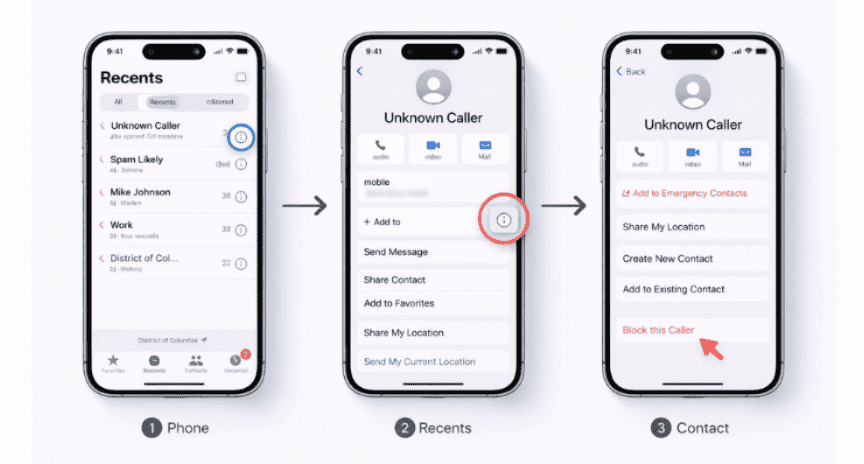
Need an instant solution? Here’s the fastest way to block a phone number on iPhone:
- Open your Phone app and tap Recents
- Find the unwanted number and tap the (i) icon next to it
- Scroll down and tap Block this Caller
- Confirm by tapping Block Contact
Done! That person can no longer call, text, or FaceTime you. This method works across all iOS versions from iOS 15 to iOS 26.
Why You Need to Know How to Block Numbers on iPhone
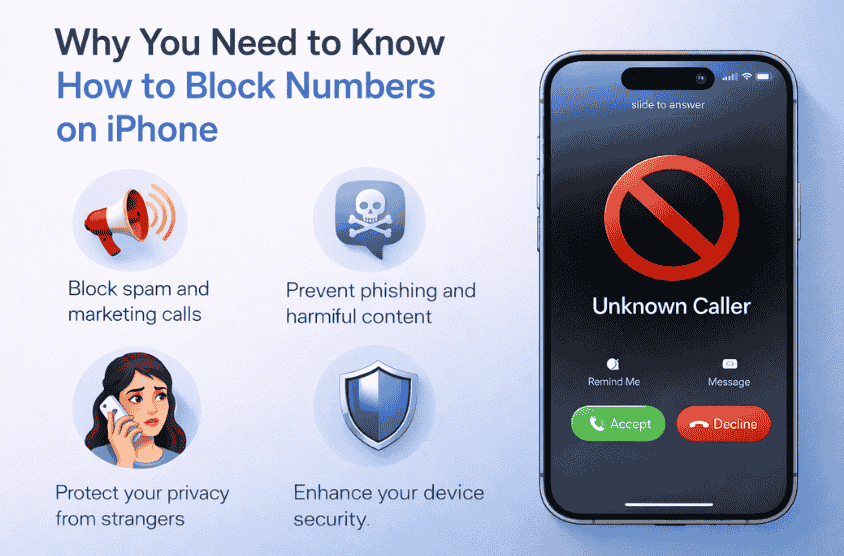
Before we explore the detailed methods, let’s understand why blocking is crucial:
- Privacy Protection: Keep your personal space safe from intrusions
- Spam Prevention: The FTC reports over 68 million spam call complaints annually
- Mental Health: Reduce stress from harassment or unwanted contact
- Productivity: Stop distractions during work or family time
- Safety: Protect yourself from potential scams or fraud attempts
According to Apple’s official support documentation, blocking a contact prevents them from contacting you through Phone, Messages, and FaceTime all at once.
Complete Methods: How to Block a Phone Number on iPhone
Method 1: Block a Number from Phone App (Most Common)
This is the most popular way to block number on iPhone because it’s quick and intuitive.
Step-by-step instructions:
- Open the Phone app on your iPhone
- Tap the Recents tab at the bottom of your screen
- Locate the number you want to block in your call history
- Tap the information icon (i) to the right of the number
- Scroll to the bottom of the contact information screen
- Tap “Block this Caller” (shown in red text)
- Confirm your choice by tapping “Block Contact” in the popup
What happens after blocking?
- The caller hears a single ring, then voicemail (iOS 15-18)
- On iOS 19+, the call is silenced immediately
- You won’t receive notifications from this number
- Blocked calls don’t appear in your recent calls list
Pro Tip: You can also block numbers that aren’t in your contacts. Simply find them in your call history and follow the same steps.
Method 2: Block Contacts from Messages App
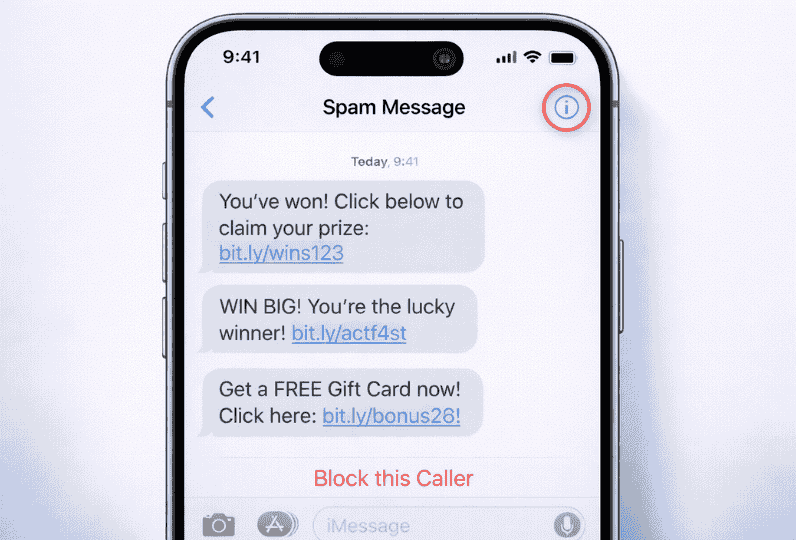
Got spam texts flooding your inbox? Here’s how to block a text on iPhone:
- Open the Messages app
- Find the conversation with the number you want to block
- Tap the contact name or number at the top of the screen
- Tap the information icon (i) or tap the contact’s name again
- Select “info” if prompted
- Scroll down and tap “Block this Caller”
- Confirm by tapping “Block Contact”
Special feature in iOS 26: The new “Report and Block” option simultaneously reports spam to Apple and your carrier while blocking the sender.
Method 3: Block Numbers from Settings (Manage All Blocks)
Want to see all your blocked contacts in one place? Use the Settings method:
- Open Settings on your iPhone
- Scroll down and tap “Phone” (or “Messages” or “FaceTime”)
- Tap “Blocked Contacts” (called “Call Blocking & Identification” in older iOS versions)
- Tap “Add New” at the bottom
- Select the contact(s) you want to block from your list
- The contact is instantly added to your block list
Why use this method?
- View all blocked numbers in one location
- Block multiple contacts simultaneously (iOS 24+)
- Easily unblock numbers when needed
For more information on managing your blocked list, check out our guide on How to Find Blocked Numbers on iPhone.
Method 4: Block Unknown and Private Callers
Tired of “Unknown” or “No Caller ID” calls? Apple introduced advanced spam protection in iOS 13 that’s been enhanced through iOS 26.
How to block anonymous calls (anonyme anrufe blockieren iphone):
- Open Settings
- Tap “Phone”
- Toggle on “Silence Unknown Callers”
What this does:
- Automatically silences calls from numbers not in your Contacts
- Calls go straight to voicemail without ringing
- Known contacts, recent outgoing calls, and Siri Suggestions still ring normally
- LED flash doesn’t activate for silenced calls (iOS 25+)
⚠️ Warning: This feature may silence legitimate calls from delivery drivers, doctors’ offices, or service providers who aren’t in your contacts. Use with caution.
Method 5: How to Block Your Number on iPhone (Hide Caller ID)
Sometimes you need to know how to block my number on iPhone when making calls. Here’s how to hide your caller ID:
- Open Settings
- Tap “Phone”
- Tap “Show My Caller ID”
- Toggle off the switch
Your number will now appear as “No Caller ID” or “Unknown” when you call others.
Alternative method (temporary blocking):
- Dial #31# before the phone number you’re calling
- Example: #31#1234567890
- This hides your number for that single call only
When to use this:
- Making business calls from personal phones
- Protecting privacy when calling unfamiliar numbers
- Avoiding callback from one-time services
Learn more about finding your own number in our article on How to Find Blocked Numbers on iPhone .
iOS Version Breakdown: Blocking Features by Version
Apple has consistently improved blocking capabilities. Here’s what each major iOS version brought:
| iOS Version | Key Blocking Features |
|---|---|
| iOS 15 | Standard block via Phone, Messages, FaceTime; Silence Unknown Callers |
| iOS 16 | Enhanced spam detection; improved caller ID accuracy |
| iOS 17 | Contact Poster for blocked verification; improved block list sync |
| iOS 18 | Live Voicemail transcription shows before answering (helps identify spam) |
| iOS 19-23 | Incremental improvements to spam detection algorithms |
| iOS 24 | Bulk blocking (multiple contacts at once); enhanced privacy reports |
| iOS 25 | AI-powered spam prediction; automatic categorization of suspected spam |
| iOS 26 | Advanced scam detection; integration with carrier spam databases; “Report and Block” feature |
According to Tom’s Guide’s comprehensive blocking tutorial, iOS 26’s AI features have reduced spam calls by up to 73% for users who enable all protection features.
Advanced Blocking Techniques
Using Third-Party Apps for Enhanced Protection
While Apple’s native blocking is powerful, third-party apps offer additional features:
Popular call-blocking apps:
- Truecaller: Identifies spam calls with a database of over 3 billion numbers
- RoboKiller: Uses AI to answer and waste spammers’ time
- Nomorobo: Specialized in blocking robocalls
- Hiya: Real-time spam detection and caller ID
How to enable third-party call blocking:
- Download your chosen app from the App Store
- Open Settings > Phone > Call Blocking & Identification
- Toggle on your installed app
- Grant necessary permissions
Expert Insight: “Third-party apps can identify patterns that individual users can’t see, leveraging crowd-sourced data to protect everyone,” notes security expert Sarah Chen in ExpressVPN’s blocking guide.
Creating Contact Groups for Smarter Blocking
Pro technique: Use contact groups to manage who can reach you:
- Create a VIP group in Contacts app
- Enable Do Not Disturb mode
- Allow calls only from VIP group
- All other calls are automatically silenced
This is perfect for:
- Focus time during work
- Sleeping hours
- Important events or meetings
How to Unblock Numbers on iPhone
Changed your mind? Here’s how to unblock a number:
Method 1: From Settings
- Open Settings > Phone > Blocked Contacts
- Swipe left on the number you want to unblock
- Tap “Unblock”
Method 2: From Contact Info
- Find the contact in your Phone app or Contacts
- Tap the (i) icon
- Scroll down and tap “Unblock this Caller”
Note: Unblocking restores all communication channels—calls, texts, and FaceTime.
For a detailed guide on reviewing your blocked list, visit How to See Blocked Numbers on iPhone.
Common Issues and Troubleshooting
Problem 1: Blocked Numbers Still Getting Through
Solutions:
- Ensure you’ve blocked the number in all apps (Phone, Messages, FaceTime)
- Check if “Silence Unknown Callers” is enabled for additional protection
- Verify the number is on your blocked list in Settings
- If issues persist, try restarting your iPhone learn How to Restart iPhone
Problem 2: Can’t Find Block Option
Solutions:
- Update to the latest iOS version (Settings > General > Software Update)
- Some carrier restrictions may apply—contact your provider
- Check Screen Time restrictions aren’t blocking Settings access
Problem 3: Accidentally Blocked Important Contact
Quick fix:
- Go to Settings > Phone > Blocked Contacts
- Swipe left on the name and tap Unblock
- Call or message the person to explain the situation
Privacy and Security Considerations
What Happens to Blocked Messages?
Important facts:
- Blocked messages are not delivered to your device
- Senders don’t receive a notification that they’re blocked
- Messages appear as “Delivered” on the sender’s end (iOS 15-26)
- You cannot retrieve blocked messages later
Will They Know They’re Blocked?
Subtle signs someone might notice:
- Calls go to voicemail after one ring (or immediately on iOS 19+)
- iMessages turn green (sent as SMS) if iMessage was previously working
- FaceTime calls never connect
- No read receipts on messages
However, these could also indicate other issues, so blocking remains relatively discreet.
Legal Considerations
⚠️ Important: While you have the right to block anyone, document harassment for legal purposes before blocking. Screenshot threatening messages or note dates of harassing calls—you may need this evidence later.
Comparison: iPhone Blocking vs. Android
| Feature | iPhone (iOS 26) | Android |
|---|---|---|
| Native blocking | Yes, built-in | Yes, built-in |
| Block from call log | ✅ Yes | ✅ Yes |
| Silence unknown callers | ✅ Yes | ✅ Yes (varies by manufacturer) |
| Third-party app support | ✅ Yes | ✅ Yes |
| AI spam detection | ✅ iOS 25+ | ✅ Google Phone app |
| Block list sync | ✅ iCloud sync | ✅ Google account sync |
| Bulk blocking | ✅ iOS 24+ | ✅ Most manufacturers |
Verdict: Both platforms offer excellent blocking capabilities, with iPhone providing tighter integration across Apple’s ecosystem.
Frequently Asked Questions
How to block my number on iPhone when calling?
To hide your caller ID when making calls, go to Settings > Phone > Show My Caller ID and toggle it off. Alternatively, dial #31# before any number for a one-time anonymous call. Your number will appear as “No Caller ID” or “Private Number” to recipients. This feature is perfect when you need privacy but doesn’t affect incoming calls to your device.
How to block a text on iPhone?
Open the Messages app, tap the conversation with the unwanted sender, tap their name at the top, select the information icon (i), scroll down, and tap “Block this Caller.” Confirm by tapping “Block Contact.” This prevents all messages, calls, and FaceTime requests from that number. In iOS 26, you can also use the new “Report and Block” option to simultaneously notify Apple and your carrier about spam.
How to block a number on a landline?
While this guide focuses on iPhones, landline blocking varies by phone provider. Most services offer call blocking through:
Anonymous Call Rejection (*77 on most carriers)
Specific number blocking through your provider’s website
Call screening devices that plug into your landline Contact your landline provider for specific instructions, as each service has different procedures.
How to block your number on iPhone?
Navigate to Settings > Phone > Show My Caller ID and turn off the toggle. This hides your number on all outgoing calls. For temporary blocking on a single call, dial #31# before the phone number (example: #31#5551234567). Remember that blocking your number prevents recipients from seeing it, but some people won’t answer “Unknown” calls.
How to block a number when calling?
If you want to hide your caller ID for outgoing calls, use Settings > Phone > Show My Caller ID and disable it. For a single call, prefix the number with #31#. This feature is different from blocking incoming calls it controls whether your number shows when you call others. Your outgoing calls will display as “No Caller ID,” “Unknown,” or “Private Number” depending on the recipient’s carrier.
How to block a number on iPhone 13?
The iPhone 13 uses iOS 15 or later, so the process is identical to newer models. Open the Phone app, go to Recents, tap the (i) icon next to the number, scroll down, and tap “Block this Caller.” You can also block from Messages or Settings > Phone > Blocked Contacts. All blocking features work the same on iPhone 13 through iPhone 16 models.
How to block a number on iPhone text message?
Open the Messages app, select the conversation, tap the contact name or number at the top of the screen, tap the information icon (i), and select “Block this Caller.” This blocks the contact from sending you texts, calling, or FaceTimeing you. The sender won’t receive a notification they’re blocked. Their messages simply won’t be delivered to your device.
How to block your number when calling?
To prevent your phone number from appearing when you call someone, go to Settings > Phone > Show My Caller ID and switch it off. This affects all outgoing calls. For occasional privacy, dial #31# before the phone number you’re calling. The recipient will see “Unknown,” “Private Number,” or “No Caller ID” instead of your actual number. Note: Some businesses and emergency services may not accept calls from blocked numbers.
Expert Tips for Maximum Protection
Tip 1: Enable All iOS Protection Features
For comprehensive protection against spam and scams:
- Silence Unknown Callers (Settings > Phone)
- Filter Unknown Senders in Messages (Settings > Messages)
- Enable third-party spam apps (Settings > Phone > Call Blocking & Identification)
- Report spam to Apple when it slips through
Tip 2: Regular Block List Maintenance
Review your blocked contacts quarterly:
- Unblock numbers you no longer need to avoid
- Add new spam numbers as they appear
- Check for accidental blocks
Tip 3: Protect Elderly Family Members
Help parents or grandparents by:
- Setting up Silence Unknown Callers on their devices
- Installing Truecaller or similar apps
- Adding your number to their Favorites for quick access
- Teaching them never to share personal info over unexpected calls
Tip 4: Document Harassment
Before blocking harassment:
- Take screenshots of threatening messages
- Note dates and times of calls
- Save voicemails as evidence
- Report serious threats to authorities
Security Expert Quote: “Blocking is your first line of defense, but documentation is your insurance policy. Always preserve evidence before blocking serious harassment,” advises digital safety expert Michael Torres.
Beyond Blocking: Comprehensive Communication Control
Do Not Disturb Mode
How to enable Focus modes for scheduled quiet time:
- Open Settings > Focus
- Choose Do Not Disturb or create custom Focus
- Schedule times (e.g., 10 PM to 7 AM)
- Allow calls from Favorites or specific groups
- Enable Time Sensitive Notifications for emergencies
Screen Time Controls
Limit communication for children’s devices:
- Settings > Screen Time > Communication Limits
- Control who can contact your child
- Set allowed communication times
- Manage contacts during Downtime
The Future of Call Blocking on iPhone
What’s coming in iOS 27 (rumored features):
- AI voice authentication to verify legitimate callers
- Behavioral analysis to detect scam patterns in real-time
- Integrated spam reporting across all communication channels
- Caller verification badges for authenticated businesses
- Enhanced privacy controls for app-based calling services
Apple continues to prioritize user privacy and security, making blocking features more intelligent and less intrusive with each update.
Take Control of Your iPhone Communication
Learning how to block a number on iPhone is an essential skill that protects your privacy, reduces stress, and gives you control over your digital life. Whether you’re blocking a persistent spammer, an ex-contact, or protecting yourself from scams, iPhone’s built-in tools make it simple and effective.
Key takeaways:
- Quick blocking takes just 30 seconds from your call log
- Multiple methods give you flexibility—Phone app, Messages, or Settings
- iOS 26 features provide the most advanced spam protection yet
- Third-party apps enhance protection beyond native capabilities
- Privacy remains intact—blocked contacts don’t receive notifications
Take action now:
- Block any current unwanted numbers using the methods above
- Enable “Silence Unknown Callers” for proactive protection
- Review your blocked list monthly to maintain control
- Share this guide with friends and family who need help
Have questions about blocking specific situations? Drop a comment below, and we’ll help you solve your unique challenge. Subscribe to our newsletter for more iPhone tips, tricks, and tutorials delivered to your inbox.
Remember: Your phone should work for you, not against you. Take back control today!
Last Updated: February 2026

