


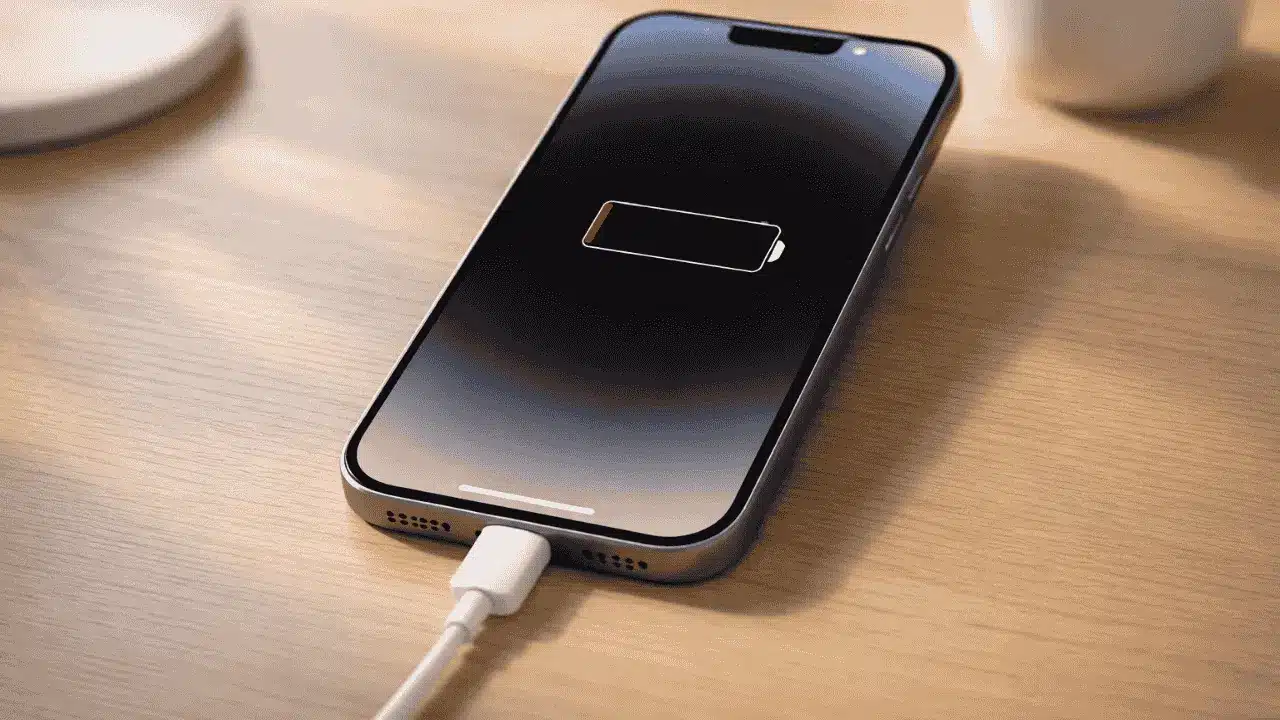
If your iPhone is not charging, you’re not alone and you don’t need to panic. This is one of the most common iPhone problems people face, and most of the time, it’s something you can fix yourself in under five minutes. In this guide, you’ll find 11 proven fixes that work on all iPhone models, from the iPhone 6 all the way to the iPhone 16.
Why Is My iPhone Not Charging?
Before jumping into fixes, it helps to understand what’s usually behind the problem. Here are the most common culprits:
- Dirty or damaged charging port — lint, dust, and debris are the #1 cause
- Faulty cable or adapter — especially with third-party or older cables
- Software glitch — a simple restart often fixes this
- Water exposure — even minor moisture can temporarily block charging
- Degraded battery — older iPhones may have battery health issues
- iOS bug — an outdated iOS version can sometimes interfere
Now let’s get to the fixes.
1. Check Your Charging Cable and Adapter

This sounds obvious, but it’s the fix that works most often. A worn-out or counterfeit cable is one of the top reasons your iPhone charger is not working.
What to do:
- Look closely at both ends of your cable for fraying, kinks, or bent connectors.
- Try a completely different cable — ideally an official Apple cable or an MFi-certified one.
- Swap your charging adapter (the brick that plugs into the wall) too.
- If you’re using a USB hub or extension, plug directly into the wall instead.
Apple Support says: “Use only Apple-certified accessories. If you see ‘Accessory Not Supported’ or ‘This Accessory May Not Be Supported’ alerts, your cable or charger may be damaged or uncertified.” — Apple Support
For iPhone 15 and iPhone 16 users: These models use USB-C, not Lightning. Make sure your cable is USB-C compatible. An iPhone not charging USB-C issue is often just a matter of using the wrong cable type.
2. Clean the Charging Port

This is the fix most people overlook — and the one that solves the problem most of the time. Your iPhone charging port collects lint and debris from your pocket every single day.
How to safely clean the port:
- Power off your iPhone completely.
- Use a wooden or plastic toothpick — never metal.
- Gently scrape along the inside walls of the port.
- Use a soft toothbrush or a puff of compressed air to clear loose debris.
- Shine a flashlight inside to check if it looks clear.
- Plug in your charger and check if it clicks in firmly.
⚠️ Warning: Never use a metal pin, paper clip, or anything sharp. You could damage the pins inside the port and create a bigger (and more expensive) problem.
If your iPhone charging port is not working even after cleaning, move on to the next steps.
3. Try a Different Power Source
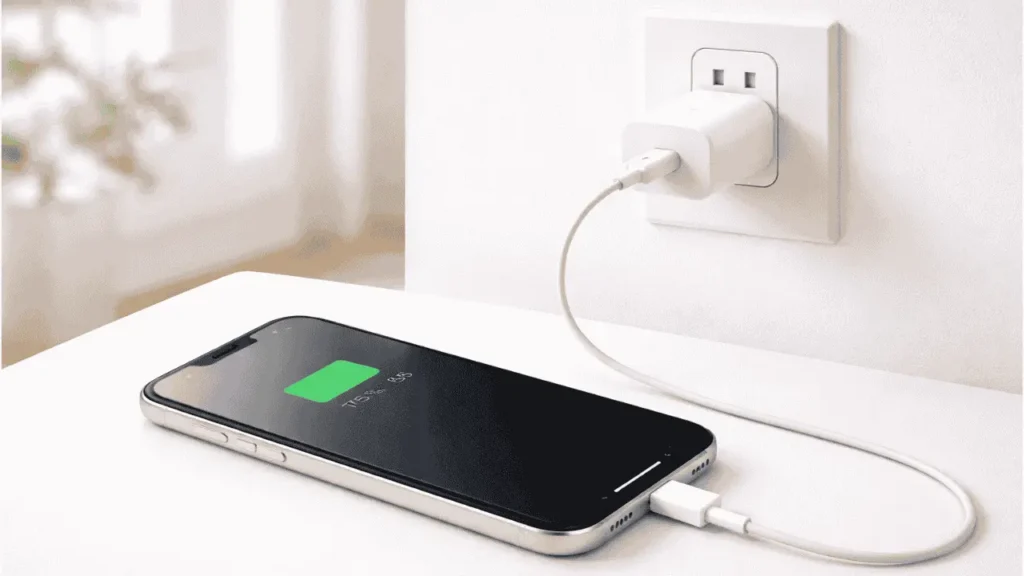
Sometimes the outlet — not the iPhone — is the problem. A USB port on a computer, a car charger, or an old power strip might not be delivering enough power.
Try these alternatives:
- Plug into a different wall outlet
- Use a 5W or higher Apple USB power adapter
- Avoid charging from a computer USB port (it charges much slower and may not register at all)
- Test with a known-working charger from a friend or family member
If your iPhone starts charging from a different source, the issue was with your original adapter or outlet.
4. Remove Your iPhone Case
Some thick or poorly designed cases can block the connection between the cable and the port — especially with USB-C on iPhone 15 and 16 models.
What to do:
- Take your case off completely.
- Plug your charger in directly.
- Check if the charging symbol appears.
This is a quick 10-second test that’s worth doing before anything else.
5. Restart Your iPhone
Image suggestion: iPhone screen showing the “slide to power off” option. Alt text: iPhone slide to power off screen for restarting to fix charging issue
A software glitch can sometimes prevent your iPhone battery from charging even when everything else is fine. A simple restart clears temporary bugs and resets the charging process.
Here’s how to restart your iPhone based on your model:
iPhone 8 or earlier:
- Hold the Side (or Top) button until the power slider appears → slide to turn off → hold the Side button again to turn on.
iPhone X, 11, 12, 13, 14, 15, 16:
- Hold the Side button + either Volume button until the slider appears → slide to turn off → press the Side button to turn back on.
iPhone SE (2nd or 3rd generation):
- Hold the Side button until the slider appears → slide to turn off → press Side button to restart.
After restarting, plug in your charger and wait 30 seconds to see if charging begins.
6. Check for Debris or Moisture
If your iPhone is not charging after water damage, the good news is that your phone is trying to protect itself. Modern iPhones (iPhone 8 and later) have built-in moisture detection.
What you’ll see:
“Liquid Detected in Lightning Connector — To protect your iPhone, charging has been disabled.”
This is Apple’s safety system at work.
What to do:
- Do not charge your iPhone while it shows this warning.
- Tap your iPhone gently against your palm with the port facing down to help drain moisture.
- Leave it in a dry, well-ventilated spot for at least 30 minutes to a few hours.
- Do NOT put it in rice Apple advises against this, as rice particles can make things worse.
- Once dry, try charging again.
If the alert keeps appearing even when the port looks dry, there may be internal moisture damage that needs professional attention.
7. Update iOS
An outdated iOS version can cause unexpected behavior — including charging problems. Apple regularly releases updates that fix software bugs, and your iPhone not charging fix might already be waiting in an update.
How to update iOS:
- Go to Settings → General → Software Update
- If an update is available, tap Download and Install
- Connect to Wi-Fi first (updates won’t download on cellular)
- Let your iPhone restart and check charging again
Pro tip: If your iPhone won’t turn on at all, you can update through Recovery Mode using a Mac or PC with iTunes/Finder.
8. Check Optimized Battery Charging
This feature is designed to extend your battery’s lifespan — but it can sometimes confuse users into thinking their iPhone battery is not charging properly.
Here’s what’s happening: Optimized Battery Charging learns your daily routine and intentionally slows or pauses charging past 80% to reduce battery wear.
How to check or disable it:
- Go to Settings → Battery → Battery Health & Charging
- Toggle off Optimized Battery Charging if you want your phone to charge to 100% right away
This is completely safe to turn off temporarily. You can always turn it back on later.
To learn more about your battery’s overall condition, check out this guide on how to check battery health on iPhone.
9. Try Wireless Charging
If your iPhone supports wireless charging (iPhone 8 and later), this is a great way to test whether the problem is with your port or the phone itself.
How to test:
- Place your iPhone on a Qi or MagSafe wireless charger
- Make sure the phone is centered on the pad
- Check for the charging symbol in the top-right corner
If your iPhone charges wirelessly but not with a cable, the problem is almost certainly your charging port — not the phone’s software or battery.
10. Reset All Settings
If none of the above has worked, a settings reset can clear software conflicts that are blocking charging. This does not delete your data or photos — it only resets things like Wi-Fi passwords, display settings, and preferences.
How to reset all settings:
- Go to Settings → General → Transfer or Reset iPhone
- Tap Reset → Reset All Settings
- Enter your passcode and confirm
- Let your iPhone restart, then try charging
Note: You’ll need to re-enter your Wi-Fi password and redo some preferences after this reset.
11. Contact Apple Support or Get a Battery Replacement
Image suggestion: Apple Store Genius Bar appointment screen on a laptop. Alt text: Apple Genius Bar appointment booking for iPhone charging repair
If you’ve tried everything above and your iPhone still won’t charge, there’s likely a hardware issue. The two most common causes at this stage are:
- A damaged charging port that needs professional repair or replacement
- A degraded battery that can no longer hold or receive a charge
Your options:
- Book a Genius Bar appointment at an Apple Store
- Contact Apple Support online or by phone
- Visit an Apple Authorized Service Provider
- Consider a battery replacement if your battery health is below 80%
For a full breakdown of your options and what to expect, read our guide on iPhone battery replacement.
From Apple’s Battery Service page: “If your iPhone battery health is significantly degraded, Apple offers a battery replacement service to restore original performance.” — Apple Battery Service
Quick Comparison Table
| Fix | Time Needed | DIY? | Works For |
|---|---|---|---|
| Check cable/adapter | 1 min | ✅ Yes | All models |
| Clean charging port | 3–5 min | ✅ Yes | All models |
| Try different power source | 1 min | ✅ Yes | All models |
| Remove case | 10 sec | ✅ Yes | All models |
| Restart iPhone | 1 min | ✅ Yes | All models |
| Let port dry (water damage) | 30+ min | ✅ Yes | All models |
| Update iOS | 10–20 min | ✅ Yes | All models |
| Check Optimized Charging | 1 min | ✅ Yes | iPhone 11+ |
| Try wireless charging | 1 min | ✅ Yes | iPhone 8+ |
| Reset All Settings | 5–10 min | ✅ Yes | All models |
| Apple repair/battery swap | 1–3 days | ❌ No | All models |
FAQs About iphone not charging
Why is my iPhone plugged in but not charging?
The most common reasons are a dirty charging port, a faulty cable, or a software glitch. Start by cleaning the port and trying a new cable. If that doesn’t help, restart your iPhone and check if iOS is up to date.
My iPhone suddenly won’t charge — what happened?
A sudden charging failure is often caused by a damaged cable, a clogged port, or a minor iOS bug. Try a different cable first, then do a restart. If it happened right after dropping your phone near water, check for the “Liquid Detected” warning.
Why does my iPhone show it’s charging but the battery percentage isn’t going up?
This can happen when your iPhone is using more power than it’s receiving (common with low-wattage chargers or weak USB ports). Make sure you’re using a proper wall adapter — at least 5W — and avoid charging from a computer USB port.
Can a software update fix iPhone charging problems?
Yes, sometimes it can. Apple releases iOS updates that fix known bugs, including charging-related ones. Go to Settings → General → Software Update to check if there’s an update waiting for you.
Is it safe to charge my iPhone overnight?
Yes, modern iPhones are designed to handle overnight charging. The Optimized Battery Charging feature automatically manages the charge cycle to protect your battery. That said, using a quality, Apple-certified charger is still important.
How do I know if my iPhone battery needs to be replaced?
Go to Settings → Battery → Battery Health & Charging. If your battery’s maximum capacity is below 80%, Apple recommends a replacement. You may also notice faster drain, unexpected shutdowns, or slower performance.
Conclusion
Dealing with an iPhone not charging is frustrating — but as you’ve seen, most causes are simple and fixable at home. Here’s a quick recap of what to try, in order:
- ✅ Inspect your cable and adapter
- ✅ Clean the charging port
- ✅ Try a different power source
- ✅ Remove your case
- ✅ Restart your iPhone
- ✅ Let the port dry if there’s moisture
- ✅ Update iOS
- ✅ Check Optimized Battery Charging
- ✅ Test wireless charging
- ✅ Reset All Settings
- ✅ Contact Apple Support if nothing works
Work through these steps one by one and you’ll most likely find the fix before reaching the end of the list. If you do need professional help, Apple’s support team and authorized service providers are easy to reach and often faster than you’d expect.
Still having trouble? Check out these related guides:
- How to Check Battery Health on iPhone
- iPhone Battery Replacement Guide
- How to Restart iPhone (All Models)
Sources:
- Apple Support — If your iPhone won’t charge
- Apple — iPhone Battery Service
- iFixit — iPhone Repair Guides
Last updated: March 2026 | Written for iPhone users

