


Losing your iPhone is one of the most stressful things that can happen but don’t panic. iCloud Find My iPhone is a built-in Apple feature that can help you locate, lock, or even erase your device, all from a browser or another Apple device. Whether your phone slipped between your couch cushions or went missing at the airport, this guide walks you through every step to get it back in 2026.
What Is iCloud Find My iPhone?
iCloud Find My iPhone is Apple’s official location-tracking service, built right into every iPhone. It lets you see your device’s real-time location on a map, play a sound to help you find it nearby, lock it remotely, or erase all your data if you think it’s been stolen.
Apple introduced this feature years ago and has continuously improved it. Today, it’s part of the broader Find My network — a massive system that uses millions of Apple devices to help locate yours, even when it’s offline.
💡 According to Apple’s official Find My overview, the Find My network uses Bluetooth signals from nearby Apple devices to help detect your offline device and report its location back to you — all anonymously and encrypted.
You can access this feature in three ways:
- Through iCloud.com on any web browser
- Through the Find My app on another iPhone, iPad, or Mac
- Through a Windows PC or Android device via iCloud.com
What You Need Before You Start
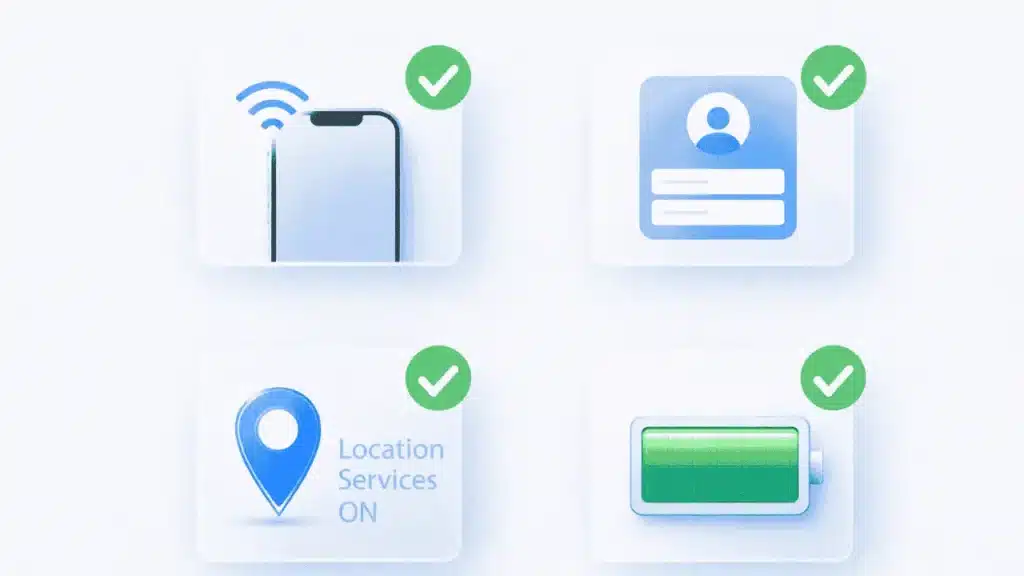
Before you try to locate your iPhone, make sure these things were set up in advance. Unfortunately, you can’t enable Find My after your phone goes missing — it must be turned on beforehand.
Here’s what you need:
- ✅ Find My iPhone was turned ON in Settings before the phone went missing
- ✅ Your Apple ID and password (the one linked to the missing iPhone)
- ✅ The iPhone had Location Services enabled
- ✅ The phone was connected to Wi-Fi or cellular data at some point recently
⚠️ Important: If Find My iPhone was not enabled on your device before it went missing, you will not be able to track it through iCloud. This is why it’s critical to turn it on right now if you haven’t already.
How to Use iCloud Find My iPhone on iCloud.com
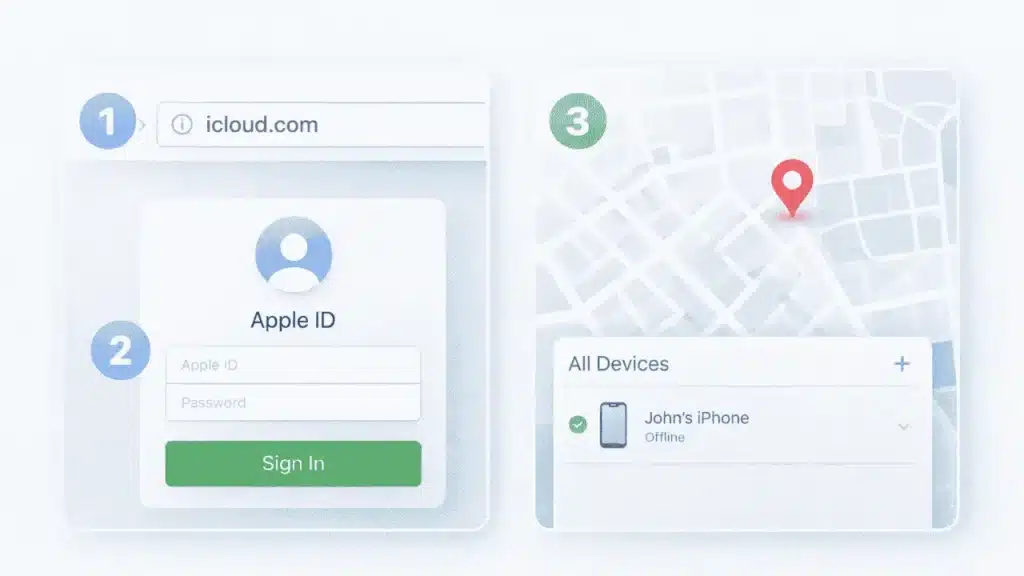
The easiest way to find your iPhone is through iCloud.com — Apple’s web portal. You can do this from any computer, tablet, or smartphone.
Step-by-Step Instructions
- Open a web browser on any device (laptop, PC, Android phone, etc.)
- Go to iCloud.com
- Sign in with your Apple ID and password
- If prompted, complete two-factor authentication using a trusted device or phone number
- Once signed in, click on “Find My” from the main menu
- The map will load and show your devices
- Click on your iPhone from the “All Devices” list at the top of the screen
- Your iPhone’s last known location will appear as a dot or pin on the map
📍 Image suggestion: Screenshot of the iCloud.com Find My interface with a device selected on the map. Alt text: “iCloud.com Find My iPhone map showing device location”
What You’ll See
Once you’ve selected your device, you’ll have three options:
| Option | What It Does |
|---|---|
| Play Sound | Makes your iPhone ring loudly, even if it’s on silent |
| Lost Mode | Locks the device and displays a custom message with a contact number |
| Erase iPhone | Permanently wipes all data from the device |
How to Locate Your iPhone from Another Apple Device
If you have access to another iPhone, iPad, or Mac, you can use the Find My app to locate your missing device. This is often faster and more detailed than using the browser.
On iPhone or iPad
- Open the Find My app (it looks like a green icon with a radar signal)
- Tap the “Devices” tab at the bottom
- Tap your missing iPhone from the list
- The map will show its current or last known location
- Tap “Directions” to navigate there, or choose Play Sound, Lost Mode, or Erase
On Mac
- Click Finder or open Spotlight (Command + Space)
- Search for “Find My” and open the app
- Click the “Devices” tab in the left sidebar
- Select your missing iPhone
- Choose your next action from the panel on the left
💡 Tip: If you’re using a Mac, you can also locate your phone from your computer using iCloud, which gives you a full-screen map view that’s easy to navigate.
How to Track an iPhone from a Computer
You don’t need an Apple device to track your iPhone. If you’re on a Windows PC, Chromebook, or even an Android phone, you can still use iCloud.com to find your device.
Here’s how to track your iPhone from a computer:
- Open Chrome, Firefox, Edge, or Safari on your computer
- Go to iCloud.com
- Sign in with your Apple ID — this is the same account linked to your iPhone
- Click Find My from the home screen
- Select “All Devices” at the top of the map
- Click your iPhone from the dropdown
- The map will show its location, along with battery level and online status
📍 Image suggestion: Windows PC browser showing iCloud.com Find My map. Alt text: “Tracking iPhone from a Windows computer using iCloud.com”
The page also shows you:
- Whether the device is online or offline
- The device’s battery percentage
- Whether Lost Mode is active
If you need help signing into iCloud.com on a new device, check out this guide on iCloud Find My iPhone login for step-by-step help.
What to Do If Your iPhone Is Offline
This is one of the most common questions people have — what if Find My shows my iPhone as offline?
Here’s what you should know: an offline iPhone can still be found, thanks to Apple’s Find My network.
How Find My Offline Works
When your iPhone is offline (no Wi-Fi or cellular), nearby Apple devices — iPhones, Macs, AirPods, and more — can detect your phone’s Bluetooth signal and anonymously report its location to Apple. You’ll then see that location in Find My.
According to Apple Support, “If your device is lost and offline, you may be able to see its location if it’s near other Apple devices that can detect it using the Find My network.”
What “Offline” Means in Find My
- Green dot: The device is online and showing its current location
- Gray dot: The device is offline — the map shows its last known location
If you see a gray dot, don’t panic. The last known location is still very useful. It tells you where the iPhone was when it last connected to the internet.
Tips for Offline iPhones
- Check the timestamp on the map — it shows when the location was last updated
- Enable notifications so you get an alert the moment your iPhone comes back online
- If the phone hasn’t moved, it may be turned off or in a low-signal area
How to Enable Lost Mode on iCloud
Lost Mode is one of the most powerful features in iCloud Find My iPhone. When you enable it, your iPhone is immediately locked with a passcode. You can also display a custom message on the lock screen — like your phone number — so that anyone who finds it can contact you.
How to Turn On Lost Mode
- Go to iCloud.com or open the Find My app
- Select your missing iPhone
- Click or tap “Lost Mode” (or “Mark as Lost” in newer iOS versions)
- Enter a phone number where someone can reach you
- Optionally, type a custom message to display on the screen (e.g., “This iPhone is lost. Please call 555-1234.”)
- Tap or click “Activate”
What Happens When Lost Mode Is On
- The iPhone is locked immediately with your passcode
- Your custom message and phone number appear on the lock screen
- Apple Pay is suspended automatically
- The device’s location continues to update in Find My
- You receive an email confirmation that Lost Mode was enabled
⚠️ Note: Even if the person who finds your iPhone tries to reset it, Activation Lock will prevent them from using it without your Apple ID and password.
For more details on disabling this feature once you recover your phone, visit this guide on how to turn off Find My iPhone.
How to Remotely Erase Your iPhone
If you believe your iPhone has been stolen and you’re worried about your personal data, you can erase the device remotely through iCloud.
⚠️ Warning: This is permanent. Once you erase the device, you can no longer track it through Find My. Only do this as a last resort if you’re certain the device won’t be recovered.
Steps to Erase Your iPhone via iCloud
- Go to iCloud.com and sign in
- Open Find My
- Select your iPhone from the device list
- Click “Erase iPhone”
- Confirm the action when prompted
- Enter your Apple ID password to authorize the erase
After the erase:
- All personal data is deleted
- The iPhone is reset to factory settings
- Your Apple ID remains linked (Activation Lock stays on) unless you remove it
Find My iPhone Feature Comparison Table
Here’s a quick comparison of what each method offers:
| Feature | iCloud.com | Find My App (iPhone/iPad) | Find My App (Mac) |
|---|---|---|---|
| Real-time location | ✅ | ✅ | ✅ |
| Play Sound | ✅ | ✅ | ✅ |
| Lost Mode | ✅ | ✅ | ✅ |
| Erase iPhone | ✅ | ✅ | ✅ |
| Works on Windows/Android | ✅ | ❌ | ❌ |
| Offline detection | ✅ | ✅ | ✅ |
| Directions to device | ❌ | ✅ | ✅ |
| Battery level shown | ✅ | ✅ | ✅ |
Expert Tips to Prevent Losing Your iPhone Again
Once you’ve recovered your iPhone (or if you just want to be prepared), here are some smart habits to protect yourself in the future.
✅ Enable Find My Right Now
Go to Settings → [Your Name] → Find My → Find My iPhone and make sure it’s turned on. Also enable “Send Last Location” — this sends your iPhone’s location to Apple just before the battery dies.
✅ Use a Strong Passcode
A 6-digit or alphanumeric passcode makes it much harder for thieves to access your data before you can remotely erase it.
✅ Keep Two-Factor Authentication Active
This protects your Apple ID from being accessed by someone who finds your phone.
✅ Back Up Your iPhone Regularly
Go to Settings → [Your Name] → iCloud → iCloud Backup and enable automatic backups. If you do need to erase your device, you can restore your data easily.
✅ Note Your iPhone’s IMEI Number
Your IMEI is a unique identifier that carriers and police can use to track a stolen phone. Find it at Settings → General → About → IMEI.
FAQs About iCloud Find My iPhone
1. Can I use iCloud Find My iPhone if my phone is dead?
If your phone’s battery is completely dead, Find My will show its last known location — the place it was when it last connected to Apple’s servers. If you enabled “Send Last Location”, you’ll also get a final location update just before it powered off. You won’t see a live location until the phone is turned back on and connected to the internet.
2. How do I sign in to iCloud.com to find my iPhone?
Go to iCloud.com, enter your Apple ID email and password, and complete two-factor authentication if prompted. Then click “Find My” from the dashboard. For a more detailed walkthrough, check out this guide on iCloud Find My iPhone login.
3. What does “iCloud Find My iPhone offline” mean?
This means your iPhone isn’t currently connected to Wi-Fi or cellular data. Find My will show its last known location on the map, along with a timestamp. If the device is near other Apple devices, the Find My network may still be able to detect it anonymously via Bluetooth.
4. Can I find my iPhone from a Windows PC?
Yes! Go to iCloud.com in any browser on your Windows PC, sign in with your Apple ID, and open Find My. You’ll be able to see your iPhone’s location, enable Lost Mode, play a sound, or erase the device — all from a non-Apple computer. See our full guide on tracking your iPhone from a computer.
5. Does Find My iPhone work without Wi-Fi or cellular?
Your iPhone doesn’t need Wi-Fi or cellular to be detected — Bluetooth is enough. Apple’s Find My network uses encrypted Bluetooth signals from nearby Apple devices to relay your phone’s location. However, you do need internet access on the device you’re using to check the location.
6. Can someone reset my stolen iPhone and use it?
If Find My iPhone and Activation Lock were enabled, a thief cannot reset and use your iPhone without your Apple ID and password. Even if they perform a factory reset, the phone will ask for your Apple ID credentials before it can be set up.
Conclusion
Losing your iPhone doesn’t have to mean losing your data or your peace of mind. With iCloud Find My iPhone, you have a powerful set of tools right at your fingertips: real-time location tracking, remote lock, a custom Lost Mode message, and the ability to erase your device from anywhere in the world.
Here’s a quick recap of what to do:
- Go to iCloud.com or open the Find My app
- Sign in with your Apple ID
- Select your iPhone and choose Play Sound, Lost Mode, or Erase
- If offline, check the last known location and watch for updates
The most important thing you can do right now — before anything goes wrong — is to make sure Find My is enabled on your iPhone. It takes less than 30 seconds to turn on and could save you hours of stress later.
For more helpful guides, check out:
- How to Find Your iPhone from a Computer
- iCloud Find My iPhone Login Help
- How to Turn Off Find My iPhone
Sources:
- Apple Support – Locate a Device on iCloud.com
- Apple – Find My Overview
- Apple Support – Use Find My to Locate Your Lost Apple Device
Last updated: March 2026 | Written for iPhone users

