


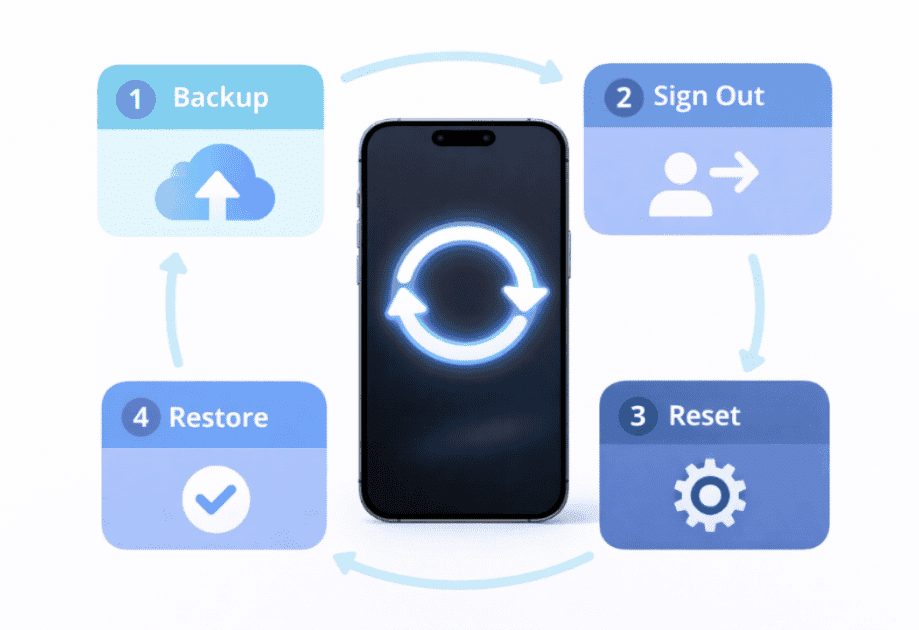
Your iPhone is slowing down. Apps keep crashing. You’re selling it. Or maybe you just want a fresh start.
Whatever your reason, learning how to factory reset iphone is one of the most valuable skills every iPhone owner should master. Since iOS 15 launched in 2021, Apple has made resetting iPhone even more secure and straightforward through iOS 16, 17, 18, and all the way to the current iOS 26 in 2026.
This complete guide walks you through every method of how to factory reset my iPhone, whether you have the latest iPhone 16 or an older model. You’ll discover multiple ways to restore iPhone to factory settings, even if you’ve forgotten your password.
In this guide, you’ll learn:
- 4 different methods to factory reset iphone
- How to backup before resetting
- Model-specific reset instructions
- Troubleshooting common issues
- What happens to your data
Let’s get started.
Before You Reset: Critical Steps You Must Take
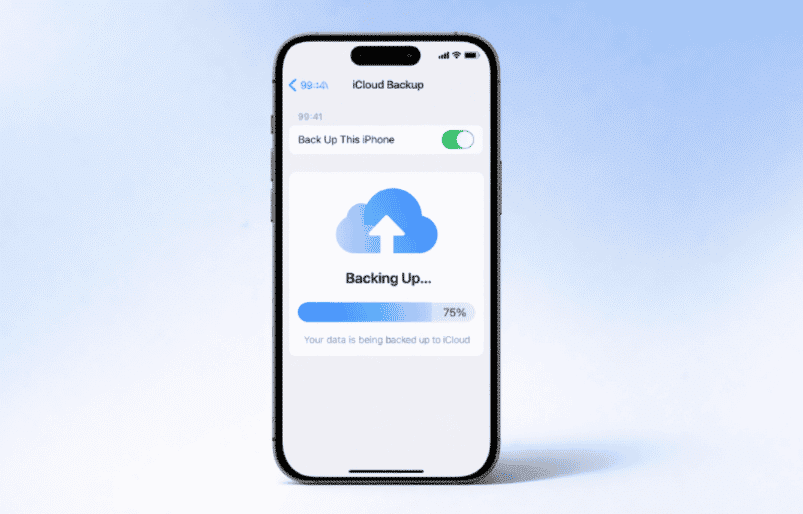
Back Up Your iPhone Data First
Never skip this step. When you factory reset iphone, everything gets deleted permanently. Photos, messages, contacts, apps—all gone.
Here’s how to backup quickly:
Option 1: iCloud Backup (Wireless)
- Connect to Wi-Fi
- Go to Settings > [Your Name] > iCloud
- Tap iCloud Backup
- Hit Back Up Now
- Stay connected until complete
Option 2: Computer Backup
For those who prefer local backups, you can learn how to backup iPhone to PC using iTunes or Finder. This method gives you full control over your backup files.
Pro Tip: Check your iCloud storage first. Free accounts only get 5GB. You may need to purchase more storage or use a computer backup instead.
Visit the official iCloud Backup Guide for detailed backup instructions from Apple.
Sign Out of Apple ID and iCloud
This step is essential if you’re selling or giving away your iPhone. Skip it, and the new owner faces Activation Lock.
Follow these steps:
- Open Settings
- Tap your name at the top
- Scroll down and tap Sign Out
- Enter your Apple ID password
- Choose data to keep on device (or don’t)
- Tap Sign Out again to confirm
You can manage your account settings at Apple ID Account Management.
Turn Off Find My iPhone
Find My iPhone must be disabled before you reset iphone to factory settings.
Quick steps:
- Settings > [Your Name] > Find My
- Tap Find My iPhone
- Toggle it OFF
- Enter Apple ID password
Unpair Your Apple Watch
If you wear an Apple Watch, unpair it first:
- Open Watch app on iPhone
- Tap All Watches
- Tap the (i) icon next to your watch
- Select Unpair Apple Watch
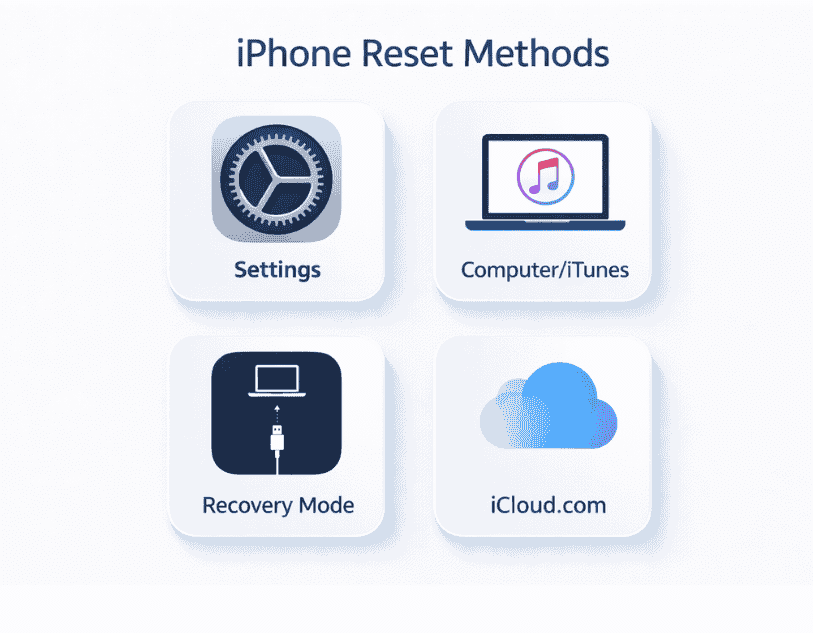
Method 1: How to Reset iPhone from Settings (Easiest Way)
This is the standard method for how to reset your iphone when everything’s working normally and you have your passcode.
For iOS 15 and Later (Including iOS 26)
Apple redesigned the reset process in iOS 15, making it clearer and safer. Here’s how to factory reset an iphone using the latest method:
Step-by-step instructions:
- Open Settings on your iPhone
- Tap General
- Scroll to the bottom and tap “Transfer or Reset iPhone”
- Tap “Erase All Content and Settings”
- Enter your passcode when prompted
- Enter your Apple ID password to disable Find My
- Tap Erase iPhone to confirm
- Tap Erase iPhone again (final confirmation)
Your screen will go black, show the Apple logo, and restart with the “Hello” setup screen.
Time required: 10-15 minutes for most models.
For iOS 14 and Earlier Models
If you’re running older iOS versions, the path is slightly different:
- Settings > General > Reset
- Tap “Erase All Content and Settings”
- Enter passcode
- Confirm erasure
Important Note: Even after you iphone factory reset, your data remains encrypted on Apple’s servers if you backed up to iCloud. Only you can access it with your Apple ID.
Method 2: How to Reset an iPhone to Factory Settings with Computer
Can’t access your iPhone settings? Use your Mac or PC instead. This method works when you need to restore iphone to factory settings but can’t unlock the device.
Using Mac (macOS Catalina 10.15 or Later)
Apple moved iPhone management from iTunes to Finder in 2019:
- Connect iPhone to Mac with USB cable
- Open Finder
- Select your iPhone from sidebar
- Click “Restore iPhone” in the General tab
- Click Restore to confirm
- Wait while Mac downloads iOS and resets iphone
Using Windows or Older Mac (iTunes Method)
How to factory reset iphone with itunes:
- Download latest iTunes from Apple Official Support
- Connect iPhone via USB
- Open iTunes
- Click the iPhone icon in top-left
- Click “Restore iPhone” in Summary section
- Click Restore to confirm
iTunes downloads fresh iOS firmware and completely restores your iphone to factory condition.
Download time: 30-60 minutes depending on internet speed
Method 3: How to Factory Reset iPhone Without Password
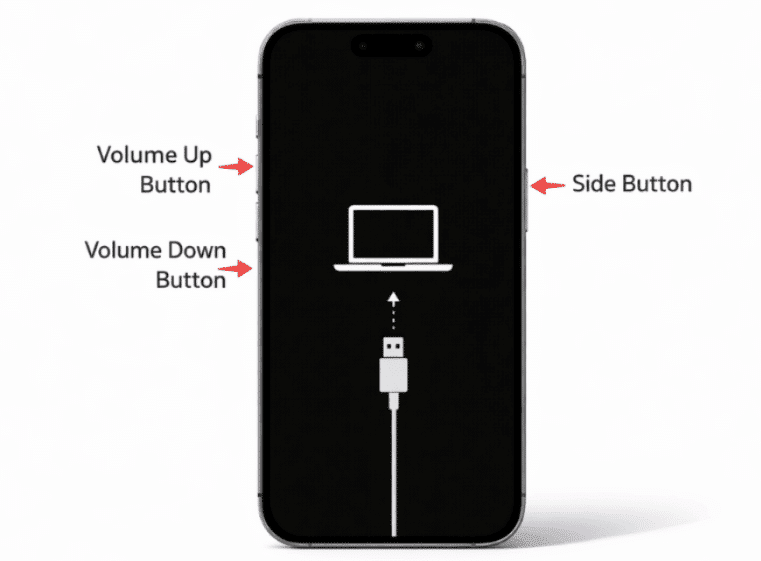
Forgot your passcode? Don’t panic. You can still factory reset iphone without password using Recovery Mode.
Understanding Recovery Mode
Recovery Mode forces your iPhone to reinstall iOS completely, removing the passcode. You’ll need a computer for this method.
How to Enter Recovery Mode (By Model)
For iPhone 8, X, XR, XS, 11, 12, 13, 14, 15, and 16:
- Connect iPhone to computer
- Press and quickly release Volume Up
- Press and quickly release Volume Down
- Press and hold Side Button until Recovery Mode screen appears (computer icon with cable)
For iPhone 7 and 7 Plus:
- Connect to computer
- Press and hold Volume Down + Side Button together
- Keep holding until Recovery Mode screen appears
For iPhone 6s, SE (1st gen), and earlier:
- Connect to computer
- Press and hold Home Button + Top/Side Button together
- Keep holding until Recovery Mode appears
Complete the Reset
Once in Recovery Mode:
- iTunes/Finder detects iPhone in Recovery Mode
- Click Restore when prompted
- Wait 15-20 minutes for completion
- iPhone restarts with setup screen
This method of how to factory reset iphone without passcode erases everything, but it’s your only option when locked out.
Method 4: How to Factory Reset iPhone When Locked (Using iCloud)
Lost your iPhone or can’t physically access it? Erase it remotely through iCloud.
Requirements:
- Find My iPhone was enabled
- iPhone has internet connection
- You know your Apple ID and password
Steps to remote factory reset:
- Visit iCloud.com on any device
- Sign in with Apple ID
- Click Find iPhone
- Click All Devices at top
- Select the iPhone you want to erase
- Click Erase iPhone
- Confirm erasure
Within minutes, your iPhone receives the command and resets to factory settings. This works even if someone stole your device.
Model-Specific Reset Guide
How to Factory Reset iPhone 16 Series (2025)
The iPhone 16, 16 Plus, 16 Pro, and 16 Pro Max running iOS 26 use the standard Settings method:
Settings > General > Transfer or Reset iPhone > Erase All Content and Settings
Reset time: 8-12 minutes (fastest ever due to A20 chip)
How to Factory Reset iPhone 15 Series (2024)
Same process as iPhone 16. Apple’s unified reset experience across all iOS 26-compatible devices makes resetting iphone consistent:
- iPhone 15
- iPhone 15 Plus
- iPhone 15 Pro
- iPhone 15 Pro Max
How to Factory Reset iPhone 14
How to factory reset iphone 14 (including 14, 14 Plus, 14 Pro, and 14 Pro Max):
Use Method 1 (Settings) or Method 2 (Computer). All iPhone 14 models support iOS 26 with full reset functionality.
How to Factory Reset iPhone 13
How to factory reset iphone 13 works identically to newer models:
- Settings > General
- Transfer or Reset iPhone
- Erase All Content and Settings
Applies to: iPhone 13, 13 mini, 13 Pro, 13 Pro Max
How to Factory Reset iPhone 11
How to factory reset iphone 11 (including 11, 11 Pro, and 11 Pro Max):
These 2019 models still run iOS 26 smoothly. Use the standard Settings reset method. The process takes about 12-15 minutes on A13 Bionic chip.
How to Factory Reset iPhone SE
How to factory reset iphone se depends on which generation:
iPhone SE (3rd gen, 2022): Standard iOS 26 reset via Settings
iPhone SE (2nd gen, 2020): Same Settings path
iPhone SE (1st gen, 2016): Use Settings > General > Reset > Erase All Content (older iOS interface)
Factory Reset iPad
While this guide focuses on iPhones, the process to factory reset ipad is nearly identical:
For iPad with iOS 15+:
Settings > General > Transfer or Reset iPad > Erase All Content and Settings
For older iPads:
Settings > General > Reset > Erase All Content and Settings
The same precautions apply: backup first, sign out of iCloud, unpair accessories.
What Gets Deleted During iPhone Factory Reset
When you reset iphone, here’s exactly what disappears:
| Deleted | Not Deleted |
|---|---|
| All photos and videos | iCloud backups |
| Messages and call history | Apple ID account |
| Apps and app data | Purchased apps (can redownload) |
| Contacts (local) | Apple Pay cards (just re-add) |
| Settings and preferences | eSIM (carrier dependent) |
| Passwords and logins | iTunes/App Store purchases |
| Safari bookmarks | iCloud stored data |
| Health and fitness data |
The bottom line: Everything on the device vanishes. But your iCloud data remains safe in the cloud, ready to restore.
iOS Evolution: Reset Features from iOS 15 to iOS 26
Apple has continuously improved the reset experience:
iOS 15 (2021): Introduced “Transfer or Reset iPhone” section, making resets clearer
iOS 16 (2022): Added reset progress bar and time estimates
iOS 17 (2023): Improved security checks before reset
iOS 18 (2024): Faster reset process on newer chips
iOS 19 (2025): One-tap backup-then-reset option
iOS 26 (2026): AI-powered data verification before reset, cloud-based reset option without computer
Common Problems When You Reset iPhone (And Solutions)
iPhone Stuck on Apple Logo After Reset
Problem: Device shows Apple logo but won’t complete reset.
Solution:
- Force restart your iPhone (see how to restart your iPhone properly for detailed instructions)
- Try Recovery Mode reset again
- Use DFU (Device Firmware Update) Mode as last resort
Activation Lock After Reset
Problem: iPhone asks for previous owner’s Apple ID.
Solution:
- Contact previous owner to remove device from their Apple ID
- Or visit Apple ID Account Management and remove device
- If purchased used, request proof of purchase for Apple Support
Reset Taking Too Long
Problem: Reset process exceeds 30 minutes.
What to do:
- Wait another 30 minutes (large storage takes time)
- Ensure strong Wi-Fi connection
- Don’t disconnect during process
- If stuck 2+ hours, force restart and try again
“Unable to Activate” Message
Problem: After reset, activation fails.
Fix:
- Check Apple System Status online
- Try different Wi-Fi network
- Use cellular data instead
- Contact your carrier about account status
After Reset: How to Restore Your iPhone
Once you successfully factory reset iphone, you’ll see the “Hello” welcome screen.
Restoration options:
Option 1: Restore from iCloud Backup
- Select language and region
- Connect to Wi-Fi
- Choose “Restore from iCloud Backup”
- Sign in with Apple ID
- Select your most recent backup
- Wait 20-60 minutes for restoration
Option 2: Restore from Computer Backup
- During setup, choose “Restore from Mac or PC”
- Connect to computer
- iTunes/Finder detects iPhone
- Select backup to restore
- Wait for completion
Option 3: Set Up as New iPhone
Choose this for the freshest start. You’ll manually reinstall apps and set up everything from scratch.
Hidden Apps Note: After restoring, some apps may not appear immediately. Learn how to find hidden apps after restoring to locate missing applications.
When Should You Reset Your iPhone?
Good reasons to factory reset:
✅ Selling or trading your iPhone – Protect your privacy completely
✅ Persistent software problems – Fixes glitches regular restarts can’t
✅ Preparing for major iOS update – Clean slate for better performance
✅ Device running extremely slow – Removes accumulated junk
✅ Giving iPhone to family member – Fresh start for new user
✅ Storage completely full – Nuclear option when cleaning doesn’t help
When NOT to reset:
❌ Minor bugs (restart first)
❌ Single app issues (reinstall that app only)
❌ Haven’t backed up data yet
❌ Don’t remember Apple ID password
Frequently Asked Questions
How to Factory Reset iPhone Without Password?
You can reset iphone without password using Recovery Mode. Connect your iPhone to a computer, force it into Recovery Mode (button combination varies by model), then use iTunes or Finder to restore. This erases the passcode along with all data. See Method 3 above for complete instructions.
How to Factory Reset iPhone Without Passcode?
How to factory reset iphone without passcode is identical to resetting without password. Recovery Mode is your solution. Alternatively, if Find My iPhone is enabled, use iCloud.com to remotely erase the device. Both methods completely wipe the device and remove the passcode.
How to Factory Reset iPhone When Locked?
How to factory reset iphone when locked requires either Recovery Mode with a computer or remote erasure via iCloud.com. You cannot factory reset a locked iPhone from the device itself—you must use external tools. Recovery Mode is fastest if you have physical access to the device and a computer.
How to Factory Reset iPhone 11?
To factory reset iphone 11: Go to Settings > General > Transfer or Reset iPhone > Erase All Content and Settings. Enter your passcode and Apple ID password when prompted. The iPhone 11 (including Pro and Pro Max) takes about 12-15 minutes to complete the reset process on iOS 26.
How to Factory Reset iPhone 14?
To factory reset iphone 14: Use Settings > General > Transfer or Reset iPhone > Erase All Content and Settings. All iPhone 14 models (14, 14 Plus, 14 Pro, 14 Pro Max) follow the same process on iOS 26. The A16 chip completes the reset in approximately 10 minutes.
How to Factory Reset iPhone with iTunes?
To factory reset with iTunes: Connect iPhone to Windows PC or older Mac running iTunes. Open iTunes, click the iPhone icon, then click “Restore iPhone” in the Summary section. iTunes downloads fresh iOS and completely restores your device. This method works even when you can’t access iPhone settings.
How to Factory Reset iPhone SE?
To factory reset iphone se: The process depends on your SE generation. iPhone SE (2nd and 3rd gen) use Settings > General > Transfer or Reset iPhone. iPhone SE 1st gen uses Settings > General > Reset > Erase All Content. All SE models can also be reset via iTunes/Finder.
How to Reset iPad?
To reset ipad: The process mirrors iPhone. For iPads running iOS 15+, go to Settings > General > Transfer or Reset iPad > Erase All Content and Settings. Older iPads use Settings > General > Reset. Always backup your iPad first using iCloud or a computer to avoid data loss.
Expert Tips for Successful iPhone Reset
Apple Support Recommendation: “Before you erase your iPhone, back it up. Then you can restore your data if you get a new device.” – Apple Official Support
Additional pro tips:
1. Charge to 50%+ before resetting – Prevents shutdown mid-process
2. Use strong Wi-Fi – Faster download of iOS during restore
3. Write down important info – Passwords, account details you might forget
4. Remove SIM card after reset – Especially when selling
5. Factory reset twice for paranoid security – Rare, but extra safe
6. Check for iPhone trade-in value first – You might get more money than you think
7. Clean iPhone physically – Makes better impression if selling
Conclusion: Mastering How to Reset iPhone
You now know everything about how to factory reset iphone, from the simple Settings method to advanced Recovery Mode techniques. Whether you’re troubleshooting problems, preparing to sell, or just want a fresh start, you have multiple proven methods.
Remember the golden rules:
✅ Always backup before you reset your iphone
✅ Sign out of Apple ID if giving away device
✅ Use Recovery Mode when locked out
✅ Allow sufficient time for completion
The iphone reset process has evolved beautifully from iOS 15 through iOS 26, becoming more secure and user-friendly with each update. No matter which iPhone model you own from iPhone SE to iPhone 16 Pro Max—you can confidently restore iphone to factory settings whenever needed.
Need more iPhone help? Explore our complete library of iPhone guides on iPhone Tonic, from troubleshooting tips to advanced customization tricks. Subscribe to our newsletter for weekly iPhone secrets delivered straight to your inbox.
Have questions about resetting your specific iPhone model? Drop a comment below and we’ll help you out!

