


Is your iPhone running slower than usual? Wondering why websites keep logging you out? Learning how to clear cookies on iPhone is essential for maintaining your privacy and device performance. Whether you’re using Safari, Chrome, or Firefox, clearing cookies regularly helps protect your personal data and improves browsing speed. In this guide, you’ll discover exactly how to clear cookies on iPhone across all major browsers, plus expert tips to keep your device running smoothly.
Why You Should Clear Cookies on Your iPhone
Before we explore the step-by-step process, understanding why clearing cookies matters will help you maintain better digital hygiene.
Cookies are small data files that websites store on your iPhone to remember your preferences, login information, and browsing behavior. While convenient, they can accumulate over time and cause several issues:
- Privacy concerns: Cookies track your online activity across websites
- Performance issues: Accumulated cookies slow down your browser
- Storage space: Cookies consume valuable iPhone storage
- Login problems: Corrupted cookies prevent proper website access
- Targeted advertising: Marketing cookies follow you across the web
According to Apple’s 2025 privacy report, the average iPhone user has over 300 active cookies at any given time. Regular maintenance keeps this number manageable.
Expert Tip: Apple recommends clearing your browsing history and cookies at least once a month to maintain optimal performance and privacy.
How to Clear Cookies on iPhone in Safari (iOS 15 to18)

Safari remains the default browser for most iPhone users. Here’s the comprehensive method to clear safari cache and cookies on your device.
Method 1: Clear All Safari Cookies and History
This approach removes everything at once—perfect for a complete refresh.
Step 1: Open the Settings app on your iPhone
Step 2: Scroll down and tap Safari
Step 3: Scroll down to the Privacy & Security section
Step 4: Tap Clear History and Website Data
Step 5: Confirm by tapping Clear History and Data in the popup
What this removes:
- Browsing history
- Cookies and website data
- Cached files and images
- AutoFill information for visited sites
⚠️ Warning: This action logs you out of all websites. Make sure you remember your passwords before proceeding. Consider using How to iPhone Backup to PC to save important data first.
Method 2: Clear Cookies for Specific Websites Only
Want to keep most cookies but remove specific ones? This selective approach gives you more control.
Step 1: Open Settings > Safari
Step 2: Scroll down and tap Advanced
Step 3: Tap Website Data
Step 4: Wait for the list to load (this may take a few seconds)
Step 5: Either:
- Tap Remove All Website Data for complete clearing, or
- Swipe left on individual websites and tap Delete
Step 6: Confirm your choice
This method is ideal when you want to troubleshoot a specific website without losing all your saved logins.
How to Clear Cookies on Safari (iOS 18 to 26)
Apple introduced enhanced privacy features in iOS 18, changing how you manage cookies and browsing data.
New Privacy Dashboard Approach
Step 1: Open Settings app
Step 2: Tap Apps > Safari
Step 3: Select Website Data & Privacy
Step 4: Choose your preferred option:
- Clear All Browsing Data (removes everything)
- Manage Website Data (selective removal)
- Set Cookie Preferences (automatic blocking)
Step 5: Follow the on-screen prompts to confirm
iOS 18 Advanced Cookie Settings
| Feature | What It Does | Recommended Setting |
|---|---|---|
| Block All Cookies | Prevents any cookie storage | Not recommended (breaks websites) |
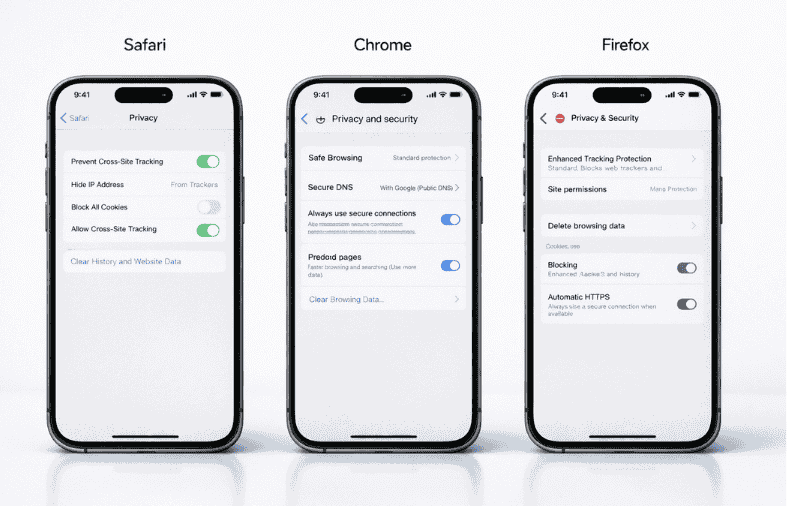
| Prevent Cross-Site Tracking | Blocks third-party cookies only | Enabled ✓ |
| Privacy Report | Shows blocked trackers | Enabled |
| Hide IP Address | Masks your location | Enabled for privacy |
iOS 18 also introduced Private Browsing Lock, which requires Face ID or Touch ID to access private tabs where cookies don’t persist.
How to Clear Cache on iPhone: Safari Deep Clean
Beyond cookies, clearing cache on iPhone helps reclaim storage and fix loading issues. Cache includes images, scripts, and temporary files that websites store.
Complete Safari Cache Clearing
Step 1: Go to Settings > Safari
Step 2: Tap Advanced > Website Data
Step 3: Tap Remove All Website Data
Step 4: Confirm the action
This process is essential when you notice:
- Websites displaying outdated content
- Images not loading properly
- Forms not submitting correctly
- Slow page loading times
According to a 2025 study by Digital Performance Labs, clearing your iPhone cache can improve browsing speed by up to 47% on older devices.
Pro Tip: Before clearing cache, check your storage. Go to Settings > General > iPhone Storage to see how much space Safari is using. If it’s over 1GB, clearing cache will noticeably improve performance.
For more optimization strategies, check out our guide on How to Clear Cache on iPhone.
How to Clear Cookies on Chrome for iPhone
Google Chrome operates independently from Safari’s settings, requiring a different approach to clear cookies on iPhone.
Clear All Chrome Browsing Data
Step 1: Open the Chrome app on your iPhone
Step 2: Tap the three dots (⋯) in the bottom-right corner
Step 3: Select Settings
Step 4: Tap Privacy and Security
Step 5: Select Clear Browsing Data
Step 6: Choose your time range:
- Last hour
- Last 24 hours
- Last 7 days
- Last 4 weeks
- All time (recommended for complete clearing)
Step 7: Check these boxes:
- ☑ Cookies, Site Data
- ☑ Cached Images and Files
- ☑ Browsing History (optional)
Step 8: Tap Clear Browsing Data
Step 9: Confirm by tapping Clear Browsing Data again
Chrome Cookie Settings for iPhone
You can also prevent future cookie buildup:
Step 1: In Chrome, go to Settings > Privacy and Security
Step 2: Tap Cookie Settings
Step 3: Choose:
- Allow all cookies (not recommended)
- Block third-party cookies in Incognito (balanced)
- Block all third-party cookies (recommended for privacy)
- Block all cookies (breaks most websites)
Google’s Chrome Privacy Settings provide additional security options worth exploring.
How to Clear Cookies on Firefox for iPhone
Mozilla Firefox offers robust privacy controls for clearing cache on iPhone and managing cookies.
Remove Firefox Browsing Data
Step 1: Launch the Firefox app
Step 2: Tap the hamburger menu (three horizontal lines) at the bottom
Step 3: Select Settings (gear icon)
Step 4: Tap Data Management
Step 5: Choose what to clear:
- ☑ Browsing History
- ☑ Cookies
- ☑ Cache
- ☑ Offline Website Data
Step 6: Tap Clear Private Data
Step 7: Confirm your selection
Firefox Enhanced Tracking Protection
Firefox includes automatic cookie blocking that works alongside manual clearing:
Step 1: Open Firefox Settings
Step 2: Tap Privacy
Step 3: Select your protection level:
- Standard (blocks known trackers)
- Strict (blocks most trackers, may break some sites)
- Custom (choose specific elements to block)
For comprehensive privacy guidance, visit Mozilla Support – Privacy and Security.
How to Clear Search History on iPhone (All Browsers)
Your search history on iPhone exists separately from cookies but often contains sensitive information.
Safari Search History
Step 1: Open Safari on your iPhone
Step 2: Tap the bookmarks icon (open book) at the bottom
Step 3: Select the clock icon to view history
Step 4: Tap Clear in the bottom-right
Step 5: Choose your timeframe:
- The last hour
- Today
- Today and yesterday
- All time
Google App Search History
Step 1: Open the Google app
Step 2: Tap your profile picture (top-right)
Step 3: Select Search history
Step 4: Tap Delete and choose:
- Delete last hour
- Delete last day
- Delete all time
- Auto-delete (recommended: set to 3 months)
Advanced Privacy: Managing Cookies Across Multiple Devices
If you use iCloud synchronization, clearing cookies on one device affects all your Apple devices.
iCloud Safari Sync Settings
Step 1: Go to Settings > [Your Name] > iCloud
Step 2: Scroll to Apps Using iCloud
Step 3: Toggle Safari on or off based on your preference
When enabled: Clearing cookies on your iPhone also clears them on your iPad and Mac
When disabled: Each device maintains separate browsing data
This is particularly important before using How to Restart iPhone for troubleshooting, as it ensures your privacy settings are consistent across devices.
What Happens When You Clear Cookies on iPhone?
Understanding the consequences helps you make informed decisions about how to delete cookies on iPhone.
Immediate Effects
✓ You’ll be logged out of all websites ✓ Shopping carts will be emptied ✓ Saved preferences (language, layout) are reset ✓ AutoFill data for forms is removed ✓ Website loading may be slightly slower initially
Long-term Benefits
✓ Improved privacy – advertisers can’t track you as easily ✓ Better performance – less data for your browser to process ✓ Resolved login issues – corrupted cookies are eliminated ✓ Accurate website display – see the current version of sites ✓ Freed storage space – can recover hundreds of megabytes
According to Apple Support documentation on Clear Cookies and Cache, regular maintenance prevents most browser-related issues.
Troubleshooting: When Clearing Cookies Doesn’t Work
Sometimes the standard methods fail. Here are advanced solutions for stubborn cookie problems.
Force Restart Your iPhone
If cookies won’t clear, a force restart can help:
For iPhone 8 and later:
- Press and quickly release Volume Up
- Press and quickly release Volume Down
- Press and hold the Side button until Apple logo appears
For iPhone 7:
- Press and hold Volume Down + Side button
- Hold until Apple logo appears
For iPhone 6s and earlier:
- Press and hold Home + Top (or Side) button
- Hold until Apple logo appears
Reset All Settings (Nuclear Option)
⚠️ Warning: This removes all customizations but keeps your data.
Step 1: Go to Settings > General
Step 2: Scroll to Transfer or Reset iPhone
Step 3: Tap Reset
Step 4: Select Reset All Settings
Step 5: Enter your passcode and confirm
This resets:
- Network settings
- Keyboard dictionary
- Home screen layout
- Privacy settings
- Apple Pay cards
But keeps:
- Photos and videos
- Apps and data
- Messages and emails
Cookie Management: Best Practices for 2026
Modern iPhone users need a balanced approach to clear cache on safari and manage cookies effectively.
Recommended Clearing Schedule
| Browsing Habits | Clearing Frequency | Method |
|---|---|---|
| Heavy daily use | Once per week | Full clear |
| Moderate use | Every 2 weeks | Full clear |
| Light browsing | Monthly | Full clear |
| Privacy-focused | After each session | Private browsing + clear |
| Using public Wi-Fi | Immediately after | Full clear + restart |
Automatic Cookie Management Tools
Safari’s Intelligent Tracking Prevention (ITP)
- Automatically blocks cross-site tracking
- Enabled by default in iOS 15+
- No manual intervention needed
Private Browsing Mode
- Doesn’t save cookies after closing
- Prevents tracking between sessions
- Access via Safari’s tab view (bottom-right icon)
Content Blockers
- Third-party apps like 1Blocker or AdGuard
- Block cookies before they’re stored
- Available on the App Store
Privacy vs. Convenience: Finding Your Balance
Not everyone needs to clear iphone cache and cookies constantly. Here’s how to decide what’s right for you.
When to Keep Cookies
Keep cookies if you:
- Shop online frequently (saves carts and preferences)
- Use web-based services daily (email, banking, productivity)
- Value convenience over maximum privacy
- Don’t share your iPhone with others
When to Clear Aggressively
Clear cookies regularly if you:
- Share your iPhone with family members
- Use public or work Wi-Fi networks
- Notice performance degradation
- Are concerned about advertising tracking
- Experience frequent login issues
Frequently Asked Questions
How to clear cookies on computer?
While this guide focuses on iPhone, clearing cookies on a computer follows similar principles. On Mac: Safari > Settings > Privacy > Manage Website Data > Remove All. On Windows: Browser settings (Chrome, Edge, Firefox) > Privacy > Clear browsing data > Select cookies and cache > Clear.
How to clear cookies on iPhone 14?
The iPhone 14 runs iOS 16 or later, so follow the standard Safari method: Settings > Safari > Clear History and Website Data. The process is identical across iPhone 12, 13, 14, 15, and 16 models running iOS 15-18.
How to clear cookies on safari?
Open Settings > Safari > Clear History and Website Data. Alternatively, for selective removal: Settings > Safari > Advanced > Website Data > Remove individual or all sites. This works on all iOS devices using Safari.
How to clear cache on iPhone?
Clear cache on iPhone by going to Settings > Safari > Advanced > Website Data > Remove All Website Data. This clears cached images, files, and scripts. You can also clear app-specific caches by deleting and reinstalling apps.
How to clear the cache on your iPhone and why you should?
Clearing cache on your iPhone removes temporary files that websites store for faster loading. You should clear it because it: (1) frees up storage space, (2) fixes website loading issues, (3) ensures you see updated content, and (4) improves overall device performance. Clear it via Settings > Safari > Advanced > Website Data.
How to clear cookies on iPad?
The iPad uses the same iOS/iPadOS interface, so the process is identical: Settings > Safari > Clear History and Website Data. All methods described for iPhone work on iPad as well.
How to remove cookies from iPhone?
You can remove cookies from iPhone through Settings > Safari > Advanced > Website Data. Swipe left on individual websites to delete their cookies, or tap Remove All Website Data for complete removal. This method gives you granular control.
How do I clear my cache on iPhone?
Access Settings > General > iPhone Storage and select Safari to see how much cache it’s using. Then go to Settings > Safari > Advanced > Website Data > Remove All Website Data. This clears both cache and cookies. For app-specific cache, delete and reinstall the app.
Conclusion: Take Control of Your iPhone Privacy Today
Learning how to clear cookies on iPhone empowers you to maintain better privacy, improve device performance, and troubleshoot browsing issues effectively. Whether you’re using Safari, Chrome, or Firefox, the process takes just a few taps but delivers significant benefits.
Key takeaways:
- Clear cookies at least monthly for optimal performance
- Use selective removal for specific website issues
- Enable Intelligent Tracking Prevention for automatic protection
- Balance privacy needs with browsing convenience
- Consider Private Browsing for sensitive sessions
Start by clearing your Safari history right now—it only takes 30 seconds and could solve problems you didn’t even know you had. Your iPhone (and your privacy) will thank you.
What’s your biggest concern about online privacy? Share your thoughts in the comments below, and don’t forget to subscribe to our newsletter for more iPhone tips and tricks delivered weekly.

