


In this complete guide, you’ll learn exactly how to clear cache on iPhone, including Safari cache, app cache, and system data. Whether you have an iPhone 11, 13, 15, or the latest iPhone 17 running iOS 26, these methods work for all models from iOS 15 onwards.
Before you start clearing data, it’s wise to How to Back Up Your iPhone Before Clearing Data to ensure your important information stays safe.
What is Cache and Why Does It Matter?
Cache is temporary data that apps and websites store on your iPhone to load faster next time you use them. While this sounds helpful, cache files pile up over time and can consume gigabytes of storage space.
Benefits of clearing cache:
- Free up storage space – Often recovers 1-5GB instantly
- Improve performance – Makes your iPhone run faster
- Fix app glitches – Resolves freezing or crashing issues
- Protect privacy – Removes browsing history and website data
- Refresh content – Ensures you see the latest versions of websites
When your iPhone storage full warning appears, clearing cache should be your first solution before deleting photos or apps.
How to Check Your iPhone Storage
Before you start clearing cache on iphone, check what’s taking up space:
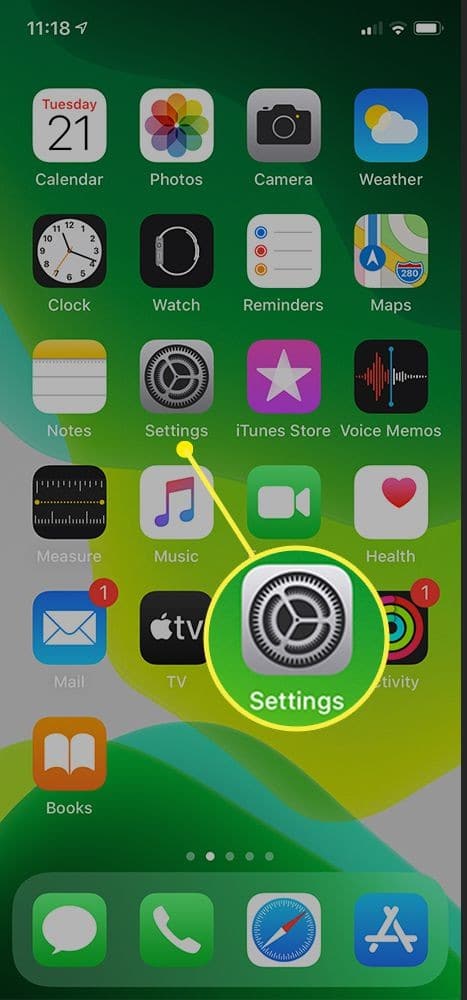
- 1-Open Settings
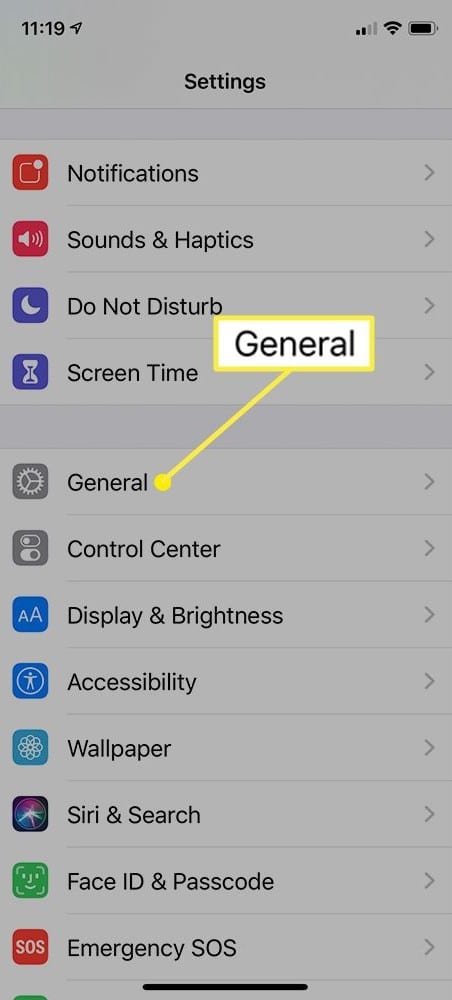
- 2-Tap General
- 3-Select iPhone Storage
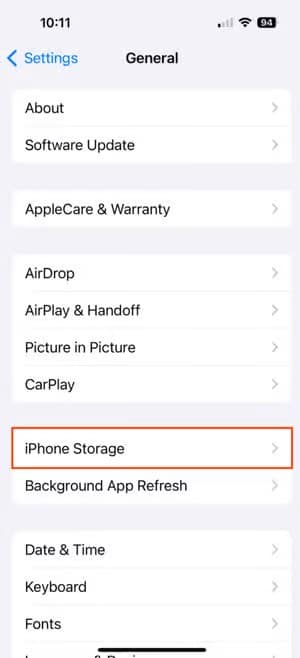
- 4-Wait for the storage analysis to load
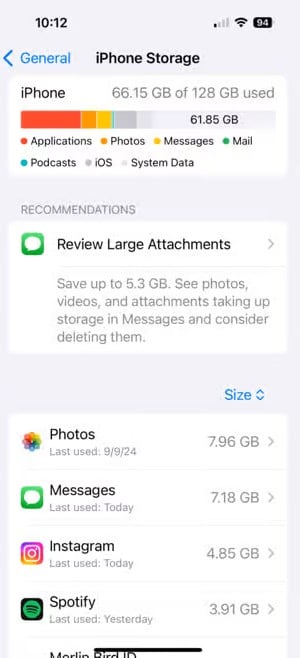
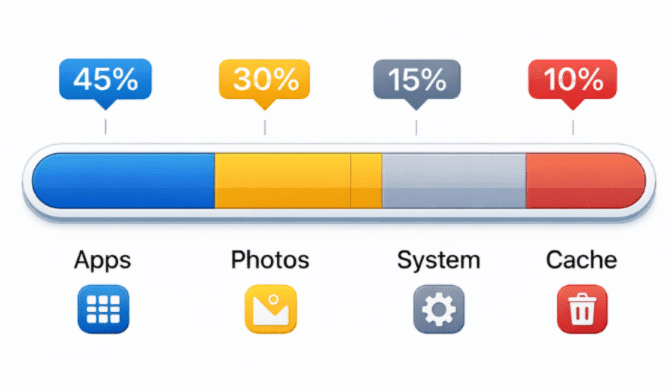
You’ll see a colorful bar showing how your storage is divided. Below that, apps are listed by size. Pay attention to Safari history and website data and Documents and Data iPhone sections these often contain hidden cache.
How to Clear Safari Cache on iPhone
Safari is usually the biggest cache culprit. Here’s how to clear cache on iPhone safari in two ways:
Method 1: Clear History and Website Data (Fastest)
This method is perfect for iOS cache management and removes everything at once:
- Open Settings on your iPhone
- Scroll down and tap Safari
- Scroll to the bottom
- Tap Clear History and Website Data
- Confirm by tapping Clear History and Data
⚠️ Warning: This logs you out of all websites and removes your browsing history.
Method 2: Clear Cache Without Deleting History
If you want to keep your browsing history but clear cache and cookies on iPhone:
- Go to Settings > Safari
- Scroll down to Advanced
- Tap Website Data
- Tap Remove All Website Data
- Confirm your choice
This method preserves your Safari history while clearing cached website files. For more detailed guidance, visit Apple Official Support – Clear Cache and Cookies.
How to Clear Cache and Cookies on Safari for Specific Sites
Want to clear cache on iphone for just one website? Here’s how:
- Settings > Safari > Advanced > Website Data
- Use the search bar to find the specific website
- Swipe left on the site name
- Tap Delete
This selective approach is perfect when only one site is causing issues.
How to Clear App Cache on iPhone
Unlike Android, iOS doesn’t have a built-in “clear app cache iphone” button for most apps. You have three options:
Option 1: Offload Unused Apps (Recommended)
The offload unused apps feature removes the app but keeps its data:
- Go to Settings > General > iPhone Storage
- Scroll to find the app with large cache
- Tap the app name
- Select Offload App
- Tap Offload App again to confirm
To get the app back with your data intact, tap Reinstall App.
Option 2: Delete and Reinstall Apps
For a complete clear cache iphone solution:
- Go to Settings > General > iPhone Storage
- Select the problematic app
- Tap Delete App
- Go to the App Store
- Download the app again
⚠️ Note: This erases all app data and settings. You’ll need to log in again.
Option 3: Use Built-in App Settings
Some apps have their own cache-clearing options:
Instagram:
- Open Instagram
- Go to Profile > Menu (three lines) > Settings and Privacy
- Tap Clear cache
TikTok:
- Profile > Menu > Settings and Privacy
- Tap Free up space
- Select Clear next to Cache
Snapchat:
- Profile icon > Settings gear
- Tap Clear Cache
- Confirm Clear All
This is the safest way to clear app cache without losing your login or settings.
How to Clear Cache on iPhone 11, 13, 15, and 16
The process for how to clear cache on iPhone 15 is identical to iPhone 11, 13, or 16. All models running iOS 15 through iOS 26 follow the same steps outlined above.
iOS 26 Update (2026): Apple has improved iOS cache management with automatic cleanup features. Your iPhone now suggests apps to offload when storage runs low, making it easier to free up space on iphone.
| iPhone Model | iOS Version | Cache Clearing Method |
|---|---|---|
| iPhone 11 | iOS 15-17 | Safari + Offload Apps |
| iPhone 13 | iOS 15-19 | Safari + Offload Apps |
| iPhone 15 | iOS 17-26 | Safari + Offload Apps + Auto Cleanup |
| iPhone 16 | iOS 18-26 | Safari + Offload Apps + Auto Cleanup |
How to Clear Chrome Cache on iPhone
If you use Chrome instead of Safari, here’s how to clear cache on my phone for Chrome:
- Open the Chrome app
- Tap the three dots (⋮) in the bottom right
- Select Settings
- Tap Privacy and Security
- Select Clear Browsing Data
- Choose Cached Images and Files
- Select time range (Last hour to All time)
- Tap Clear Browsing Data
For how to clear browsing history completely, also check “Browsing History” and “Cookies, Site Data.”
How to Clear Edge Cache on iPhone
Microsoft Edge users need to clear cache edge this way:
- Open Edge app
- Tap your profile icon
- Select Settings
- Tap Privacy and Security
- Choose Clear browsing data
- Select Cached images and files
- Tap Clear now
Want to delete bing history too? Check the “Browsing history” box before clearing.
How to Delete Cookies on iPhone
Cookies track your browsing activity. Here’s how to delete cookies on iPhone:
For Safari:
- Settings > Safari
- Scroll to Block All Cookies and toggle ON
- Or use Clear History and Website Data (removes existing cookies)
For Chrome:
- Chrome app > Settings > Privacy and Security
- Clear Browsing Data > Cookies, Site Data
For Edge:
- Edge app > Settings > Privacy and Security
- Clear browsing data > Cookies and site data
Blocking cookies improves privacy but may cause some websites to malfunction.
How to Clear System Cache on iPhone
Clearing app cache data doesn’t remove system cache. For that, you need these advanced methods:
Method 1: Restart Your iPhone
The simplest way to clear cache and cookies on iphone system files:
iPhone 8 and newer:
- Press and release Volume Up
- Press and release Volume Down
- Hold Side button until Apple logo appears
iPhone 7:
- Hold Volume Down + Side button together
- Keep holding until you see the Apple logo
This clears RAM and temporary system files.
Method 2: Clear RAM Without Restarting
This trick works on all iOS versions:
- Go to Settings > General > Shut Down
- When “slide to power off” appears, press and hold the Home button (or the screen on Face ID models) for 5 seconds
- The screen will flash and return to home
Your iPhone just cleared its RAM cache.
How to Free Up Space on iPhone (Beyond Cache)
Sometimes clearing cache isn’t enough. Here are additional ways to free up space on iphone:
1. Enable iCloud Photos
- Settings > Photos > iCloud Photos (ON)
- Choose “Optimize iPhone Storage”
2. Delete Large Attachments
- Settings > General > iPhone Storage
- Tap Review Large Attachments
- Swipe and delete unnecessary files
3. Manage Messages
- Settings > Messages > Keep Messages
- Change from “Forever” to “1 Year”
4. Delete Downloaded Content
- Remove offline music, Netflix downloads, and podcast episodes
For more iPhone tips, check out how to schedule a text on iphone and how to screen record on iphone.
Learn more storage management techniques at Apple Support – Manage Storage on iPhone.
How Often Should You Clear Cache?
Recommended schedule:
- Safari cache: Every 2-4 weeks
- App cache: Every 1-3 months (or when apps misbehave)
- System cache: Weekly restart
- Cookies: Monthly (if you value privacy)
Heavy users should clear iphone cache more frequently. If you stream videos, use social media heavily, or browse intensively, weekly cache clearing helps maintain performance.
Common Problems and Solutions
Problem 1: “Documents and Data” Won’t Decrease
Solution: This is separate from cache. Delete and reinstall the app completely to remove documents and data.
Problem 2: Storage Still Full After Clearing Cache
Solution: Check for:
- Large video files in Photos
- Downloaded music/podcasts
- WhatsApp media files
- “Other” storage (requires iOS update or factory reset)
Visit Apple Support – Check Storage on iPhone and iPad for detailed storage analysis.
Problem 3: Apps Keep Crashing After Clearing Cache
Solution:
- Update apps to latest version
- Update to latest iOS
- Reset all settings (Settings > General > Transfer or Reset iPhone > Reset > Reset All Settings)
FAQ: How to Clear Cache on iPhone
How to clear cache on iPhone apps?
To clear cache on iPhone apps, you have three options: offload the app (Settings > General > iPhone Storage > select app > Offload App), delete and reinstall the app, or use the app’s built-in cache clearing feature if available. Social media apps like Instagram and TikTok have cache-clearing options in their settings.
How to clear cache on iPhone 15?
How to clear cache on iPhone 15 works exactly like other models. For Safari, go to Settings > Safari > Clear History and Website Data. For apps, use Settings > General > iPhone Storage, select the app, and choose Offload App. iOS 26 on iPhone 15 includes automatic cache management that suggests cleanup when needed.
How to delete cookies on iPhone?
How to delete cookies on iPhone in Safari: Settings > Safari > Clear History and Website Data (removes cookies and cache together). To block future cookies, toggle on “Block All Cookies” in Safari settings. For Chrome or Edge, clear cookies through each app’s privacy settings under “Clear Browsing Data.”
How to clear cache on iPhone 11?
How to clear cache on iPhone 11 follows the same process as newer models. Clear Safari cache through Settings > Safari > Clear History and Website Data. For apps, go to Settings > General > iPhone Storage and either offload or delete/reinstall apps. Restart your iPhone weekly to clear system cache.
How to clear cache on iPhone 13?
How to clear cache on iPhone 13 is identical to other iPhones. Safari cache: Settings > Safari > Clear History and Website Data. App cache: Settings > General > iPhone Storage > select app > Offload or Delete. For best results, restart your iPhone after clearing cache to refresh system memory.
How to clear cookies on iPhone?
How to clear cookies on iPhone: For Safari, Settings > Safari > Clear History and Website Data removes all cookies. For selective removal, go to Settings > Safari > Advanced > Website Data and delete specific sites. Enable “Block All Cookies” to prevent future tracking, though some websites may not function properly.
How to clear cache on iPhone 16?
How to clear cache on iPhone 16 running iOS 26 uses the same methods as previous models, but with enhanced features. Use Settings > Safari > Clear History and Website Data for browser cache. iOS 26’s smart storage recommendations will alert you when apps accumulate excessive cache, making it easier to manage storage.
How to clear cache on iPhone safari?
How to clear cache on iPhone safari: Open Settings > Safari > scroll down and tap “Clear History and Website Data” > confirm. This removes cache, cookies, and browsing history. To keep history but clear cache, go to Settings > Safari > Advanced > Website Data > Remove All Website Data instead.
How to clear app cache on iphone?
How to clear app cache on iphone: iOS doesn’t have a universal “clear cache” button. Go to Settings > General > iPhone Storage, tap the app, then choose “Offload App” (keeps data) or “Delete App” (removes everything). Some apps like Instagram, TikTok, and Snapchat have built-in cache clearing options in their settings menu.
Conclusion
Learning how to clear cache on iphone is essential for maintaining peak performance and managing storage effectively. Whether you need to clear cache and cookies on iphone, clear app cache, or remove Safari history and website data, the methods in this guide work for all iPhone models from iPhone 11 through iPhone 16 running iOS 15 to iOS 26.
Key takeaways:
✅ Clear Safari cache every 2-4 weeks through Settings
✅ Offload unused apps instead of deleting them to preserve data
✅ Restart your iPhone weekly to clear system cache
✅ Use built-in app settings when available
✅ Monitor iPhone Storage regularly to catch cache buildup early
Start with Safari cache—it’s usually the biggest space-eater. Then tackle problem apps one by one. Your iPhone will thank you with faster speeds and more available storage.
Found this guide helpful? Bookmark it for future reference and share it with fellow iPhone users struggling with storage issues. Have questions about clearing cache on iphone? Drop a comment below!

