


Want to know how to record a phone call on iPhone? You’re not alone. Whether it’s for work meetings, interviews, or keeping important conversations safe, recording calls has become essential. This complete guide shows you every method to record phone calls on your iPhone in 2026.
Today, you have multiple options to record phone calls on iPhone from Apple’s built-in features to trusted third-party apps. This guide covers everything you need to know.
How to Record a Phone Call on iPhone (30 Seconds)
Here’s the fastest way to record a phone call on iPhone:
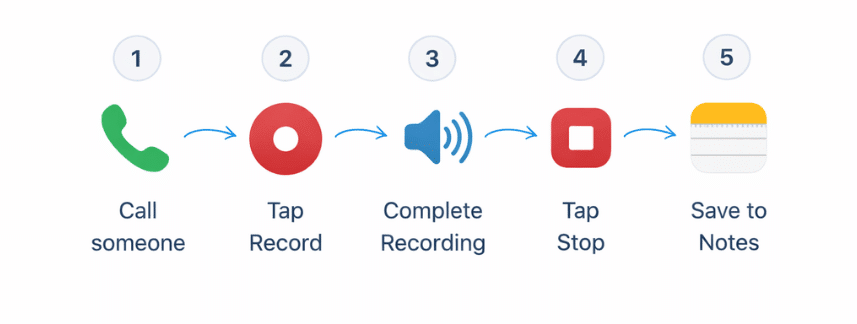
- Start or receive a call on your iPhone
- Tap the recording button in the top-left corner of your screen
- Wait for the audio alert that notifies all parties
- Tap the button again to stop recording
- Find your recording automatically saved in the Notes app
Expert Tip: According to Apple’s official support guide, recordings are stored locally on your device and synced via iCloud if enabled, ensuring your conversations remain private and secure.
Step-by-Step: Detailed iOS 18 Recording Process
Let me walk you through the complete process to record a conversation on iPhone using the native feature:
Before the Call:
- Ensure your iPhone is running iOS 18 or later
- Check your storage space (recordings can be large)
- Clear cache on iPhone if storage is low
During the Call:
- Open the Phone app and place or answer your call
- Look for the waveform icon in the top-left corner
- Tap the recording icon once
- Listen for the automated voice notification
- Continue your conversation normally
- Tap the recording icon again when finished
After the Call:
- Open the Notes app
- Find your recording in the “Call Recordings” folder
- Tap to play, read transcription, or share
iOS 18 Recording Limitations to Know
While the iPhone 15 call recording and newer models support this feature, there are important restrictions:
| Feature | Availability |
|---|---|
| Native Recording | iOS 18+ only |
| Geographic Availability | Select regions |
| Call Types | Cellular and FaceTime Audio |
| Storage | Local device + iCloud |
| Notification | Mandatory for all parties |
| Transcription Languages | English, Spanish, French, German, Japanese, Mandarin, Cantonese, Portuguese |
Important: The native iPhone call recording feature may not be available in all countries due to legal restrictions. Always check state call recording laws before recording conversations.
How to Record Phone Calls on iPhone: Pre-iOS 18 Methods
If you’re using iOS 15, 16, or 17, you’ll need alternative methods to record phone calls on iPhone. Here are your best options.
Method 1: Best Call Recorder Apps for iPhone
Third-party apps remain popular for users who need advanced features or are in regions where native recording isn’t available.
Top Apps to Record Phone Call iPhone Free
1. Rev Call Recorder
The Rev Call Recorder iPhone app is one of the most reliable options:
- Free to use with optional paid transcription
- Works on all iOS versions 15+
- Outgoing calls only (uses 3-way calling)
- Unlimited recording time
- Cloud storage included
How to use Rev Call Recorder:
- Download Rev Call Recorder from the App Store
- Create a free account
- Tap “Record a Call” in the app
- Dial your contact through the app
- The app creates a 3-way call with Rev’s recording line
- Your recording saves automatically to the app
2. TapeACall
Tape a Call iPhone app offers both free and premium options:
- Records incoming and outgoing calls
- Unlimited recording (Pro version)
- Transcription services available
- Cloud backup and sharing features
3. Google Voice Call Recording
If you use Google Voice, Google Voice call recording is built-in:
- Completely free
- Works for incoming calls only
- Simple toggle during calls
- Stores in Google Voice account
How to enable Google Voice recording:
- Open Google Voice app or website
- Go to Settings → Calls
- Enable “Incoming call options”
- Press ‘4’ during any incoming call to start recording
Method 2: Voice Memo + Speaker Phone Technique
This free method doesn’t require any app downloads:
- Place your call on speakerphone
- Open the Voice Memos app
- Start a new recording
- Place your iPhone near the speaker
- Stop recording when the call ends
Pros:
- Free and simple
- No apps required
- Works on any iPhone
Cons:
- Lower audio quality
- Not hands-free
- Can’t record if you need privacy
Method 3: Record Calls on iPhone Without App Using Another Device
A simple workaround to record calls on iPhone without app:
- Start your phone call normally
- Put the call on speaker
- Use another smartphone, tablet, or voice recorder
- Record the conversation audio
- Save and transfer the file if needed
Legal Considerations: iPhone Call Recording Legal Status
Before you record a phone call, understanding the legal landscape is crucial. Call recording laws vary significantly by location.
United States Recording Laws
The US has two types of consent laws:
One-Party Consent States (38 states)
- You can record if YOU are part of the conversation
- No need to inform the other party
- Includes: California, New York, Texas, Florida, Illinois (for private calls)
Two-Party Consent States (12 states)
- ALL parties must consent to recording
- Must inform and get permission
- Includes: California (for calls involving confidential communications), Connecticut, Florida, Illinois (for certain calls), Maryland, Massachusetts, Montana, New Hampshire, Pennsylvania, Washington
Critical Warning: Always check comprehensive state recording laws before recording. Violating consent laws can result in serious legal penalties.
International Recording Laws
European Union
- Generally requires consent from all parties
- GDPR regulations apply to stored recordings
- Penalties for non-compliance are severe
United Kingdom
- Legal to record your own conversations
- Cannot share recordings without consent
- Business call recording has specific requirements
Canada
- One-party consent federally
- Provincial laws may add restrictions
Australia
- Generally one-party consent
- State variations exist
- Publishing requires broader consent
Best Practices for Legal Call Recording
- Always announce you’re recording at the start of the call
- Get verbal confirmation from all parties
- Store recordings securely and privately
- Delete when no longer needed
- Never share without permission
Advanced Recording Techniques and Tips
Using iPhone Notes App Call Recording Integration
With iOS 18, the iPhone Notes app call recording integration is seamless:
Organizing Your Recordings:
- Open Notes app
- Create folders for different recording types (Work, Personal, Interviews)
- Move recordings into appropriate folders
- Use tags for easy searching
- Pin important recordings to the top
Searching Transcriptions:
- Use the search bar to find specific words or phrases
- Transcriptions are fully searchable
- Filter by date, folder, or tags
Tips for Better Recording Quality
Environment Matters:
- Record in quiet spaces
- Avoid wind and background noise
- Use headphones with a mic for clearer audio
- Keep your iPhone charged (recording drains battery)
Settings Optimization:
- Enable airplane mode to prevent interruptions
- Close background apps to preserve processing power
- Restart iPhone before important recordings
- Ensure sufficient storage space
Audio Quality Checklist:
- ✅ Quiet environment
- ✅ Charged battery (>50%)
- ✅ Stable cellular connection
- ✅ Latest iOS version installed
- ✅ Sufficient storage space
Comparison: Native vs Third-Party Recording
| Feature | iOS 18 Native | Third-Party Apps | Voice Memo Method |
|---|---|---|---|
| Cost | Free | Free to $10/month | Free |
| Call Types | Incoming & Outgoing | Varies by app | Incoming & Outgoing |
| Audio Quality | Excellent | Good to Excellent | Fair |
| Transcription | Included | Often paid extra | Manual only |
| Setup Complexity | Simple | Moderate | Very Simple |
| Legal Compliance | Auto-notification | Varies | Manual |
| Storage | iCloud/Local | Cloud/Local | Local only |
| iOS Requirement | iOS 18+ | iOS 15+ | All versions |
Troubleshooting Common Recording Issues
Recording Button Not Showing
Fixes:
- Update to the latest iOS version
- Check feature availability for your region
- Restart the Phone app
- Factory reset iPhone as a last resort
Recording Stopped Unexpectedly
Common causes:
- Low storage space
- Battery died mid-call
- App crashed or force-closed
- iOS bug (update to fix)
Prevention:
- Free up storage before recording
- Keep battery above 20%
- Close unnecessary apps
- Keep iOS updated
Can’t Find Recordings
Check these locations:
- Notes app → “Call Recordings” folder
- Files app → “On My iPhone”
- Third-party app storage
- iCloud Drive (if sync enabled)
Poor Audio Quality
Improve quality by:
- Using headphones with mic
- Recording in quiet spaces
- Ensuring good cellular signal
- Checking microphone for debris
- Testing with Voice Memos first
Frequently Asked Questions
How to record a phone call on iPhone without them knowing?
You should never record a phone call without the other person knowing. It’s illegal in many jurisdictions and violates iOS 18’s built-in protections. The native iPhone recording feature automatically announces to all participants that recording has started. Always inform all parties and obtain consent before recording.
How to record a phone call on Android?
Android devices typically have native call recording built into their Phone apps. Open your Phone app during a call, tap the three-dot menu, and select “Record.” Note that this feature’s availability varies by phone manufacturer and region. Google Pixel phones running stock Android may have restricted recording features in certain countries.
How to record a phone call on Samsung?
Samsung phones include native call recording in their Phone app. During a call, tap the “Record” button on the call screen. Samsung’s feature automatically saves recordings to the Phone app’s recording folder. Check your local laws before using this feature, as availability varies by country and carrier.
How to record a phone call on iPhone 16?
The iPhone 16 comes with iOS 18 pre-installed, giving you access to native call recording. Follow these steps: During any call, tap the recording button in the top-left corner, wait for the audio notification to all parties, and tap again to stop. Recordings automatically save to your Notes app with full transcription.
How to record a phone call?
The method depends on your device. For iPhone users on iOS 18, use the built-in recording feature in the Phone app. For older iOS versions, download apps like Rev Call Recorder or TapeACall. Android users can usually record directly through their Phone app. Always check local laws and inform all participants before recording.
How to record a phone call on iPhone 13?
The iPhone 13 can run iOS 18, which includes native call recording. Update your iPhone 13 to iOS 18 through Settings → General → Software Update. Once updated, you’ll have access to the same recording features as newer models. If you prefer staying on an older iOS version, use third-party apps like Rev Call Recorder or Google Voice.
How to record a phone call on iPhone 11?
The iPhone 11 supports iOS 18, giving you access to native call recording. Simply update your phone to iOS 18 to unlock this feature. If your iPhone 11 is running iOS 15-17, use third-party recording apps or the speakerphone + Voice Memos method described earlier in this guide.
How to record a conversation on iPhone?
Beyond phone calls, you can record any conversation using the Voice Memos app. Open Voice Memos, tap the red record button, and place your iPhone near the conversation. For phone calls specifically, use the iOS 18 native feature or third-party apps. Always inform participants that you’re recording and verify local consent laws.
Conclusion
How to record a phone call on iPhone has evolved dramatically with iOS 18’s native recording feature. You now have professional-grade recording capabilities built right into your device, complete with automatic transcription and seamless Notes app integration.
Key Takeaways:
- iOS 18 offers free, built-in call recording with transcription
- Third-party apps like Rev Call Recorder and TapeACall work on older iOS versions
- Always check legal requirements and obtain consent before recording
- Native recording automatically notifies all participants
- Recordings are searchable and easily organized in the Notes app
Whether you’re using the latest iPhone 16 with iOS 18 or an older iPhone 11, you have reliable options to capture important conversations. Remember to prioritize legal compliance, respect privacy, and use recording features responsibly.
Ready to start recording? Update to iOS 18 today and experience Apple’s most powerful communication features yet. Have questions or tips to share? Leave a comment below and join the conversation!

